
Click New BHA Group
To enter the components for a BHA to display on a report, you will need to create a new BHA Group. To create a new BHA group, click the +New BHA Group button to open up a window to add the necessary details.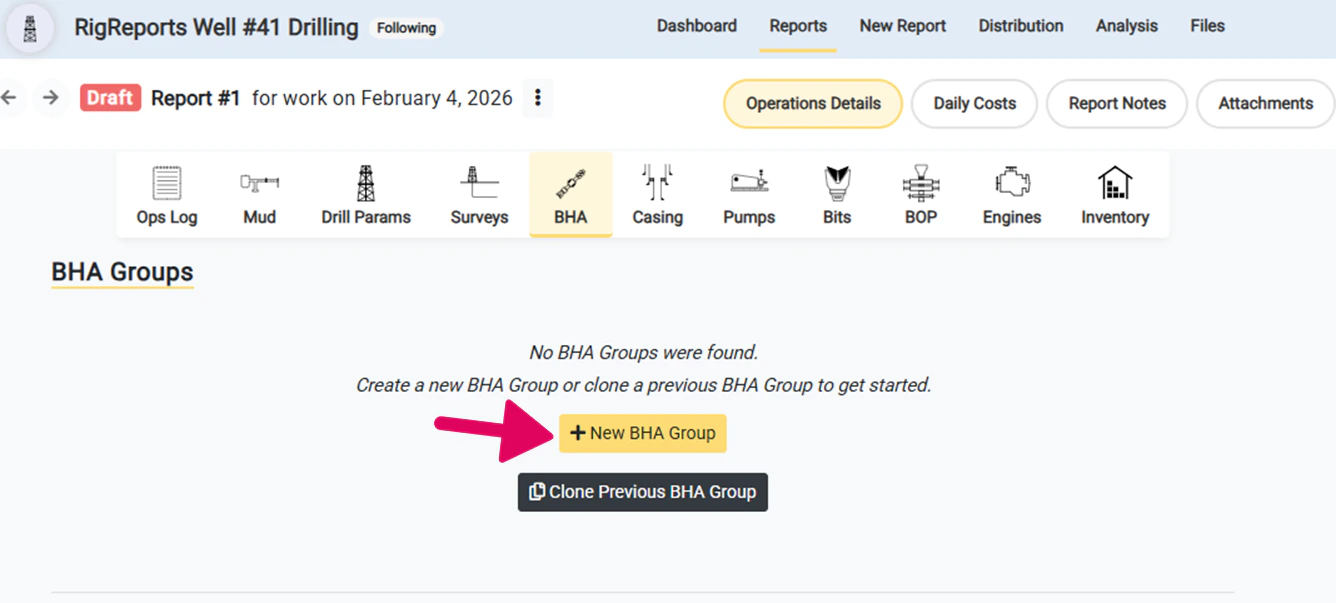
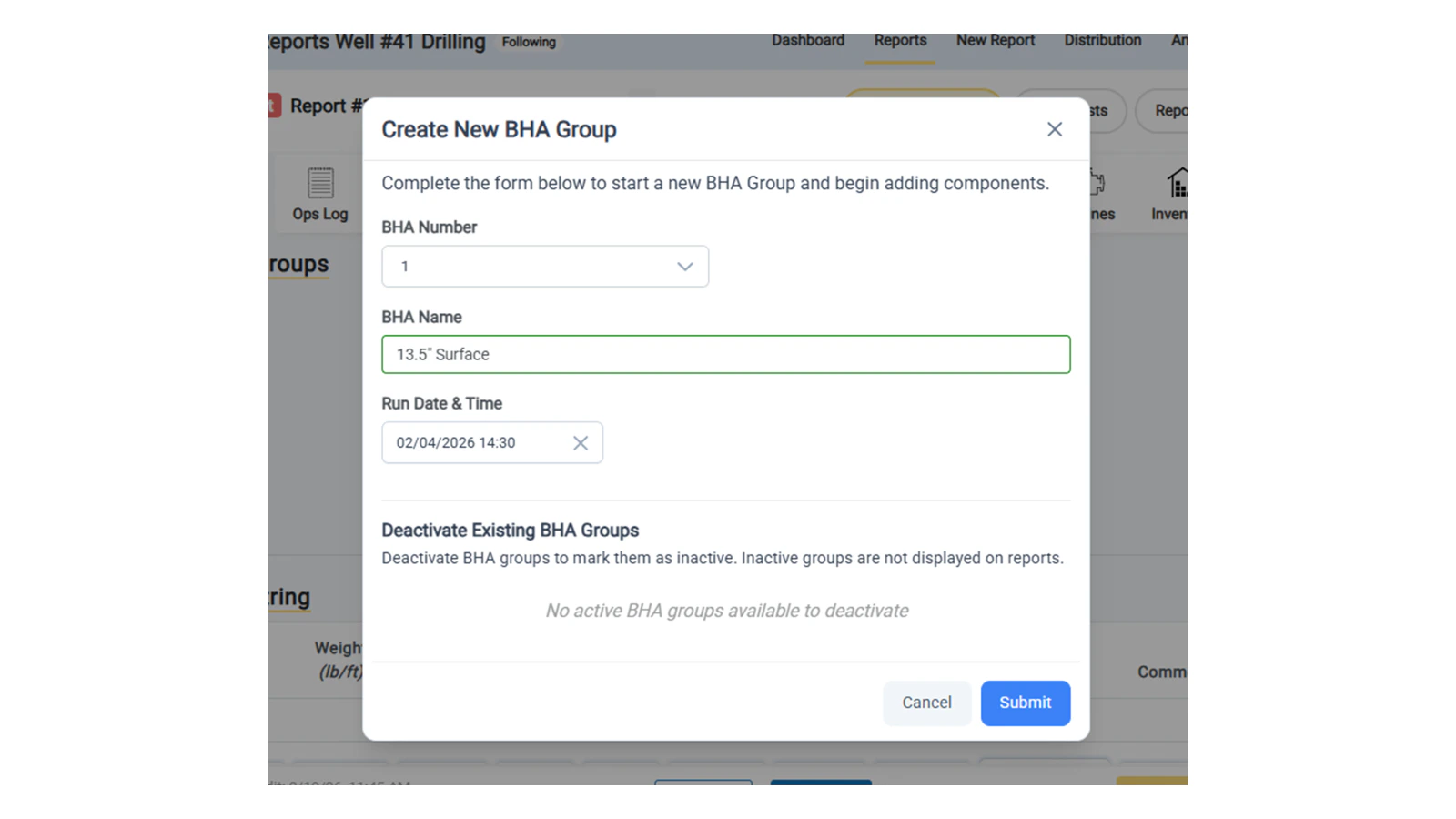
Complete the New BHA Group form
To create a new BHA group, complete the form with the optional details of the BHA group including:- BHA Group Number
- BHA Name — This can include the bit size and casing string or any other identifying details that you would like to include
- Run Date and Time — The run date and time defaults to the date of work and 12:00
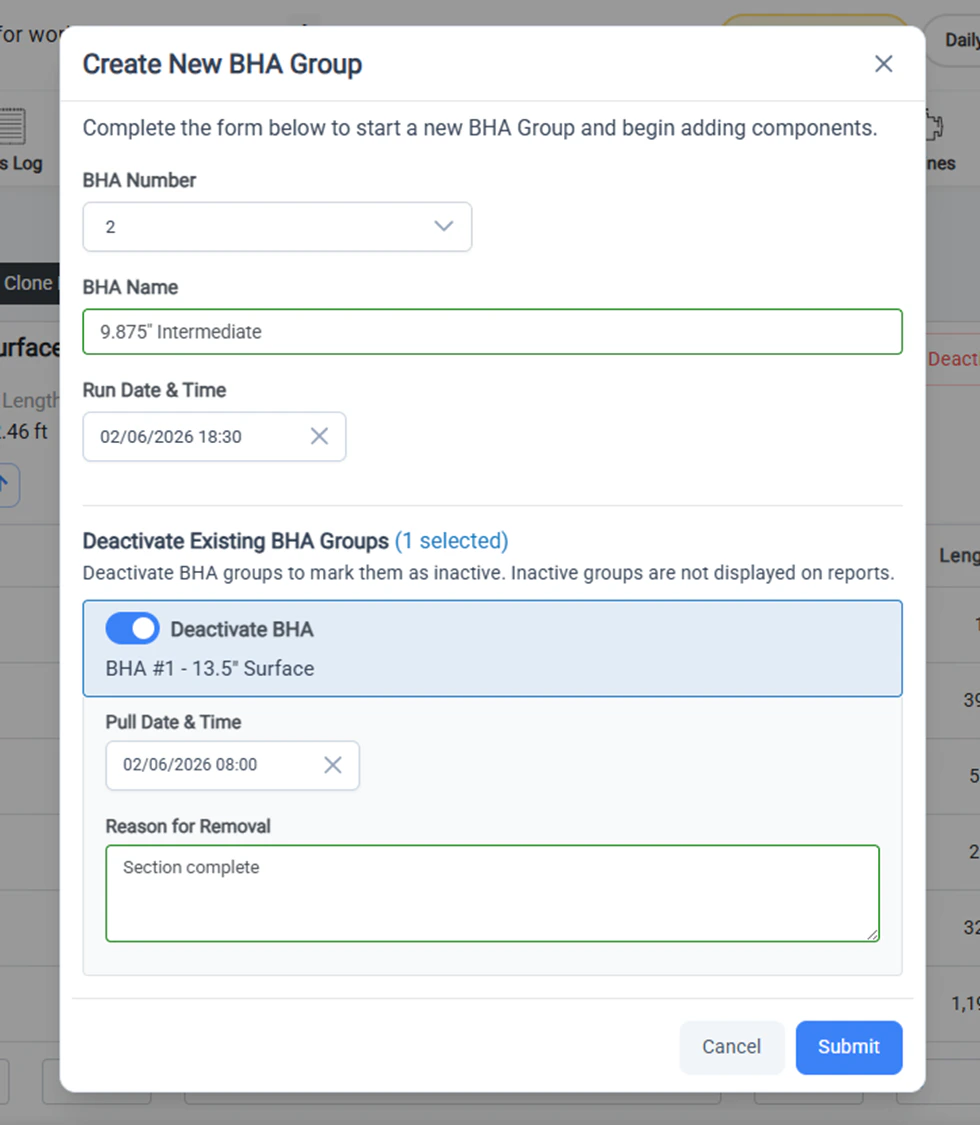
Choose to Deactivate Any Existing BHAs
Before submitting the new BHA group, you can decide whether or not to deactivate any existing BHA groups.Deactivating a BHA Group marks them as inactive. Inactive groups are not displayed on the reports.
- If you would like to deactivate the existing group, you can record the Pull Datetime and the Reason For Removal (i.e. motor failure).
- If you would like to keep the existing group as active, simply turn off the toggle for the desired group.
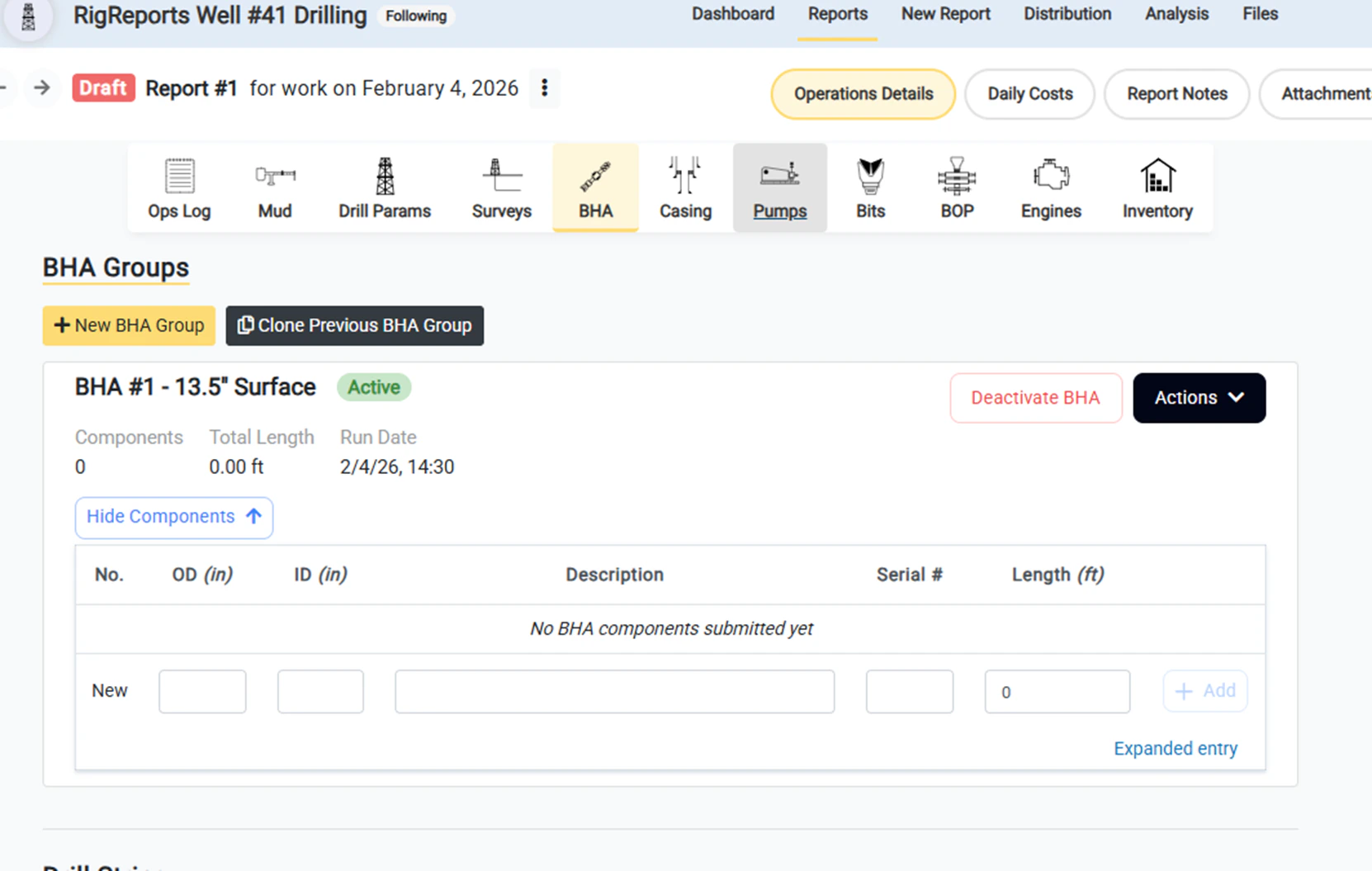
Add the components for the new BHA group
Your new BHA group is now displayed at the top of the page and available to enter the components of the BHA group. The Active tag indicates that this group is now active and will be displayed on this report. This BHA group will remain Active and displayed on reports until it is deactivated. Enter each component individually. You can record the following details for each component:- OD
- ID
- Description
- Serial Number
- Length