
Release Notes - [10/14/2024]
🚀 New Features- End of Job Report
- Flowback Jobs
- Direction Survey Import Partial Success/Failure
- A bug was fixed related to updating the total AFE value on the AFE Details after modifying the line-item details for an AFE phase budget.
- The mobile report submit controls were updated to improve the user experience on a mobile device and provide more screen space for report editing.
End of Job Report
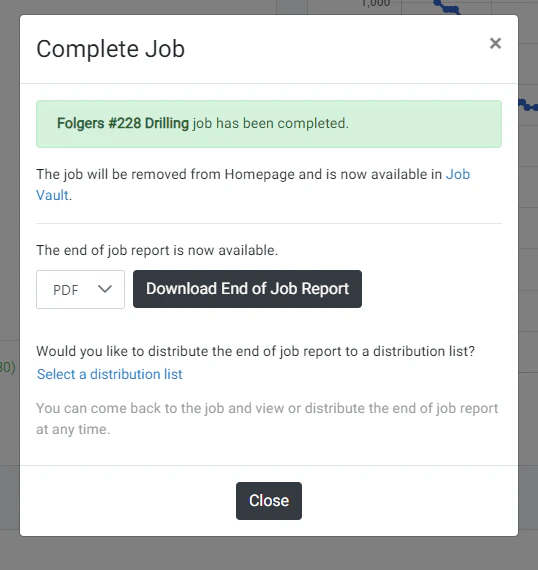
- End of Job reports are now available for all job types.
- Once a job is marked as complete, you will have access to the End of Job report containing a summary and analysis of all the data that was created for the job.
- The End of Job (EOJ) report can be downloaded in PDF or XLS format.
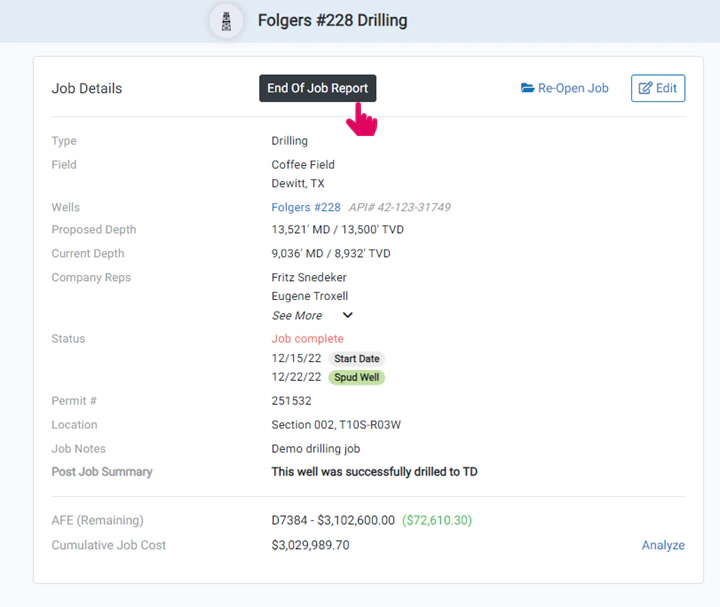
- The EOJ report can be accessed or distributed at any time by returning to the job Dashboard page.
All of your job data in one document
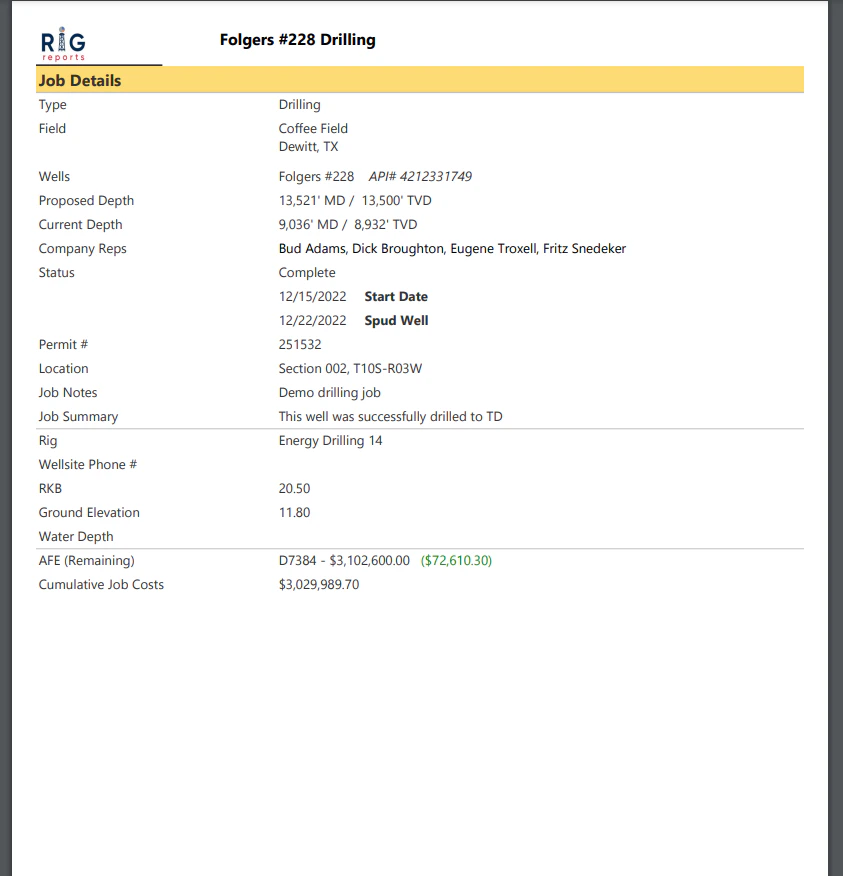
- Costs by account
- Costs by vendor
- Full hourly log tally
- Days vs Depth chart (for drilling jobs)
- NPT Breakdown
- Casings
- Bit Records
- Tubing Record
- HSE Summary
- And much more
End of Job Report Distribution
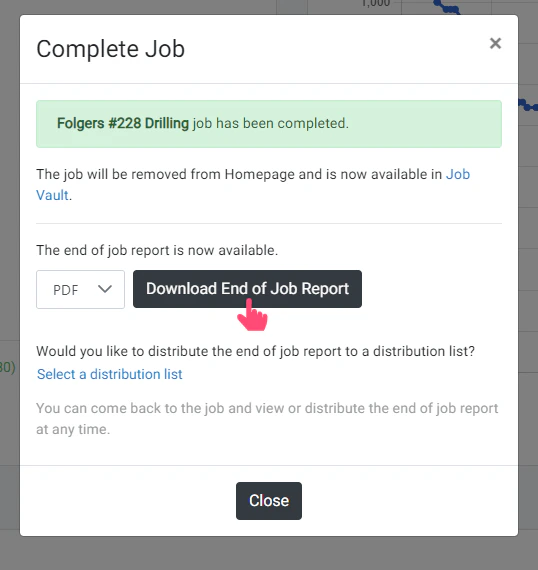
- The EOJ report can also be easily distributed to any of your existing distribution lists. After completing the job, you will have the option to download or distribute the report.
- You can download it first to review it and then click the Select A Distribution List link to distribute the report.
Distribute Report
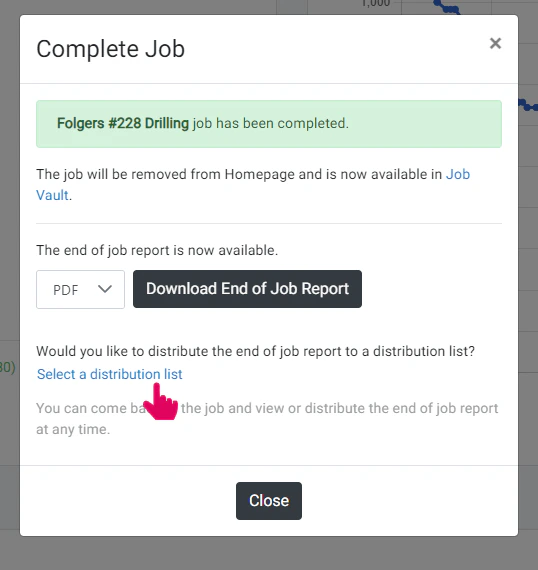
- The EOJ report can also be easily distributed to any of your existing distribution lists. After completing the job, click the Select A Distribution List link to distribute the report.
- From the next page, select from one of your existing job distribution lists and the format (PDF or XLS) that you would like the report to be distributed in.
- Then click Distribute Report to immediately send the report to your contacts.You can then choose another list to distribute the report to or come back at a later date/time to distribute the EOJ report.
- Simply click the End of Job Report button at the top of the Dashboard page of the job to distribute the report at a later date.
Available for previously completed jobs
Flowback Jobs
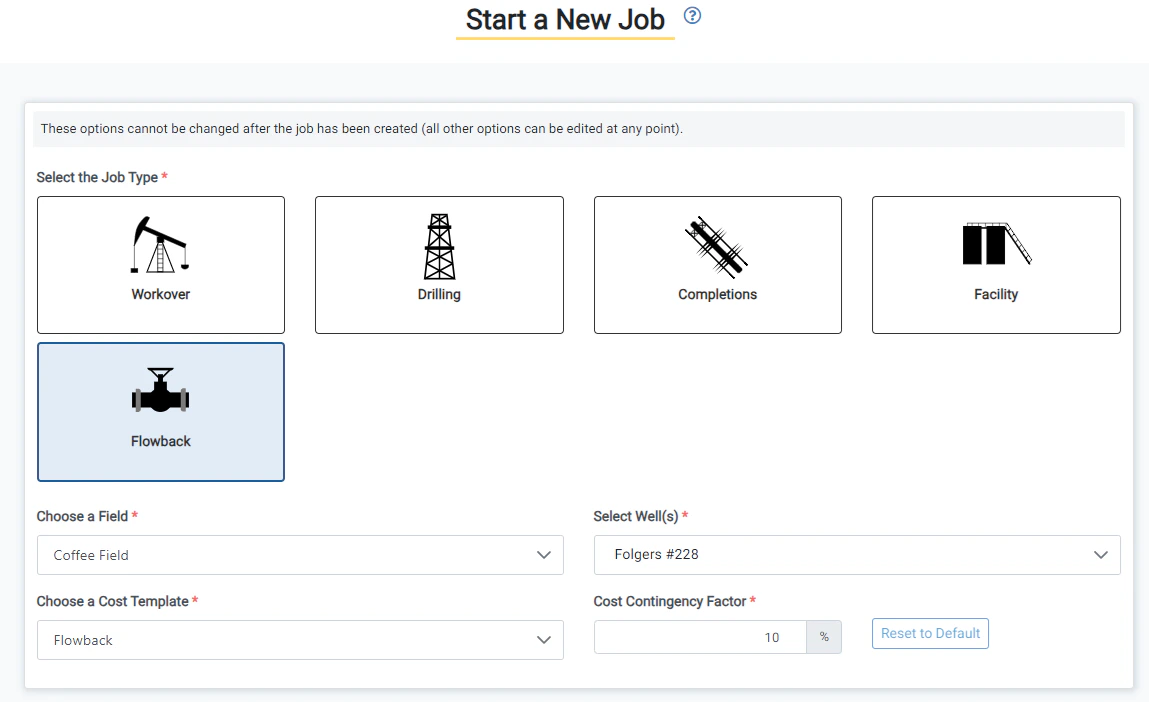
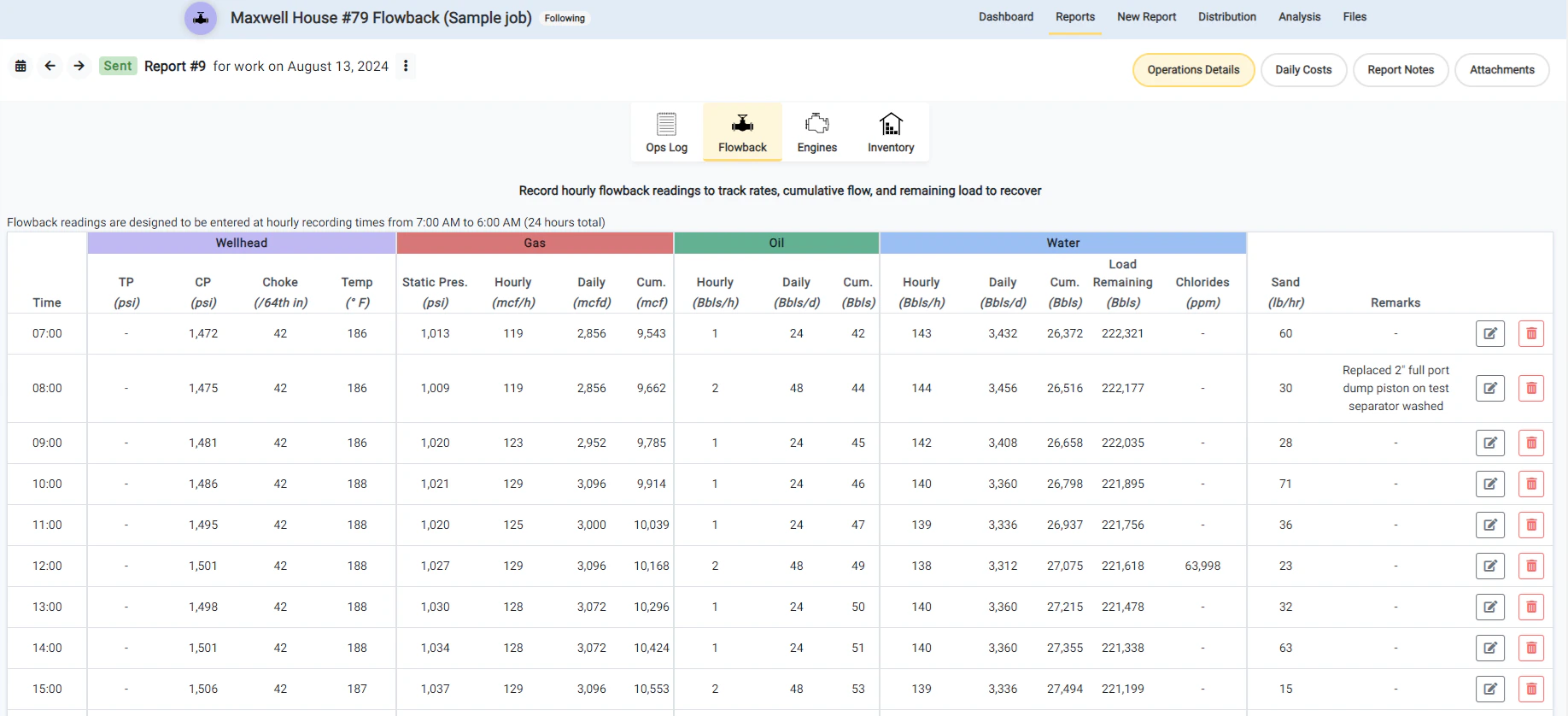
- Flowback job types are now available. Create reports and manage your flowback work.
- When creating a Flowback job, you can enter the initial load of fluid to recover. This will allow you to track the load remaining to recover as fluid is flowed back from the well.
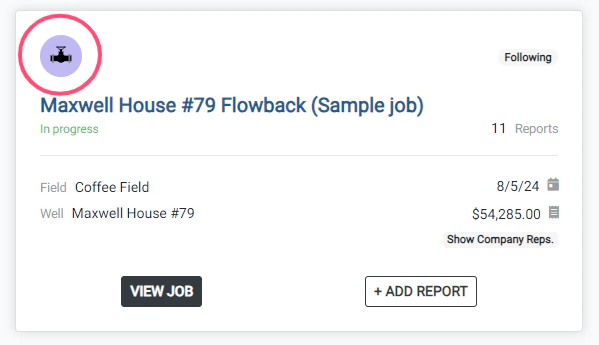
- Flowback jobs will be identified on the homepage with the purple flowline icon
- Currently, flowback jobs have the Ops Log, Flowback, Engine, and Inventory components available.
Direction Survey Import Partial Success/Failure
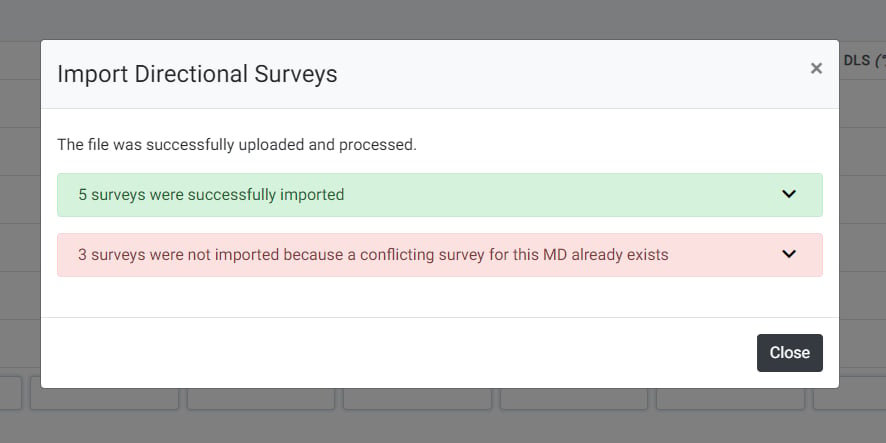
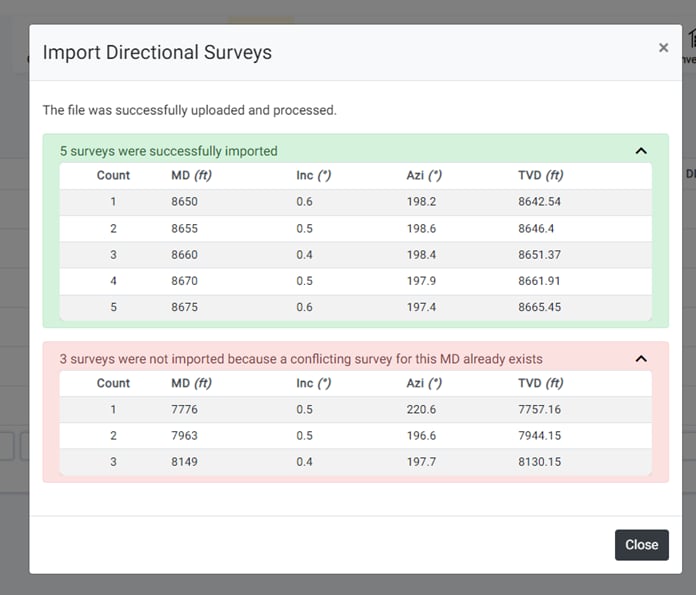
- The directional survey import functionality has been updated to allow for partial success and failures.
- If a user attempts to import multiple surveys from a template file, only the surveys that conflict with an existing survey will fail. The surveys that have no conflicts will succeed.
- After importing a batch of surveys where one (or more) of the surveys fail and have a conflict, the user is shown a list of the surveys that succeeded and which surveys failed. The user can then pinpoint if the surveys that failed need to be modified or can simply be skipped because they were already recorded.
- Prior to this release, if one (or more) surveys conflicting with an existing survey, all surveys attempting to be imported would fail.Select the entry component data you would like to view. Then click the “Export Data” button