
Submit an AFE for Approval
Open the AFE and finish its budget. When it’s ready for review, click Submit for approval in the top right.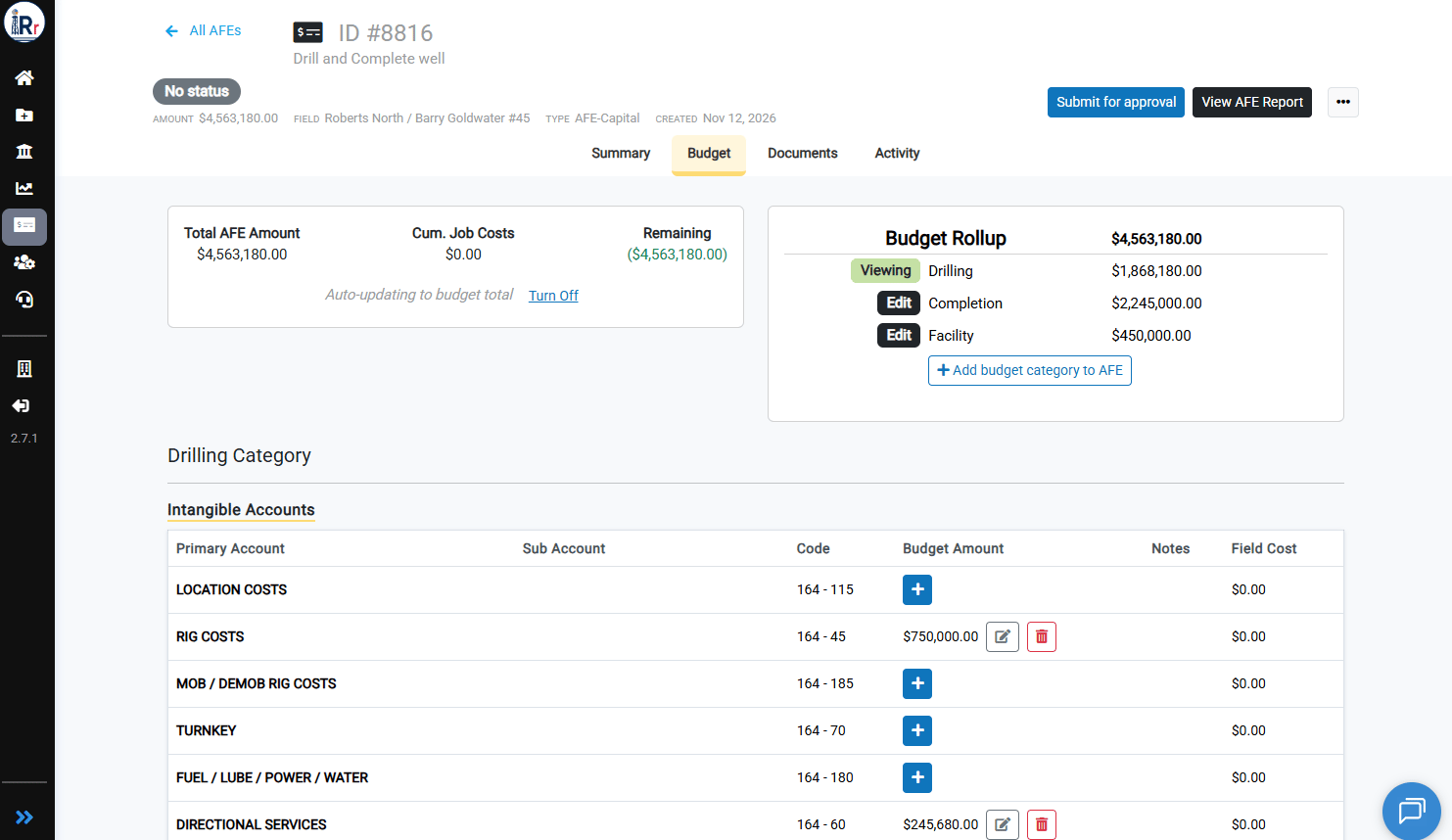
Choose the Workflow
In the Submit for approval window, choose a Workflow. If one is set as the default for this AFE type, it is already selected. The Approval route shows every gate and approver in order, and marks the gate the AFE goes to first. You can add an optional Comment for the approvers. Click Submit.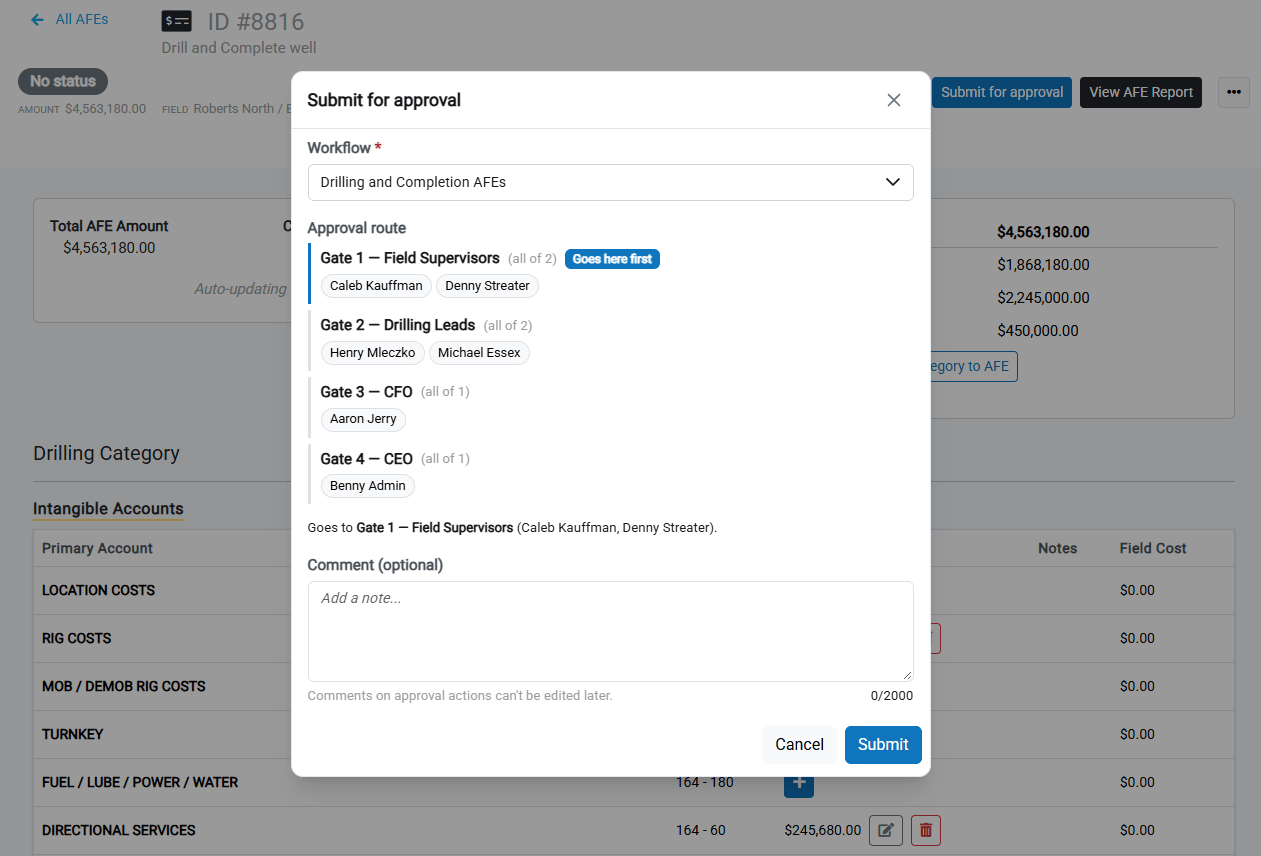
Comments added to approval actions can’t be edited later.
Track the AFE’s Progress
After you submit, the AFE status changes to Pending, and the header shows the current gate, for example In review · Gate 1 of 4 — Field Supervisors. On the Summary tab:- The Approval panel shows each gate, its rule (All or Any), and which approvers have responded.
- Latest activity lists the most recent actions. Click View all to open the full Activity tab.
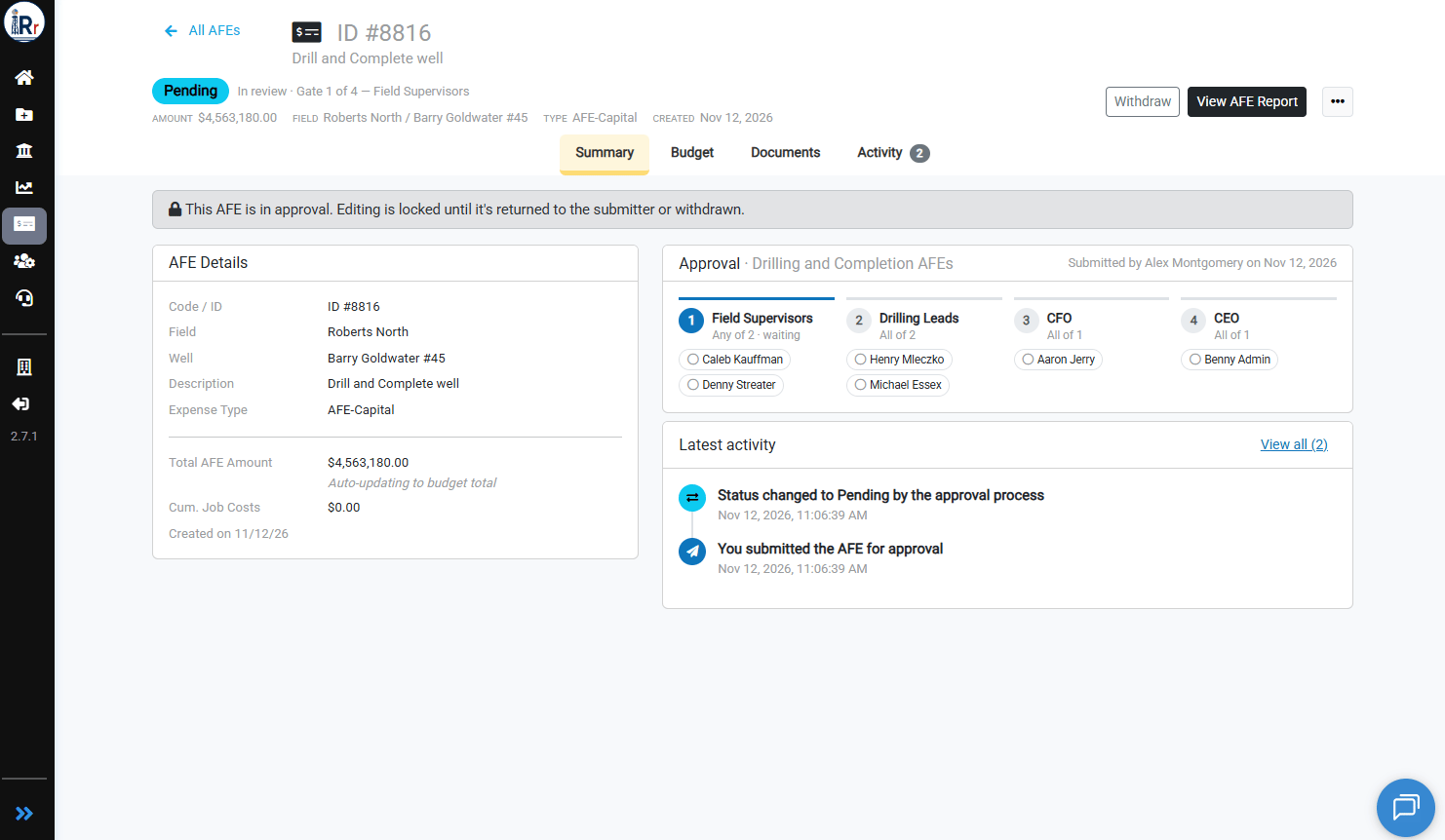
The AFE is locked while it is in approval. No one can edit it until it’s returned to the submitter, rejected, or withdrawn. To pull it back yourself, click Withdraw.
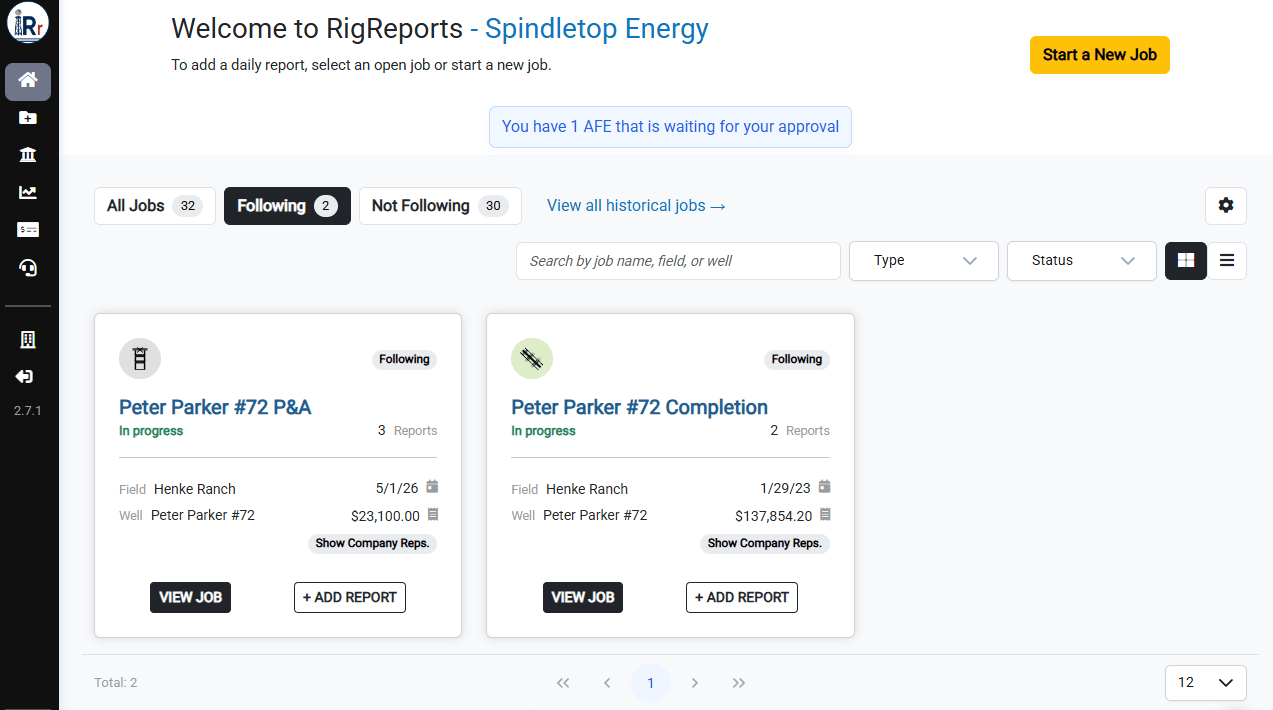
Navigate to the AFE as an Approver
When an AFE reaches your gate, you receive an AFE approval needed email. Click Review AFE to open it.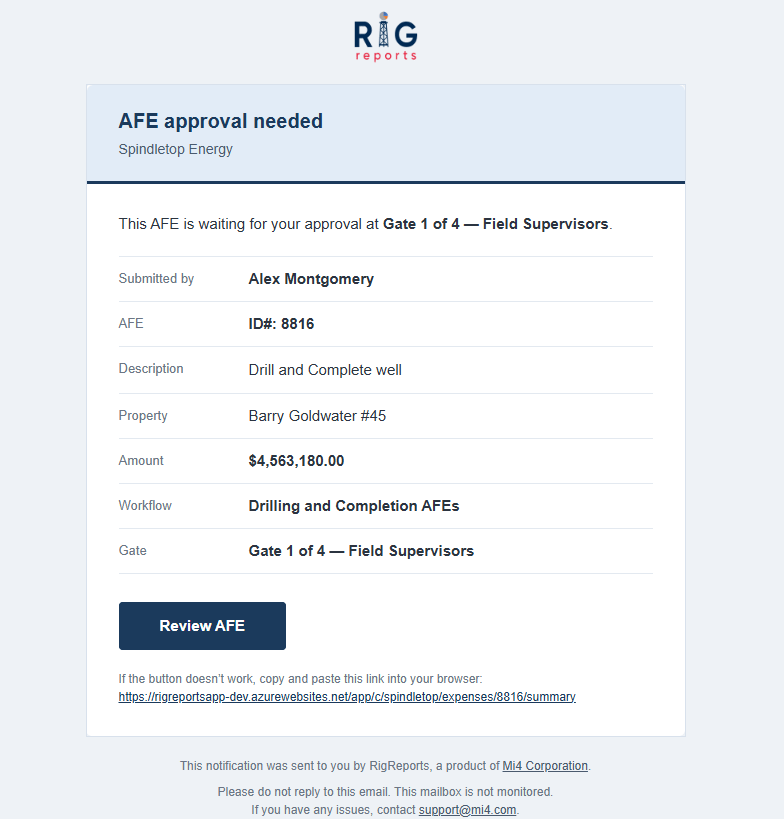
Respond to the AFE
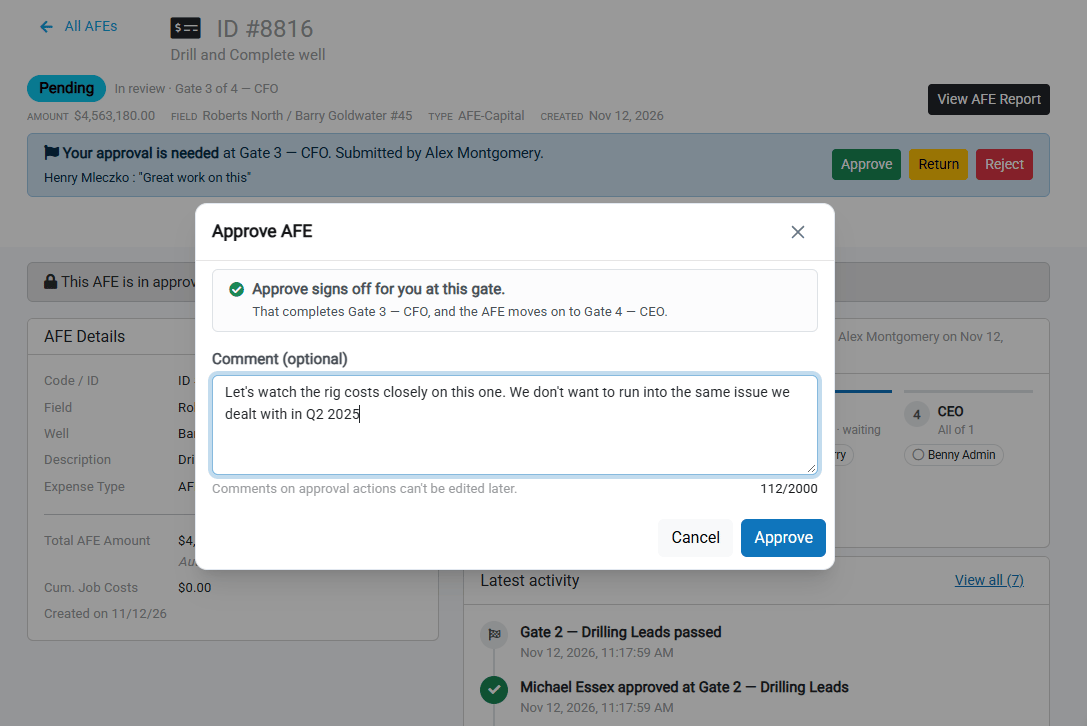
Review the AFE’s Summary, Budget, and Documents. When it’s your turn, a Your approval is needed banner appears at the top of the page with three options:- Approve: signs off for you at this gate. When the gate’s rule is met, the AFE moves on to the next gate. A comment is optional.
- Return: sends the AFE back one gate for changes. From Gate 1, it goes back to the submitter. The approval stays open. A comment is required.
- Reject: ends the approval and sends the AFE back to the submitter. If it’s revised and resubmitted, every gate reviews it again, starting at Gate 1. A comment is required.
Approve
Click Approve. The window tells you what will happen next, for example that the AFE moves on to the next gate. Add an optional comment and click Approve.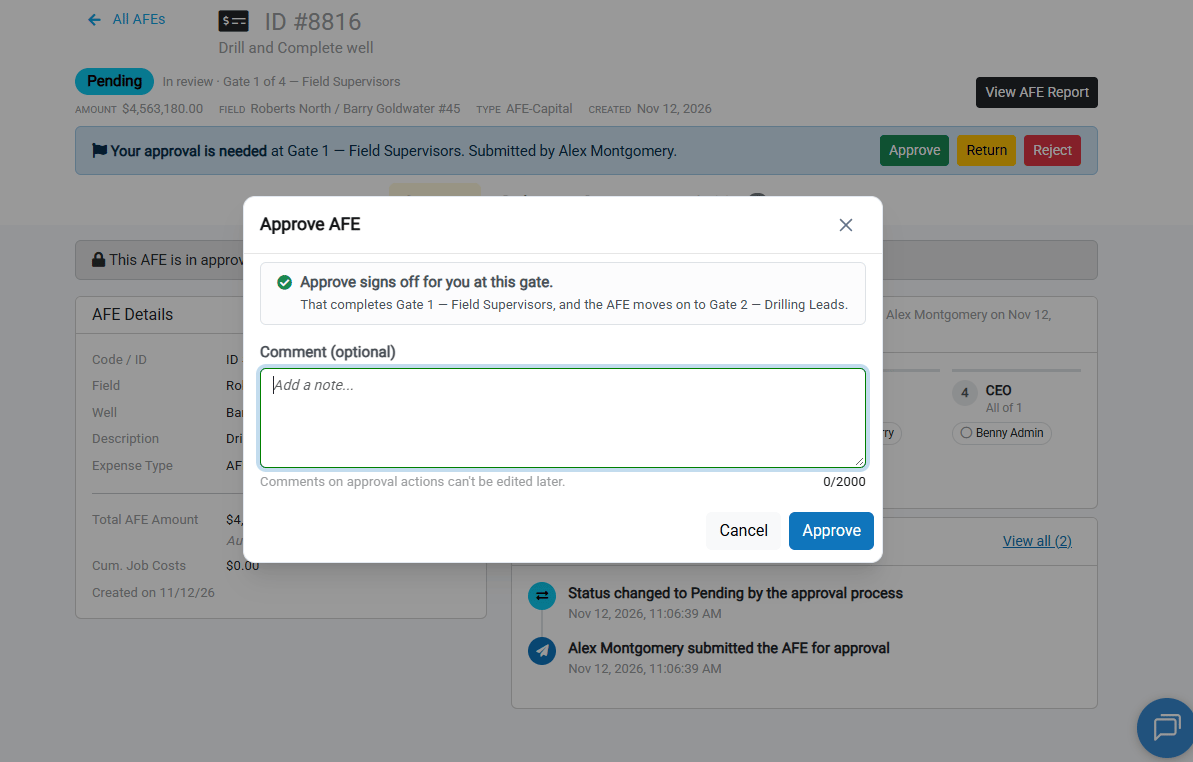
Return
Click Return, enter a comment explaining what needs to change, and click Return.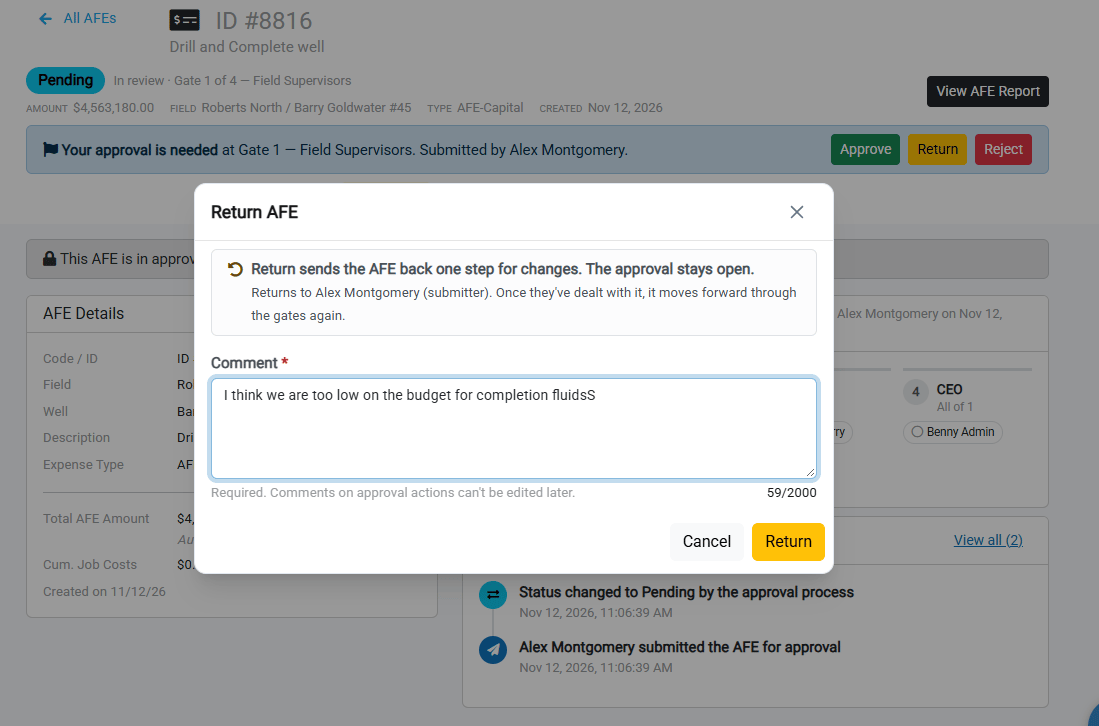
Reject
Click Reject, enter the reason, and click Reject.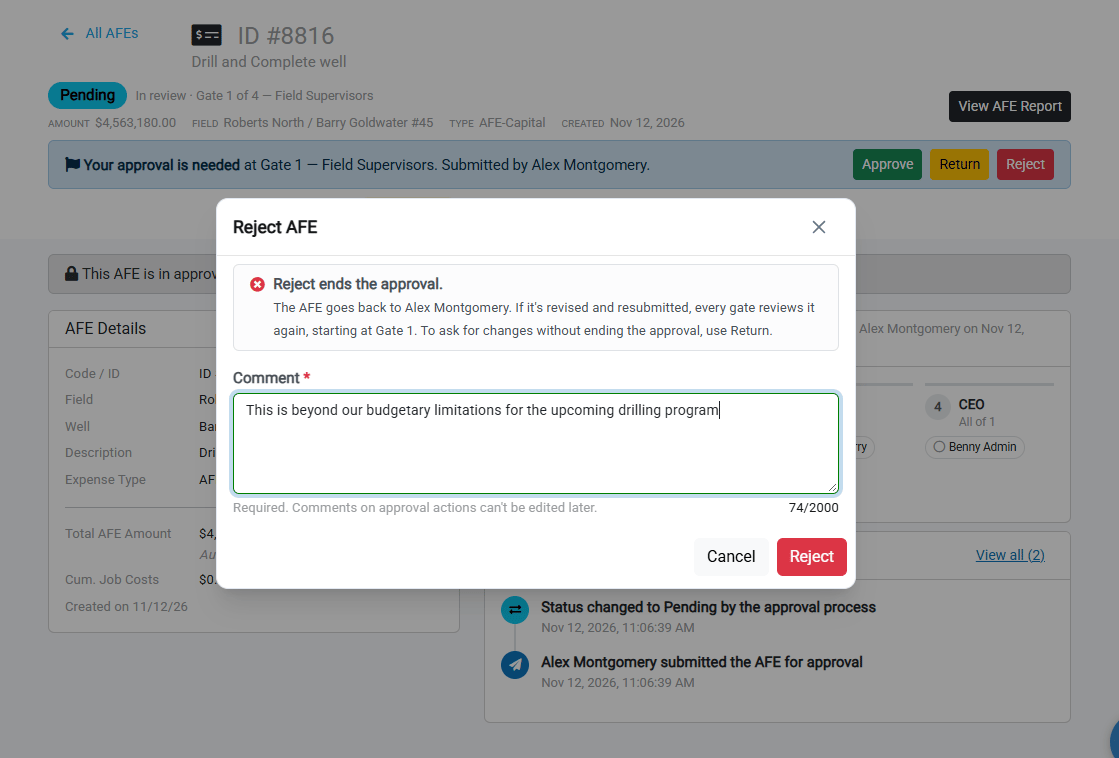
Complete the Approval
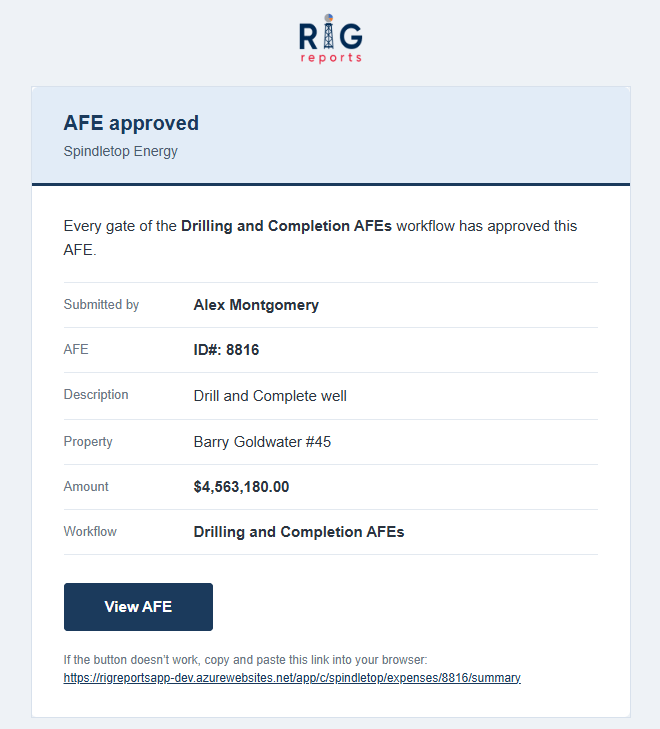
When the last gate passes, the AFE status changes to Approved. The Approval panel shows every gate as passed, with the date and the approvers.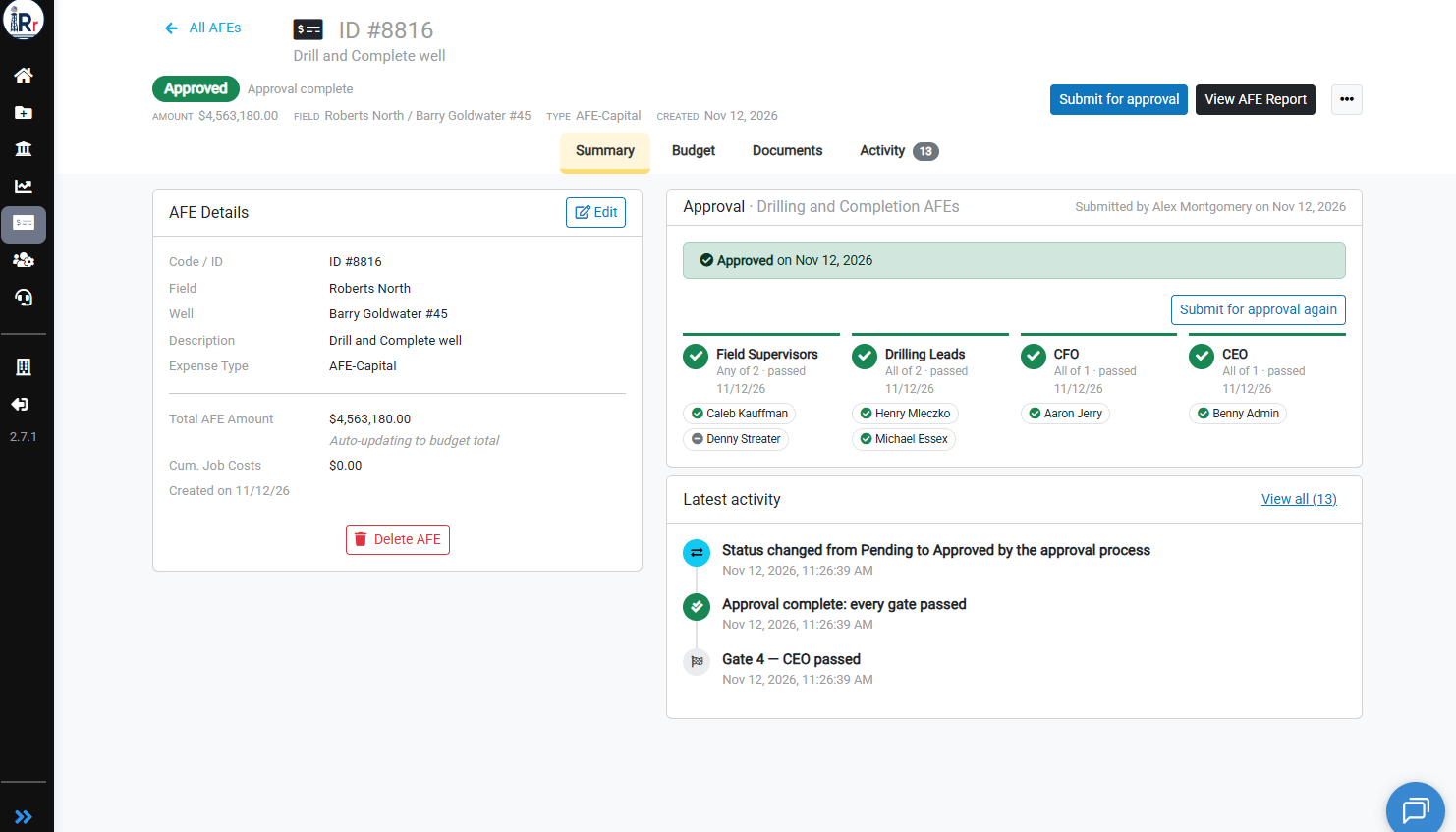
View the Approval History
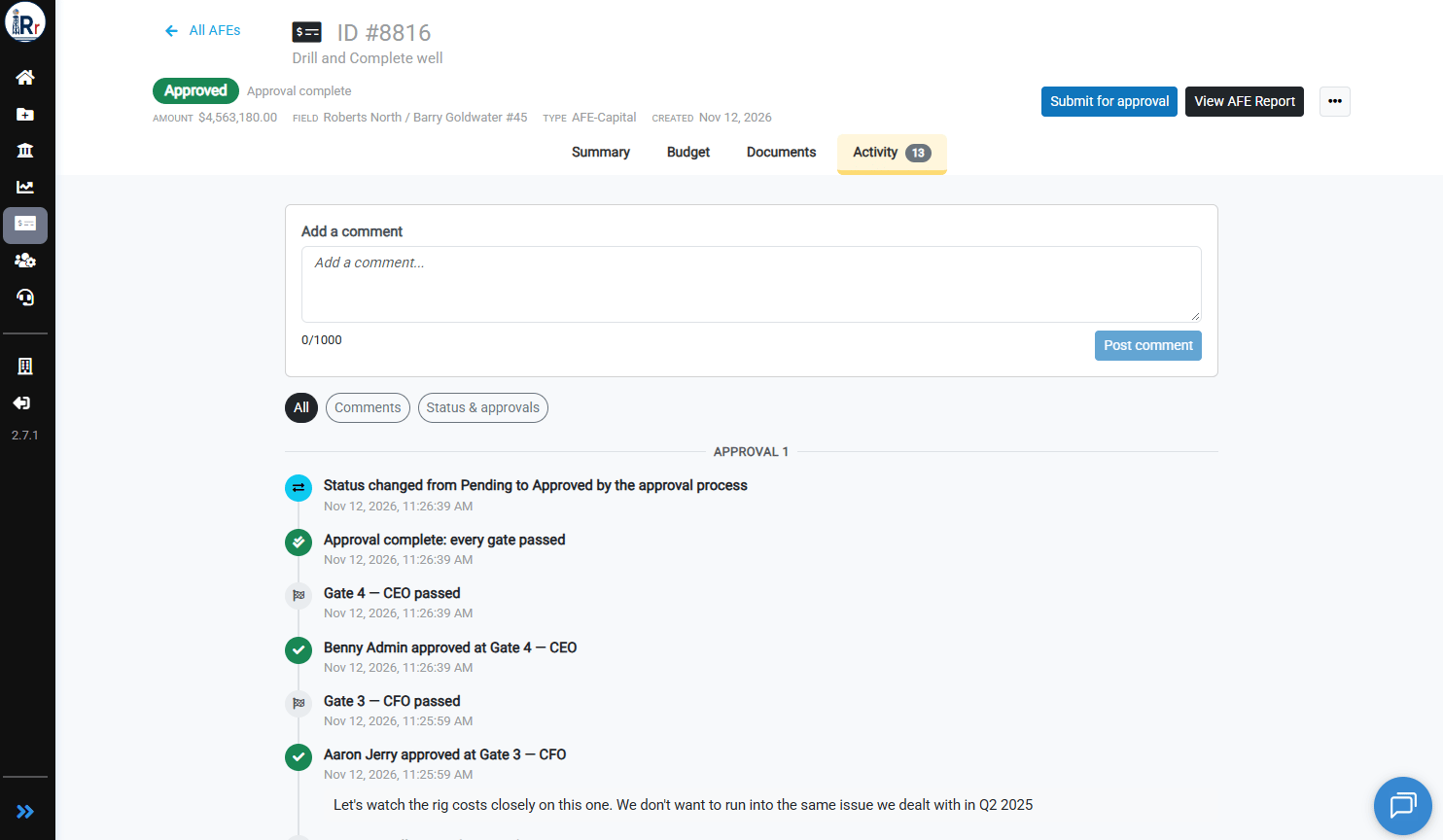
Open the Activity tab to see a timestamped record of the whole approval: the submission, each approval and its comment, each gate passing, and every status change. Use the All, Comments, and Status & approvals filters to narrow the list. You can also post a general comment on the AFE at any time.