

Assign Company Reps
The list of Company Representatives for a job controls 2 things:- Assigning USERS or 3RD PARTY accounts as company reps to a job gives them the ability to create or edit reports.
- Assigning Non-users (contacts) as company reps to a job allows names to be displayed as Job Supervisors on the report.
Assign Users / 3rd Party Accounts
Select from Users
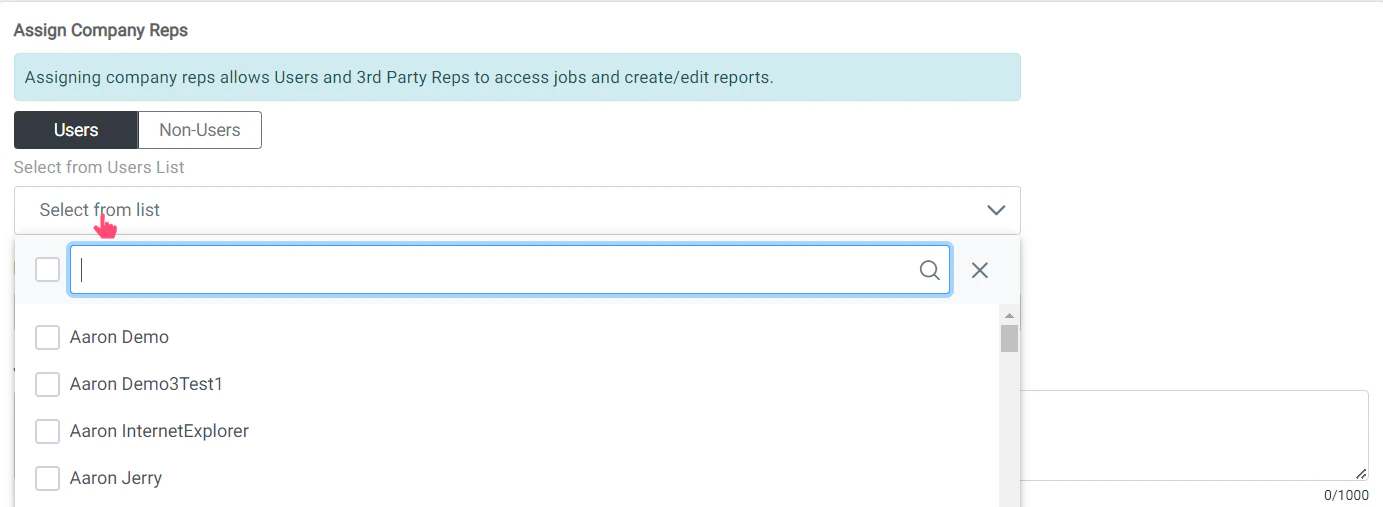
This will determine which users have access to create and edit reports for the job.
Assign Non-Users / Contacts
Select from Contacts
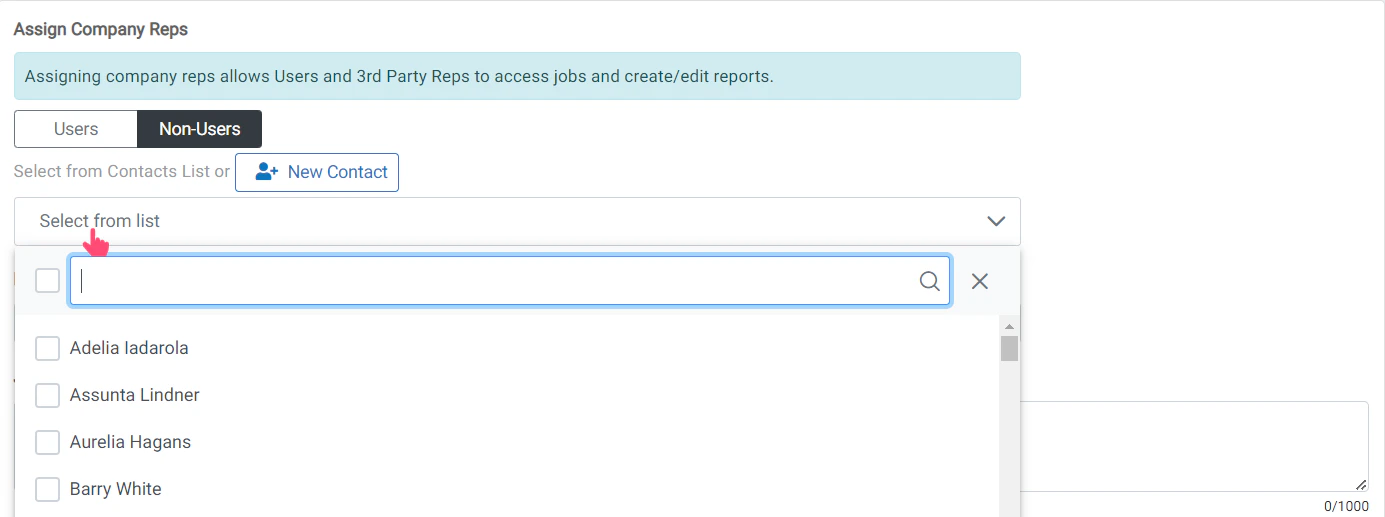
These names will be listed on the report as Supervisors on location, but do not have access to RigReports and will not be able to edit reports.This is commonly used when job supervisors are using a shared account to create reports, but still need their individual names listed on the report as supervisors.
Create New Contact
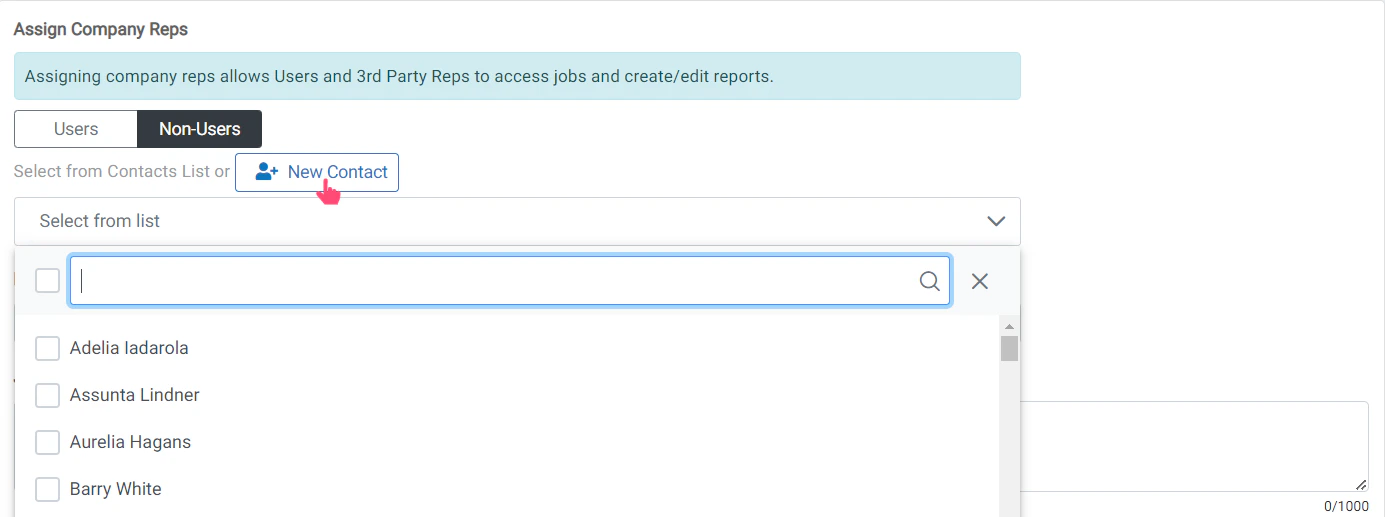
This will open a window where you can create the contact and select them as Non-Users company reps.
Submit New Contact
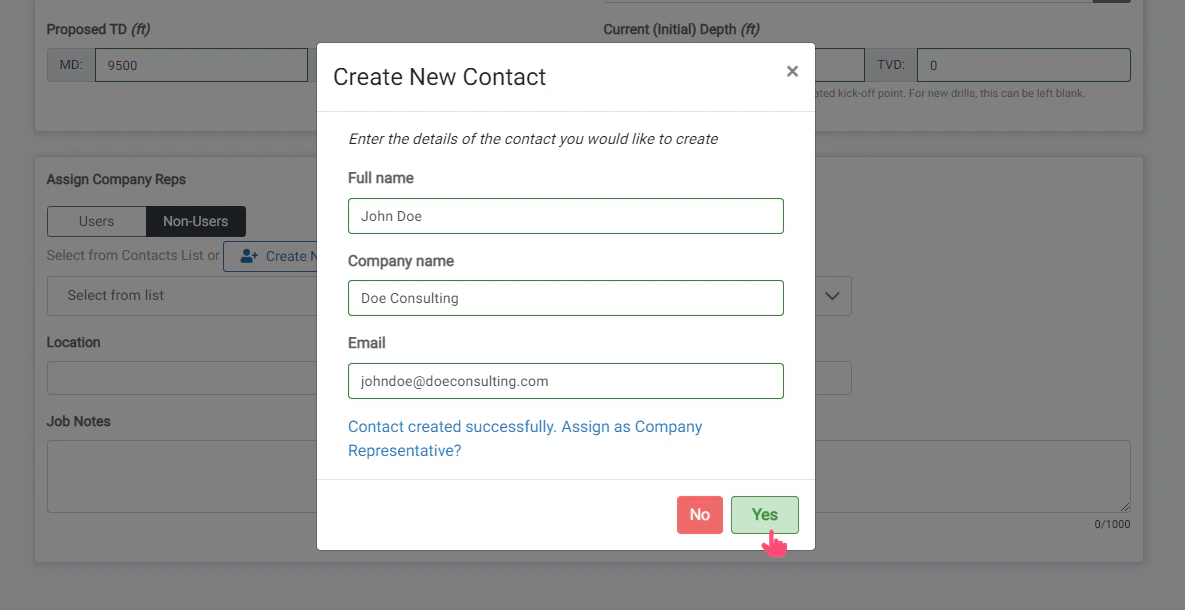
An email address is required to create a new contact. If you do not have an email address for the contact, you can use first.last@rigreports.com as a placeholder. For example, for John Doe you would enter john.doe@rigreports.com.
Select Company Reps for a Report
View the Select Current Company Reps for a Report guide.