
Release Notes - [08/19/2026]
🚀 New Features- AFE Cloning
- Report Layout Option in Report Viewer
AFE Cloning
Previously, there was no way to copy an AFE in RigReports. Users running drilling, workover, or P&A programs across multiple wells — where AFEs are often very similar from well to well — had to manually re-enter all AFE data and budget categories each time. AFE cloning solves this. You can now clone an existing AFE directly from the AFE Management page, and the clone will include all of the original AFE’s budget categories. If two AFEs are nearly identical with only minor budget differences, you can clone the first AFE and make only those small adjustments rather than rebuilding it from scratch.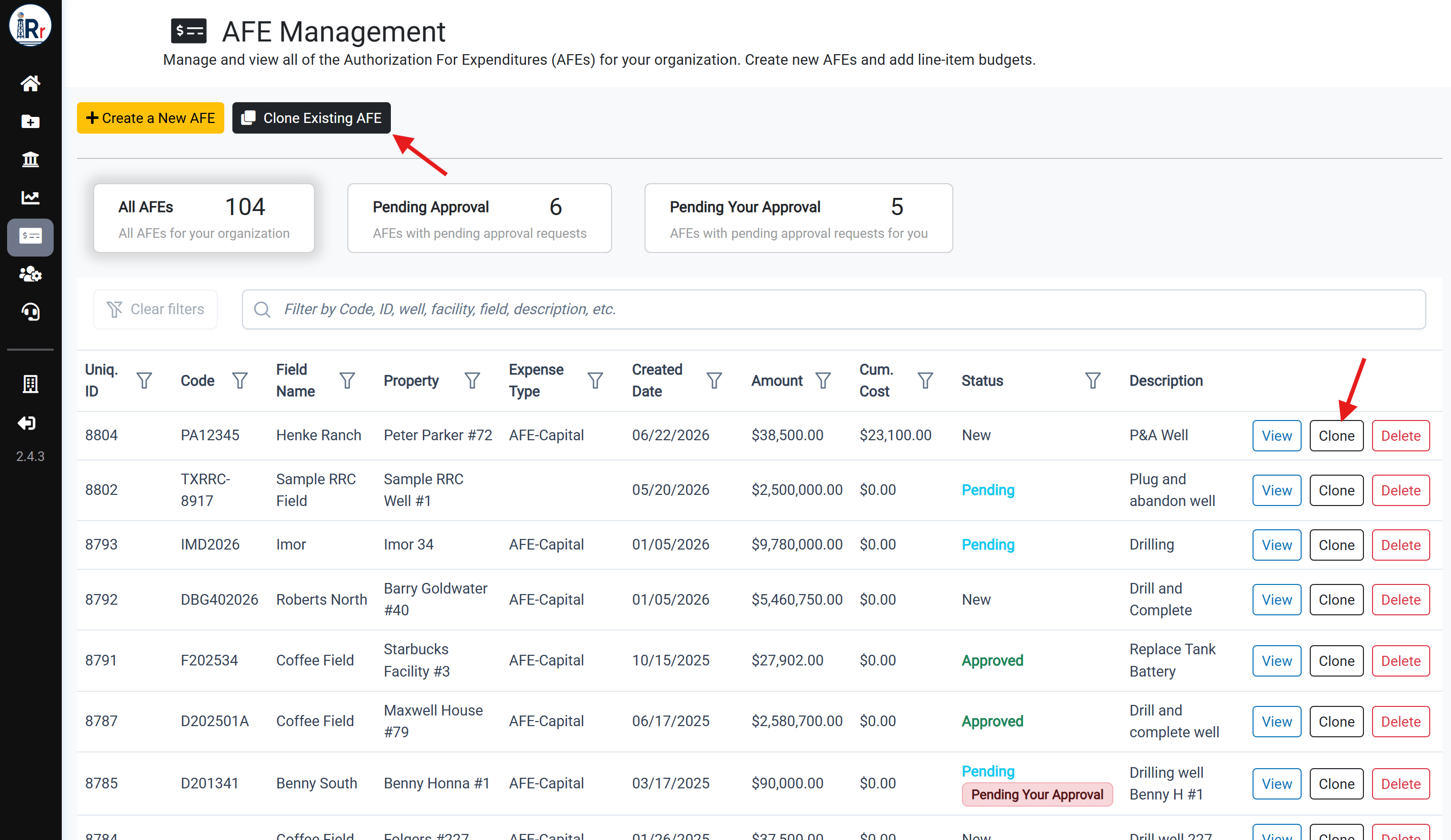
How to Clone an AFE
There are three ways to initiate an AFE clone:- Clone Existing AFE button — Click the Clone Existing AFE button at the top of the AFE Management page.
- Clone button in the AFE table — Click the Clone button in the row of the AFE you want to clone in the table.
- Clone This AFE button on an AFE page — Navigate to the AFE you want to clone and click the Clone This AFE button in the upper right corner.
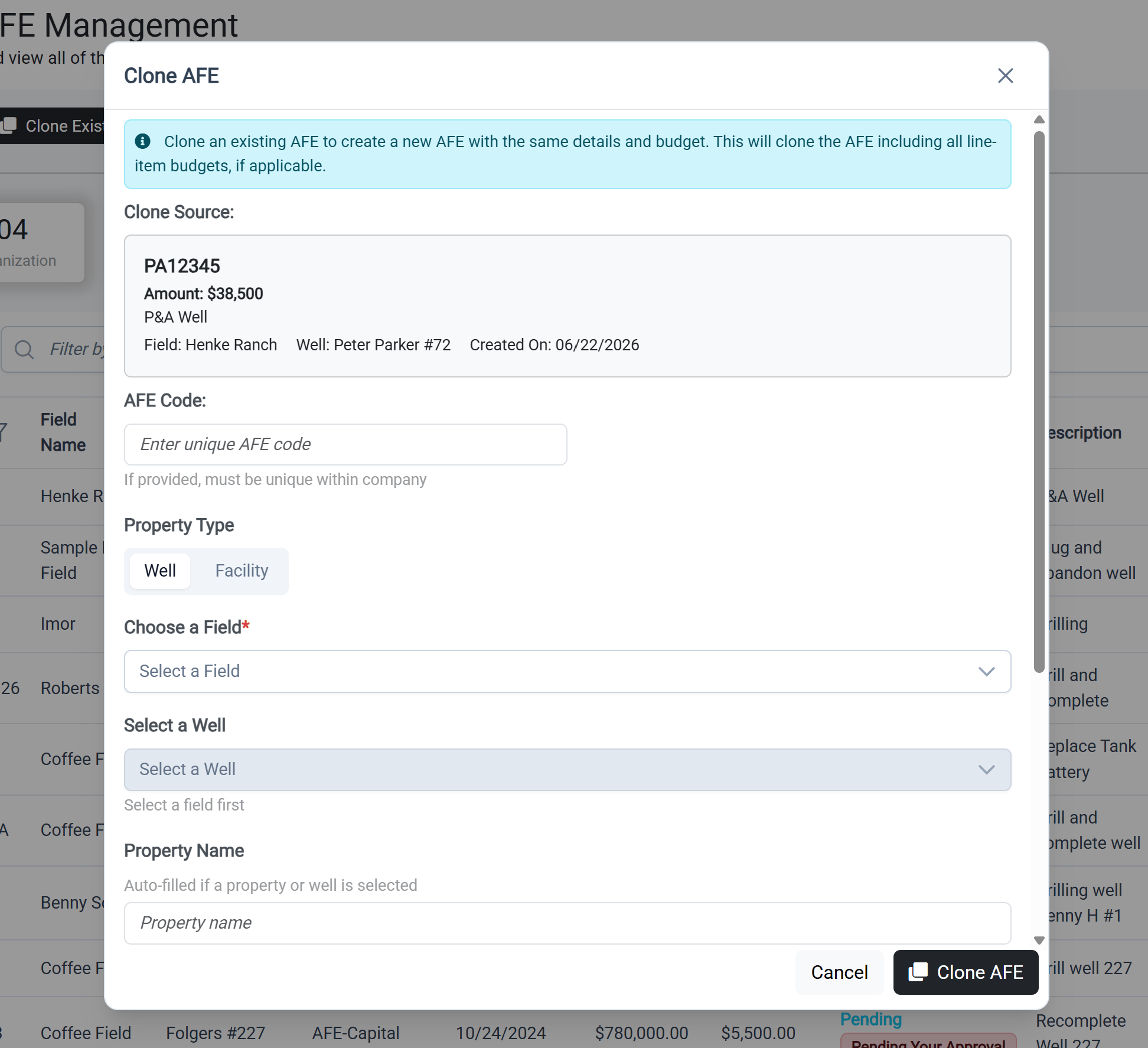
Clone AFE Form
Regardless of which method you use, a clone form will appear. If you used the Clone Existing AFE button, you will first be prompted to select the AFE you want to clone.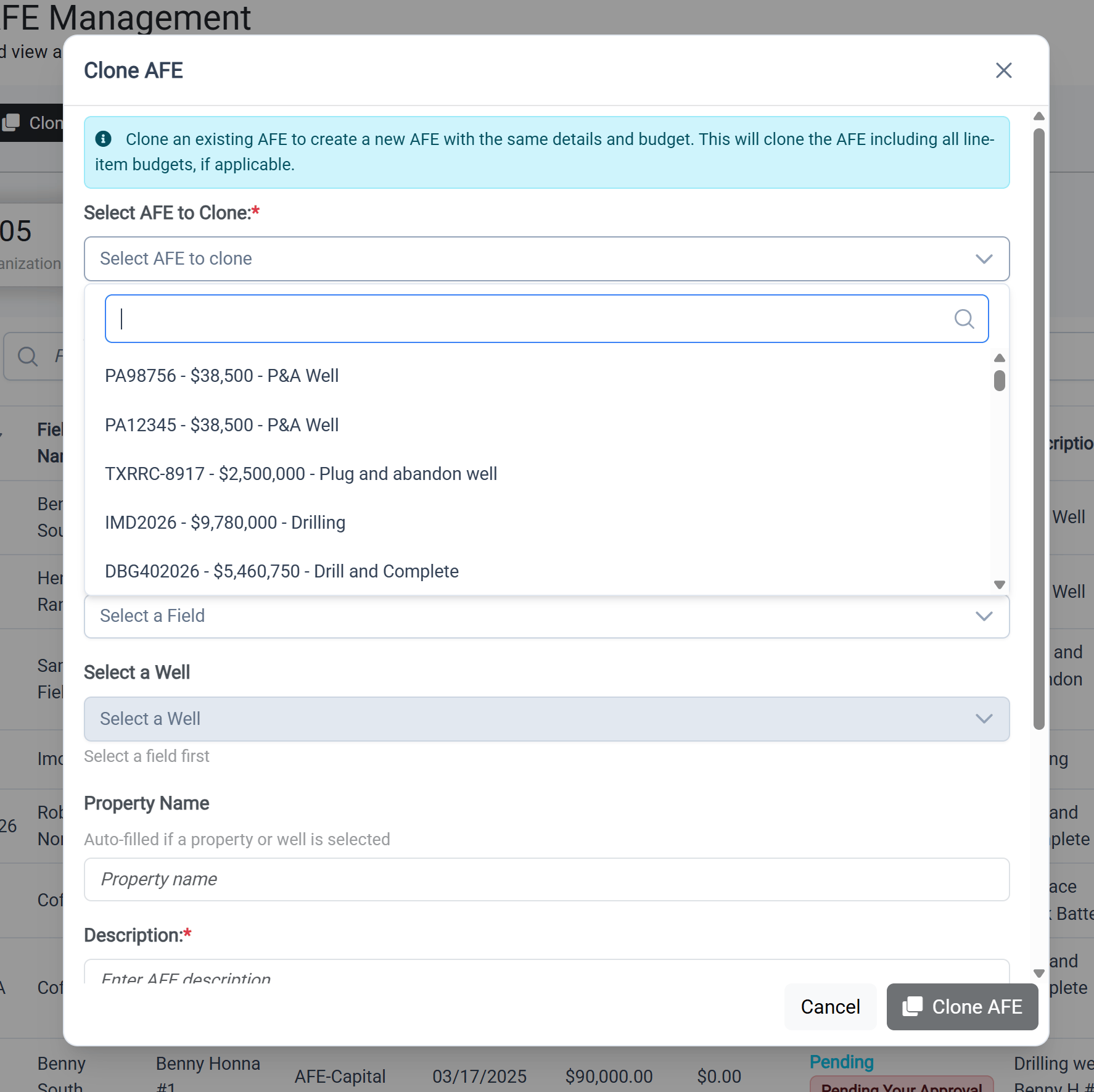
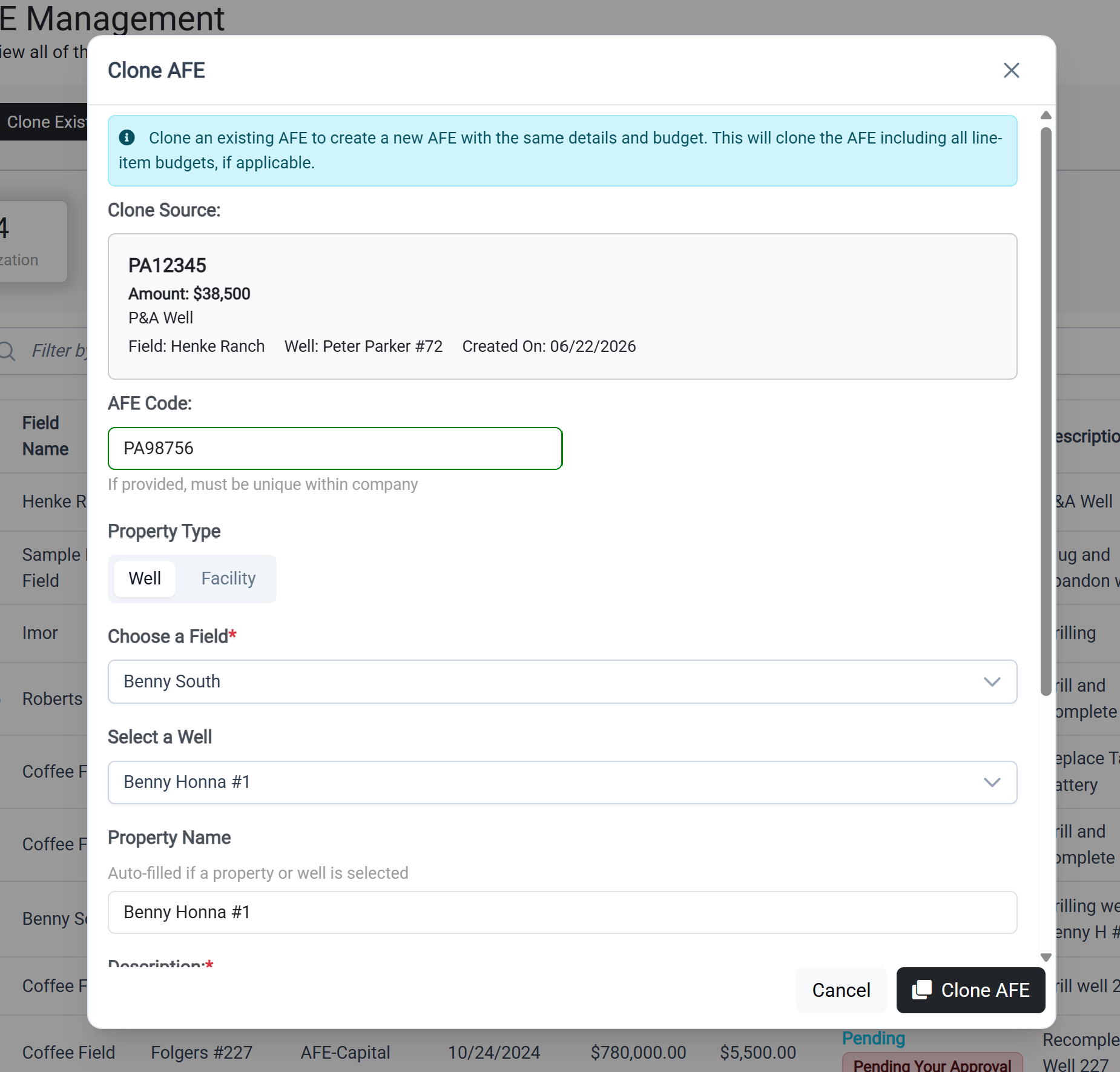
New Cloned AFE
After submitting, the new AFE is created and you are taken to the new AFE page where you can review and make any further edits.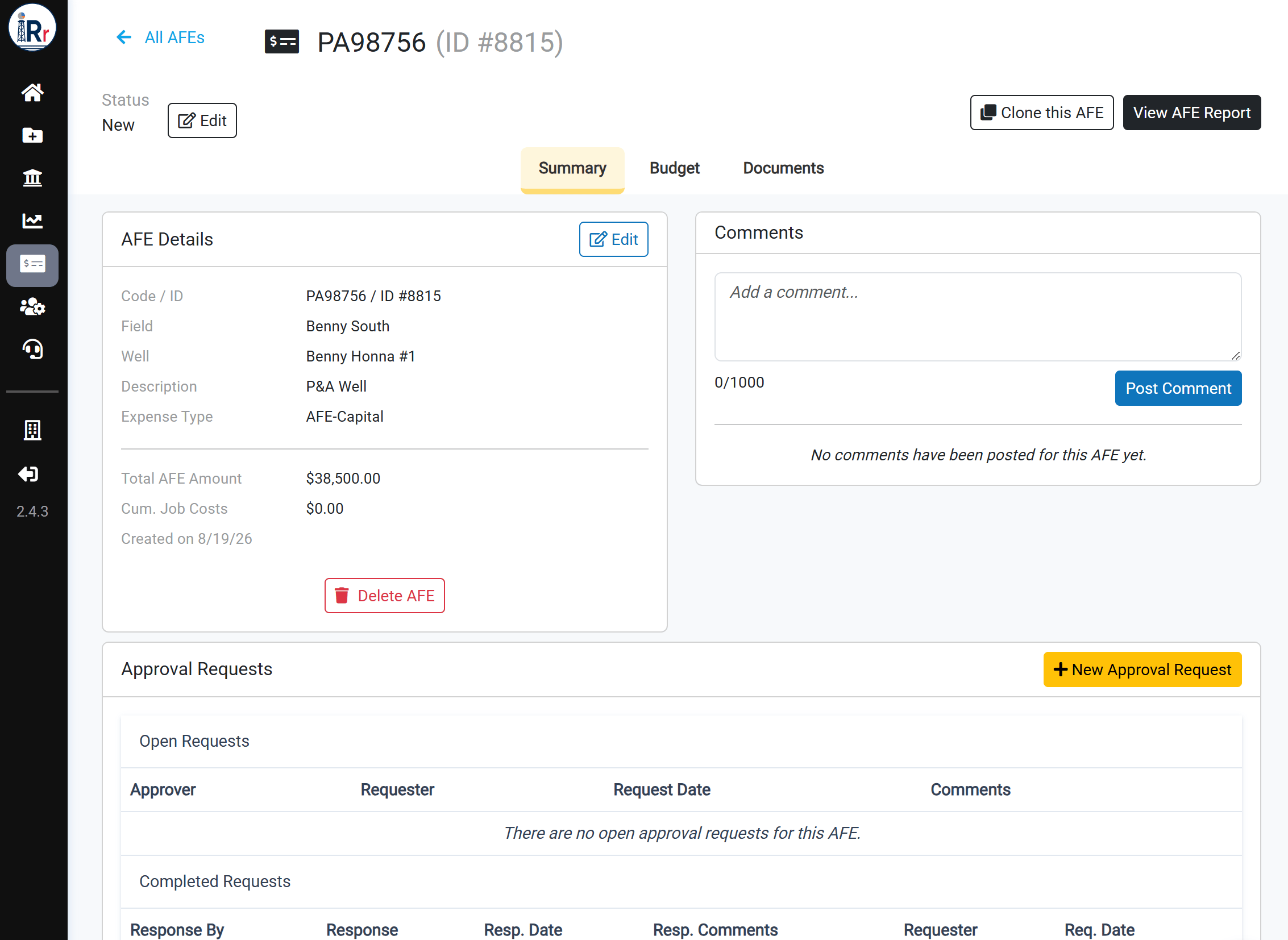
Report Layout Option in Report Viewer
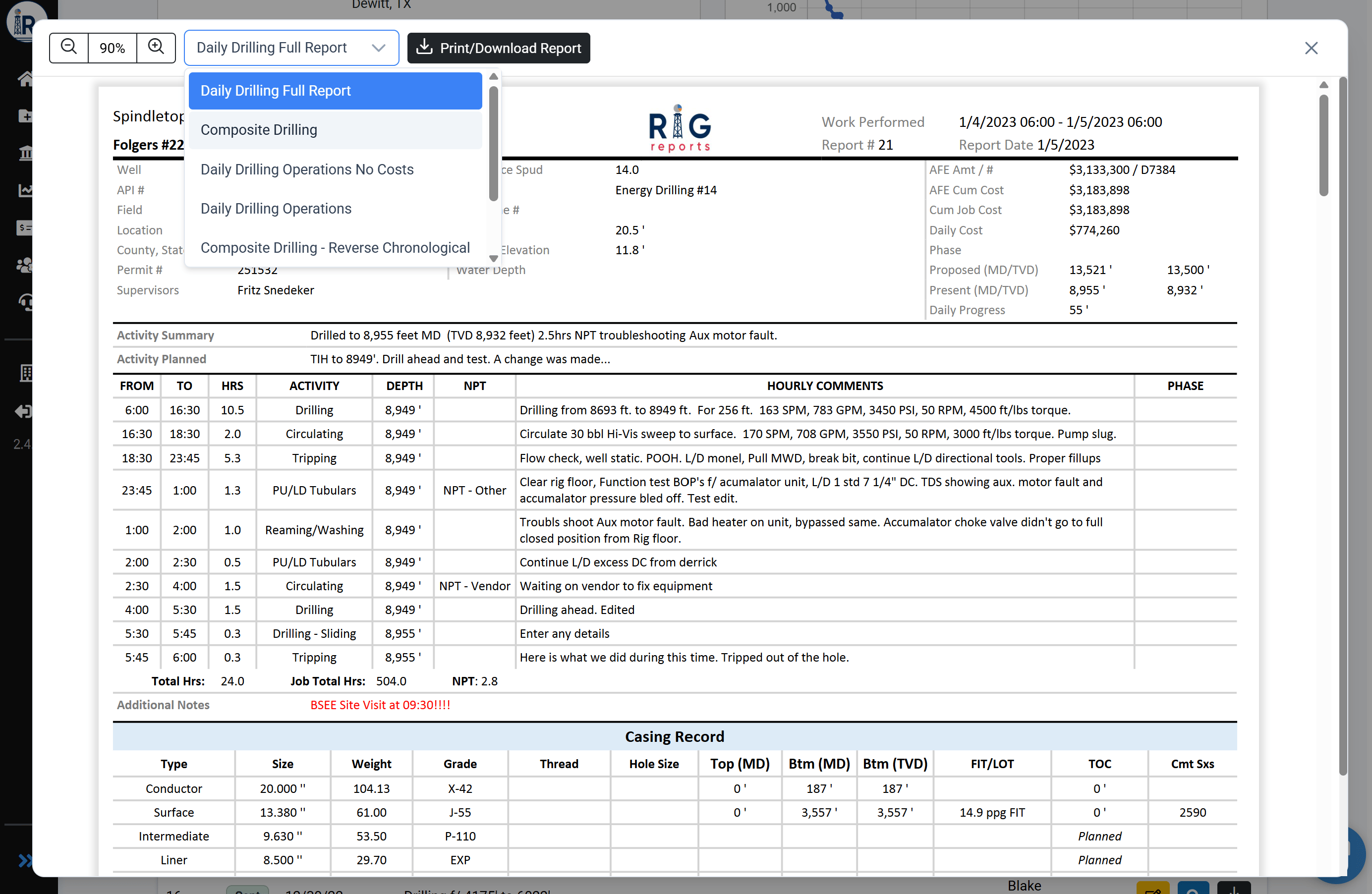
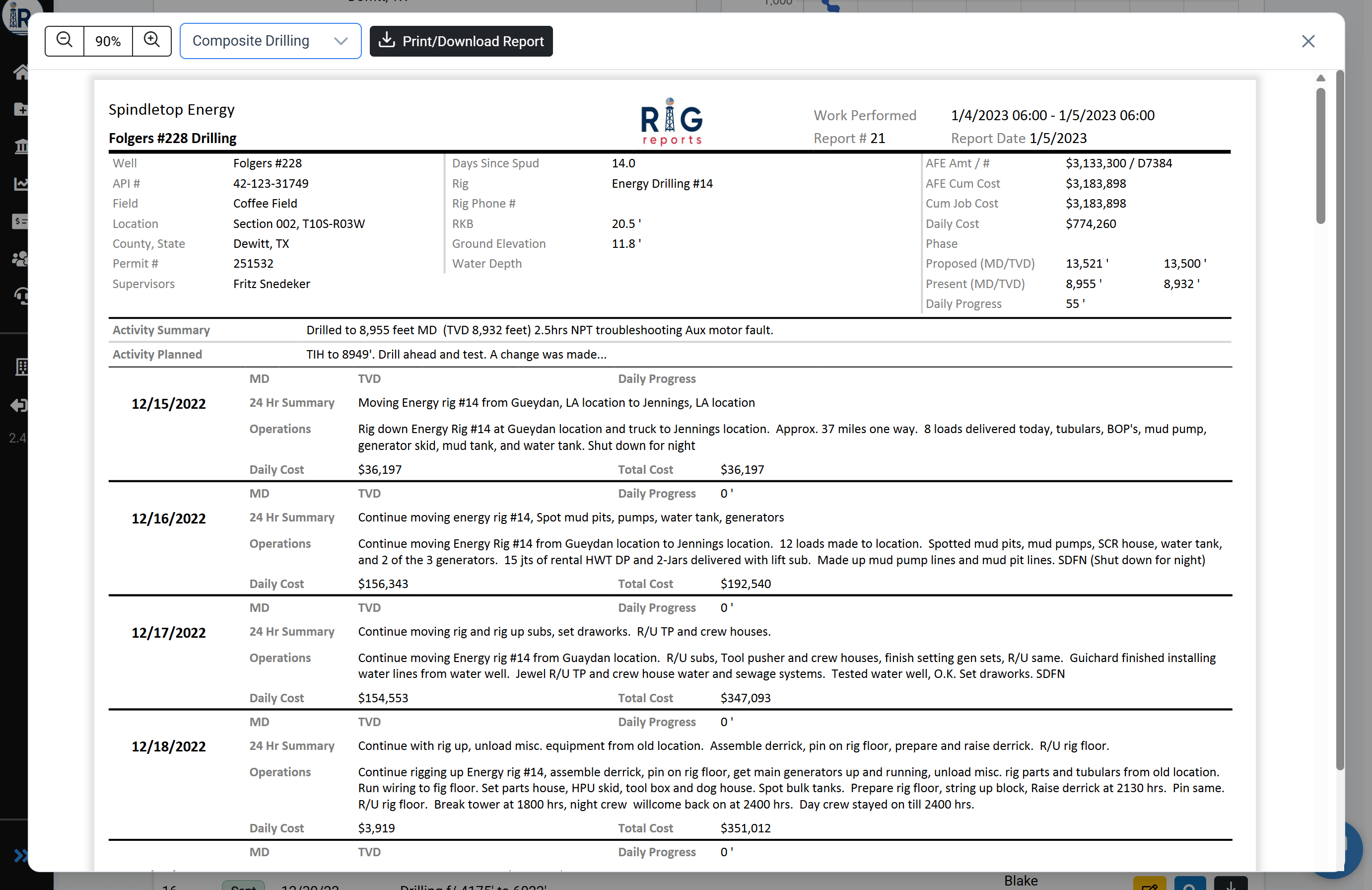
When a job has multiple distribution lists, each list can be configured with a different report format. Previously, it was difficult for the person entering report data to preview how the report would look for recipients on each of those lists. The Report Viewer now includes a layout selector that lets you switch between all available report layouts while viewing or previewing a report. This means you can preview exactly what recipients of each distribution list will see — all without leaving the viewer.Selecting a Layout
Use the layout selector dropdown menu in the Report Viewer toolbar (next to the zoom controls) to choose from all available report layouts.