
Navigate to Wellbore Diagram List
Start by navigating to the well overview page. Once there, click the Wellbore Diagrams header to view the diagrams for this well. The most recent diagram is displayed at the top.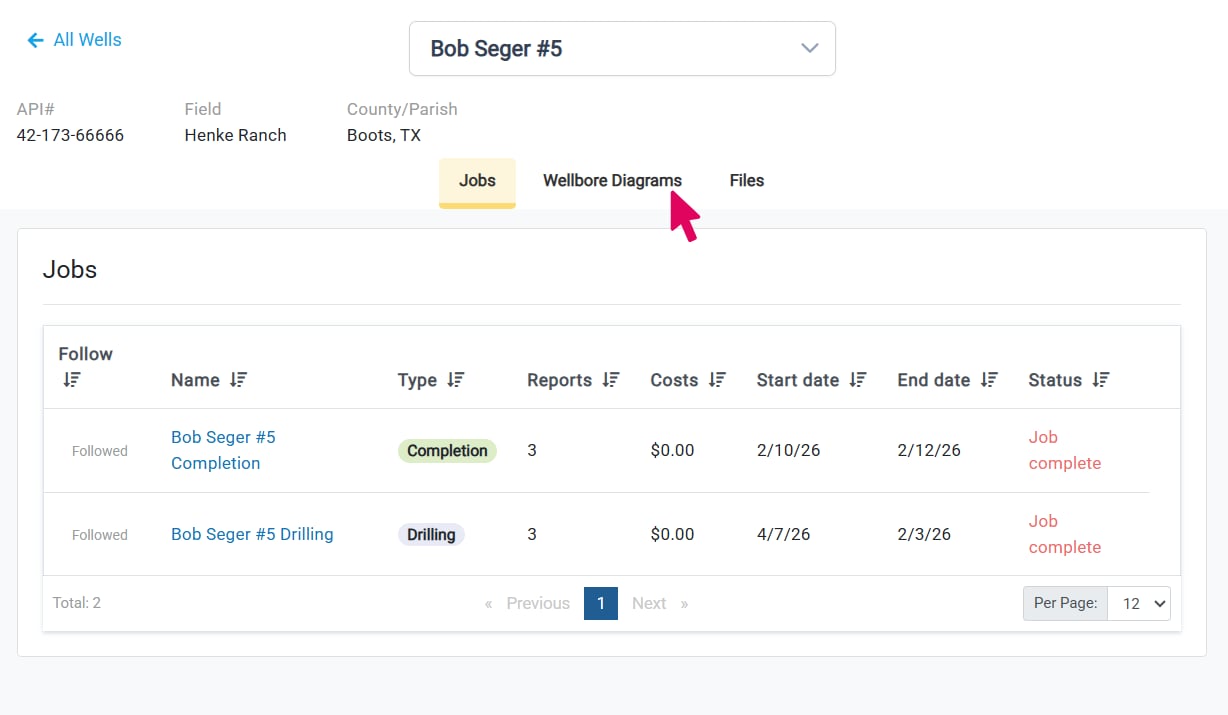
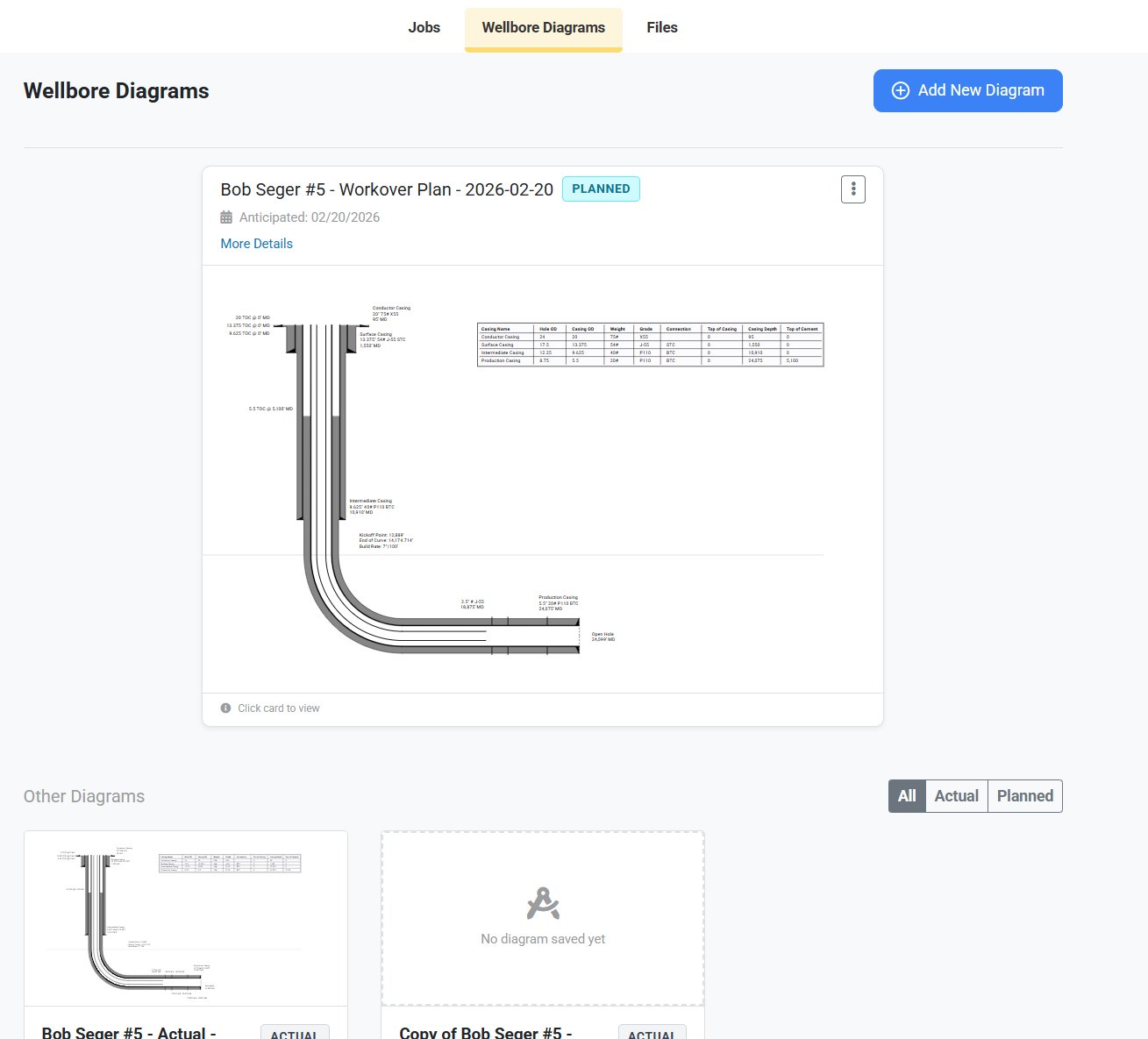
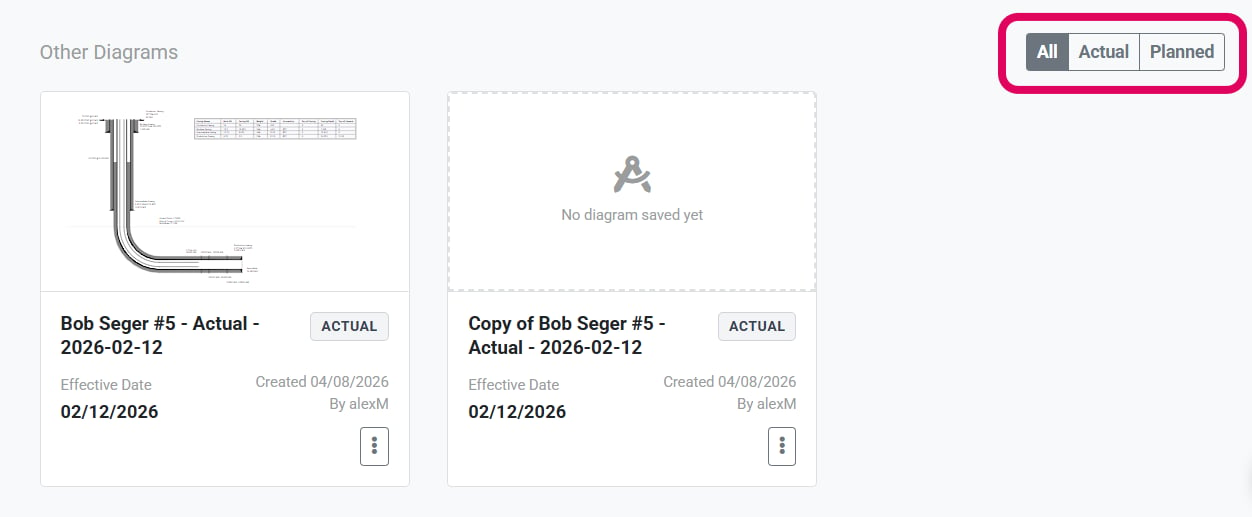
The Other Diagrams section can be sorted by diagram type. Just select All, Actual, or Planned to just see diagrams of that type.
Select a Diagram
Once you have found the diagram you want to view, click anywhere on the diagram card to open it in the Wellbore Diagram Viewer. You can select the most recent diagram directly from the top of the Wellbore Diagrams tab.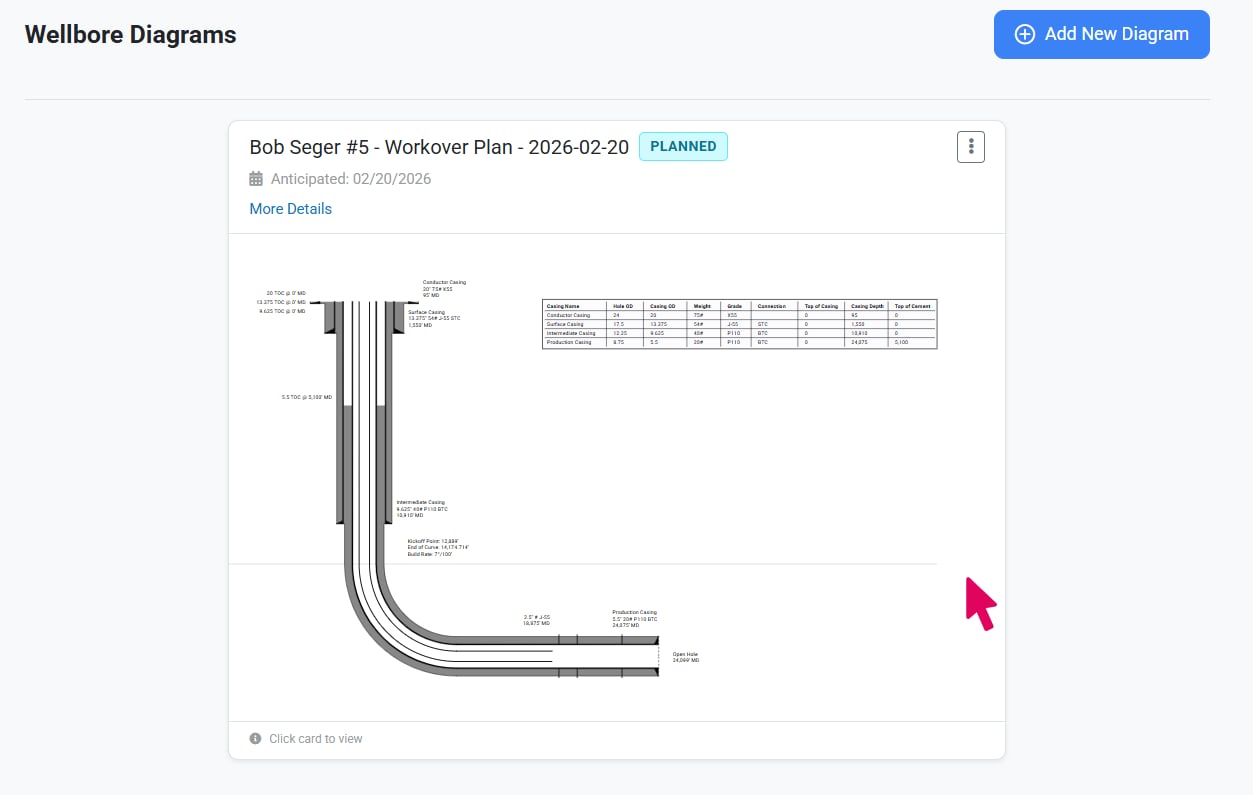
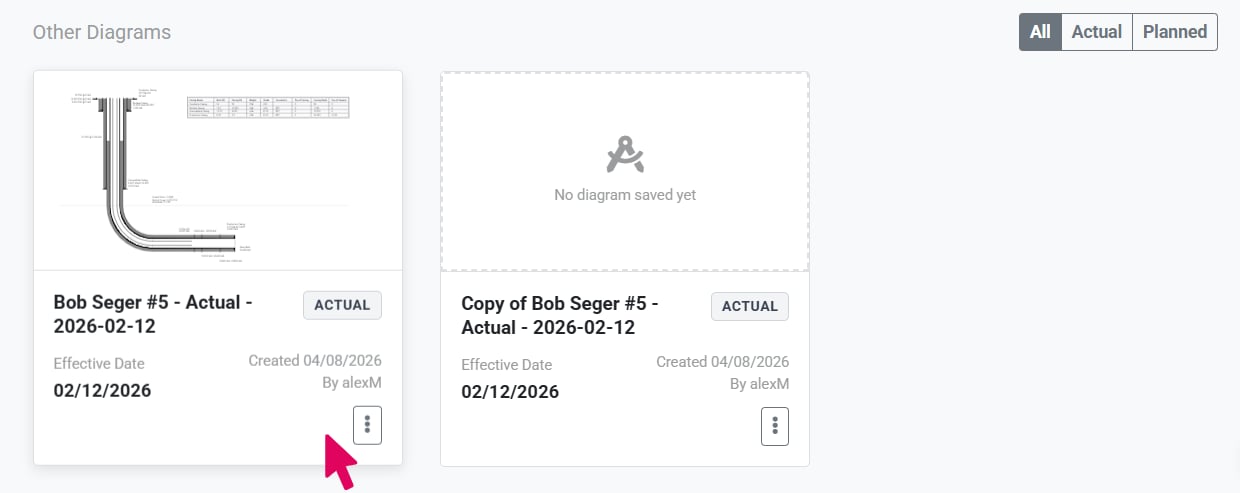
You can select the most recent diagram or a diagram in the Other Diagrams section by clicking on the diagram.
Wellbore Diagram Viewer
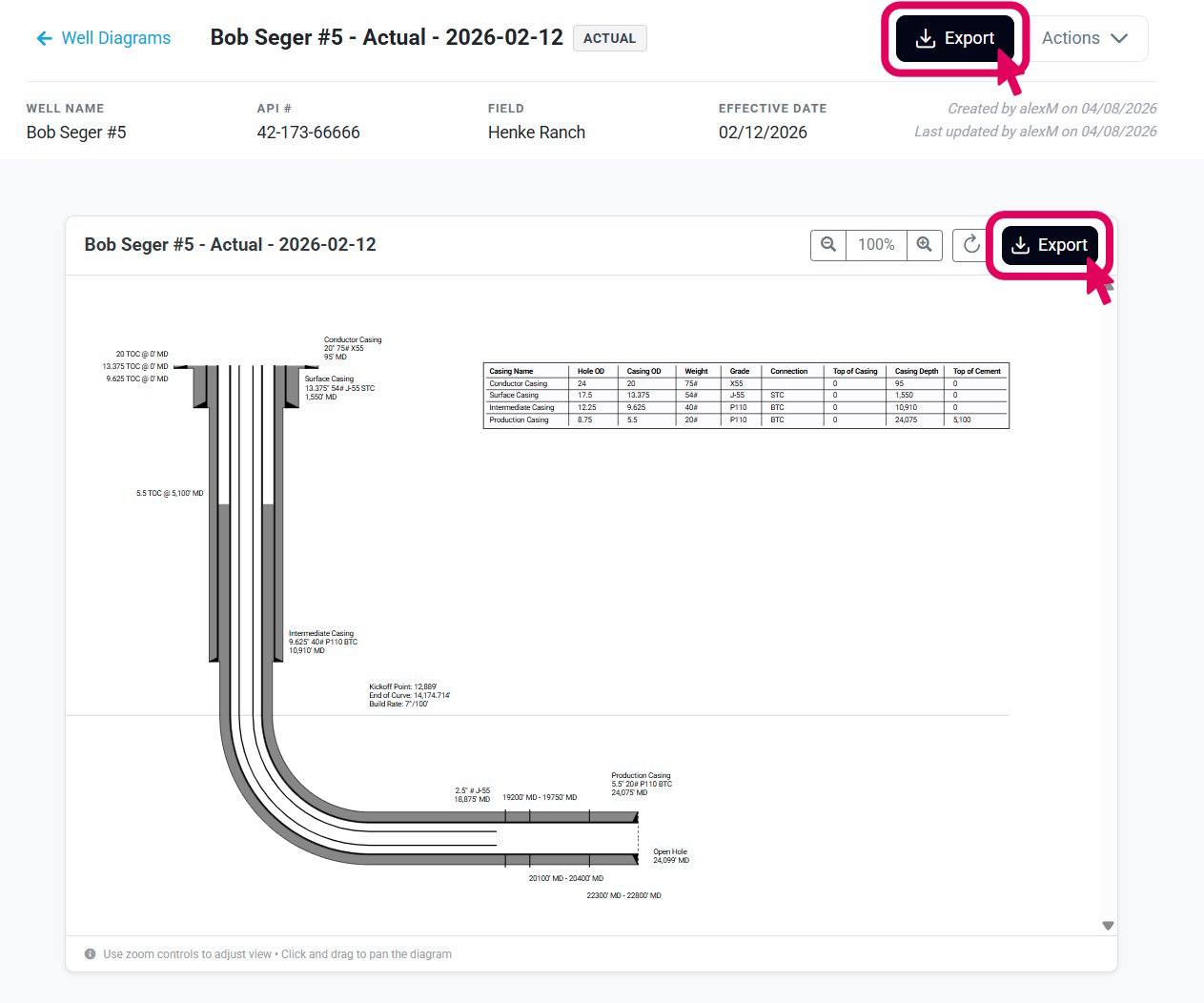
On the Wellbore Diagram Viewer page, you can view the saved diagram, review the design data associated with the diagram, and export the diagram. The viewer displays your saved diagram with all label positions exactly as saved, at 100% zoom by default, centered in the viewing area. Use the controls in the viewer header to navigate the diagram: Zoom Controls — Use the zoom dropdown at the top to zoom in or out and see fine details or get an overview of the entire wellbore configuration. Pan — Click and drag anywhere on the diagram to move around. The viewer is always in pan mode. Fit to Window — Click the reset button to reset the zoom to 100% and center the diagram.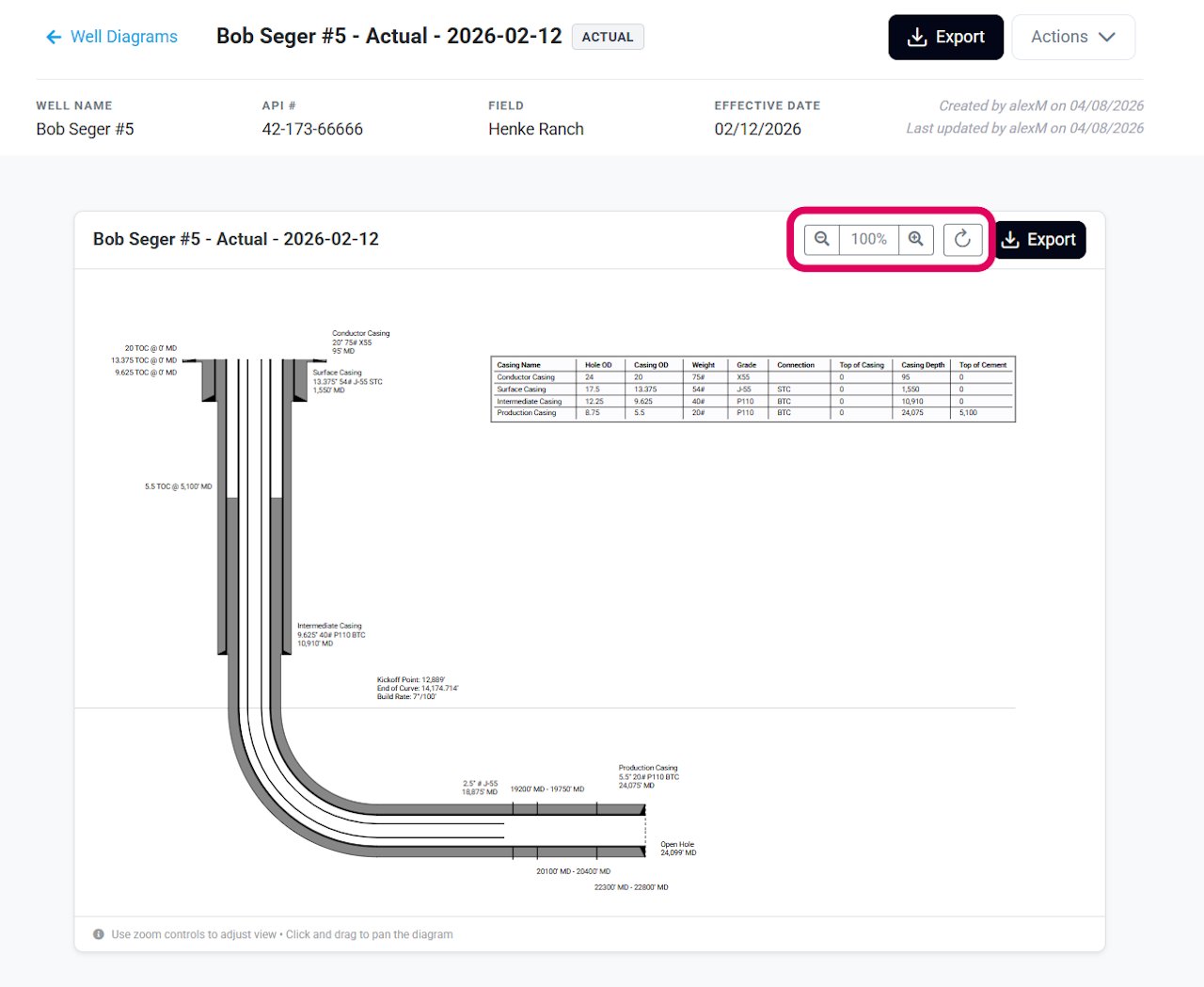
Review Design Specifications
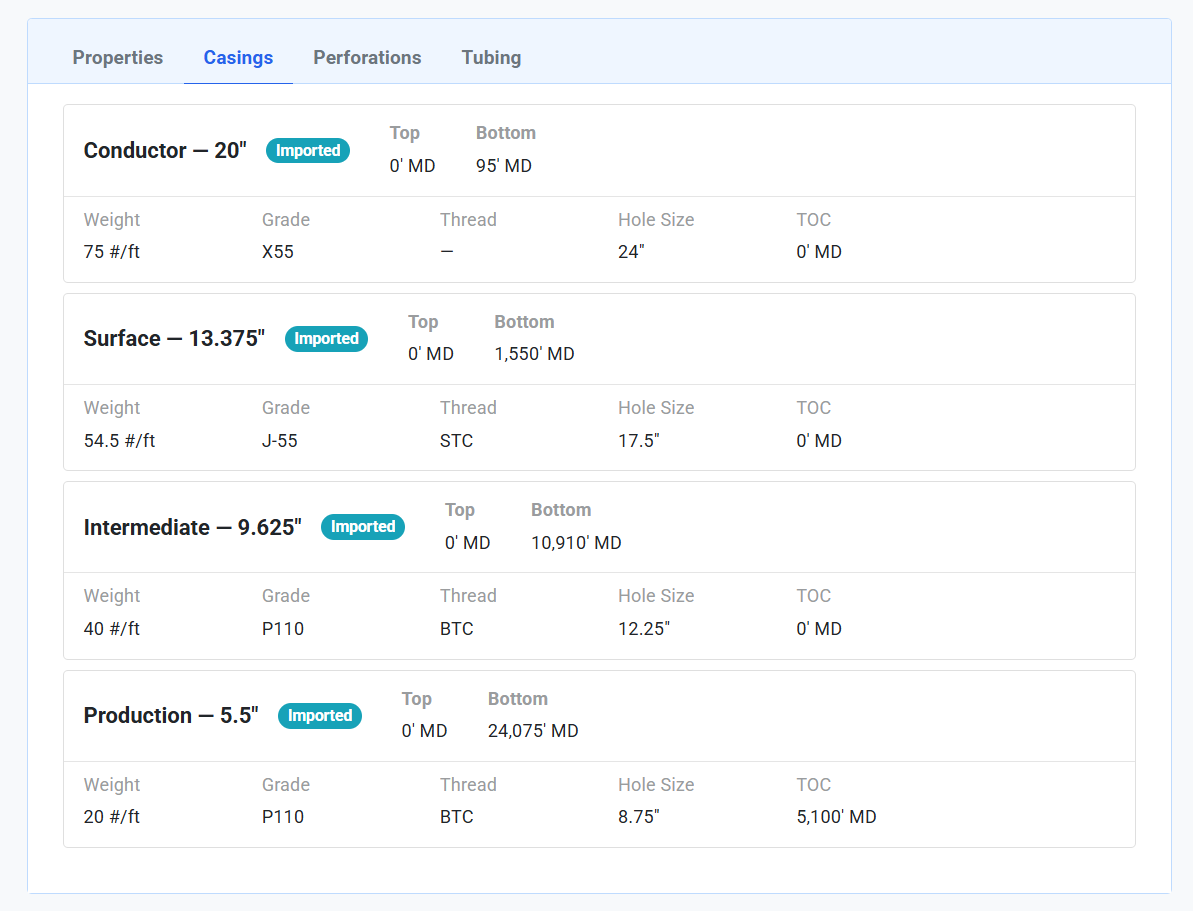
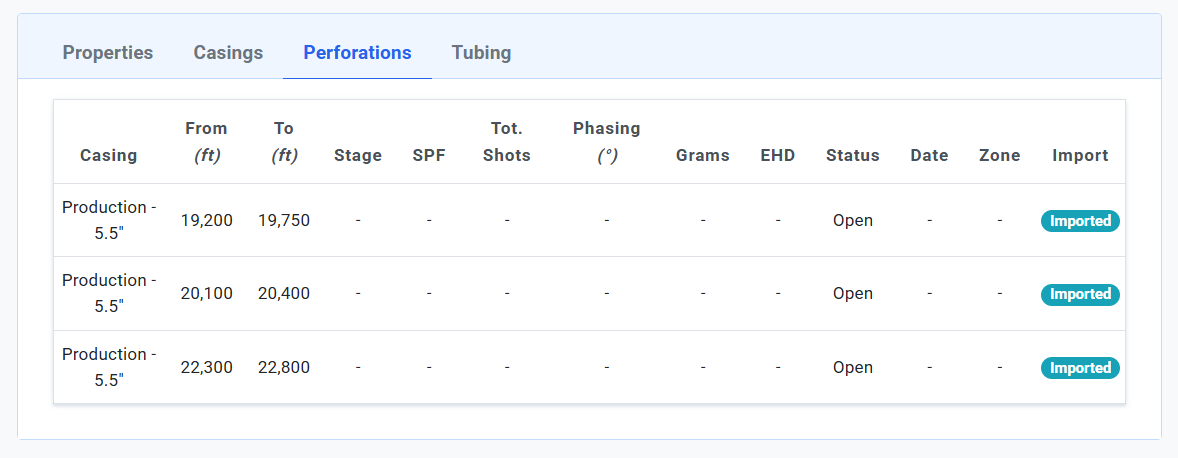
Below the diagram, you can review all diagram data. Scroll down to see detailed information organized into tabs. Click each tab to view the data in that section. Properties — Title, description, notes, well type, depths, dates, and display settings.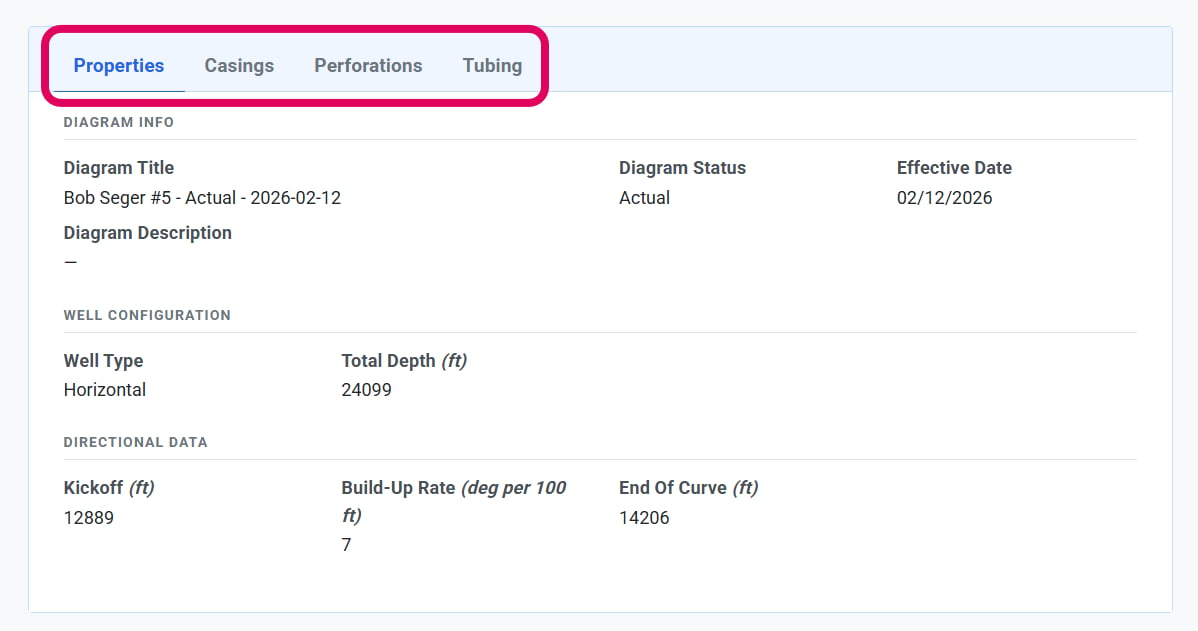
Export Diagram
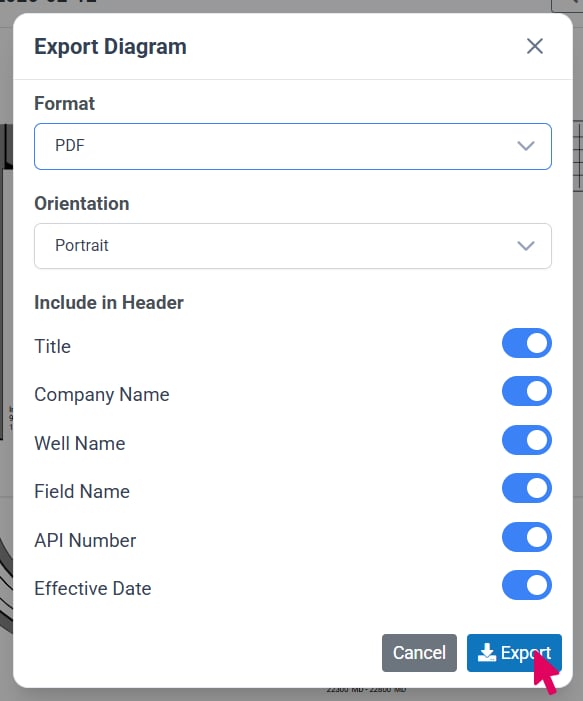
To export your diagram, click the Export button at the top of the page or in the diagram viewer header. Use the Format dropdown to select the format you would like your exported file to be.