
Click Add New Diagram from Well page
To get started creating a new wellbore diagram, click the + Add New Diagram button from the Wellbore Diagrams tab of the well page in the Well Vault.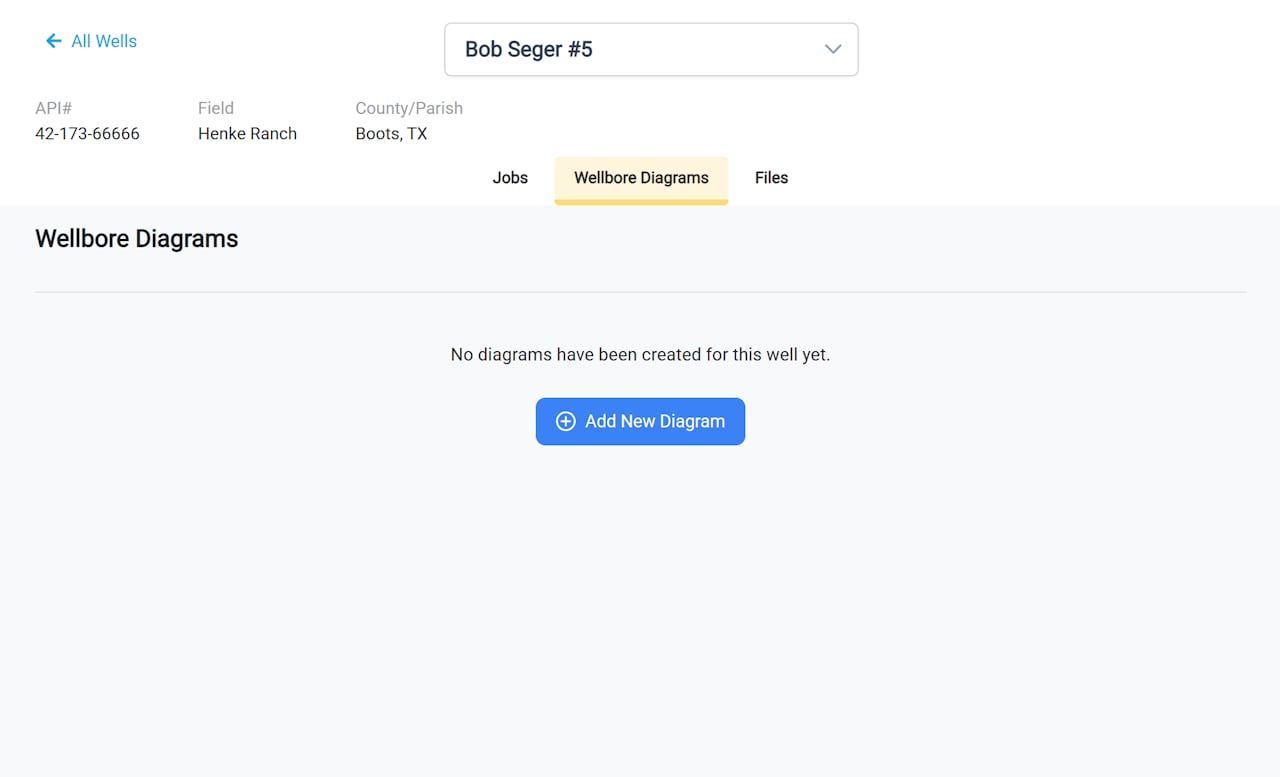
Choose the Data Source
Choose the data source for your diagram from the options:- Use Existing Data - Import casing, tubing, and perforation data from jobs already entered in RigReports. The system will automatically detect available jobs for this well.
- Start from Scratch - Enter all component information manually in the editor.
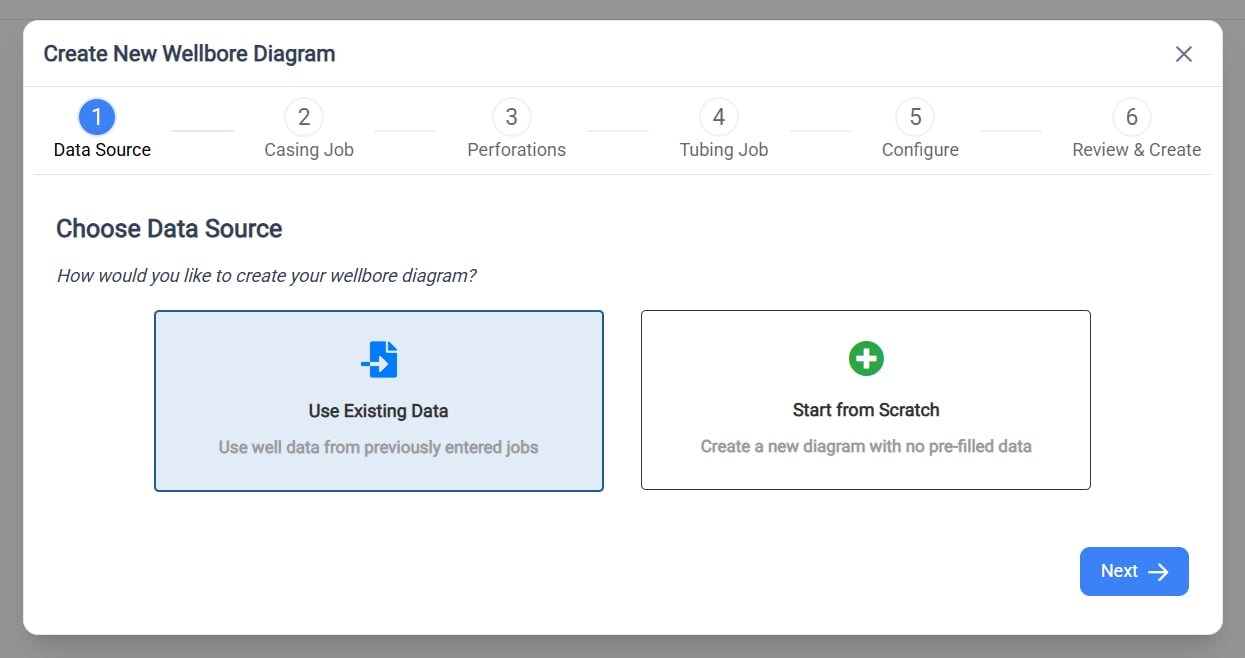
Select your data source
Select the option that matches your workflow before continuing.
- Use Existing Data
- Start from Scratch
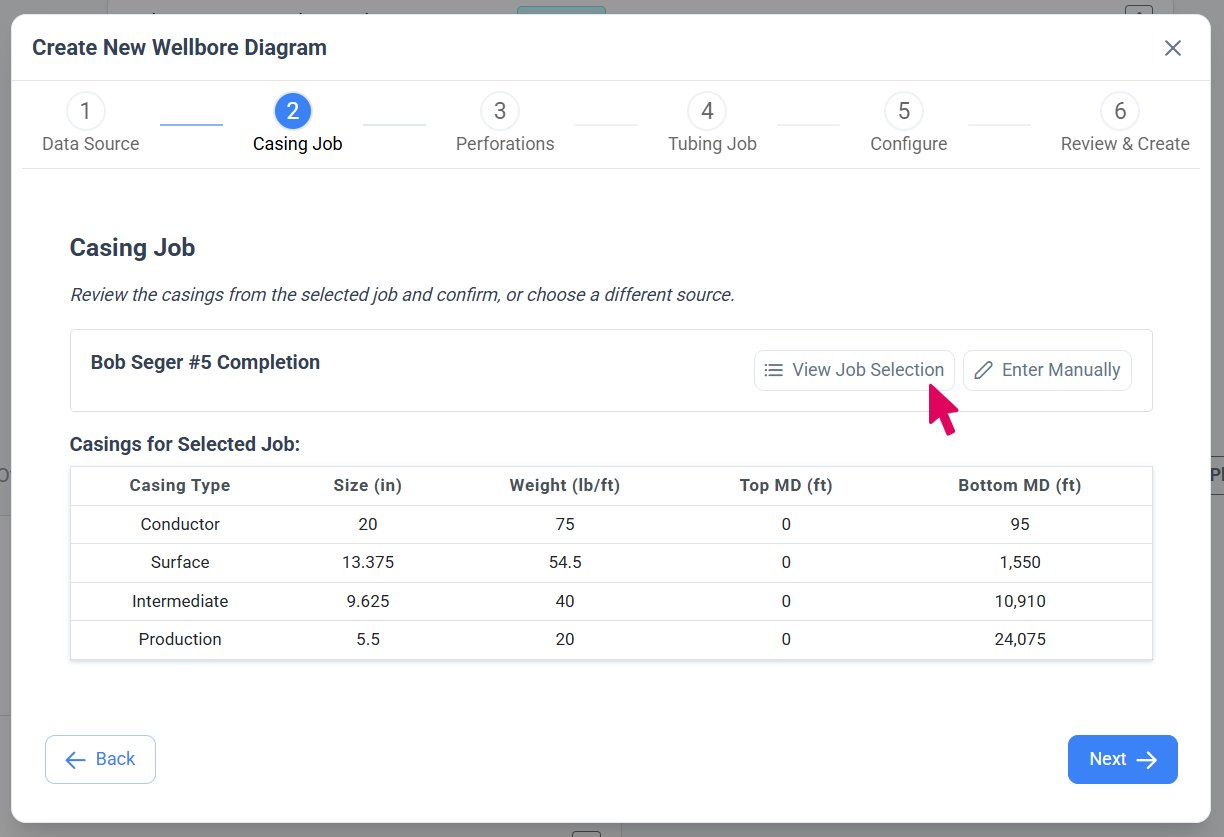
Select the Casing Job
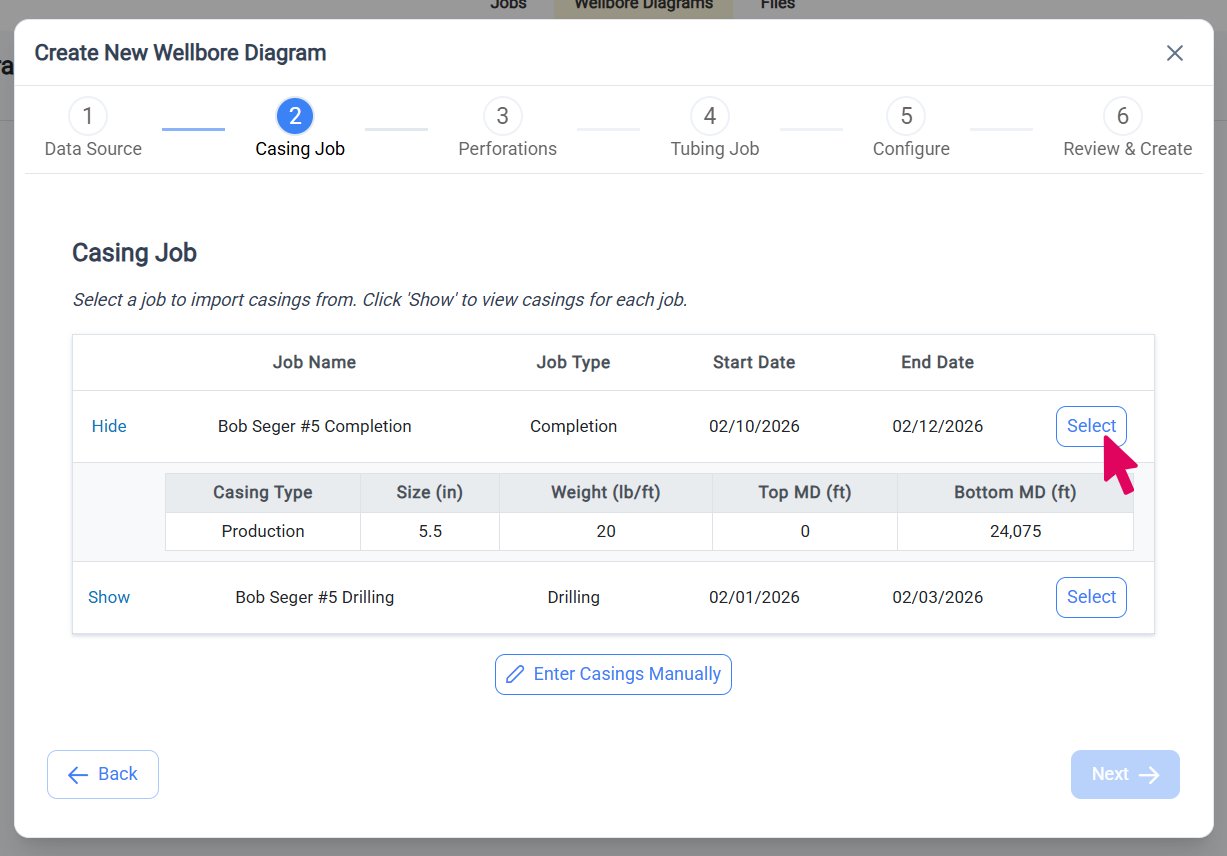
The system automatically selects the most recent job with casing data based on entry date and displays it in a card. The card shows the selected job name and provides two options:- View Job Selection - Click this button to open a table showing all available jobs with casing data for this well.
-
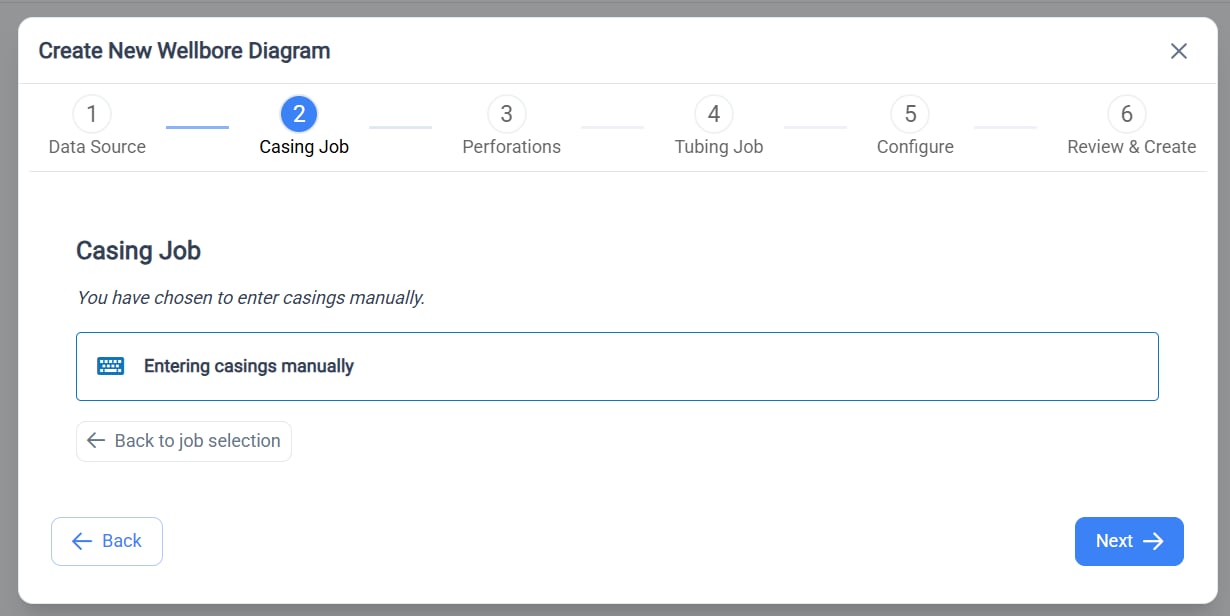
Enter Manually - Click this button if you prefer to skip importing casing data and enter it manually in the editor instead.
Select the Perforation Job
The system automatically selects the most recent job with perforation data based on entry date and displays it in a card. The card shows the selected job name and provides two options:- View Job Selection - Click this button to open a table showing all available jobs with perforation data for this well.
-
Enter Manually - Click this button if you prefer to skip importing perforation data and enter it manually in the editor instead.
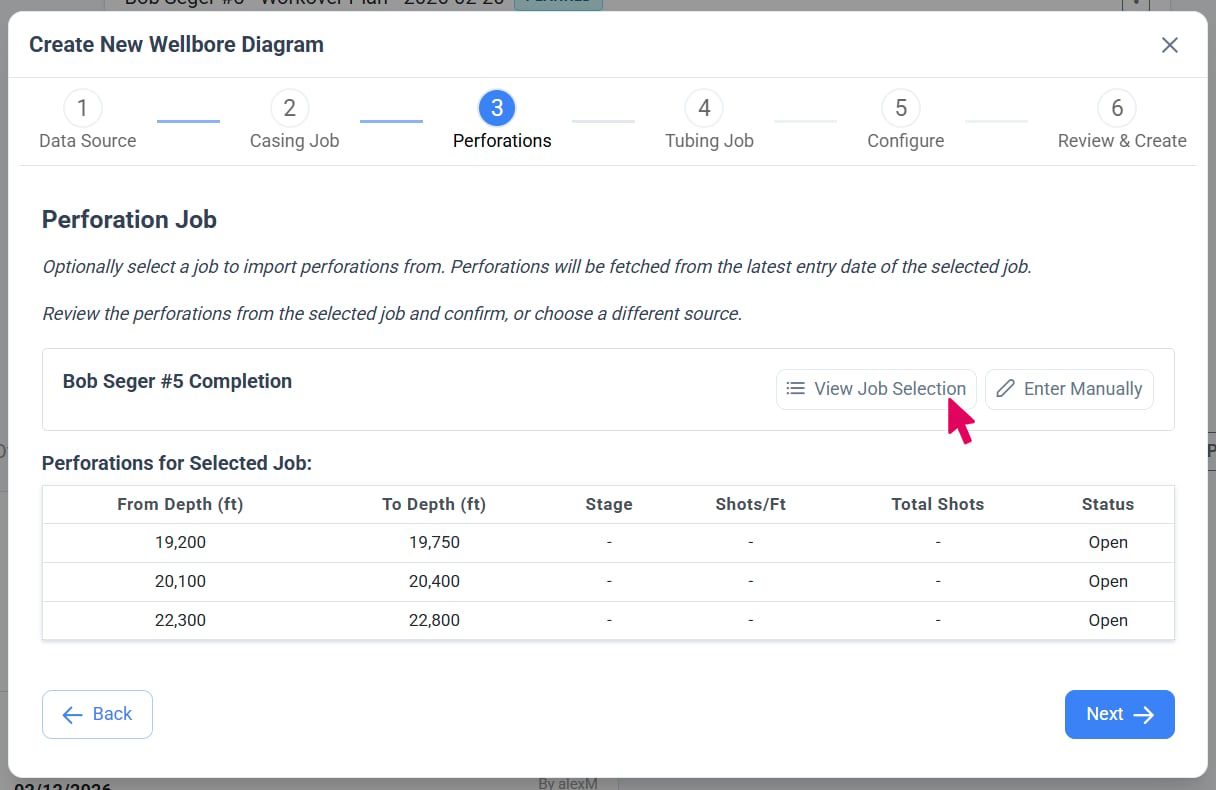
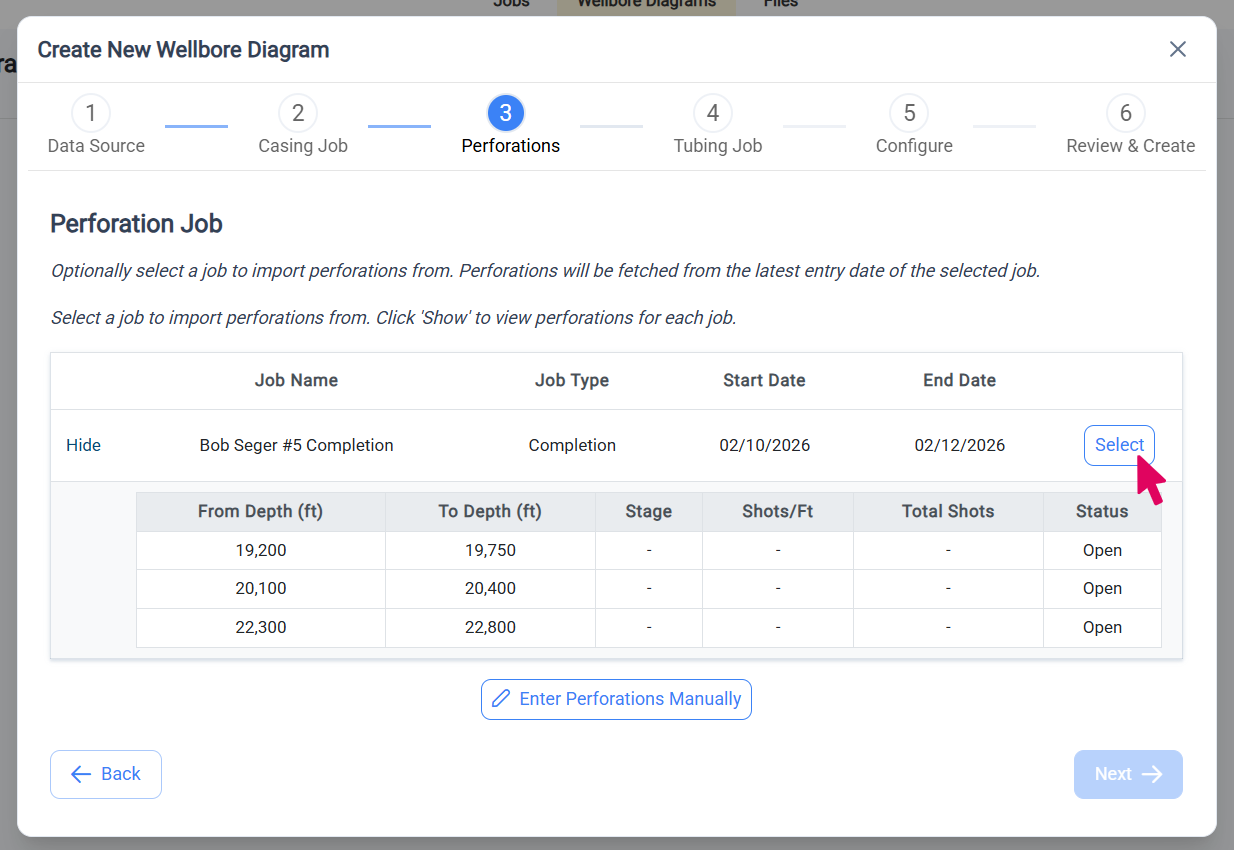
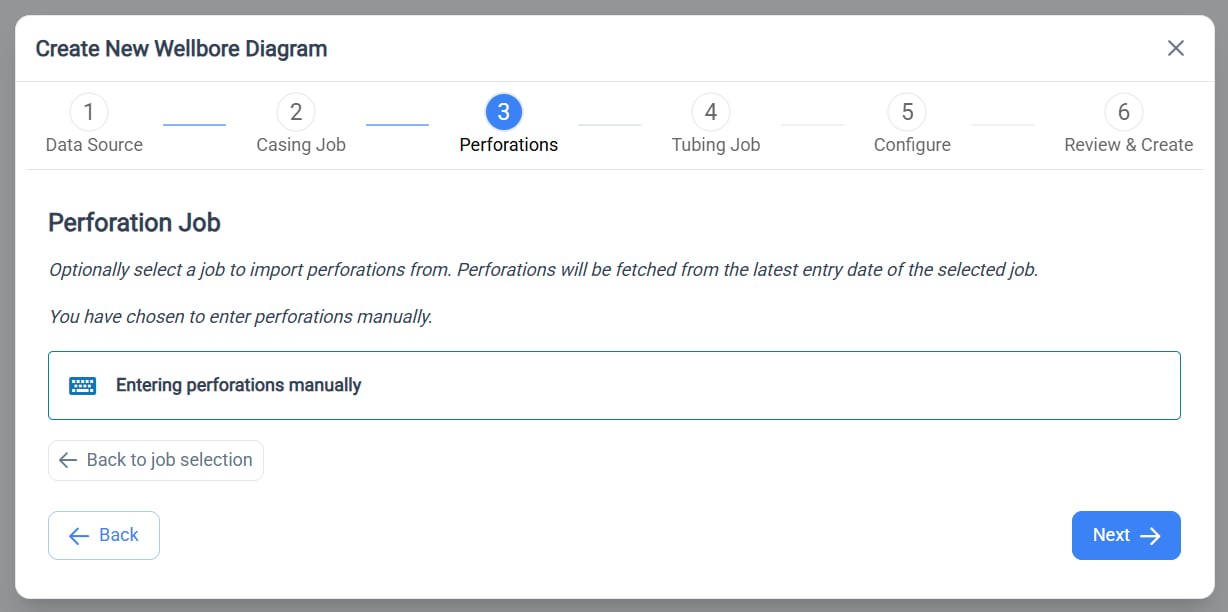
Perforation job selection is only available when a casing job has already been selected.
Select the Tubing Job
The system automatically selects the most recent job with tubing IN data based on entry date and displays it in a card. The card shows the selected job name and provides two options:- View Job Selection - Click this button to open a table showing all available jobs with tubing IN data for this well.
-
Enter Manually - Click this button if you prefer to skip importing tubing data and enter it manually in the editor instead.
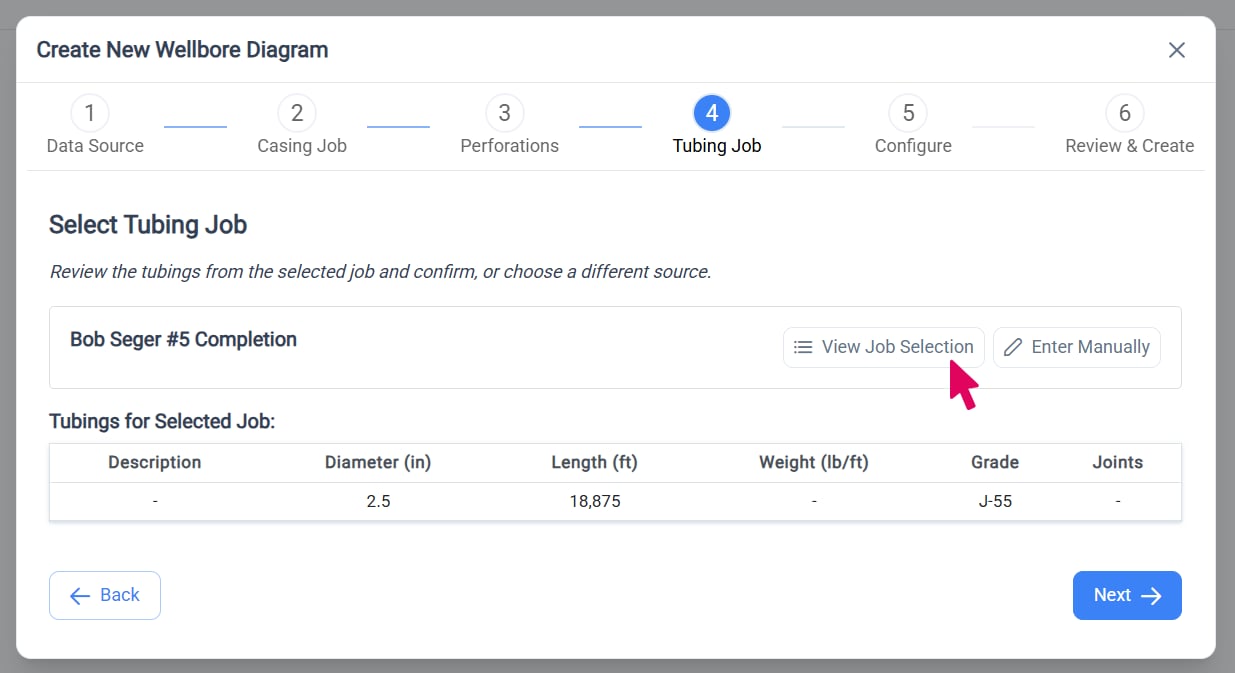
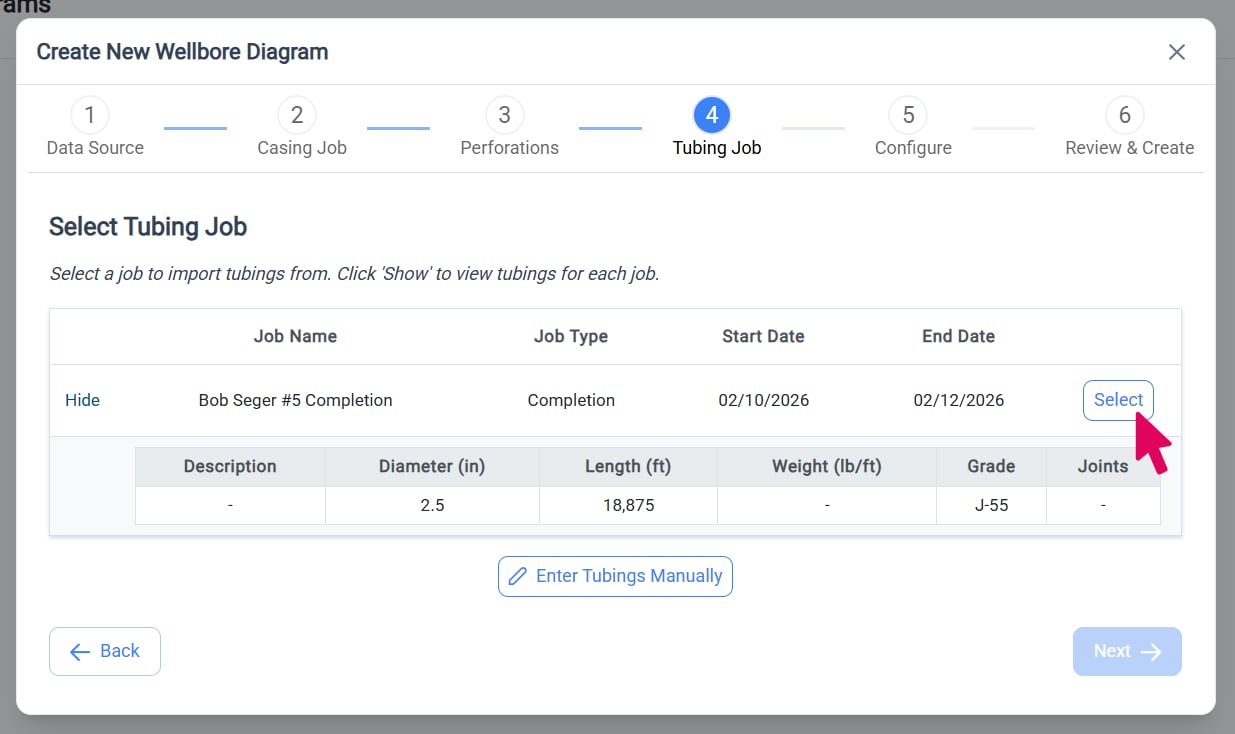
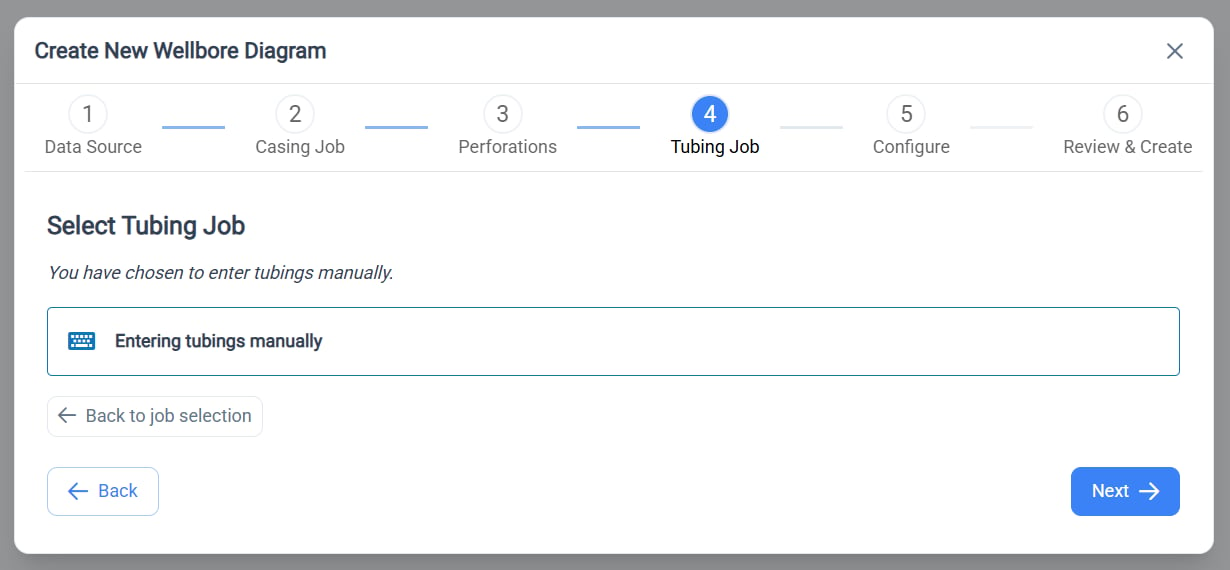
Well Type and Total Depth
Click on the box for the type of well that you will be diagramming.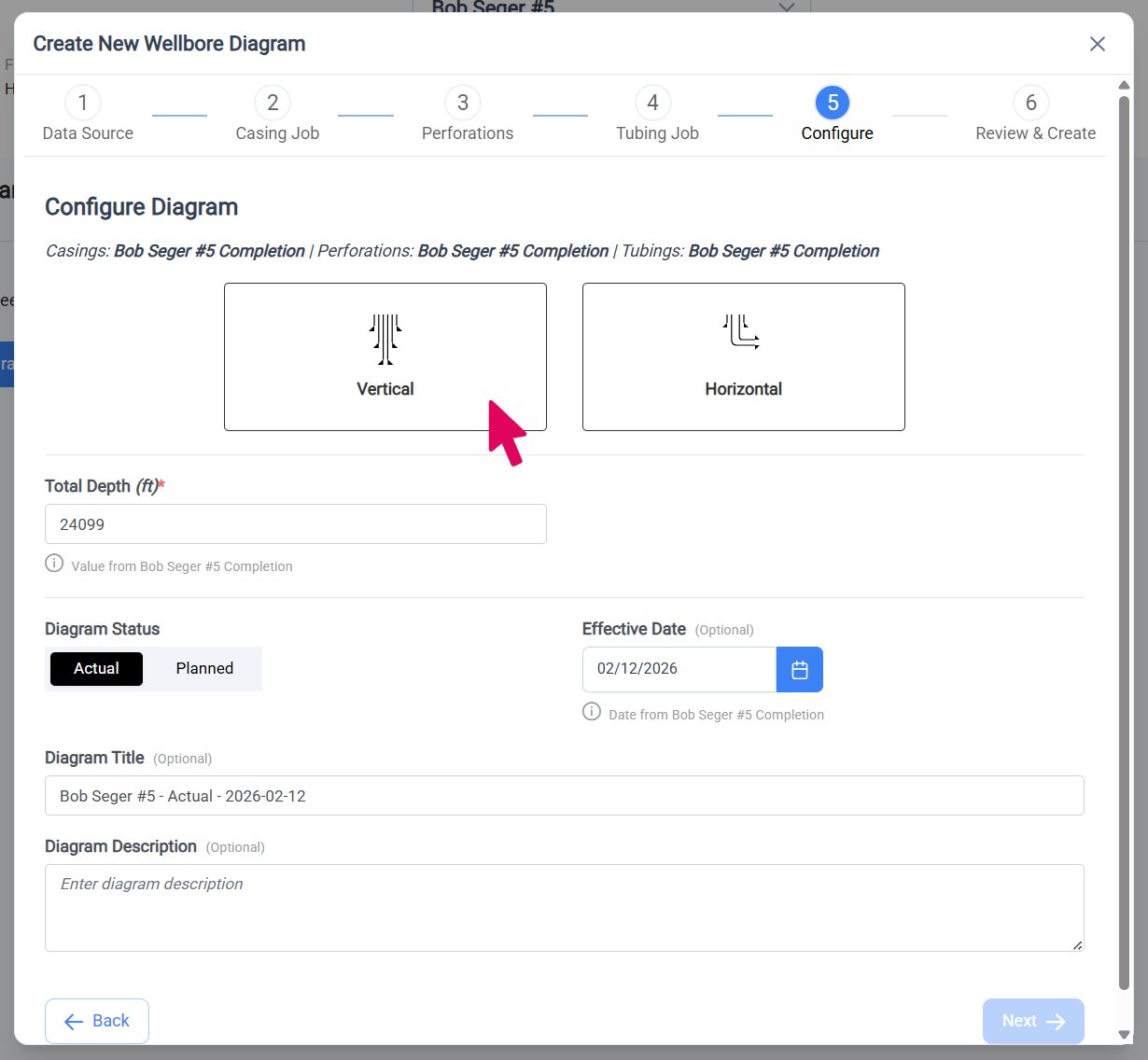
Select your well type
Select the option that matches your well type before continuing.
- Vertical Well
- Horizontal Well
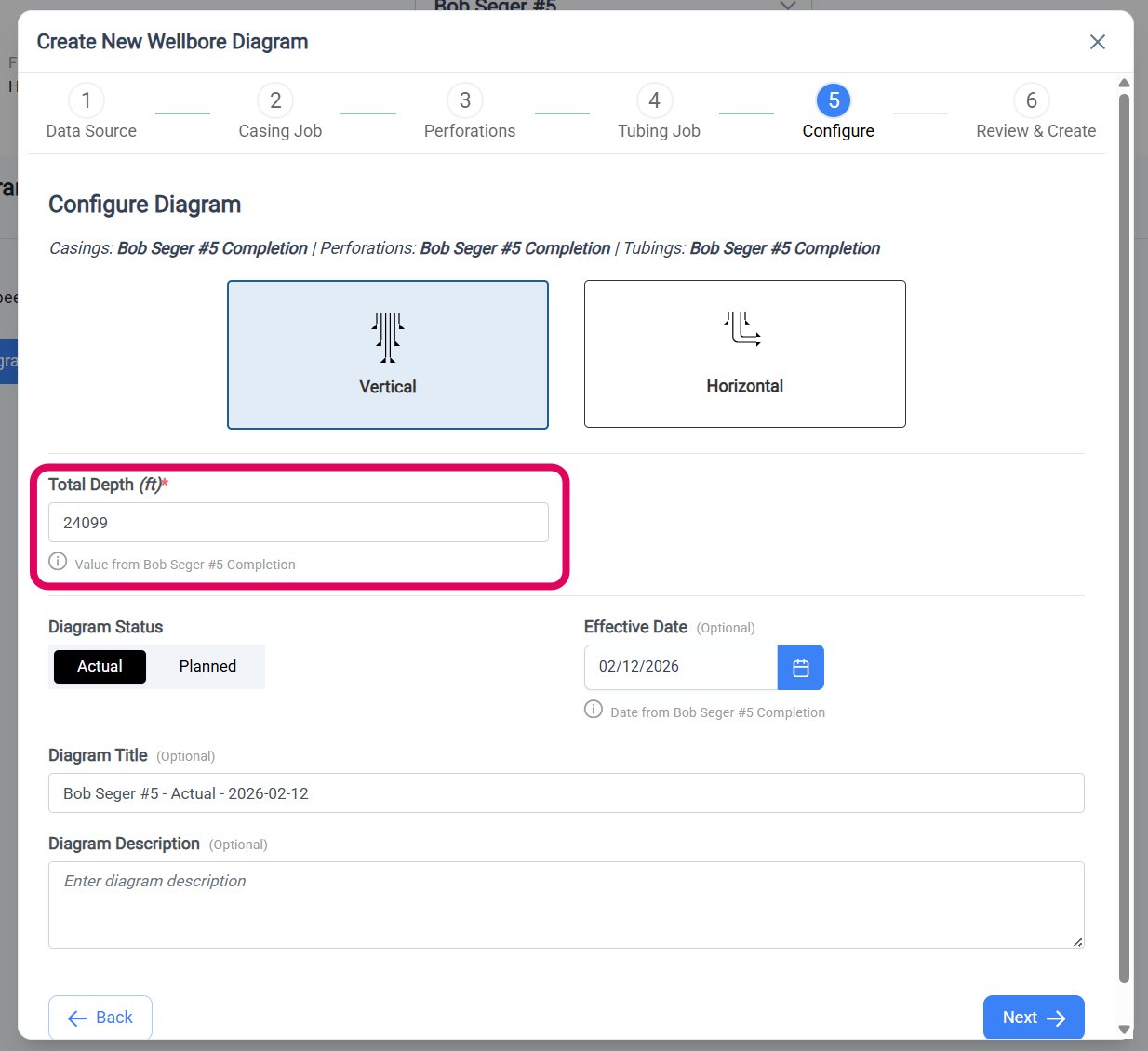
Total Depth
Enter the total depth of your well. If you chose to import casings, perforations, or tubing from an existing job, the total depth value will be prefilled for you. You can manually edit the value if needed.An informational note appears below the total depth showing which job the data came from.
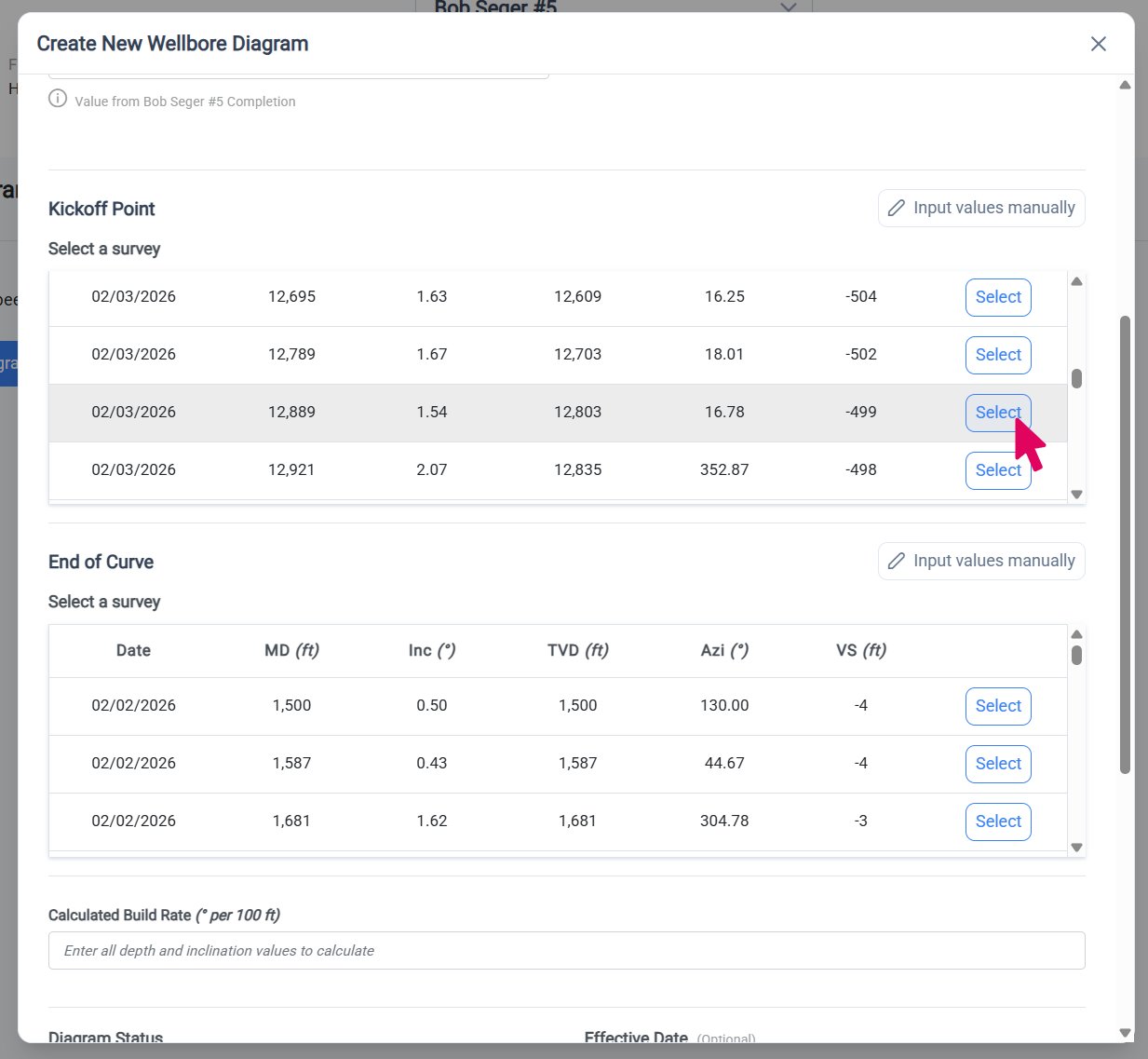
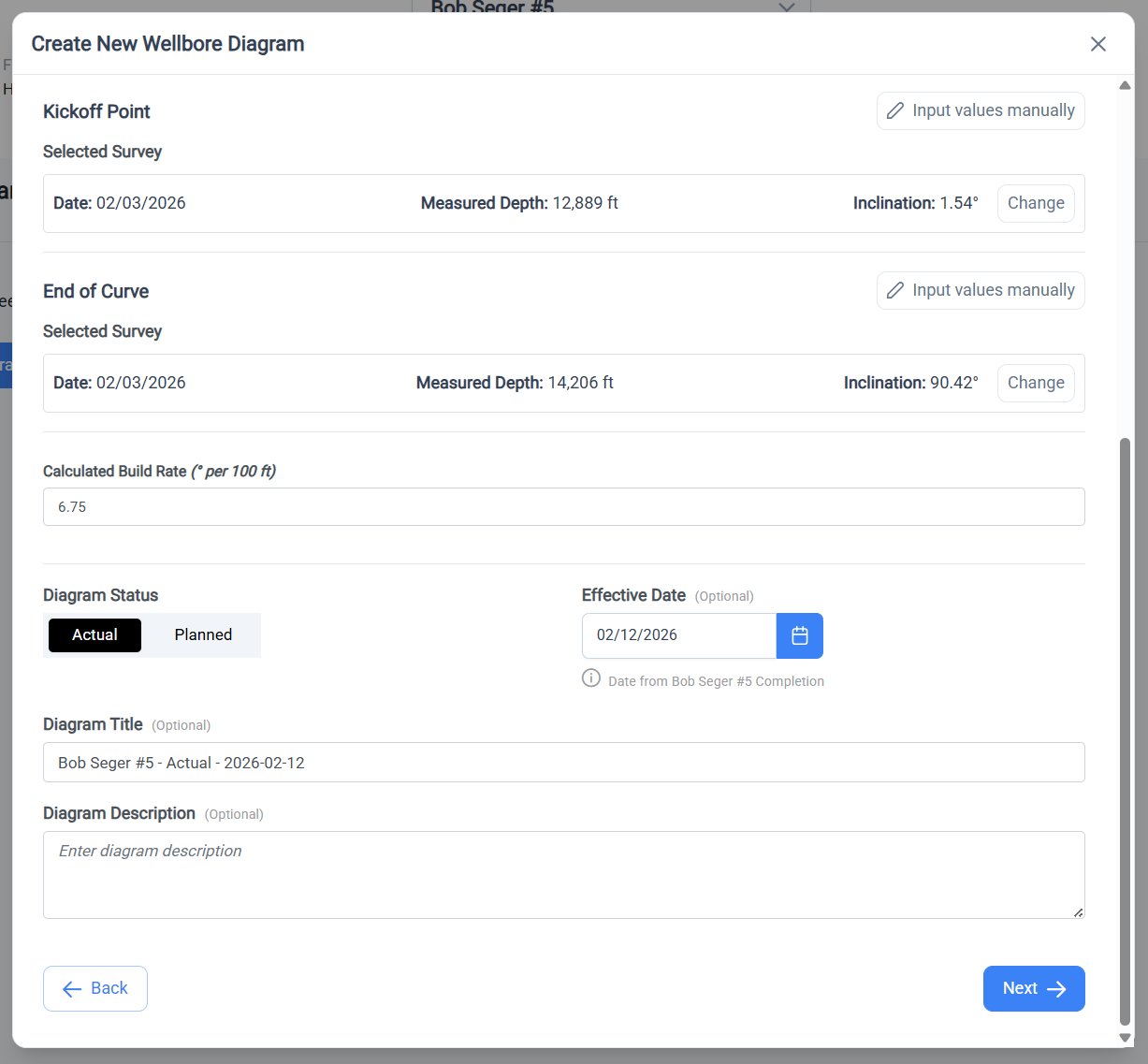
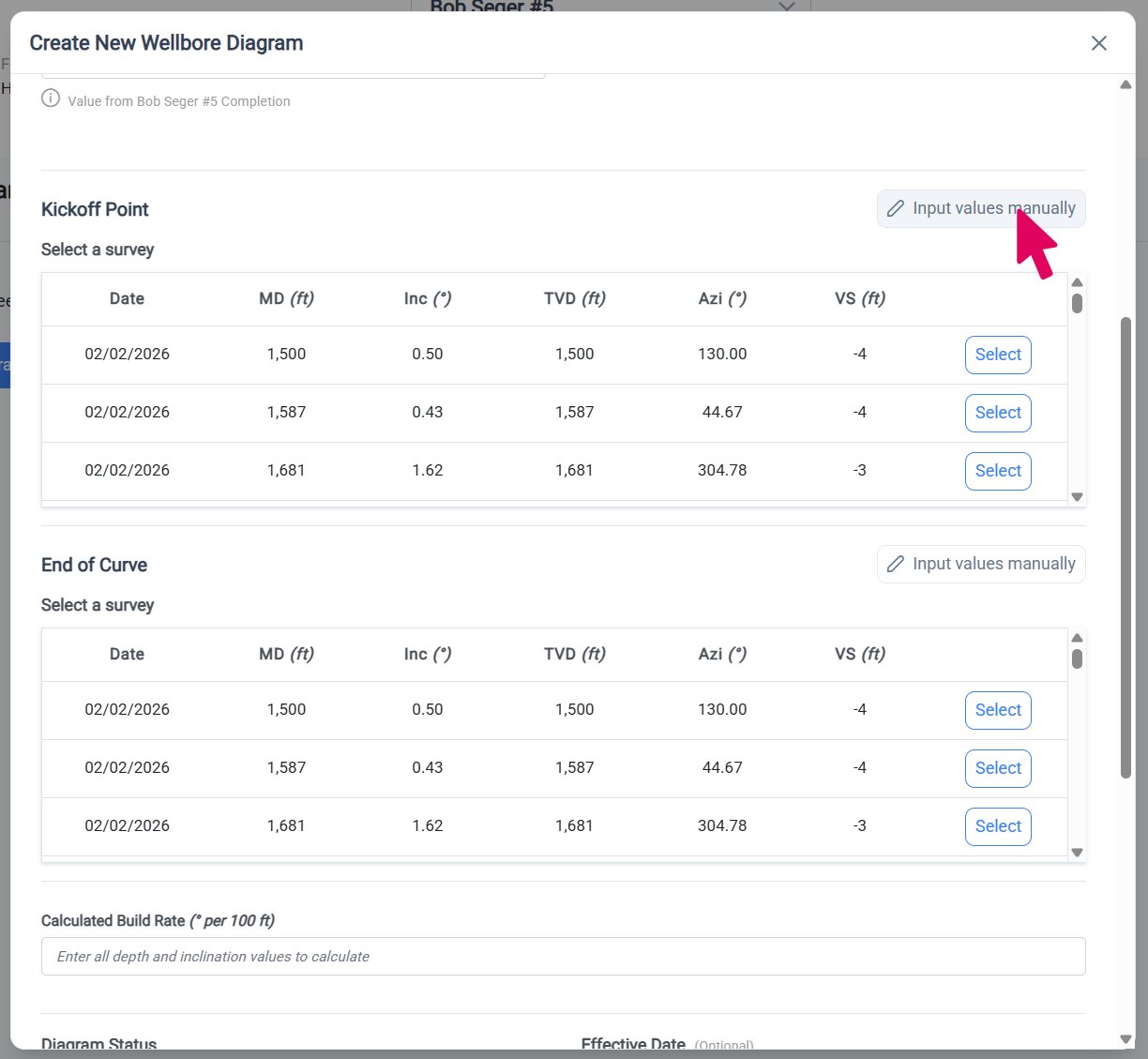
Complete Remaining Configuration
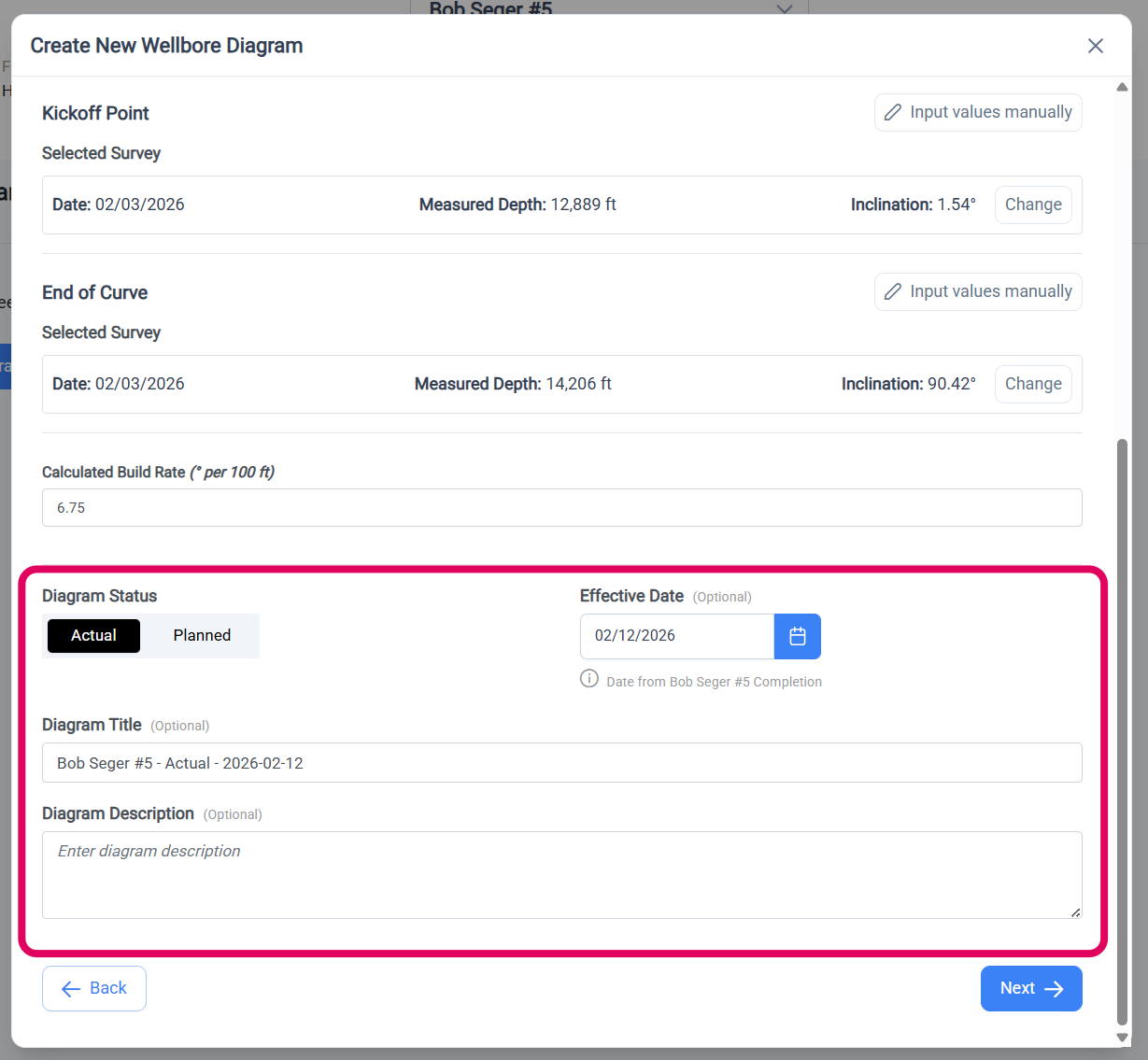
Complete the configuration of your diagram by selecting the diagram status and then optionally filling out the date, title, and description. Diagram Status Options:- Actual - This is used for actual (as drilled/completed) wellbore diagrams. You can note the date that the most recent changes were completed for the well.
- Planned - This is used to create planned wellbore diagrams for future drilling or completion changes. You can note the anticipated date of the drilling or changes to the well.
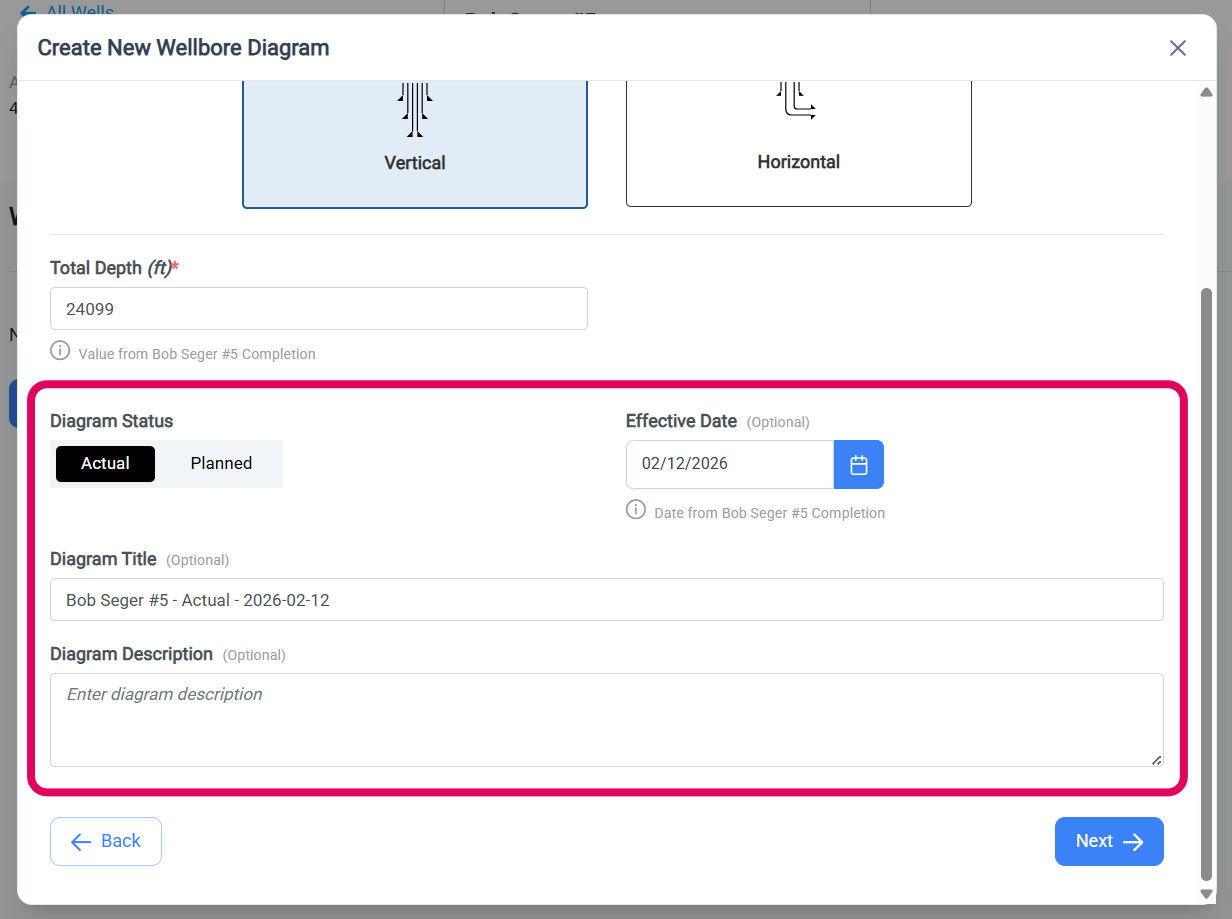
Just like total depth, the date value will be prefilled for you if you chose to import data from an existing job. You can manually edit the value if needed.
Review and Create Diagram
Review all your selections including:- Data source (existing jobs or from scratch)
- Imported jobs (if applicable): casing job, perforation job, tubing job
- Diagram configuration: well type, total depth, kickoff/end of curve, effective date
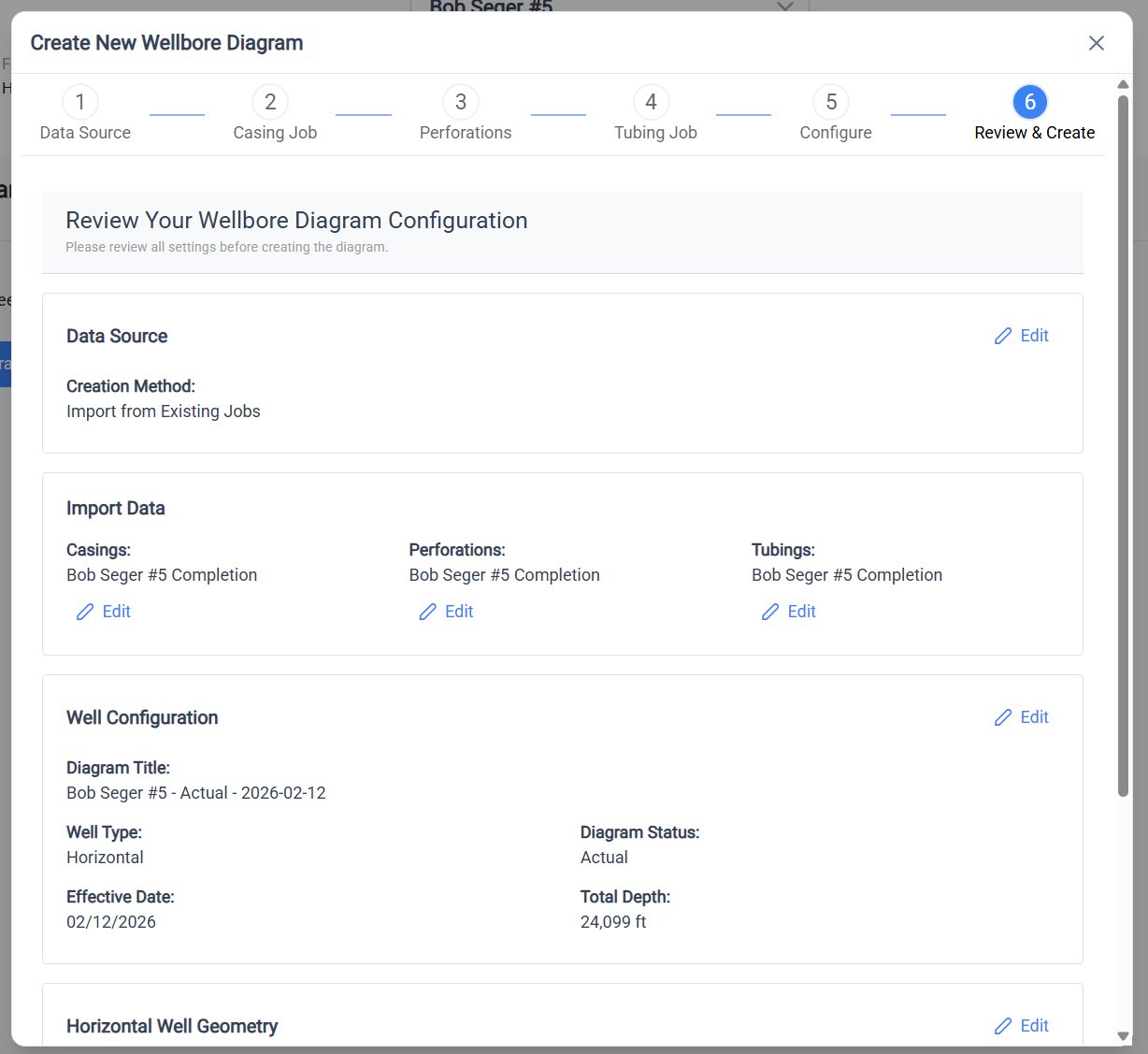
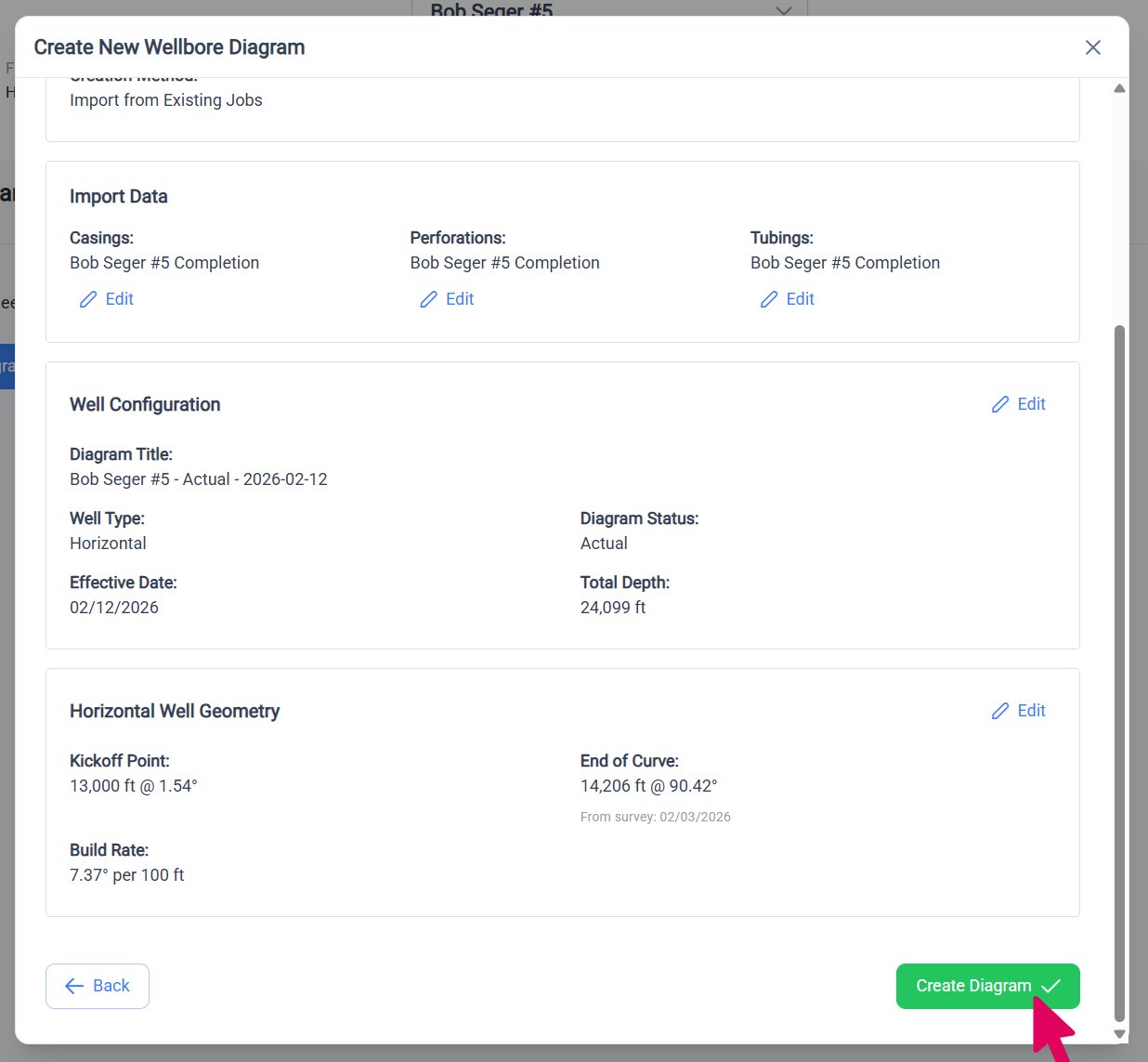
Wellbore Diagram Editor
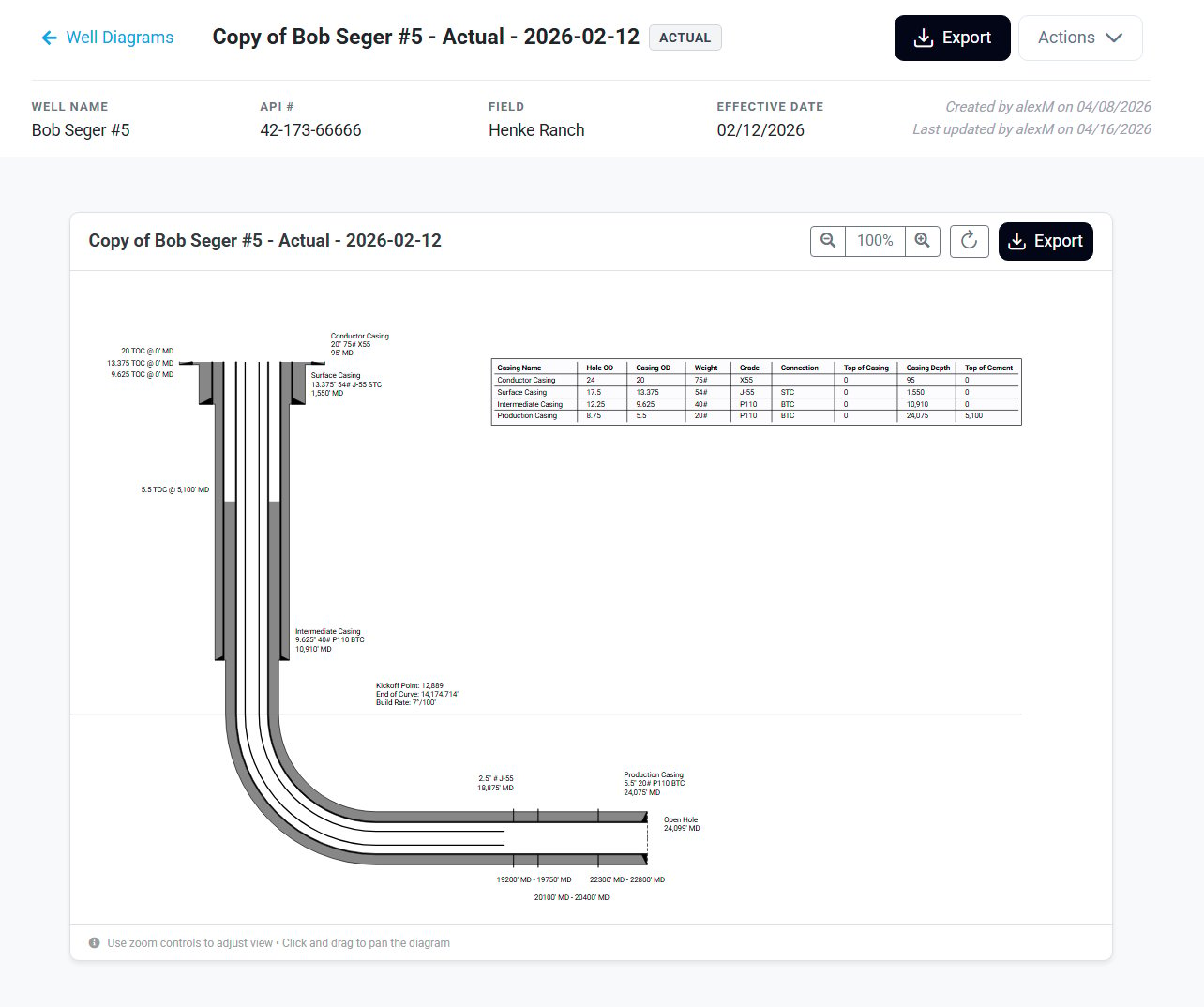
When your diagram is successfully created, you will be redirected to the Wellbore Diagram Editor page of your new diagram. From there, scroll down to view your generated diagram. You can now adjust label positions to improve readability and then use the buttons in the viewer’s header to save or export your diagram.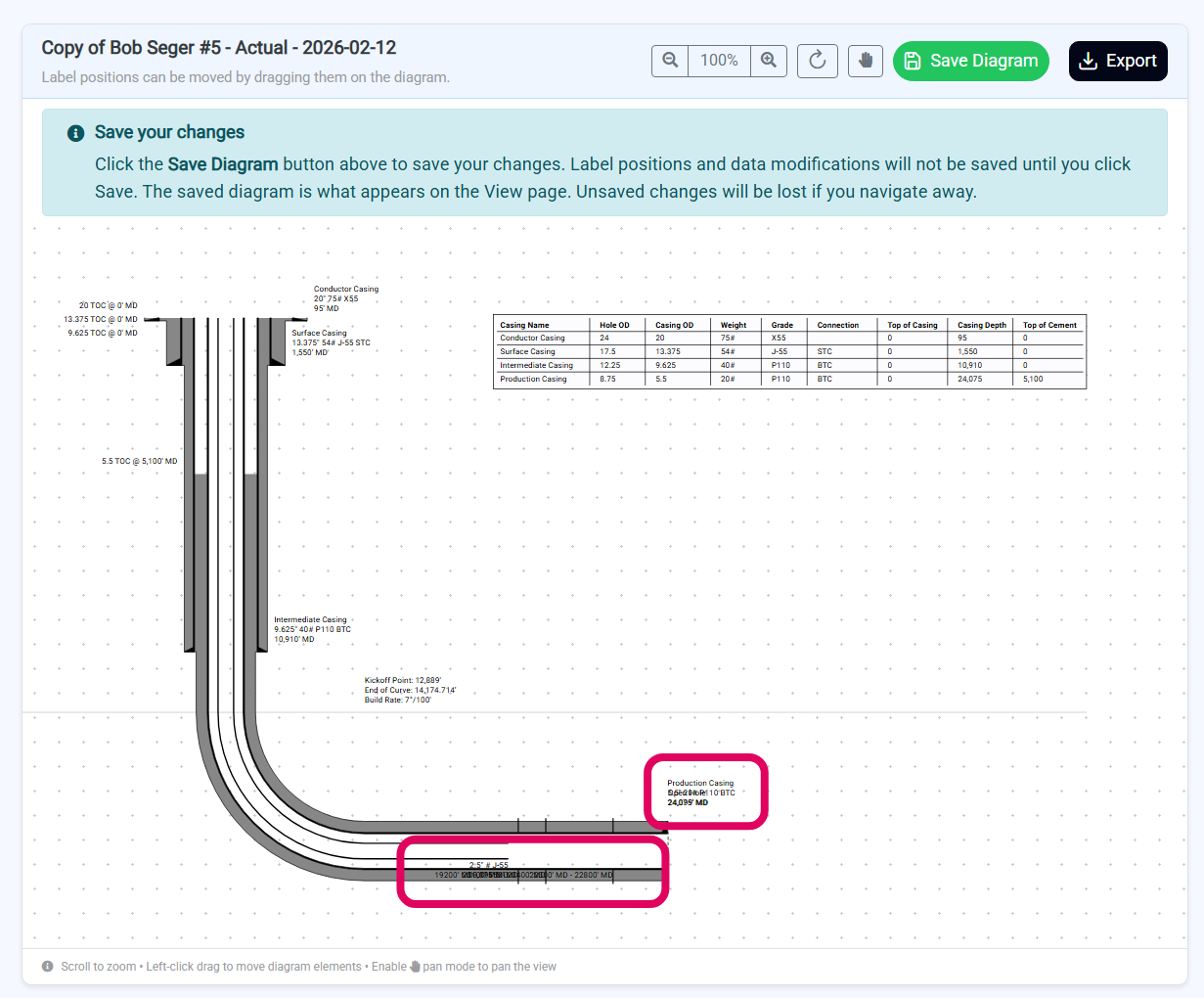
- Ensure Pan Mode is off (hand button in the header should be gray)
- Click and drag any label text or table to a new position
- Release to drop the label
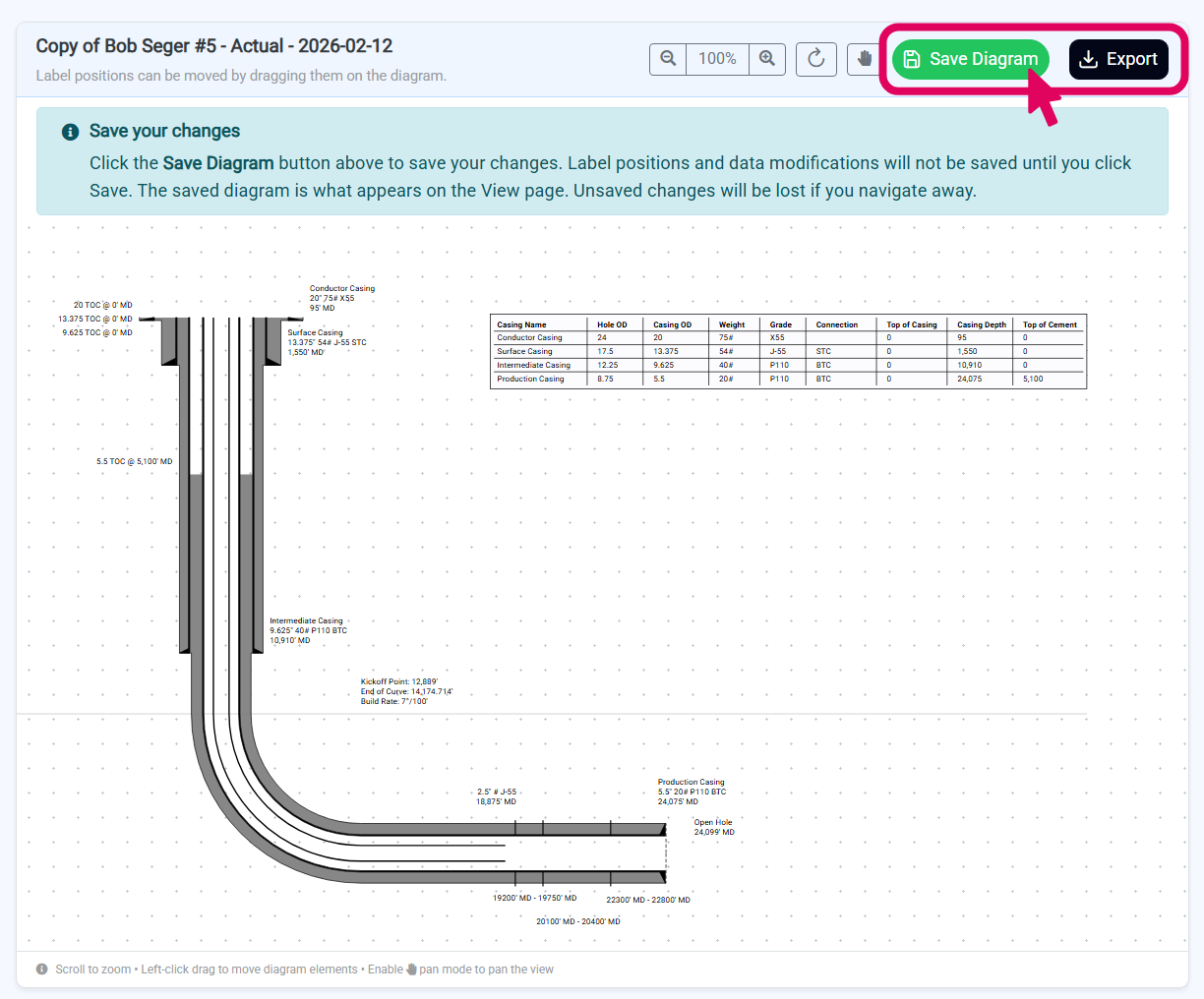
Wellbore Diagram Viewer
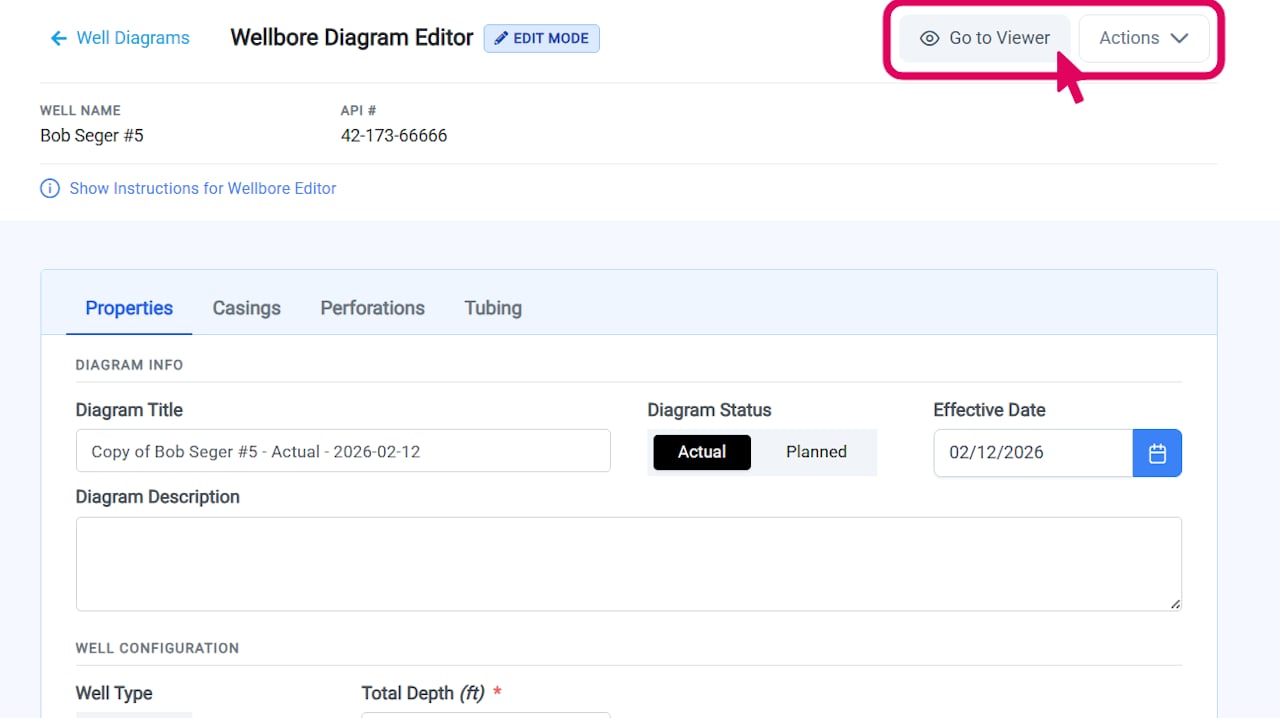
Once you are satisfied with your diagram and have saved it, click the Go to Viewer button at the top of the Wellbore Diagram Editor page to navigate to the Wellbore Diagram Viewer page.