

Release Notes - [11/2026]
🚀 New Features- AFE Approval Workflows
AFE Approval Workflows
RigReports 2.7.1 adds AFE Approval Workflows. Each AFE now follows an approval route that you set up once, and you can see where it stands at every step. A workflow is an ordered list of gates, for example Field Supervisors → Drilling Leads → CFO → CEO. Each gate has one or more approvers. You choose whether a gate needs all of its approvers to sign off, or any one of them. When a gate passes, the AFE moves to the next gate automatically. RigReports emails each approver when it’s their turn, and records every action with a timestamp.Highlights
- Reusable workflows. Build a workflow once and use it for every AFE of that kind. You can make it the default for one or more AFE types.
- All-or-any gates. A gate can need sign-off from every approver, or from just one of them.
- Approve, Return, or Reject. Approvers can sign off, send the AFE back one gate for changes, or end the approval.
- AFEs are locked while in review. No one can change the budget while approvers are reviewing it.
- Email notifications. Approvers get an email when an AFE reaches their gate. The submitter gets one when the AFE is fully approved.
- Full audit trail. The Activity tab records every submission, approval, comment, and status change, with timestamps.
Workflows are optional. If your company doesn’t set one up, AFE approvals keep working the way they do today.
Setting Up an Approval Workflow
Step 1: Open Approval Workflows
Go to AFE Management and click Approval Workflows. Until your company has a workflow, a banner on this page also offers a Set up a workflow shortcut. The summary tiles at the top show how many AFEs are Pending Approval, Pending Your Approval, and Returned to You.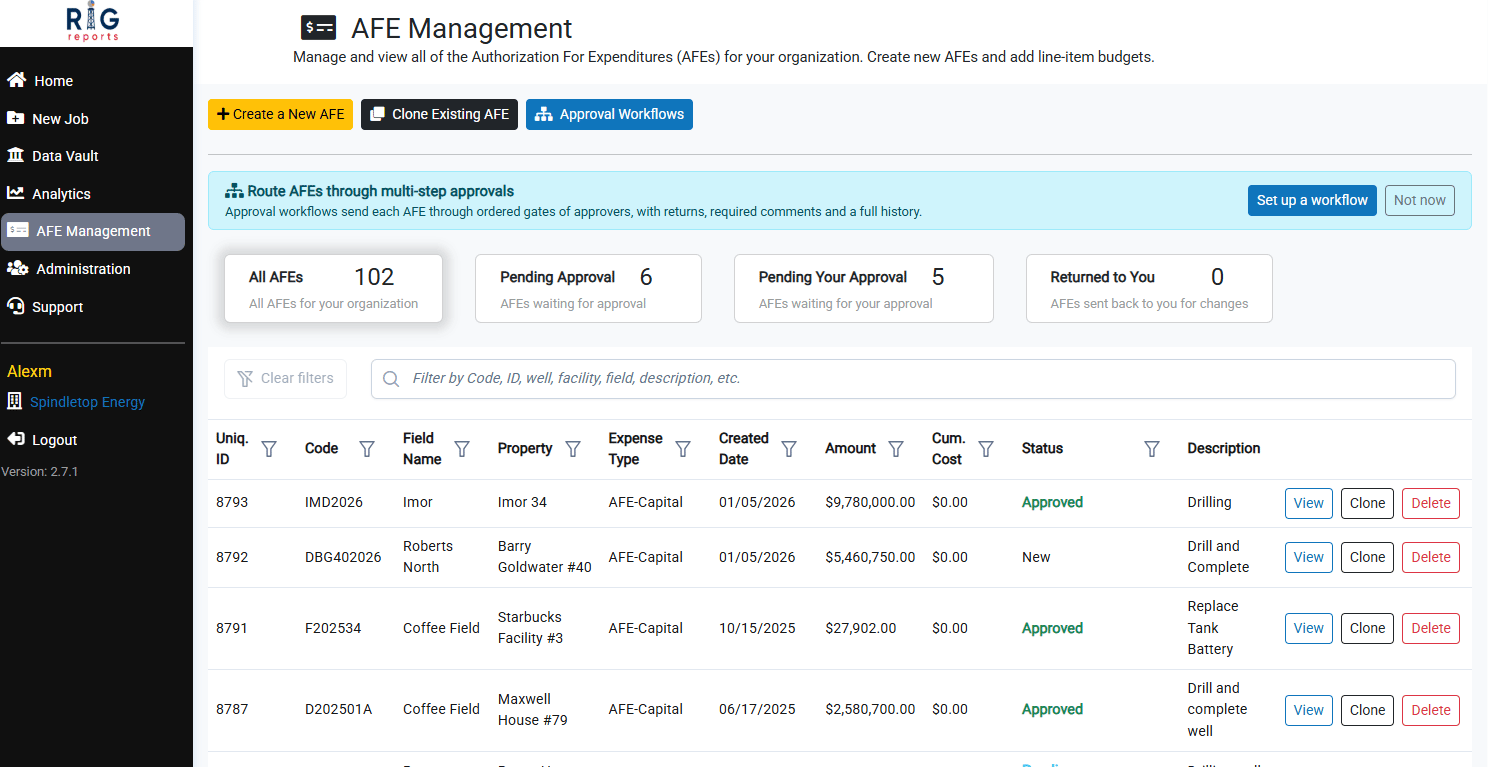
Step 2: Enter the Workflow Details
Click New Workflow, then enter a Name and an optional Description. You can also choose which AFE types this workflow is the default for. The default workflow is preselected when someone submits an AFE of that type, and the submitter can still choose a different one. Click Continue to gates.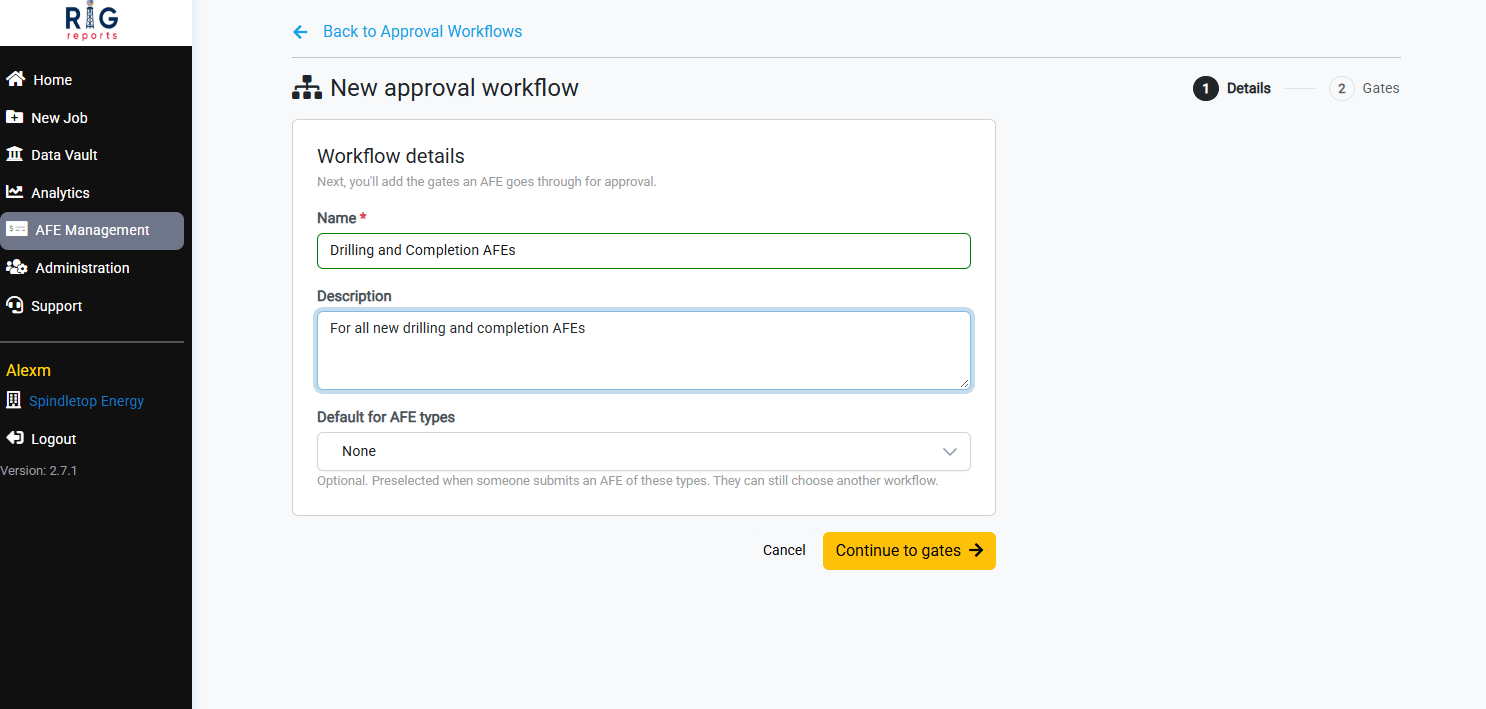
Step 3: Add Your First Gate
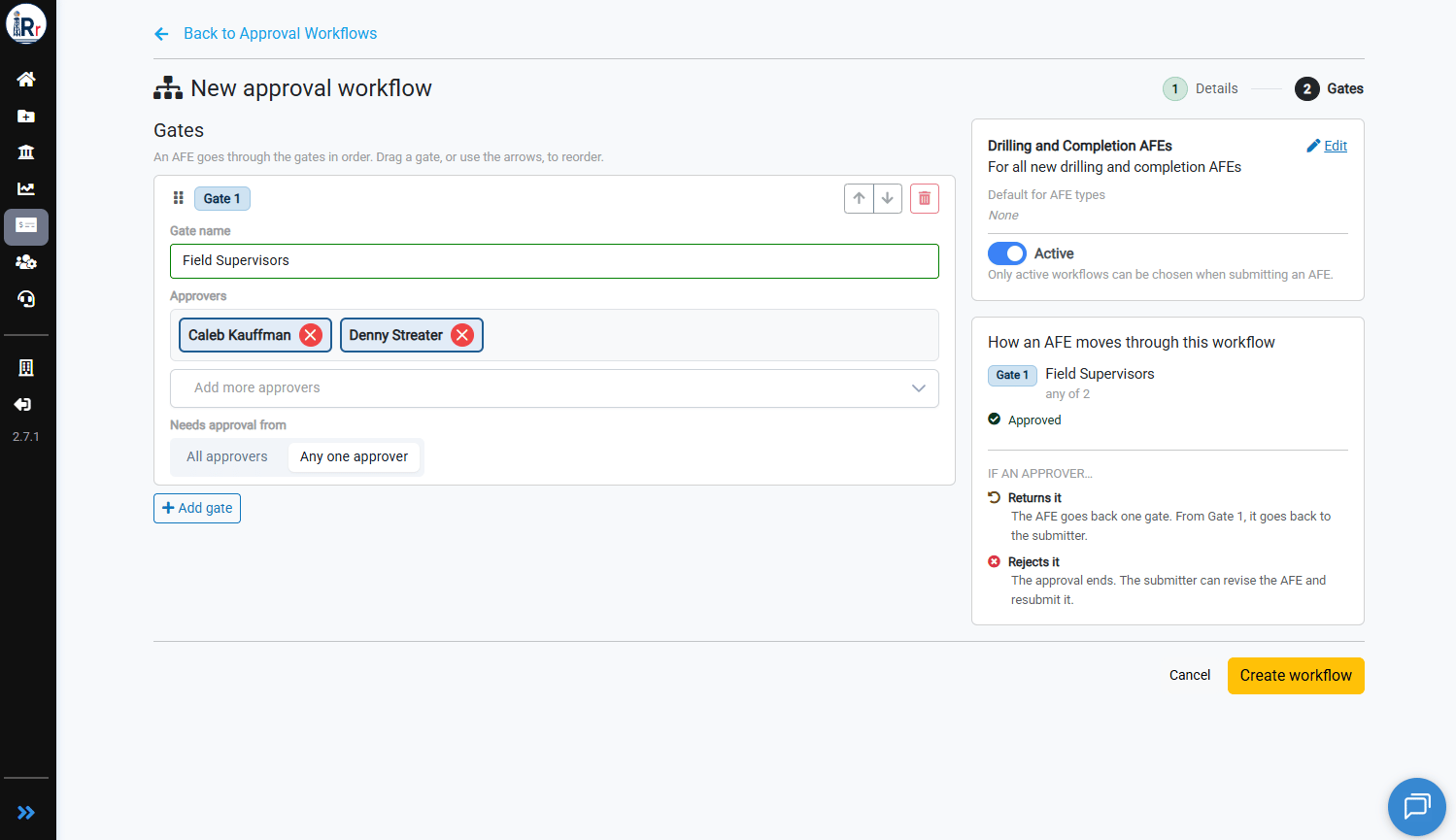
Give the gate a name, such as Field Supervisors, and add one or more approvers. Under Needs approval from, choose one option:- All approvers: every approver on the gate must approve before the AFE moves on.
- Any one approver: the first approval passes the gate.
Step 4: Add the Rest of the Gates
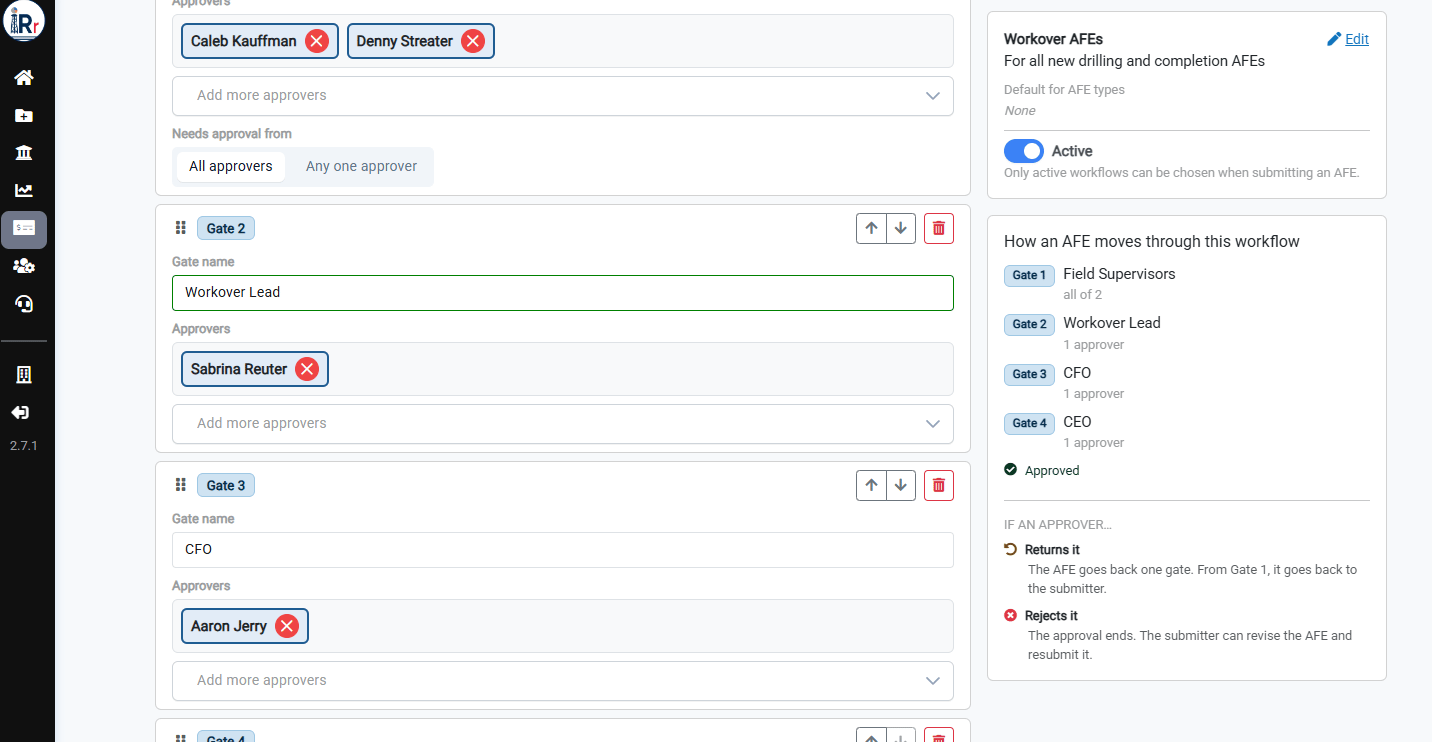
Click Add gate for each additional step in your approval chain. AFEs pass through the gates in order. To reorder gates, drag them or use the up and down arrows. In this example the workflow has four gates: Field Supervisors, Drilling Leads, CFO, and CEO.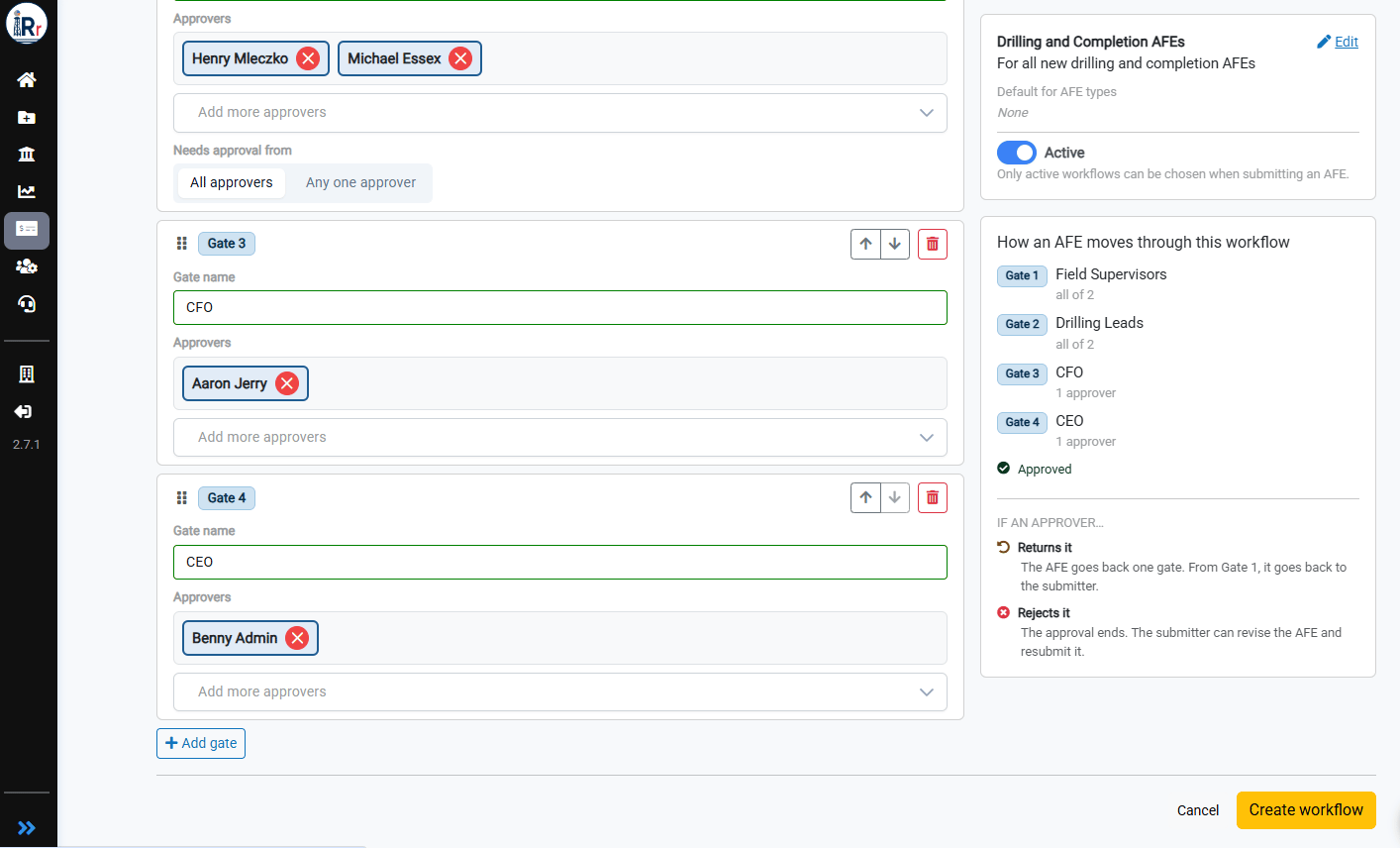
Step 5: Create the Workflow and Turn On Approval Workflows
Leave the workflow Active, since only active workflows can be chosen when submitting an AFE, and click Create workflow. The first active workflow you create turns on approval workflows for your whole company. RigReports asks you to confirm this. Once it’s on, new approvals go through a workflow and individual approval requests can no longer be sent. Approval requests that are already open finish normally.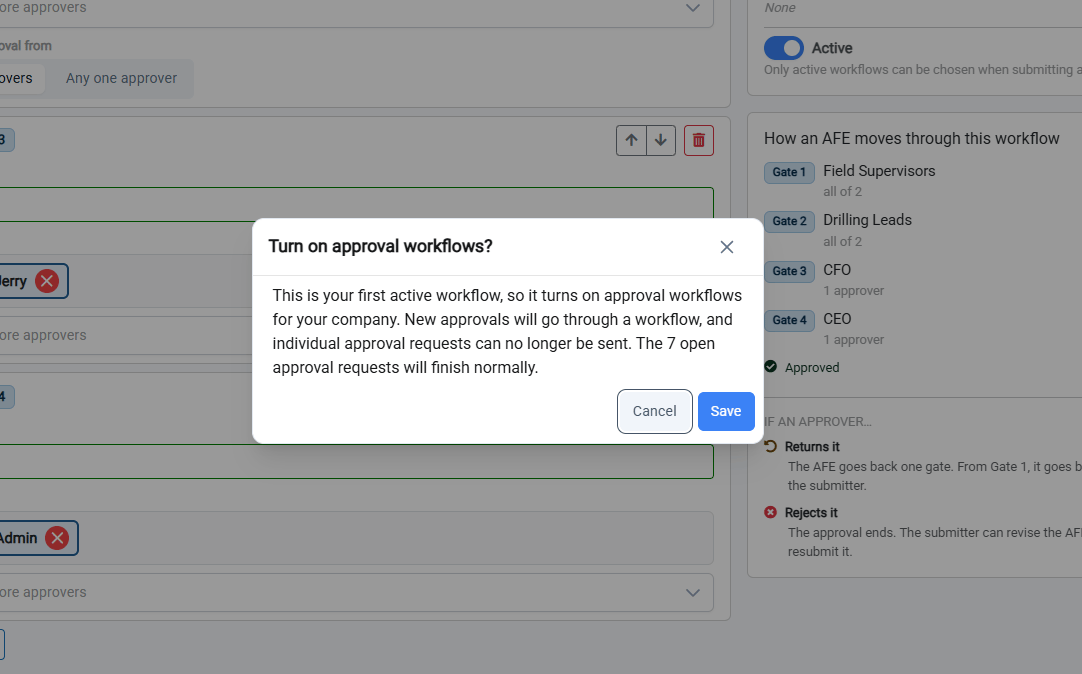
Optional: Duplicate a Workflow
If you need a similar workflow for another kind of AFE, click Duplicate next to an existing workflow on the Approval Workflows page and give the copy a name. The copy starts active, with the same gates and approvers. It isn’t the default for any AFE type until you choose some.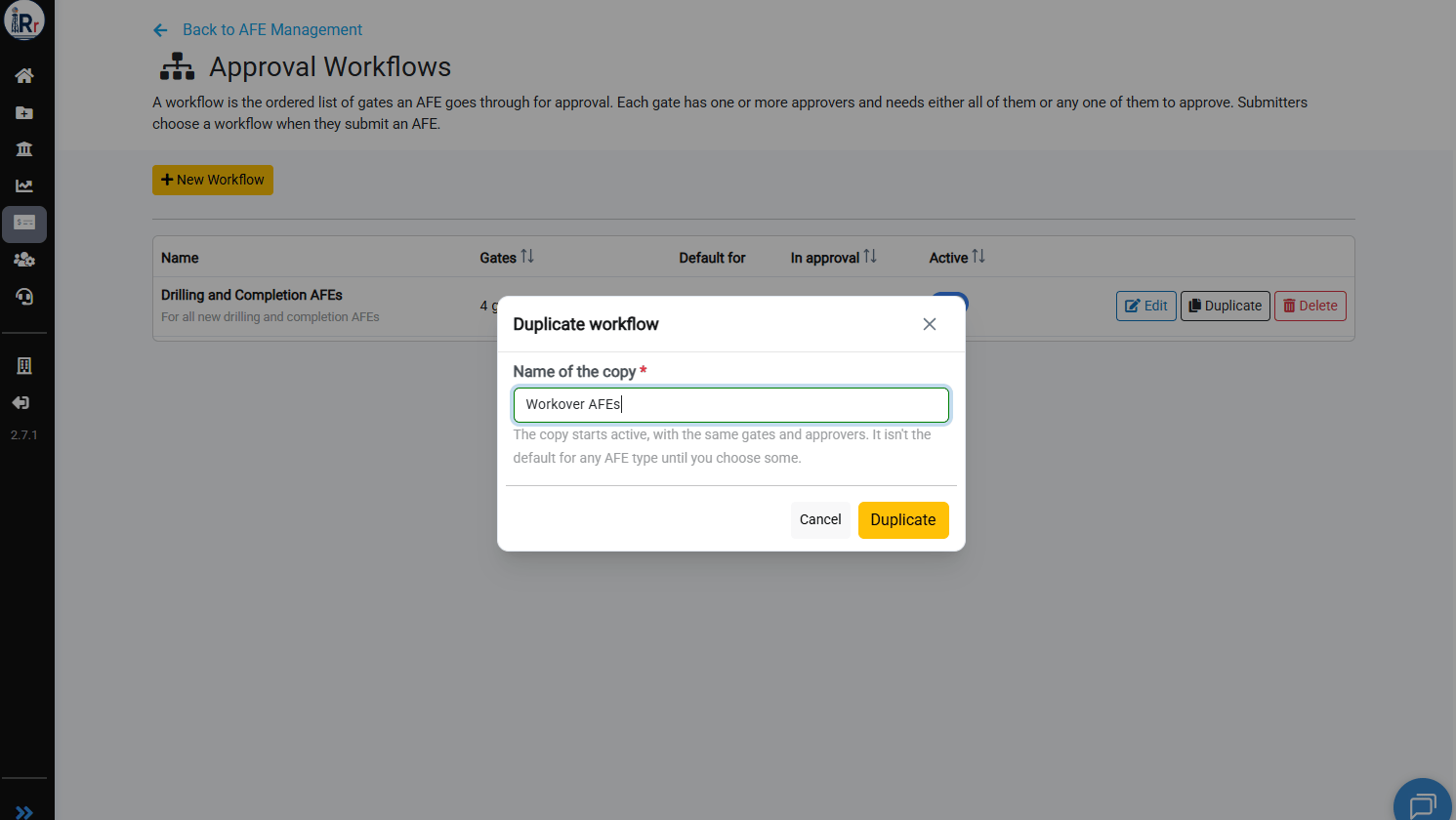
Submitting an AFE for Approval
Step 1: Build the AFE and Click Submit for Approval
Create the AFE and enter its budget as usual. When it’s ready for review, click Submit for approval in the top right.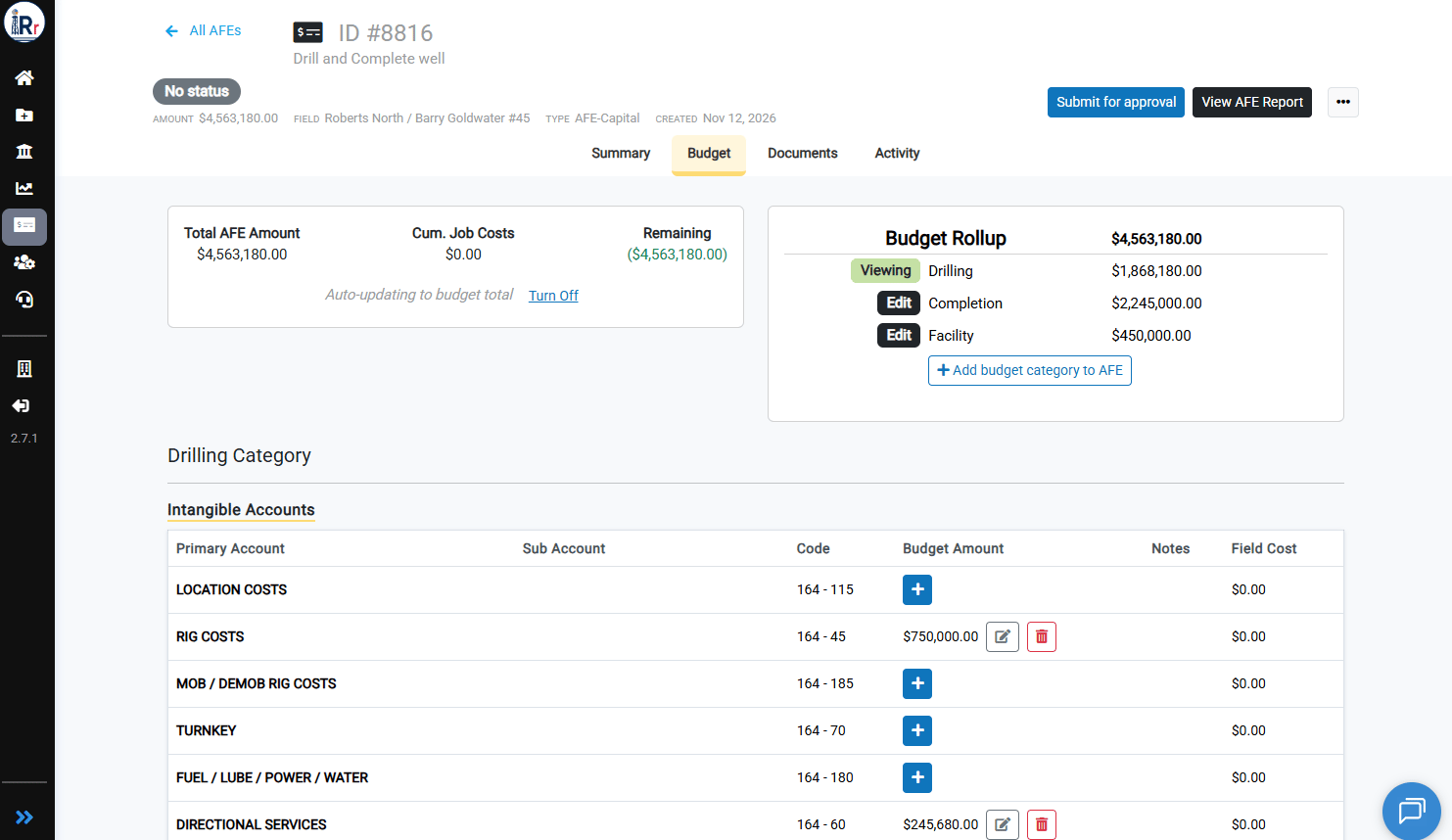
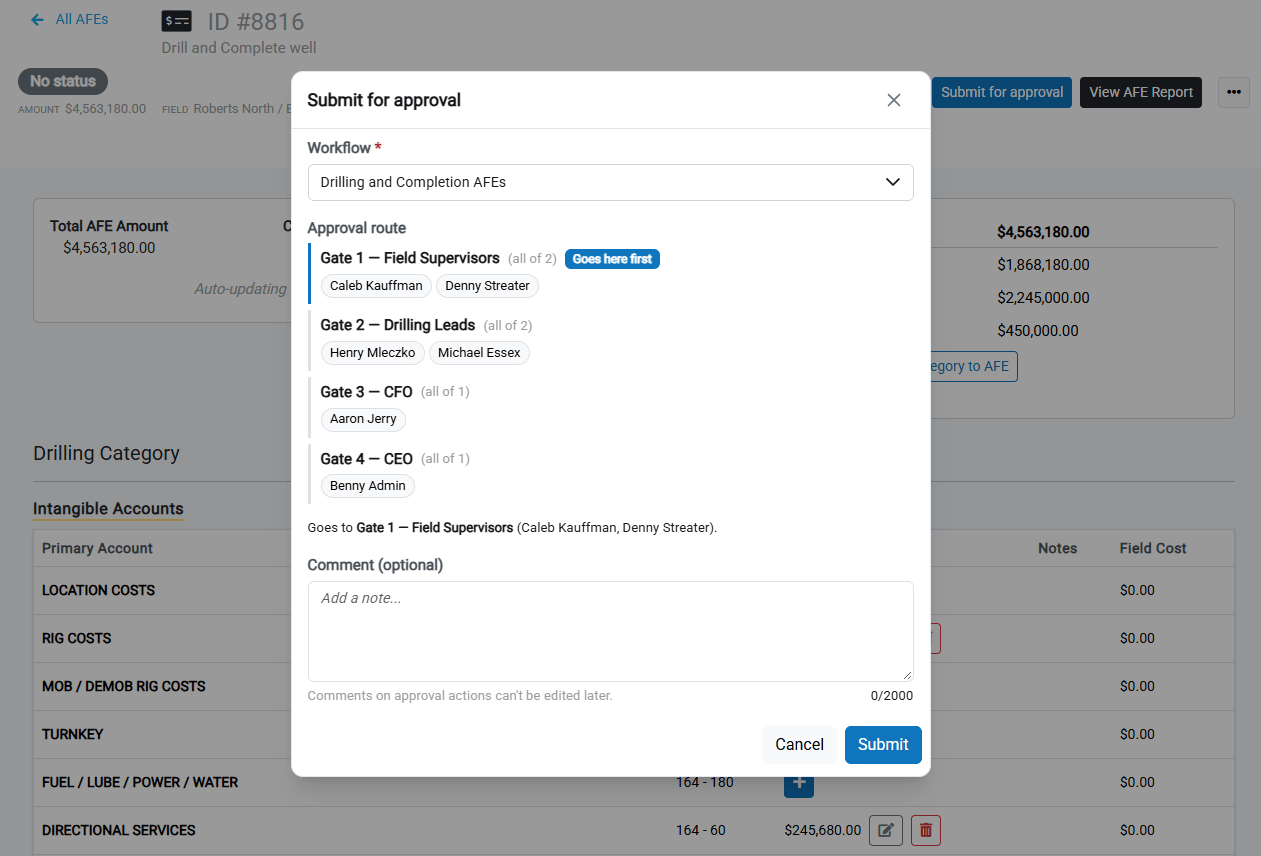
Step 2: Choose the Workflow and Review the Route
Choose a Workflow. If one is set as the default for this AFE type, it is already selected. The Approval route lists every gate and approver in order and shows where the AFE goes first. You can add an optional comment for the approvers. Click Submit.Comments added to approval actions (submit, approve, return, reject) are part of the permanent record and can’t be edited later.
Step 3: Track Progress on the AFE Summary
After you submit, the AFE status changes to Pending, and the header shows which gate it’s on, for example In review · Gate 1 of 4 — Field Supervisors. The Approval panel shows every gate and every approver. Latest activity lists the most recent actions. The AFE is now locked. No one can edit it until it’s returned to the submitter, rejected, or withdrawn. To pull it back yourself, click Withdraw.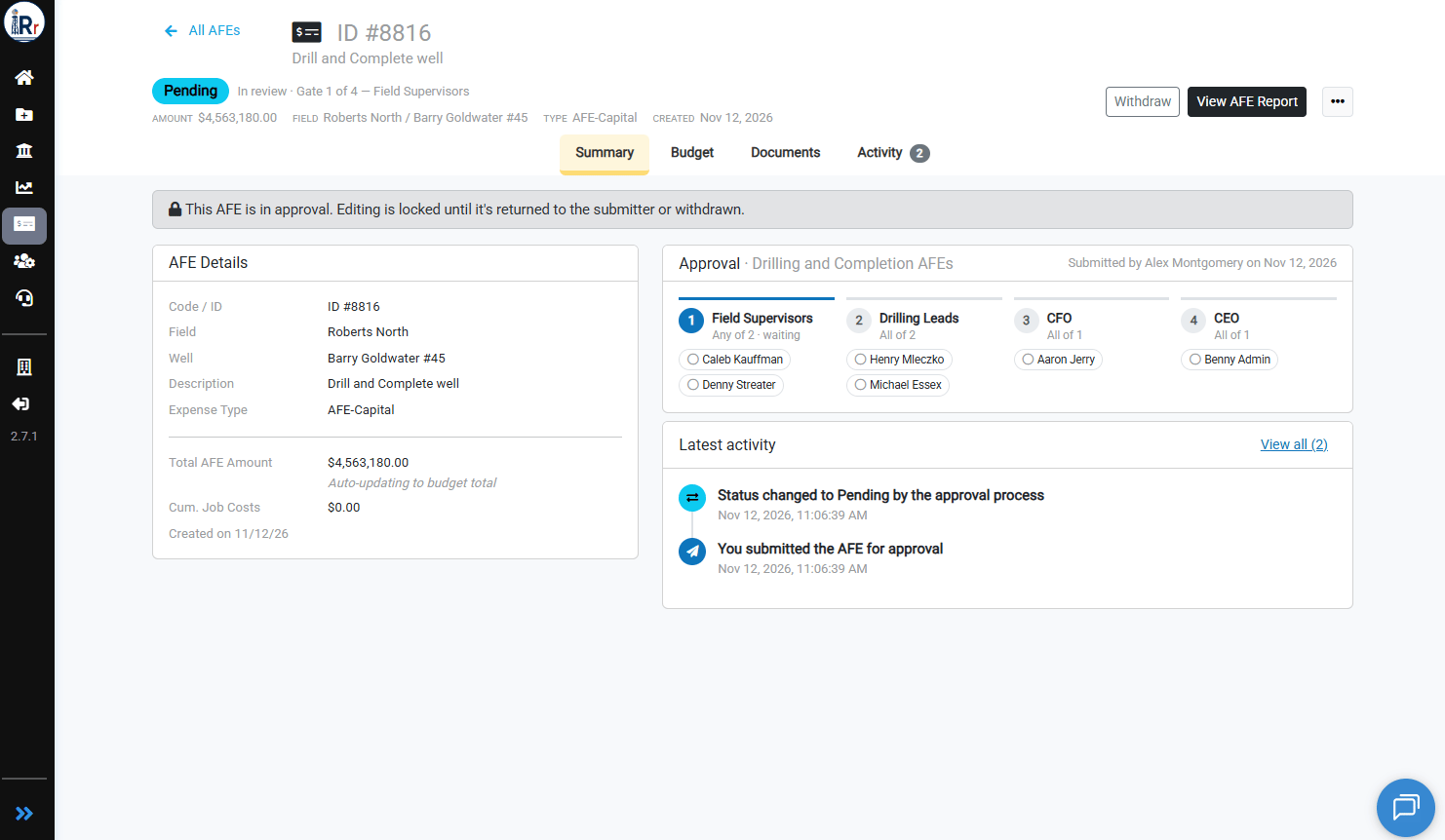
Reviewing and Approving an AFE
Approvers Are Notified
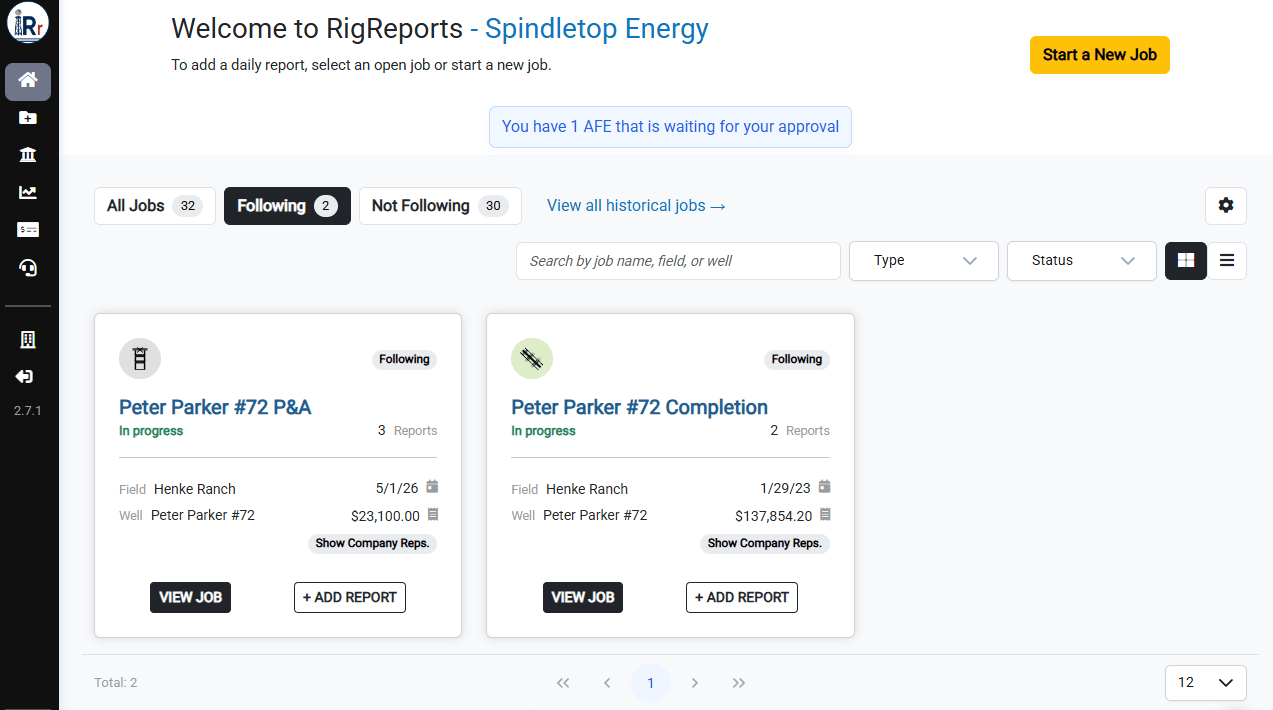
When an AFE reaches a gate, each approver on that gate receives an AFE approval needed email. The email shows the AFE, amount, workflow, and gate. Click Review AFE to open it.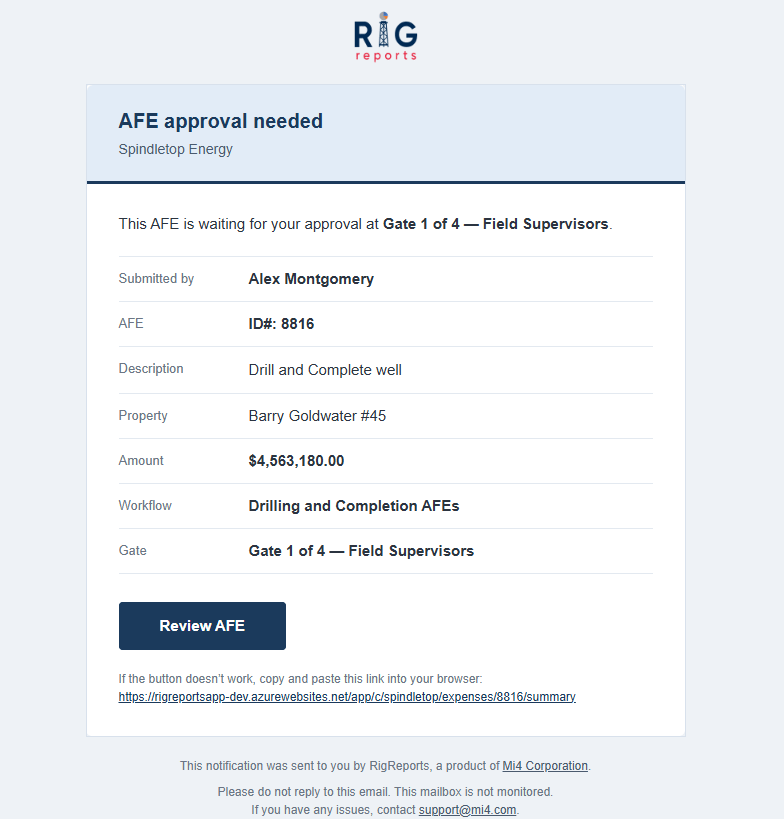
Taking Action
When it’s your turn, a Your approval is needed banner appears at the top of the AFE, with three buttons:Approve
The dialog tells you what your approval will do. In this example, it completes Gate 1 and moves the AFE to Gate 2.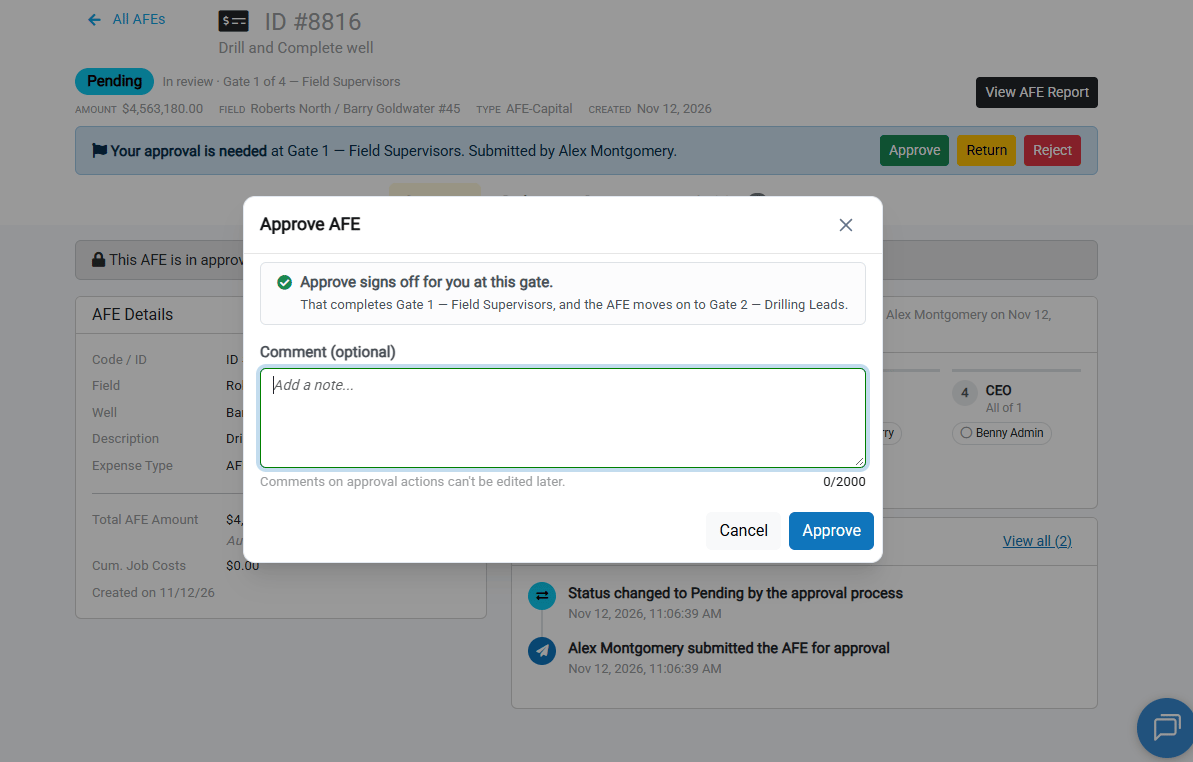
Return
Use Return to ask for changes without ending the approval. A comment is required, so the person receiving it knows what to fix.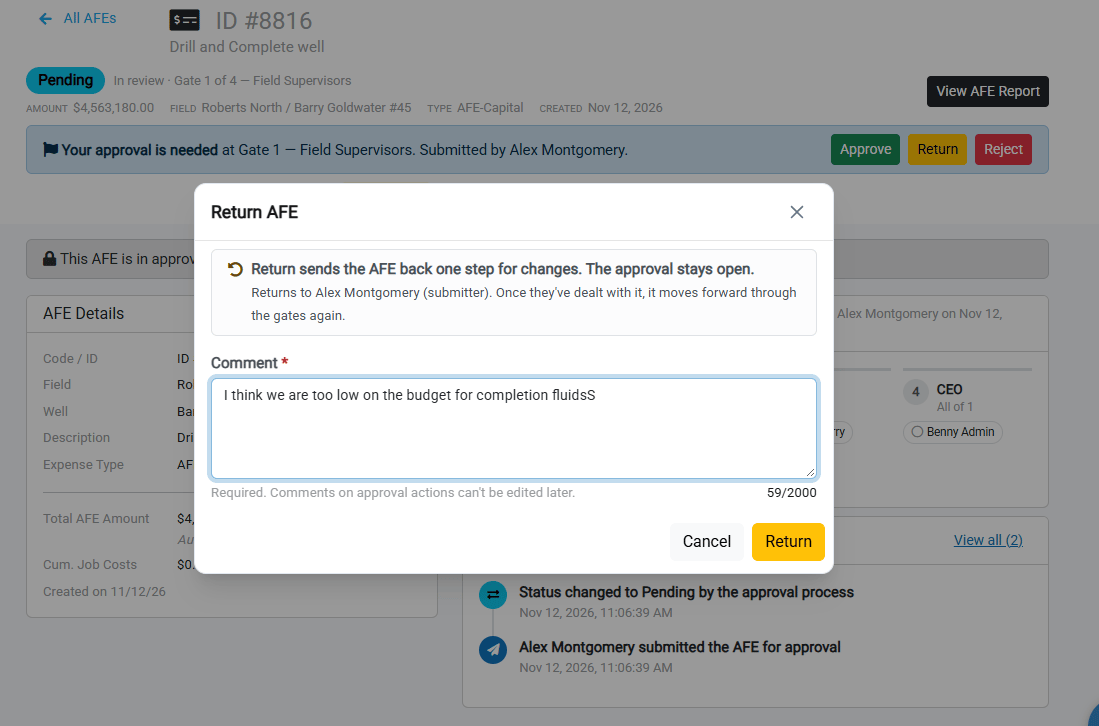
Reject
Use Reject when the AFE should not go forward in its current form. A reason is required.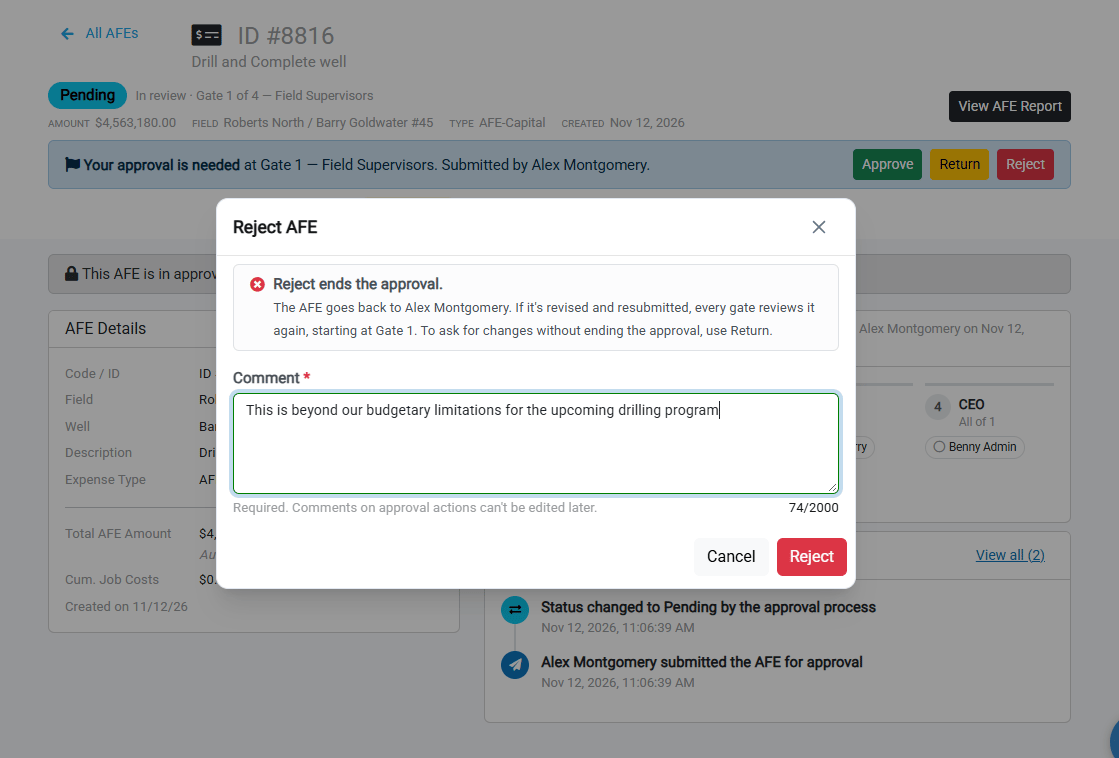
Comments Travel with the AFE
Comments from earlier approvers appear in the approval banner for the approvers who come after them. In this example, the CFO sees the Drilling Lead’s note “Great work on this” and adds a comment of their own while approving.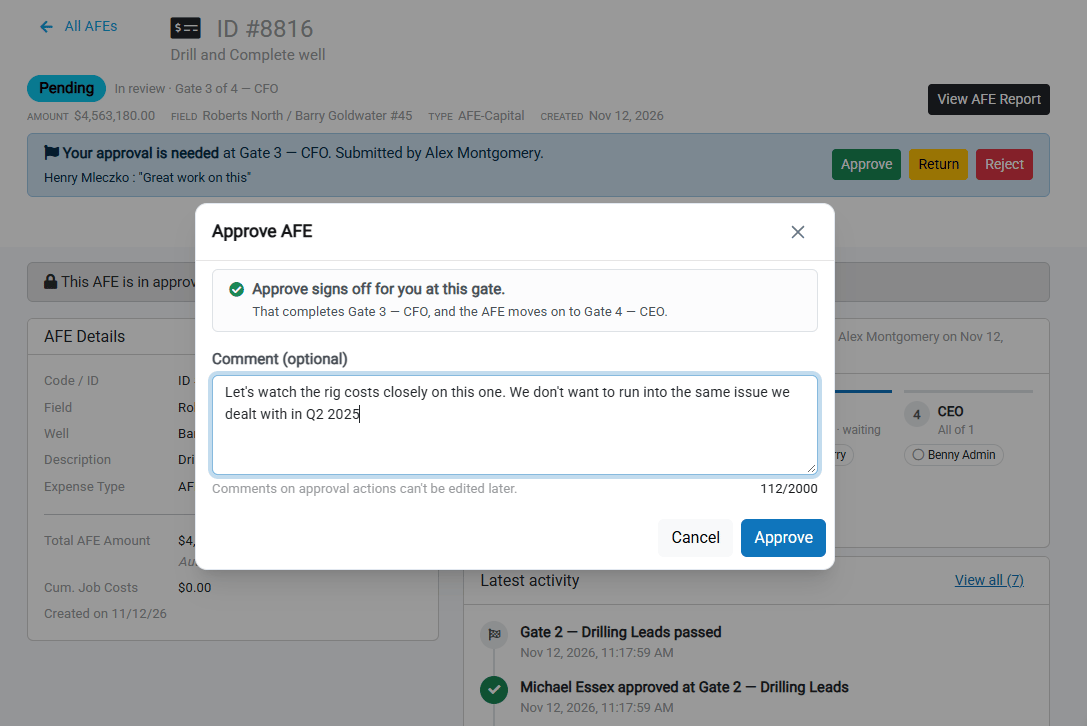
Completing the Approval
The AFE Is Approved
When the last gate passes, the AFE status changes to Approved. The Approval panel shows a green check for every gate, the date each one passed, and who approved it.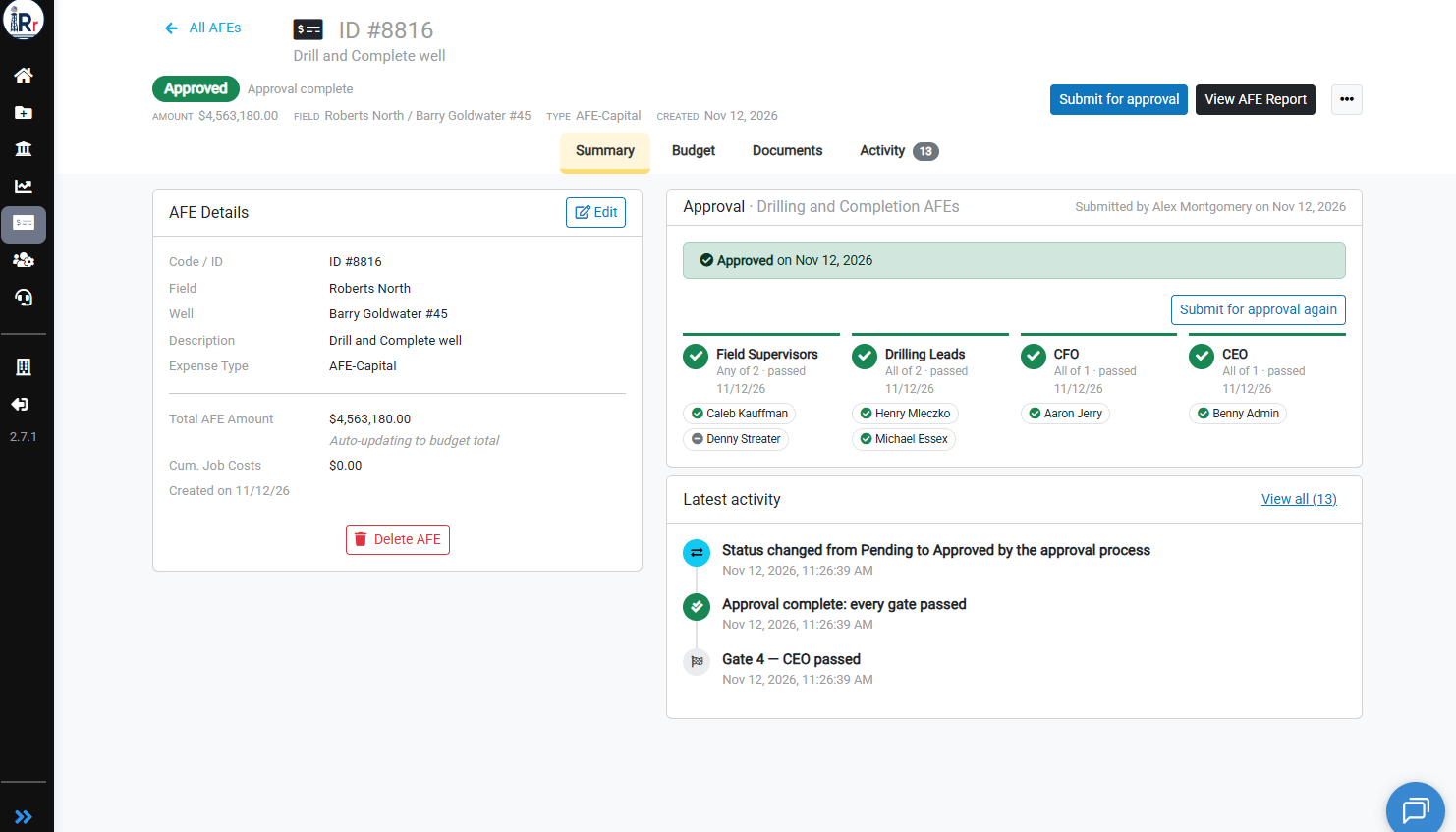
The Submitter Is Notified
The submitter receives an AFE approved email confirming that every gate of the workflow has approved the AFE.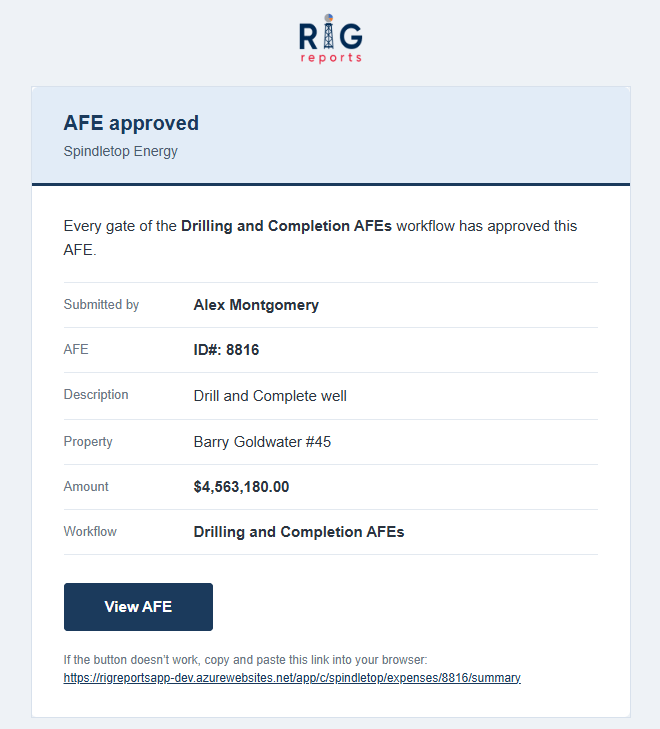
A Complete History on the Activity Tab
The Activity tab keeps a timestamped record of the whole approval: the submission, each approval with its comment, each gate passing, and every status change. Use the All, Comments, and Status & approvals filters to narrow the list. You can also post general comments on the AFE at any time.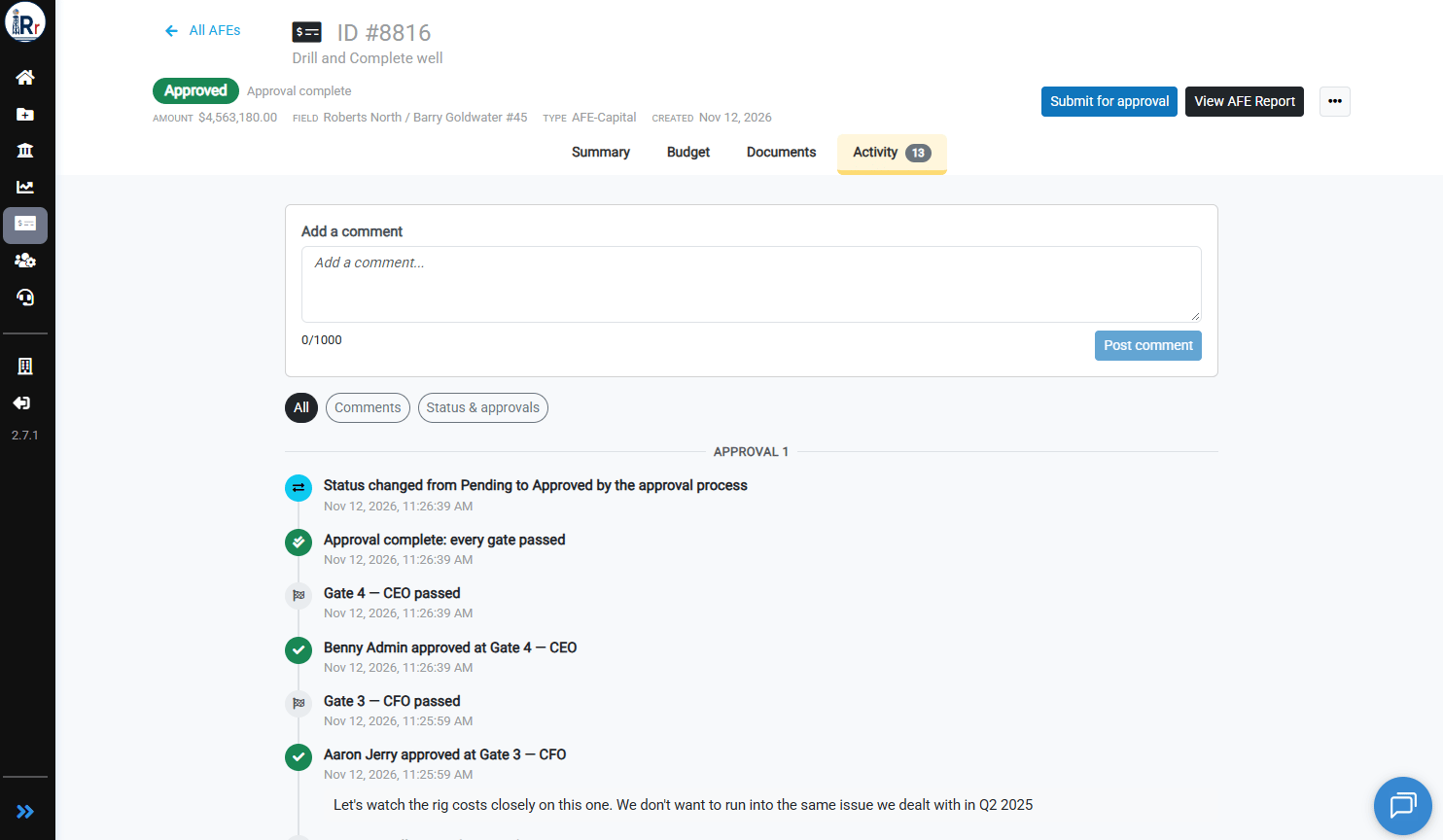
Learn More
- Create an AFE Approval Workflow
- Duplicate an AFE Approval Workflow
- Submit, Track and Approve an AFE using AFE Approval Workflows