
Select a Distribution List
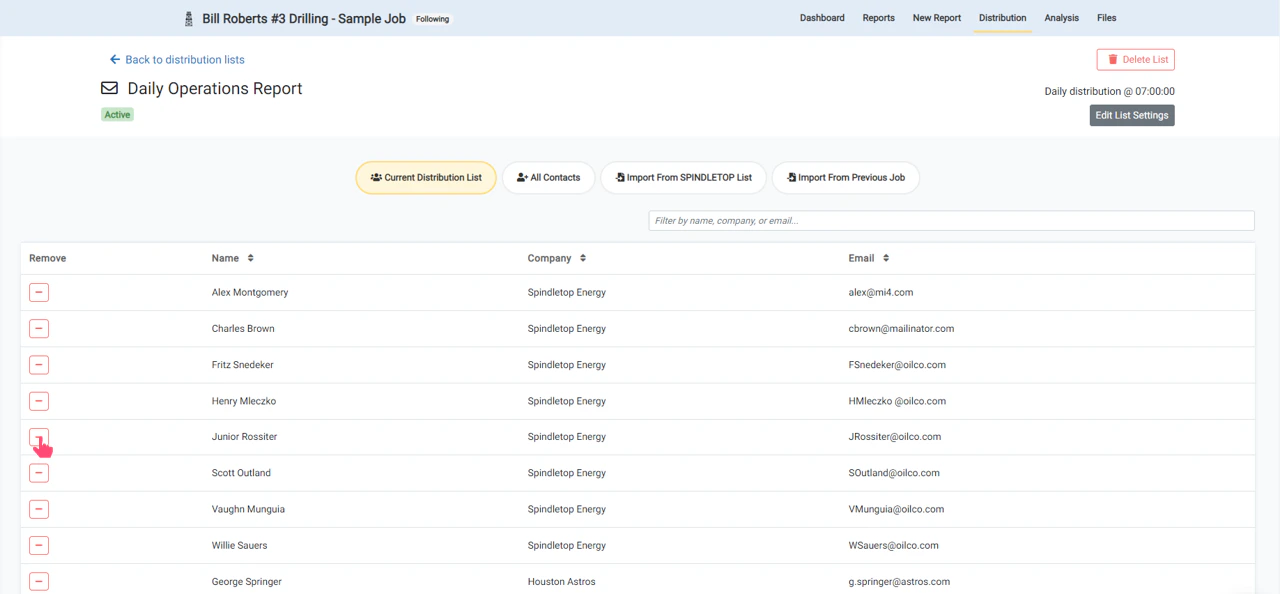
To add or remove contacts for a job distribution list, go to the Distribution page within a job. Then select the distribution list that you would like to edit the contacts for by clicking on the distribution list.If you have not created a distribution list or need to add contacts for a new distribution list, you will need to first create the distribution list.
View Distribution List Members
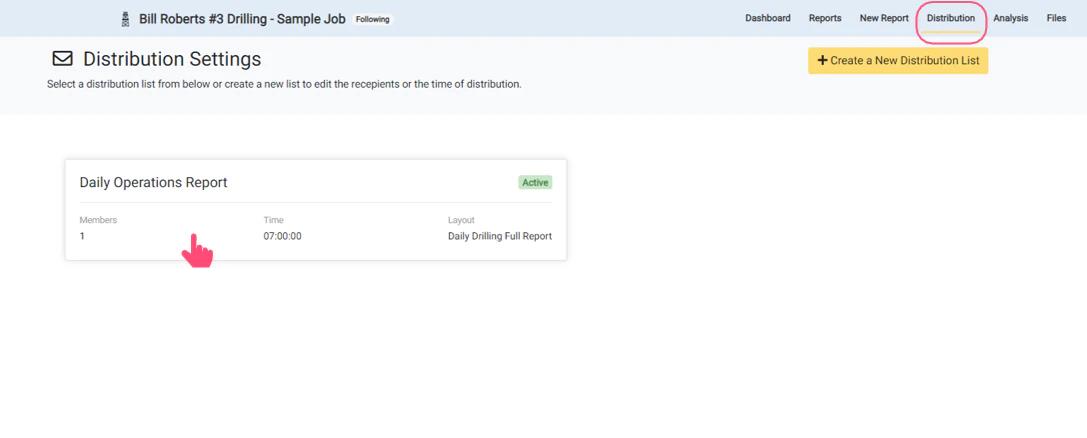
The contacts that are on the distribution list are shown in the Current Distribution List tab. The company name and email address for each contact are also displayed. There are 3 options for adding contacts to a distribution list:- Add contacts individually (All Contacts)
- Import contacts from a reusable custom list (Import From Company List)
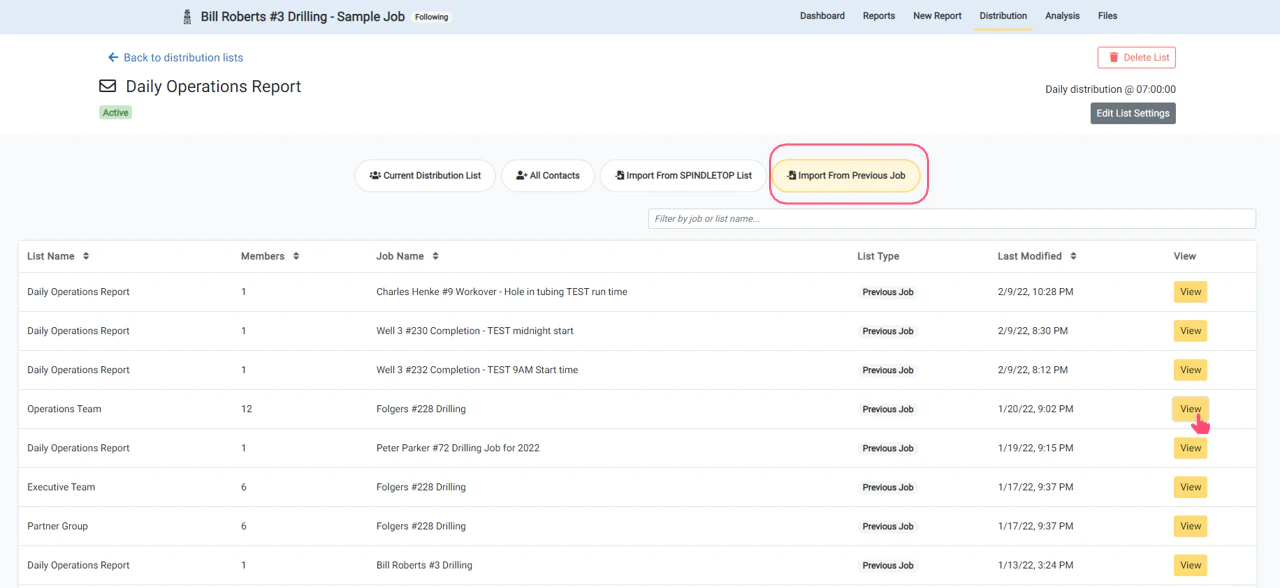
- Import contacts from a previous distribution list (Import From Previous Job)
Add Contacts Individually
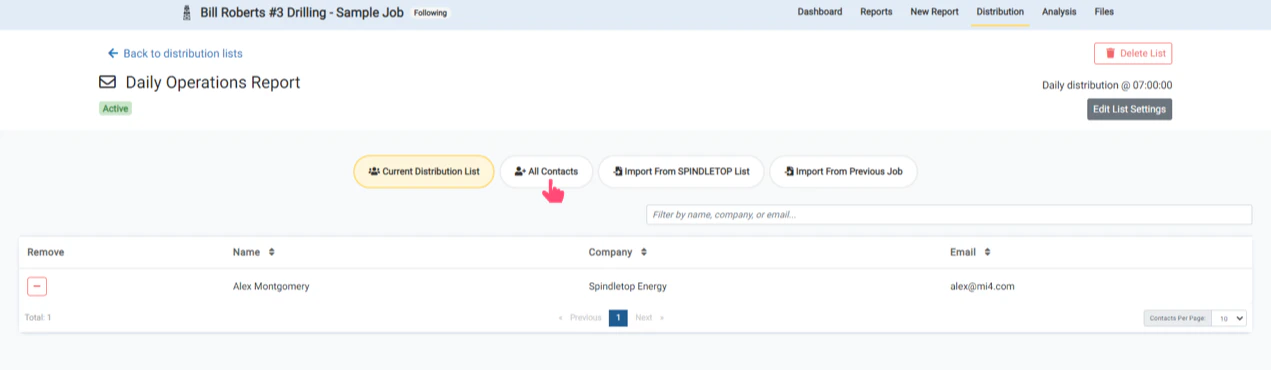
The All Contacts tab displays a list of all users in your company, all contacts in your system, and all contacts that have been created for previous jobs. Contacts can be searched and filtered by name, company, or email address. To add a contact to the current list, click the + button next to the name of the contact you would like to add. The row will turn green when the contact has been added to the list.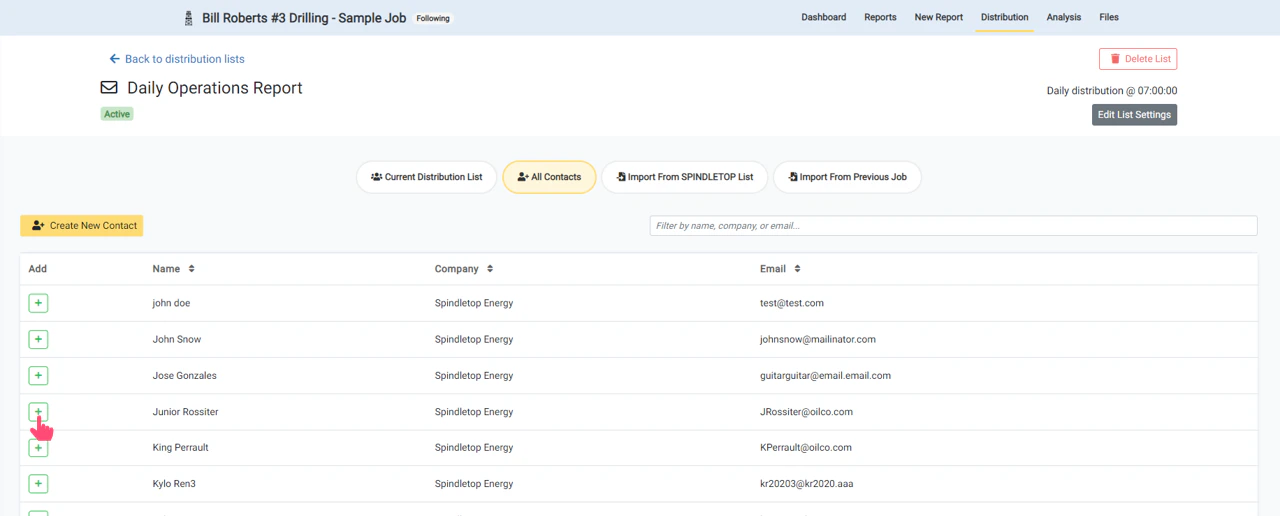
Create New Contact
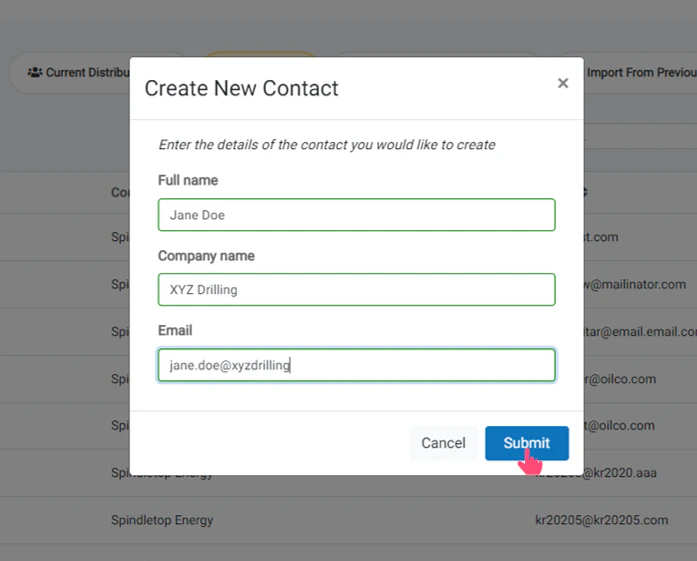
If the contact you would like to add does not exist, you can create and add a new contact from this page. Click the Create New Contact button to open the new contact form.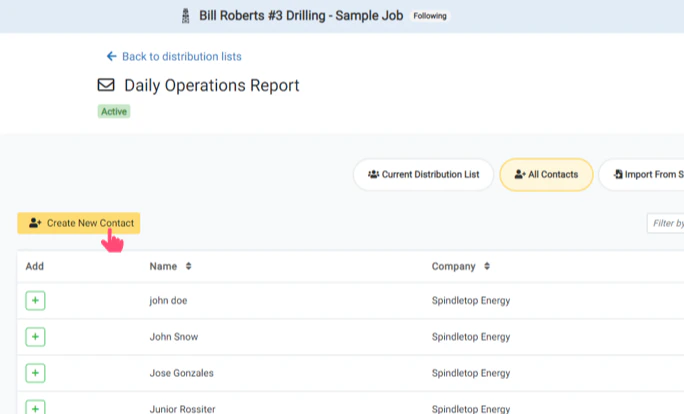
If a contact with the same email address already exists, you will not be able to create the new contact. Users with Admin level privileges can update existing contacts in the Administration section.
Add Contacts from Company List
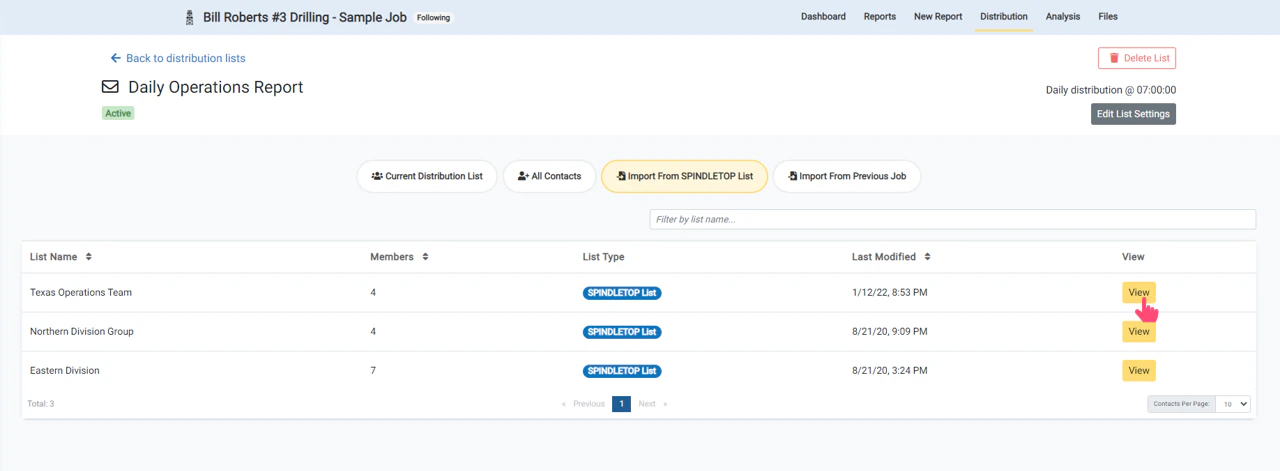
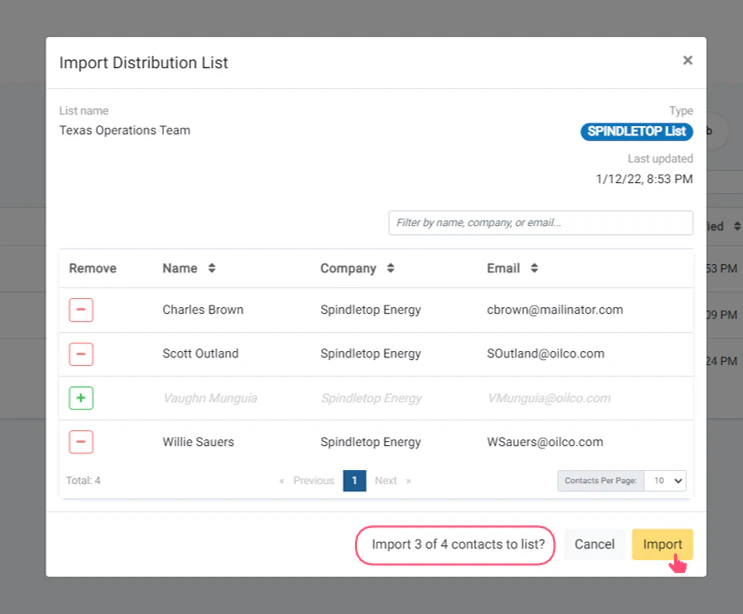
Company Lists are custom lists that can be created to allow groups of contacts to be imported into a distribution list quickly. The Import From Company List tab will display all of the company lists that are available for your organization. Click the View button to view and import the list of contacts in a company list.Company lists can be created and updated in the Administration section by users with Admin privileges.
Add Contacts from Previous List
Contacts can be easily imported from a previous job distribution list. The Import From Previous Jobs tab will display a list of all previous distribution lists. Click the View button to view and import the list of contacts.Filter by job or list name to find the job you are looking for.
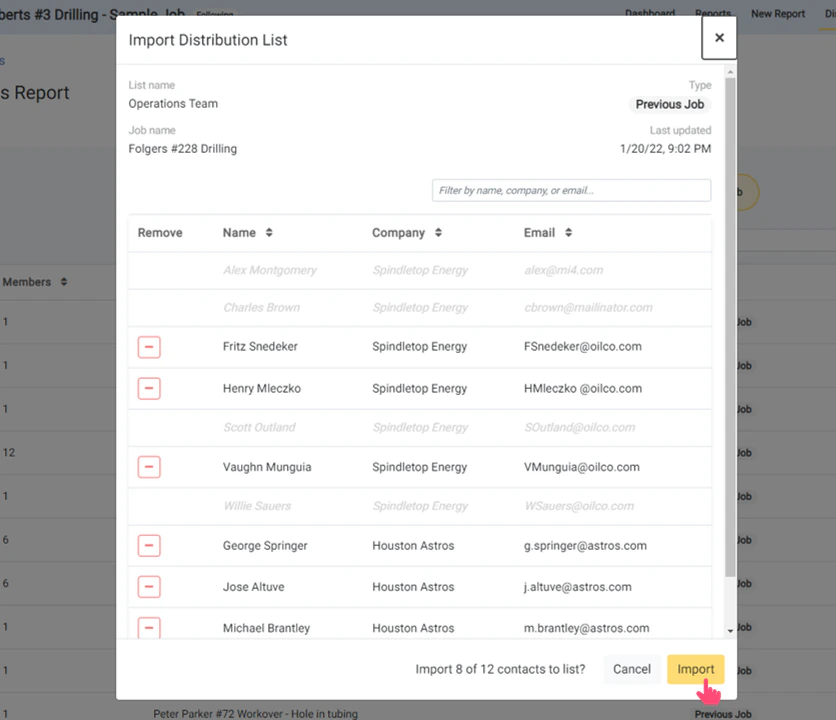
Current List is Updated with Created and Imported Contacts
The current distribution list is now updated with all created, selected, and imported contacts. To remove any contacts, click the - (minus) button next to the contact name. Your job distribution can be updated at any time during the job to update the recipients of future reports.