

AFE Approval Workflows
An AFE Approval Workflow is the ordered list of gates an AFE goes through for approval, for example Field Supervisors → Drilling Leads → CFO → CEO. Each gate has one or more approvers. You decide whether a gate needs all of its approvers to approve, or any one of them. When a gate passes, the AFE moves to the next gate automatically. You can create as many workflows as you need, for example one for drilling and completion AFEs and another for workovers.Workflows are optional. If your company has no active workflow, AFE approvals keep working as they do today. See Create AFE Approval Request.
Open Approval Workflows
Go to AFE Management and click Approval Workflows. If your company doesn’t have a workflow yet, you can also click Set up a workflow in the banner.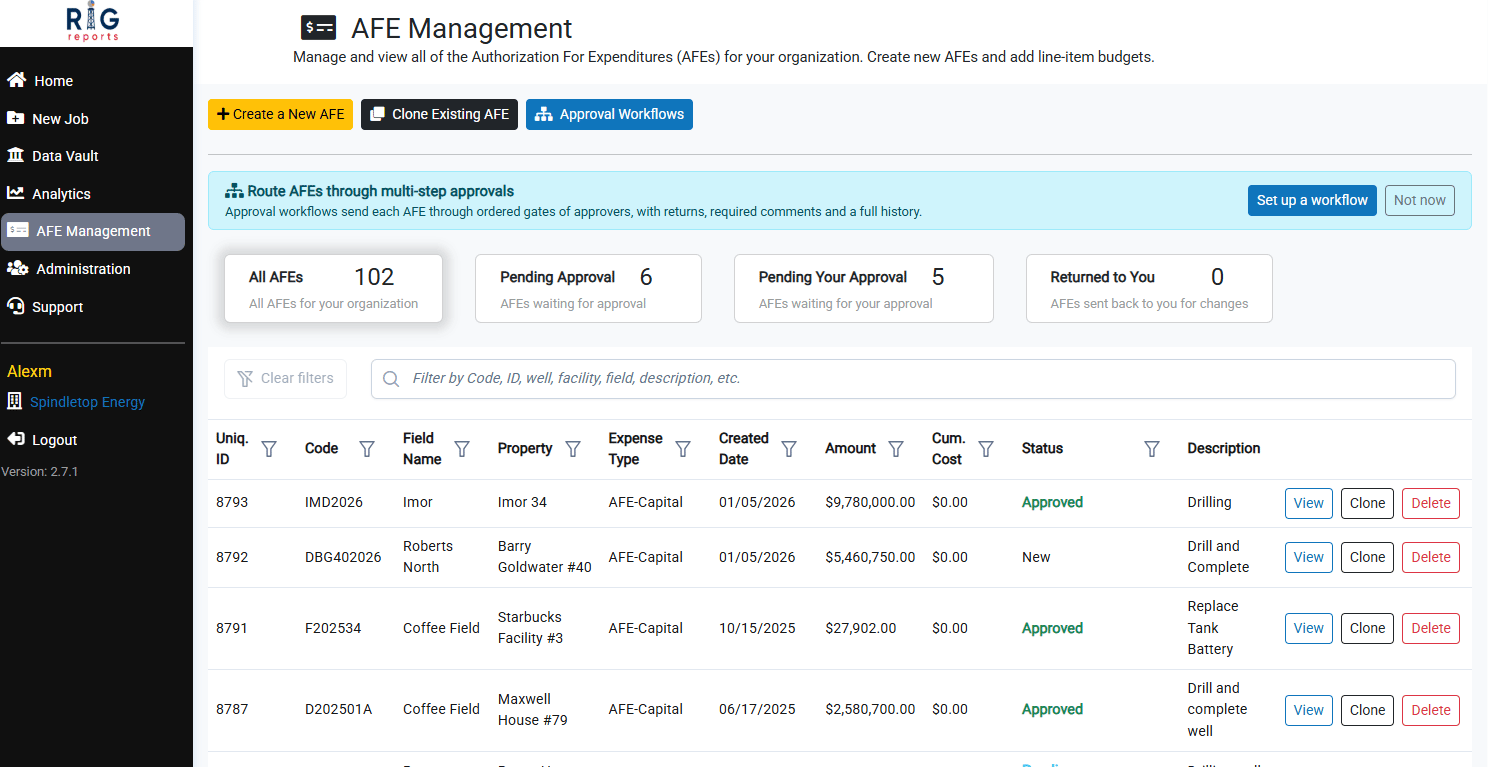
Enter the Workflow Details
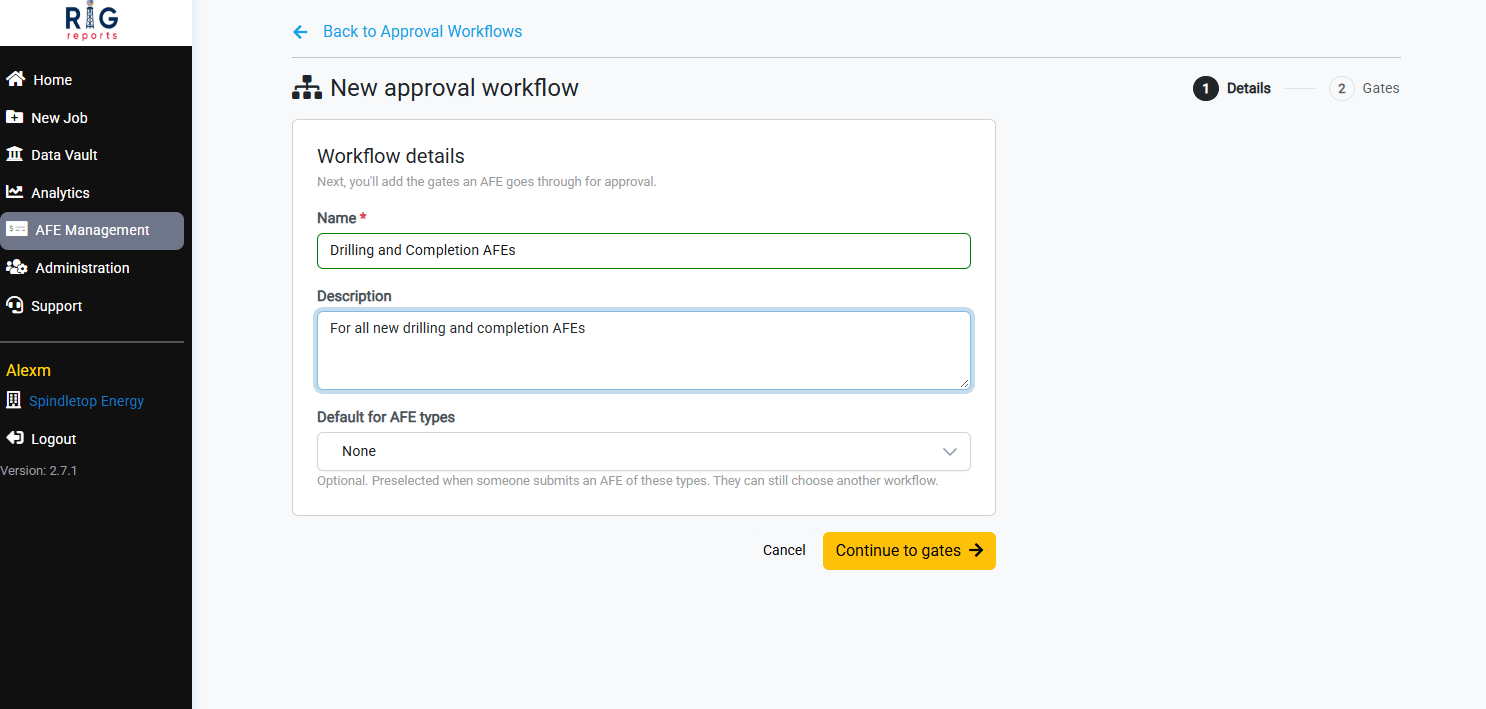
Click New Workflow and fill out the Workflow details:- Name: a name submitters will recognize, such as Drilling and Completion AFEs.
- Description (optional): when this workflow should be used.
- Default for AFE types (optional): the AFE types this workflow is preselected for. Submitters can still choose a different workflow.
Add a Gate
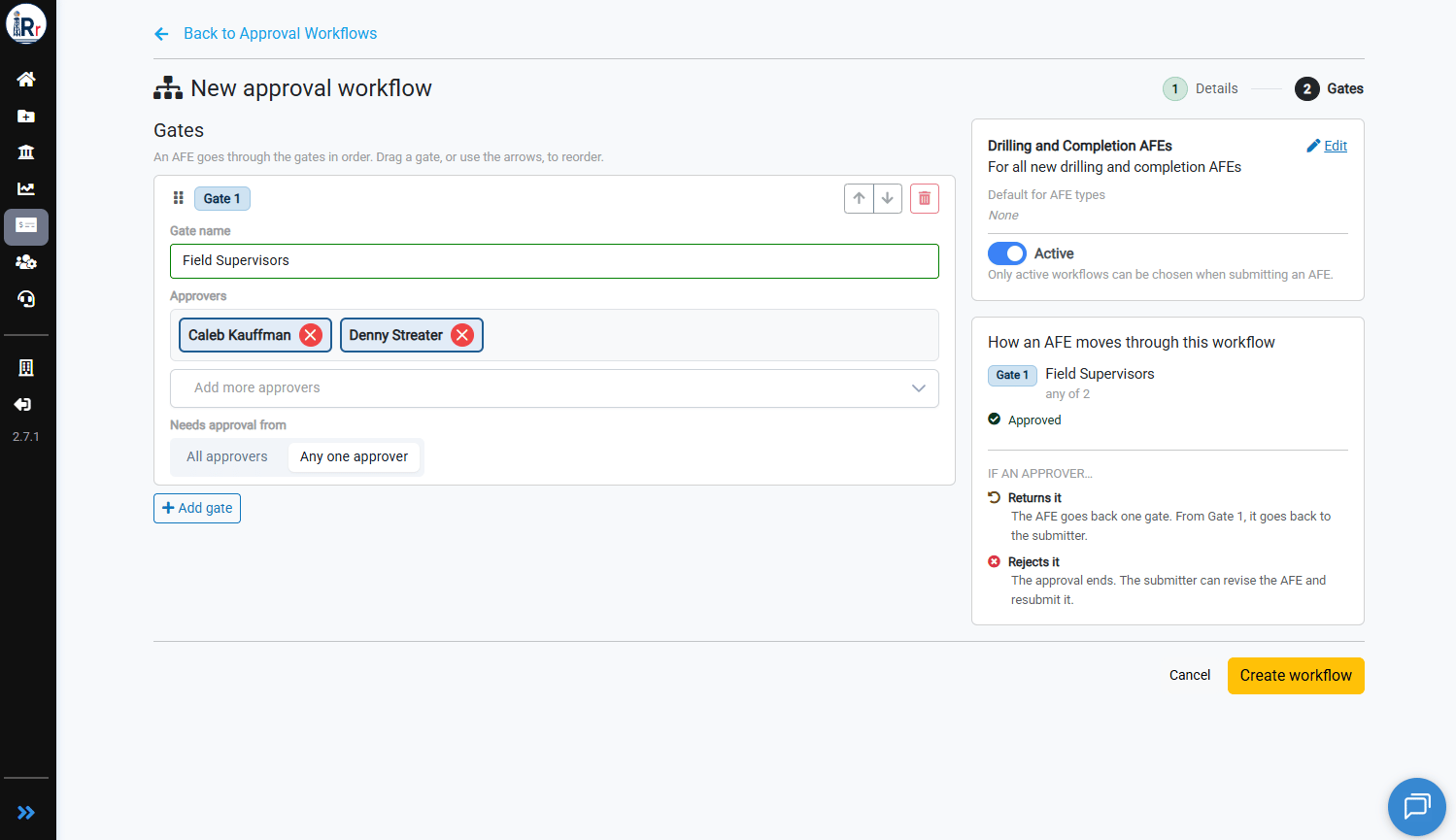
Enter a Gate name, such as Field Supervisors, then pick one or more people from Add more approvers. Under Needs approval from, choose one option:- All approvers: every approver on the gate must approve before the AFE moves on.
- Any one approver: the first approval passes the gate.
Add the Remaining Gates
Click Add gate for each additional step in your approval chain. AFEs pass through the gates in order. To reorder gates, drag them by the handle or use the up and down arrows. To remove a gate, click the trash icon.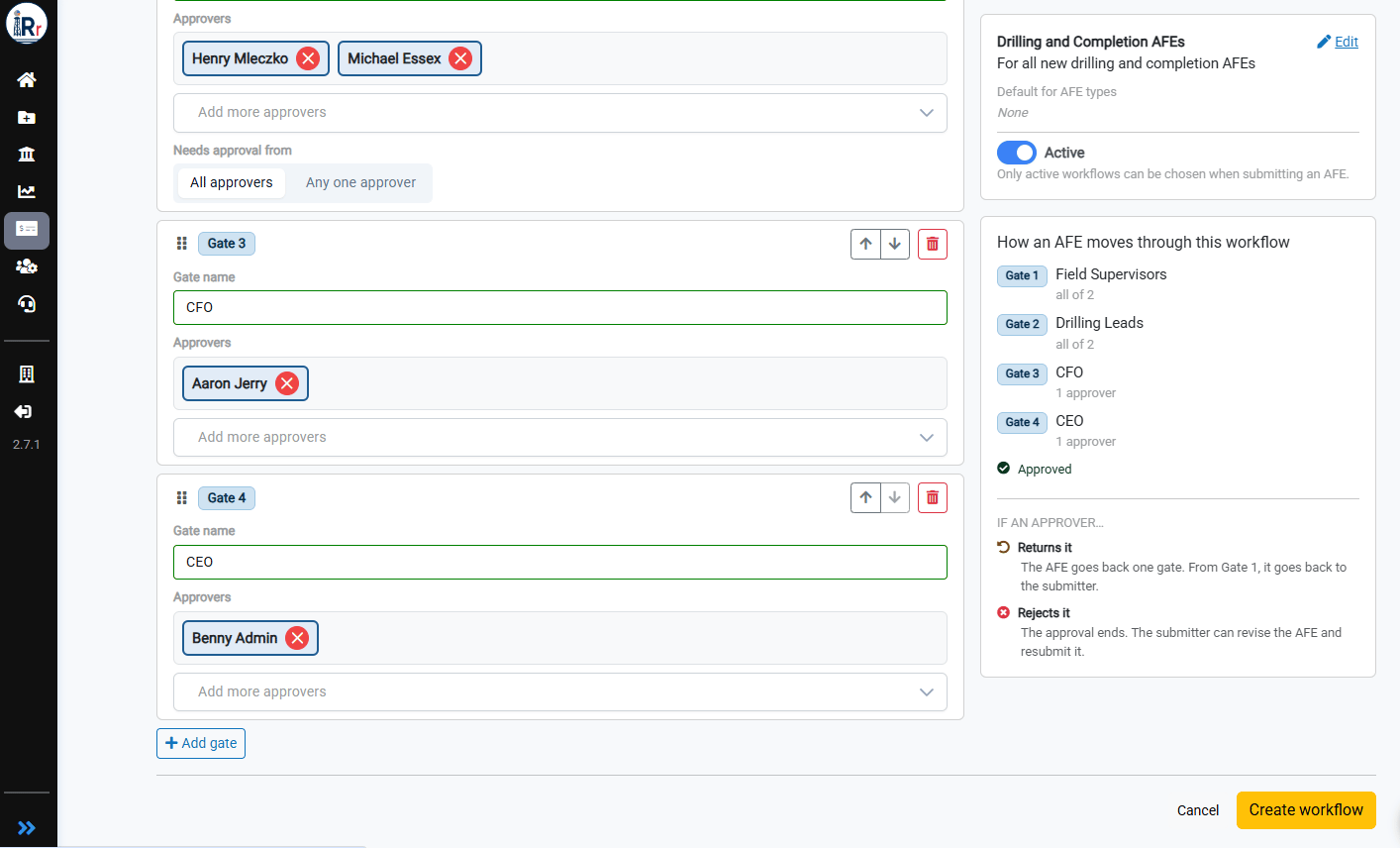
If an approver returns an AFE, it goes back one gate. From Gate 1, it goes back to the submitter. If an approver rejects an AFE, the approval ends, and the submitter can revise and resubmit it.
Create the Workflow
Make sure Active is turned on, since only active workflows can be chosen when submitting an AFE. Then click Create workflow. If this is your company’s first active workflow, RigReports asks you to confirm turning on approval workflows. Click Save. From then on, new approvals go through a workflow, and individual approval requests can no longer be sent. Approval requests that are already open finish normally.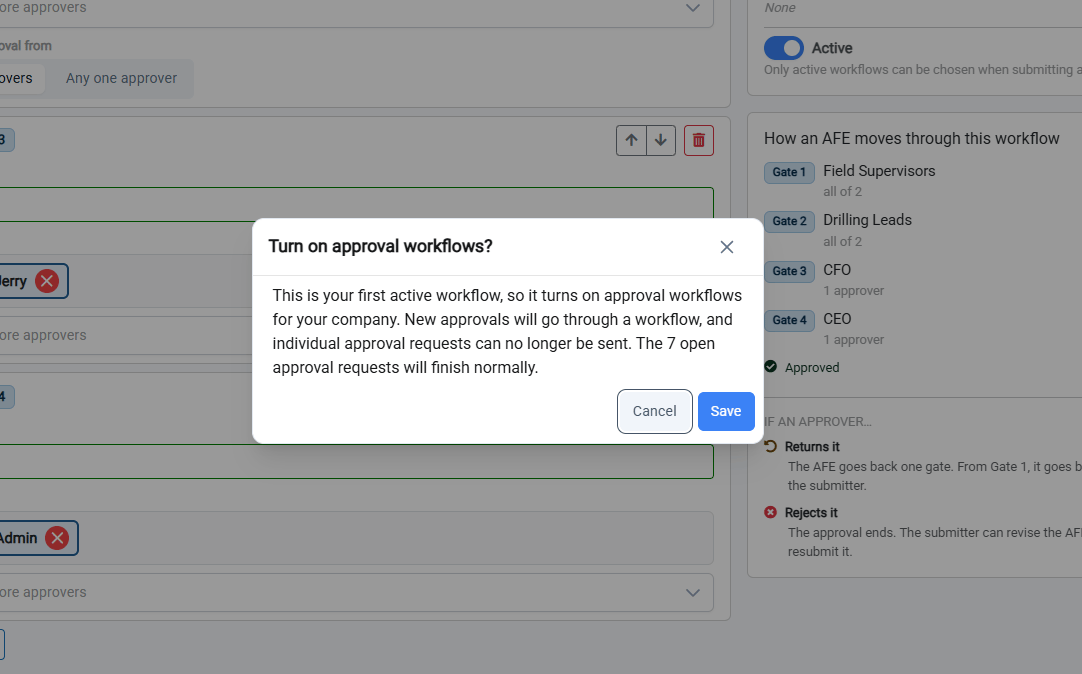
Editing a workflow doesn’t change AFEs that are already in approval. They continue on the route they were submitted with.