

Open the Clone BHA Group Window
One of the best features of BHA groups is the ability to clone previous BHA Group components for drilling programs. Even if some of the components of the group have changed slightly, cloning previous groups can provide a template with most of the components. To get started with cloning a BHA group, click the Clone Previous BHA Group button to open the clone BHA group window.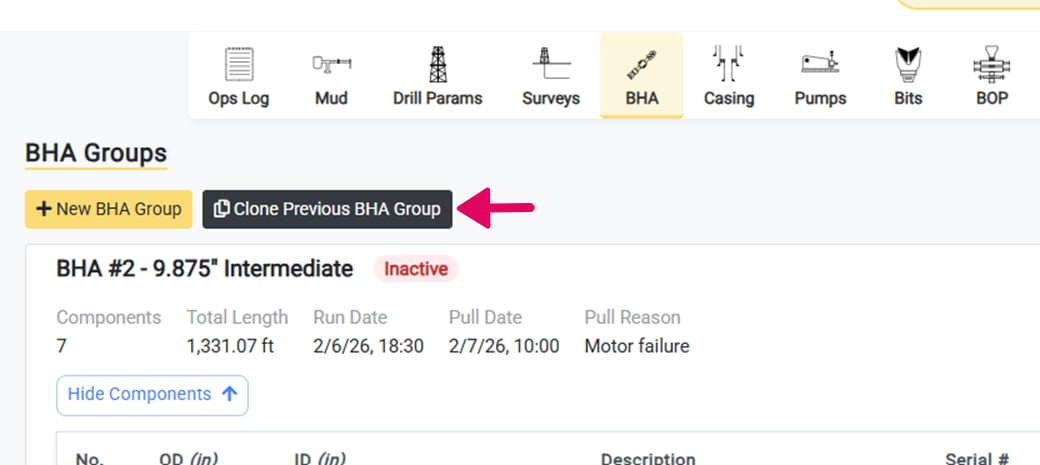
Select the BHA Group to Clone
In the window that opens, you will have access to the previous BHA groups that were entered for your organization. You can search by job, group number, or group name. You can also sort by run date or total length. Once you have found the desired BHA group, click the group to review the components and proceed.Any BHA that was entered prior to the release of the BHA Groups functionality is still available for cloning. These groups were generated automatically. They do not have names and the numbers were assigned automatically and might be inconsistent with your organization’s records.
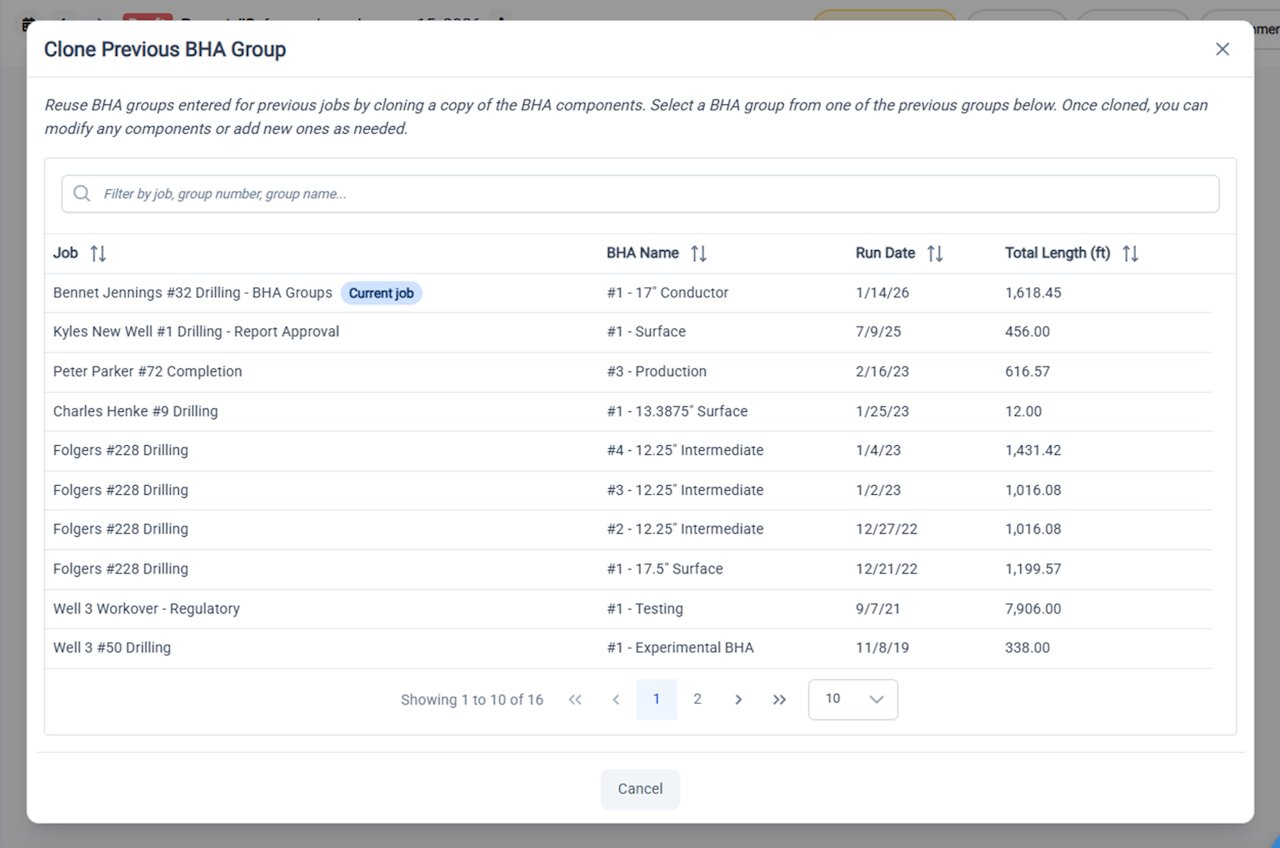
Review the BHA Group Components
Once you have selected the desired group to clone, you will have the opportunity to review all of the details and components of the selected BHA group. To proceed with cloning, click Next. Otherwise, you can use the Back button to select another group.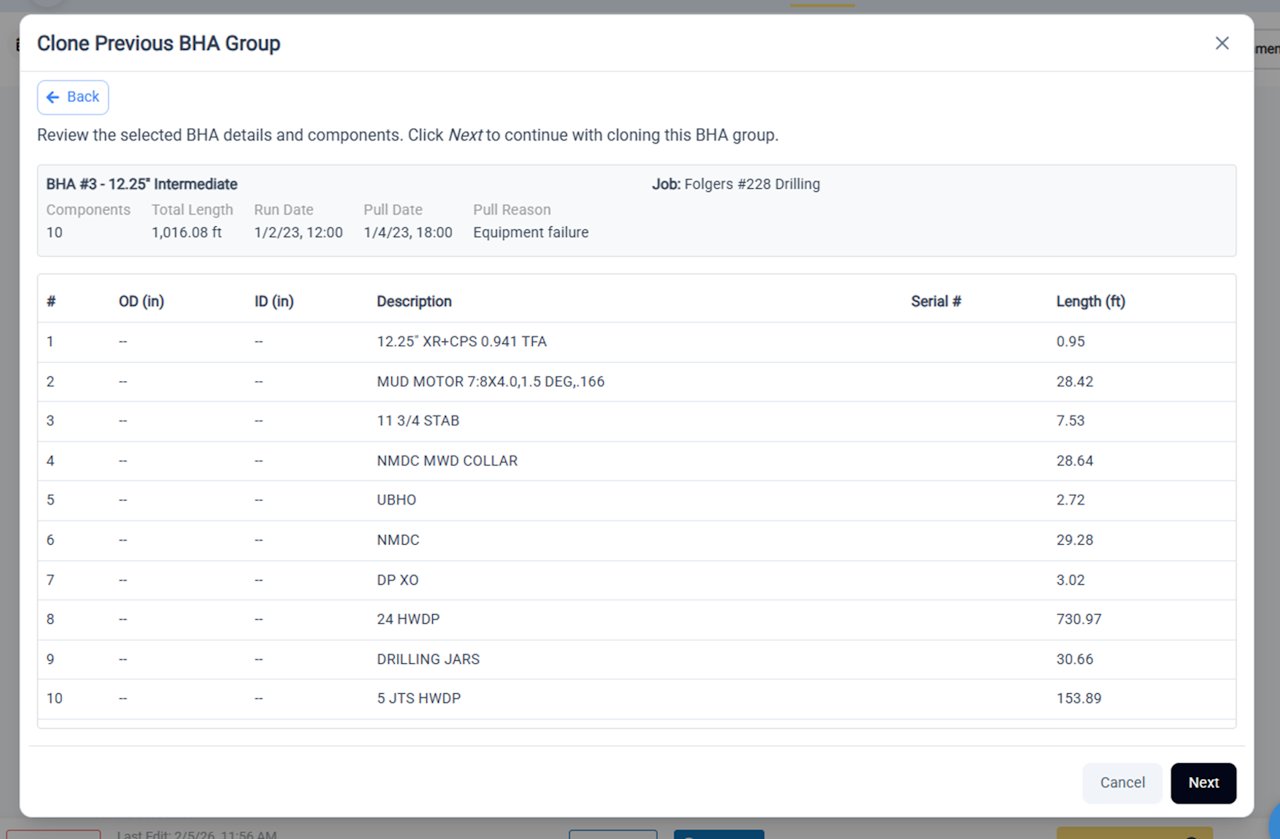
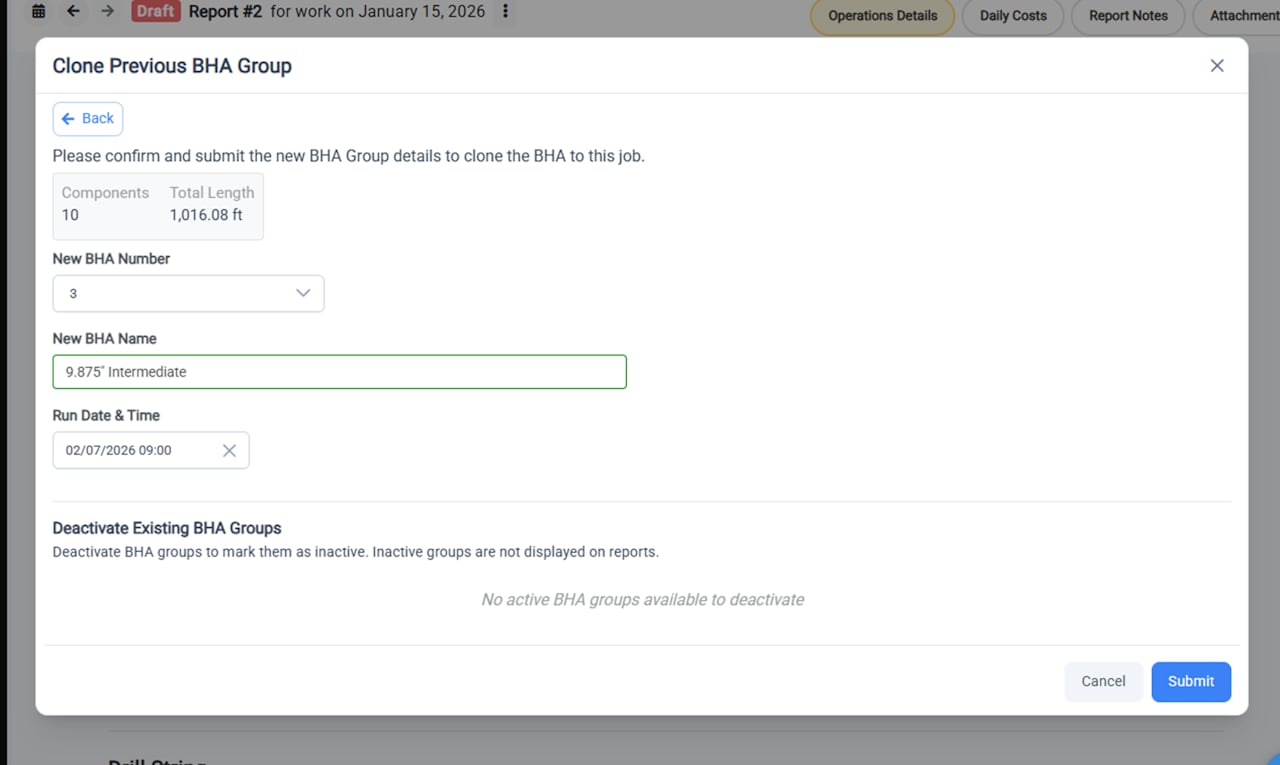
Enter the New BHA Group Details and Deactivate Groups
To complete the BHA group cloning process:- Select the new BHA group number
- Enter the new BHA name
- Enter the Run date & time
- Deactivate any existing BHA groups
Newly Cloned BHA Group is Now Active
Once your BHA Group is fully cloned it will display at the top of the page as an Active BHA group. You can now:- Modify any of the cloned components that might have changed
- Add any new components
- Edit the order of the components
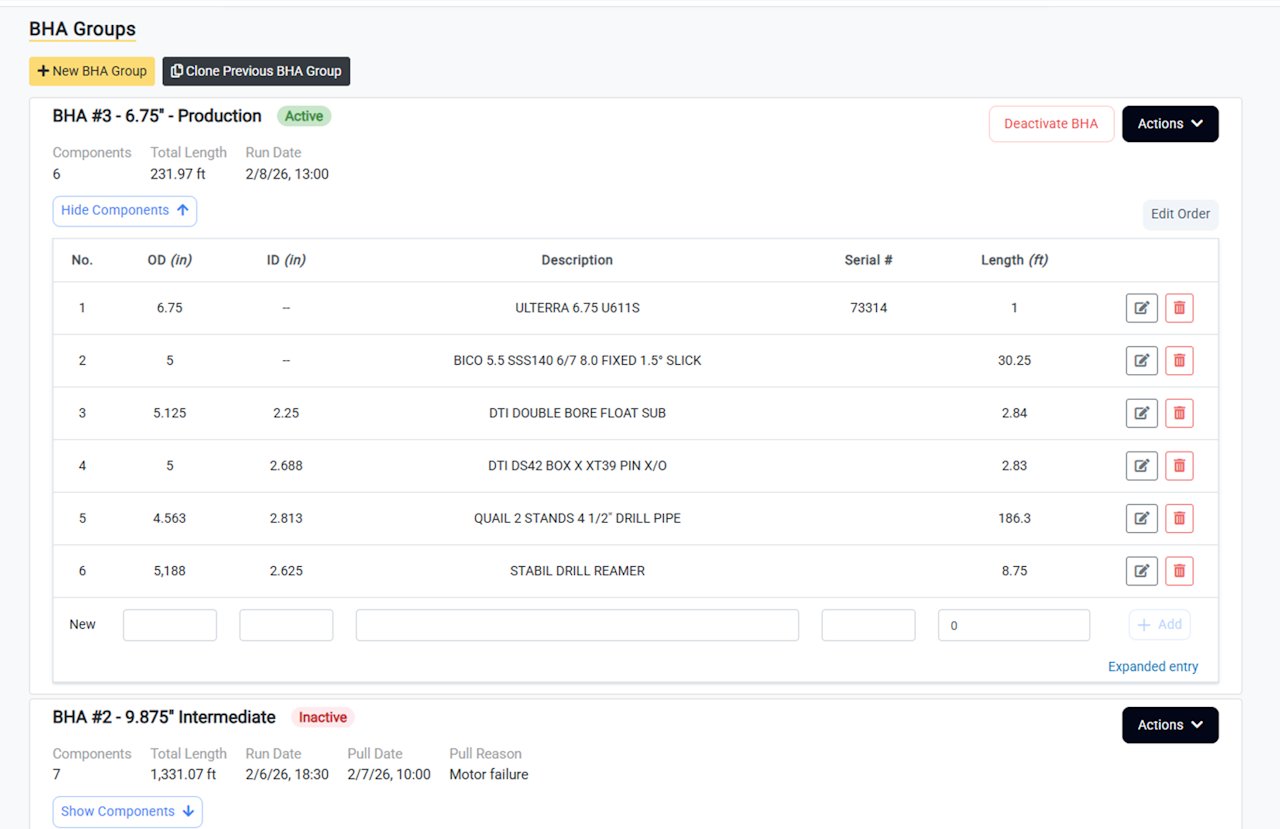
To quick clone a BHA Group that is within the current job, select Clone BHA Group from the Actions dropdown menu.