
Add Wells and Fields
Learn how to create a new well or field from the Wells Management page with this guide.Access to the Wells Management page is only available to users with the role of Administrator.
Add Well
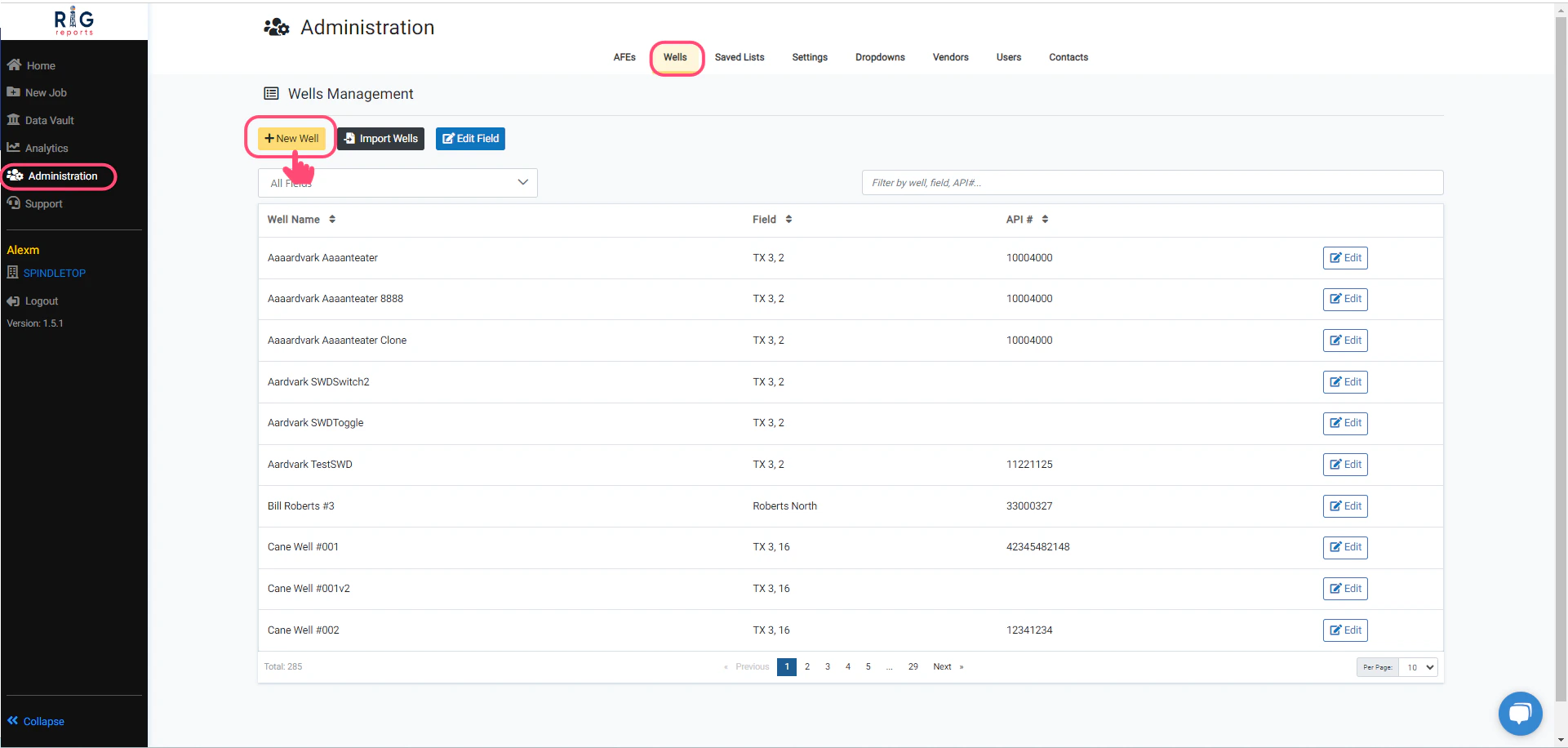
Begin by navigating to Wells Management from Administration → Wells. To add a new well, select the + New Well button.You can view all your wells here and filter by well, field, or API #.
Choose a Field
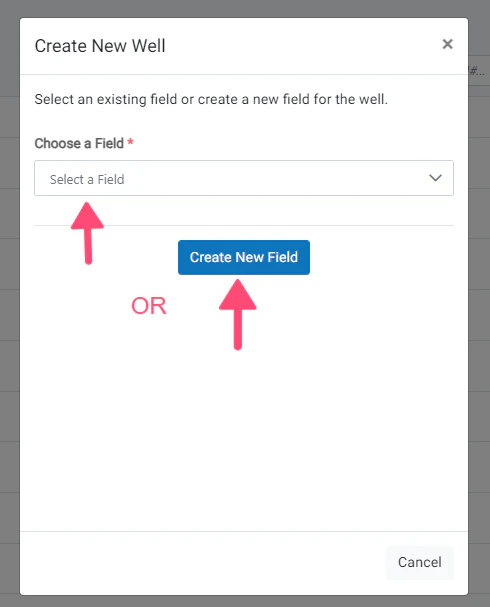
A window will open for completing the New Well form. First you must choose a field for your new well. You can do this 2 different ways:- Select an existing field from the drop down
- Create a new field by clicking the Create New Field button
Add Field
To add a new field, enter the new field name and state (optional). Click Submit New Field to create the field. After the field is successfully created, the new field will be automatically selected to create a new well in.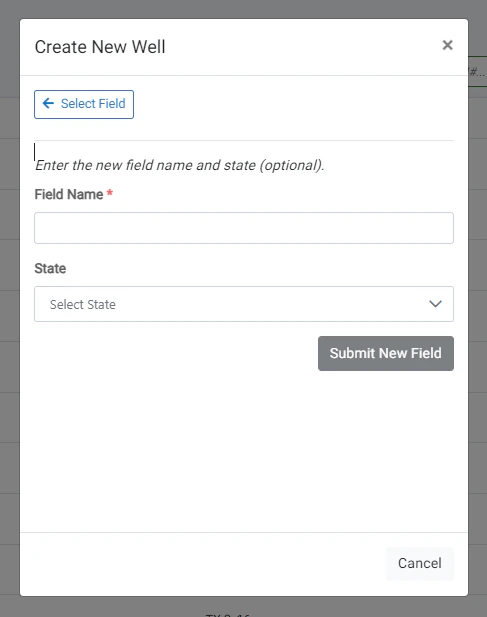
Complete New Well form
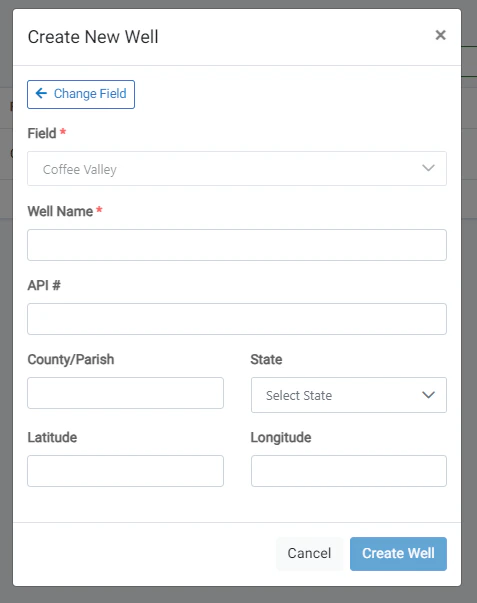
After a field is selected from the dropdown menu, create a new well by completing the form.- The Well Name is required and must not match an existing well
- The API Number is optional
- The County and State are optional
- The Latitude and Longitude are optional.
- The latitude value must be between -90 to 90 degrees.
- The longitude value must be between -180 to 180 degrees.
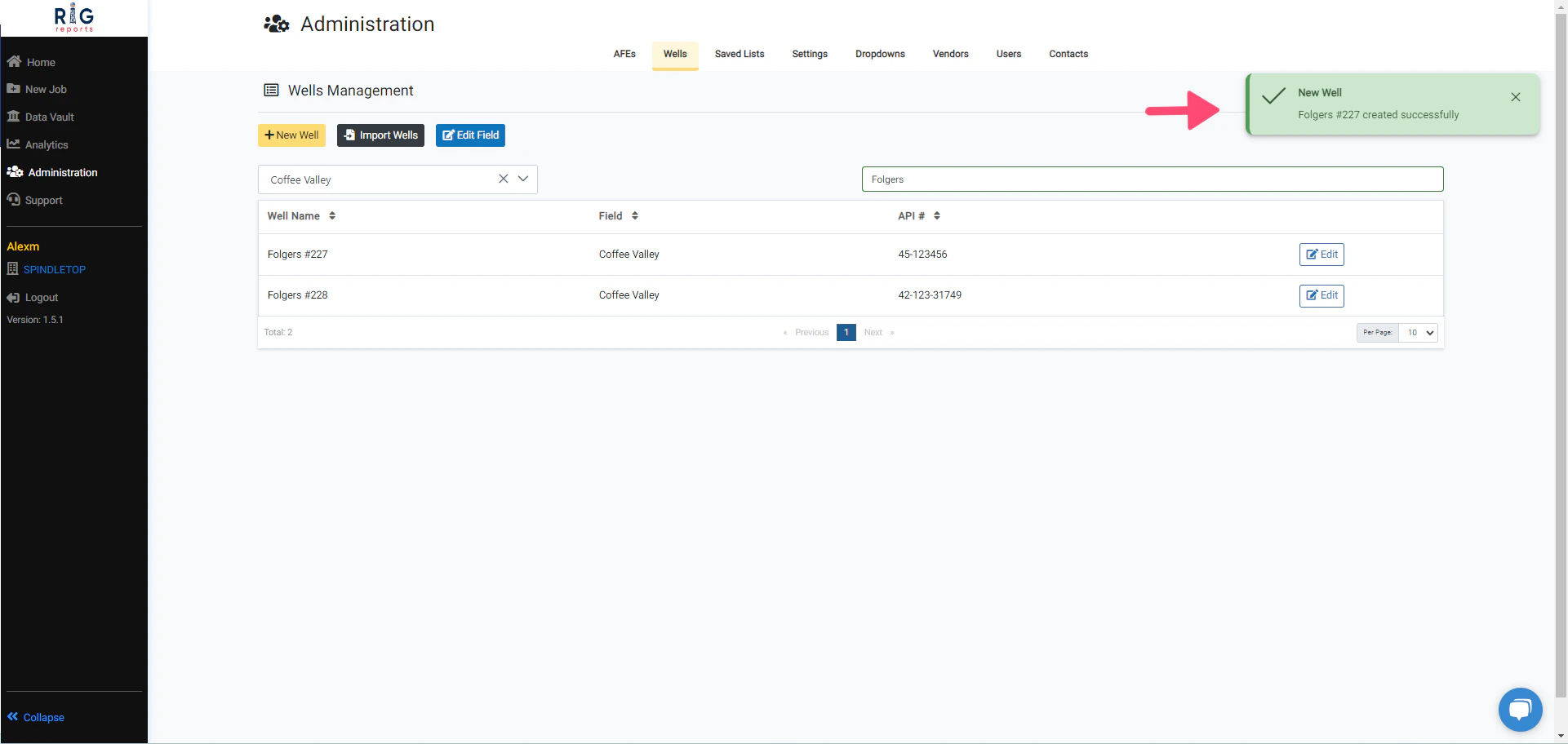
New Well created
A message will pop up after the new well is created successfully.