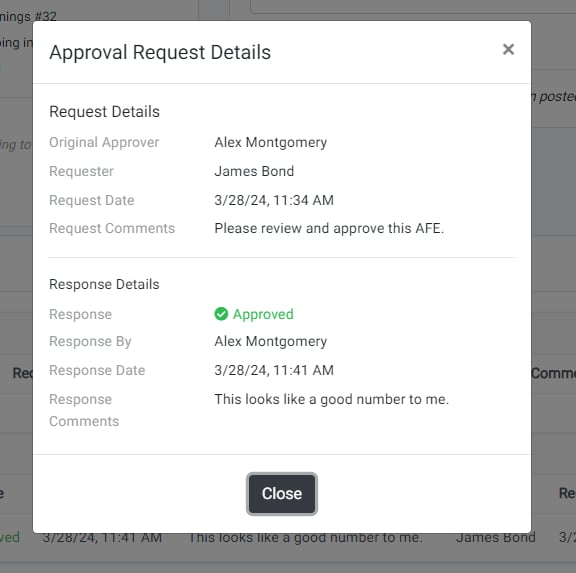

Respond to an AFE Approval Request
AFE approval requests can be responded to (approved or denied) within RigReports. Depending on the approval request settings, the requested approver or another administrator can respond to the request. If you are the requested approver, you should have received an email notifying you of the approval request. If you are not the requested approver, you can access and view pending requests from the AFE Management page.Navigate to the AFE
- From Email
- From AFE Management
If you are the requested approver for an AFE, you will receive an email notification when the request for approval is created. The email will contain: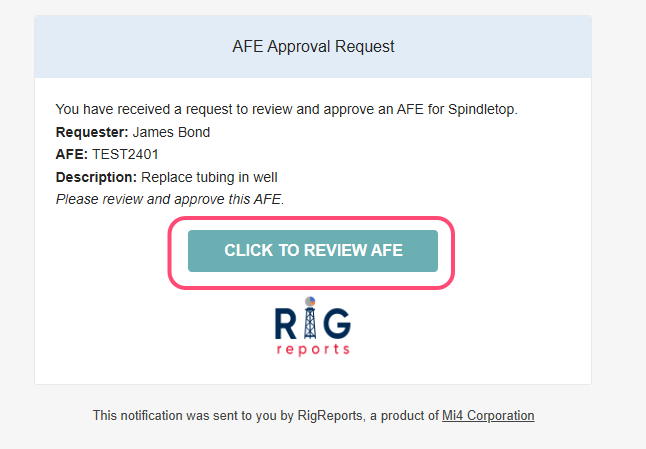
- The name of the request creator
- The AFE number
- The AFE details
- Any comments from the request creator
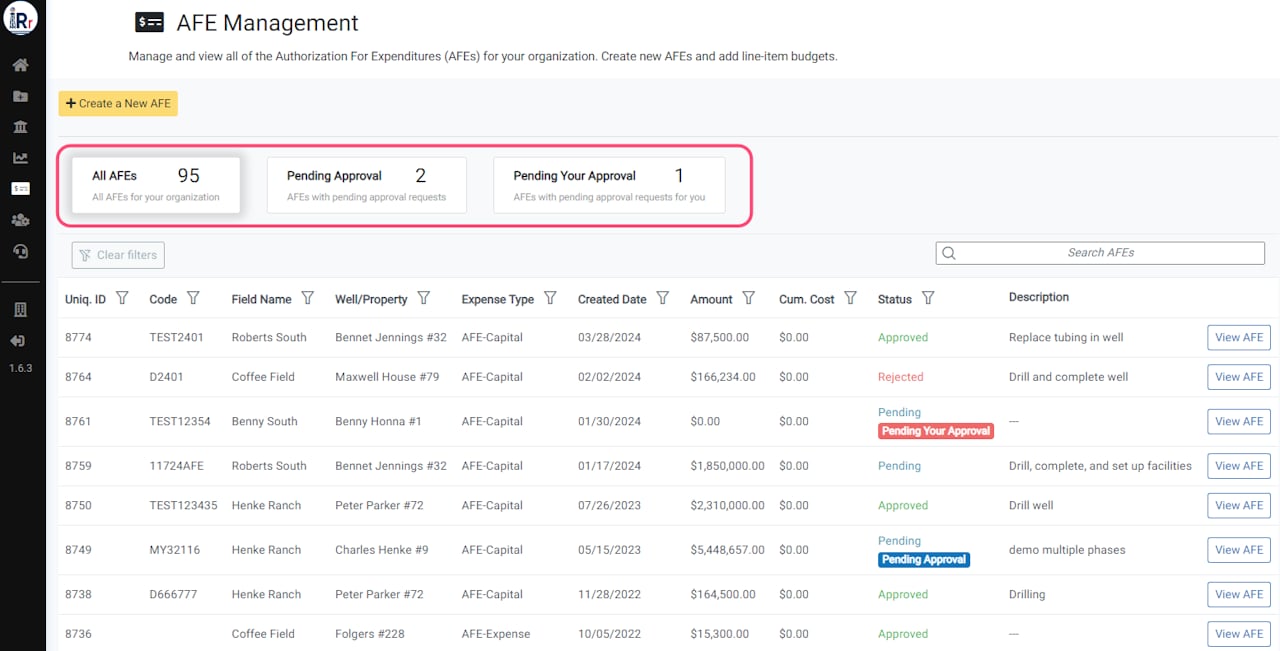
Review the AFE
From the AFE summary page, if you have a pending AFE approval request, you will see a notification banner at the top reminding you of your pending request. Click View Approval Requests in the banner or scroll down to the Open Requests table.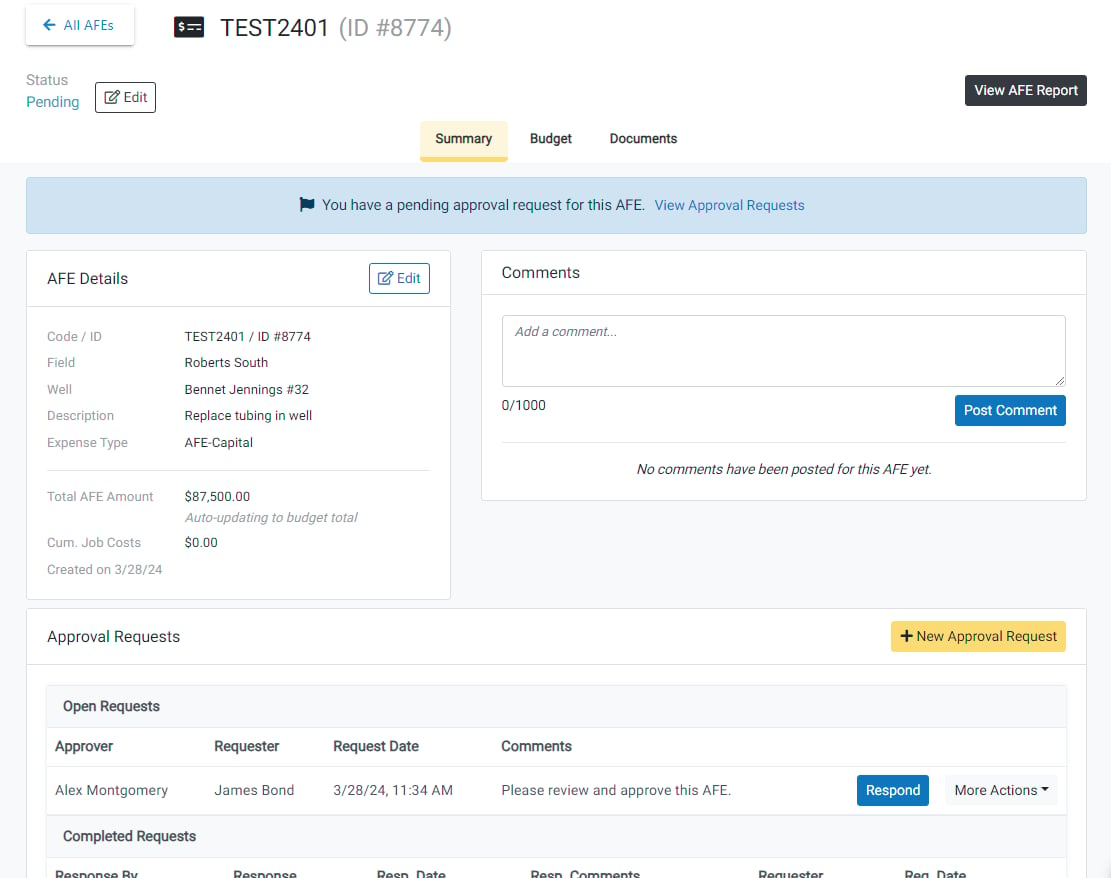
Respond to the AFE Approval Request
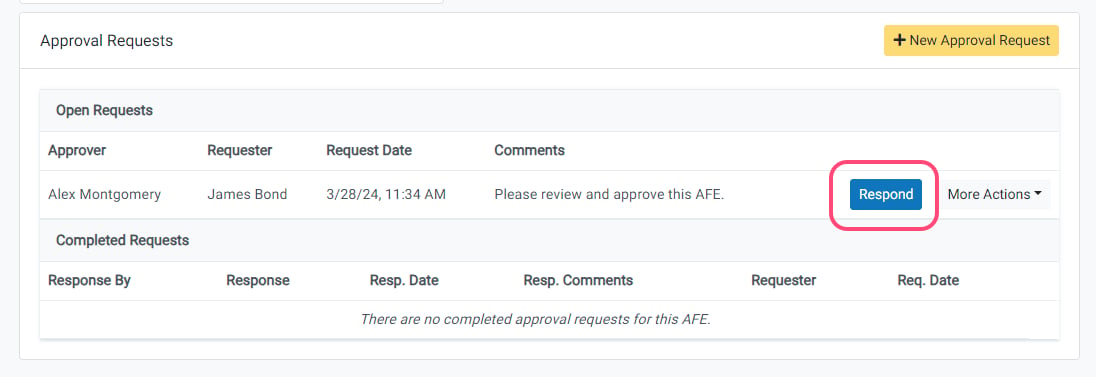
Users designated as Requested Approver will see a Respond button enabling them to reply to approval requests. Those without approval authority see “pending response” instead of the button.If the request creator enabled Can be approved by any administrator, all administrators will have access to the Respond button.
Select Your Response
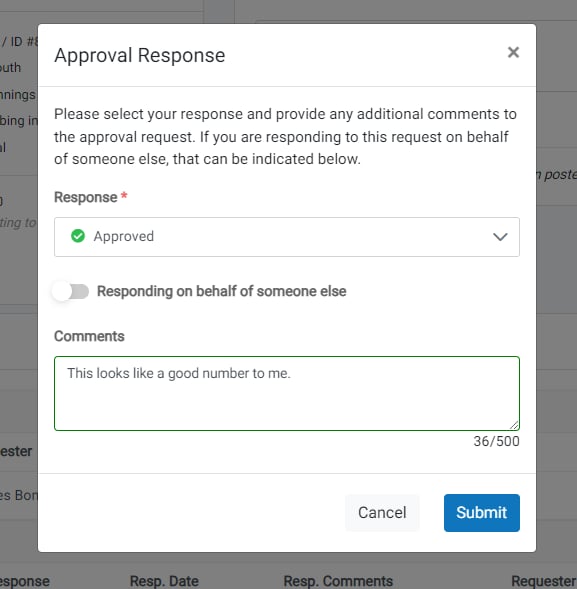
If you are responding to the AFE approval request for yourself:- Select your response from the dropdown menu.
- Enter any comments that you have.
- Click Submit to submit your response.
Responding on Someone Else’s Behalf
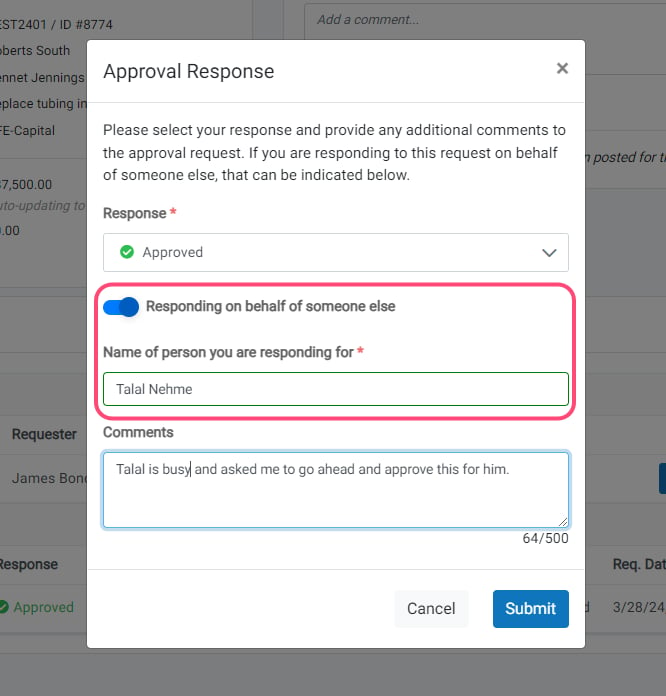
This option is only available if you need to submit a response on behalf of another approver.
- Select their response from the dropdown menu.
- Toggle on Responding on behalf of someone else.
- Enter the name of the person that you are responding for in the input box (required).
- Enter any comments that you have or note why you are responding for someone else.
- Click Submit to submit the response.
View Completed AFE Approval Requests
You can view a list and the details of all completed approval requests for an AFE in the Completed Requests table on the summary page of the AFE.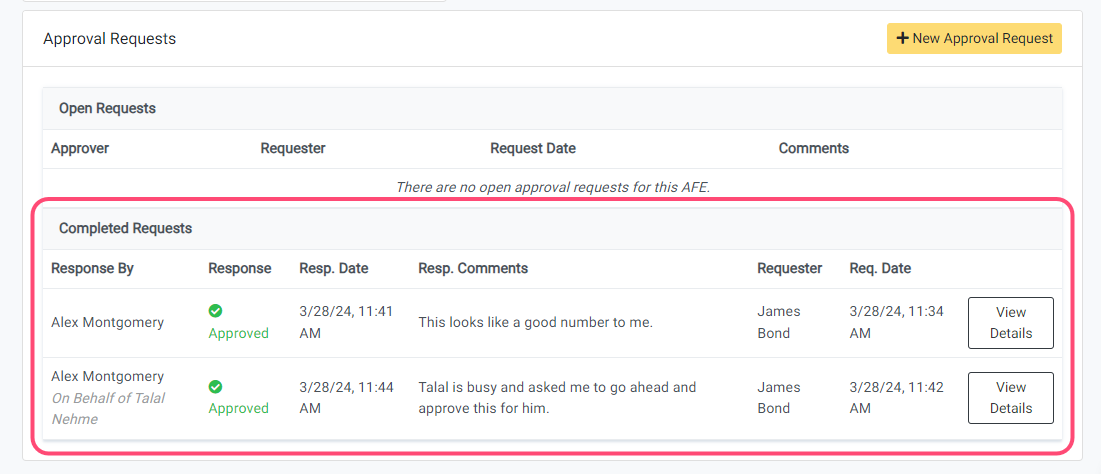
If higher level approval is required for your company’s workflow after your approval, you can create a new AFE approval request at this time.