> ## Documentation Index
> Fetch the complete documentation index at: https://docs.rigreports.com/llms.txt
> Use this file to discover all available pages before exploring further.
# Version 1.12.2
## Release Notes - \[02/06/2026]
**🚀 New Features**
* BHA Groups are now live in RigReports. This replaces the previous BHA functionality on all new jobs.
* Track BHAs as groups with numbers, names, run dates, pull dates, and reasons for removal.
* Clone the configurations from previous BHA Groups for drilling programs with similar BHAs on multiple wells.
* Display multiple BHA configurations on a single report.
🌟 **Enhancements**
* Users can now view complete Casing and BHA Groups records directly from the Operations Details Analysis section of the job and export them to a spreadsheet
**🔎 Bug Fixes**
* The directional survey import functionality now smoothly handles duplicate surveys within the import file that were previously causing all imports to fail
* A bug was fixed with the update casing functionality that was not allowing the user to clear the FIT/LOT
## BHA Groups
BHA Groups replaces the previous BHA functionality with powerful capabilities designed for modern drilling operations. This enhanced system allows you to:
* Assign custom names and numbers to your BHA configurations
* Track run dates and pull dates for each assembly
* Document reasons for removal.
The convenient cloning feature enables you to quickly duplicate existing BHA Groups and their components, significantly reducing setup time for similar configurations.
This new functionality also allows users to display multiple BHA configurations on one report with the run and pull datetimes
The BHA Groups functionality is automatically implemented for all new jobs.
## Previous Job BHAs
BHA Groups will be automatically available for all new jobs created going forward. Jobs that were created before the release of BHA Groups will continue to use the previous BHA functionality by default.
If you have an existing job that you would like converted to use BHA Groups functionality, please contact support for assistance with the simple migration.
## Create a new BHA Group
### Click New BHA Group
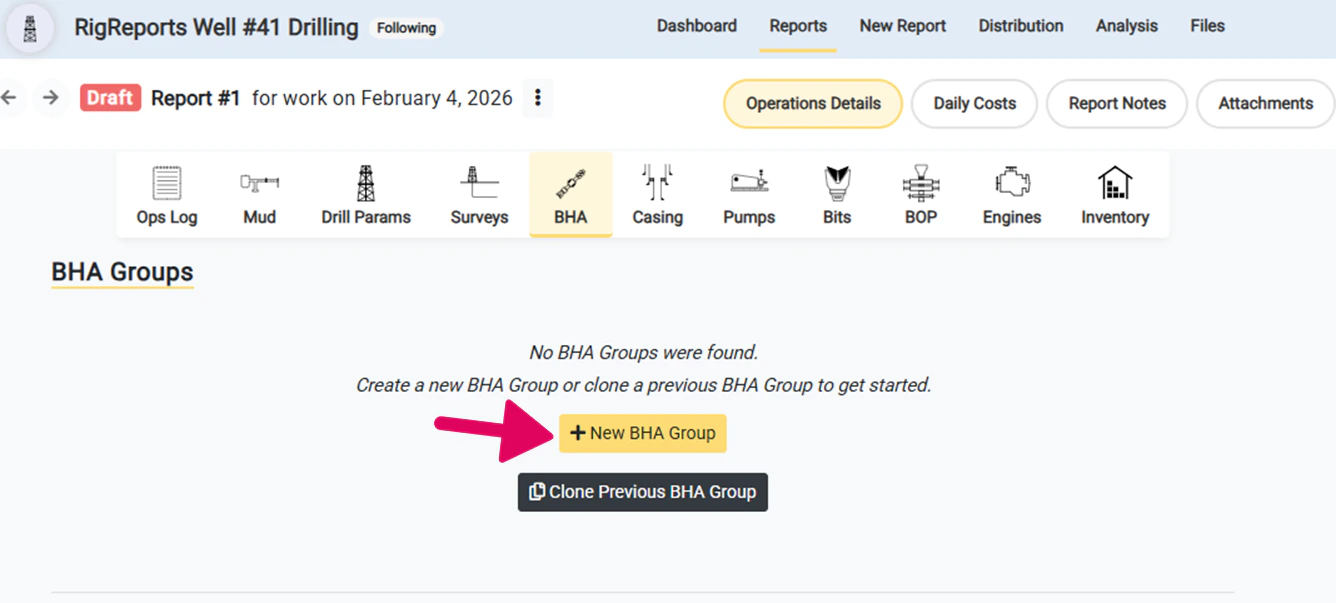
To enter the components for a BHA to display on a report, you will need to create a new BHA Group. To create a new BHA group, click the **+New BHA Group** button to open up a window to add the necessary details.
 ### Complete the New BHA Group form
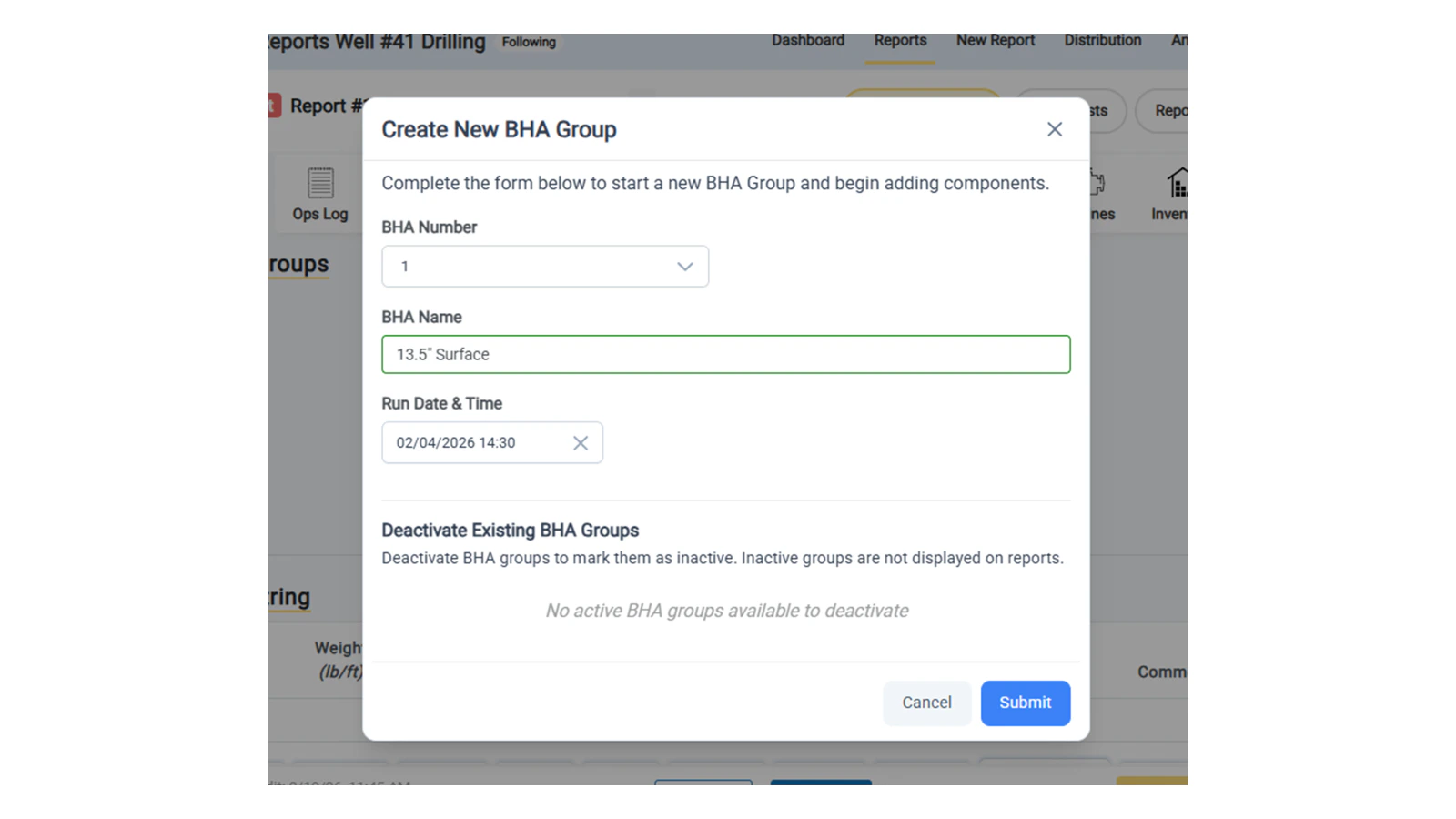
To create a new BHA group, complete the form with the optional details of the BHA group including:
* **BHA Group Number**
* **BHA Name** — This can include the bit size and casing string or any other identifying details that you would like to include
* **Run Date and Time** — The run date and time defaults to the date of work and 12:00
### Complete the New BHA Group form
To create a new BHA group, complete the form with the optional details of the BHA group including:
* **BHA Group Number**
* **BHA Name** — This can include the bit size and casing string or any other identifying details that you would like to include
* **Run Date and Time** — The run date and time defaults to the date of work and 12:00
 ### Choose to Deactivate Any Existing BHAs
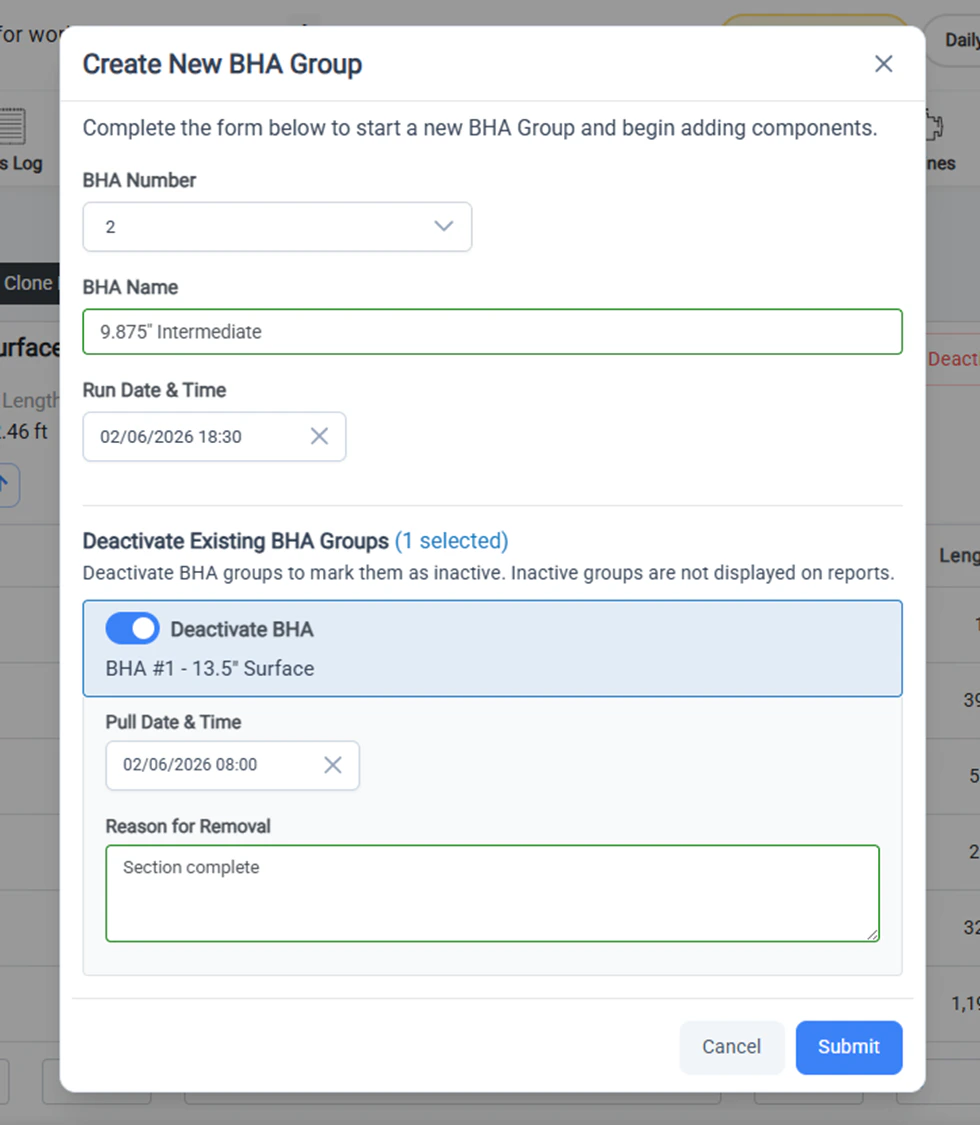
Before submitting the new BHA group, you can decide whether or not to deactivate any existing BHA groups.
Deactivating a BHA Group marks them as inactive. Inactive groups are not displayed on the reports.
If you have any currently active BHA Groups when creating or cloning a new group, you can choose to deactivate them at that time. By default, currently active BHA groups are selected for deactivation, as it is assumed that the new BHA group will be replacing the existing one.
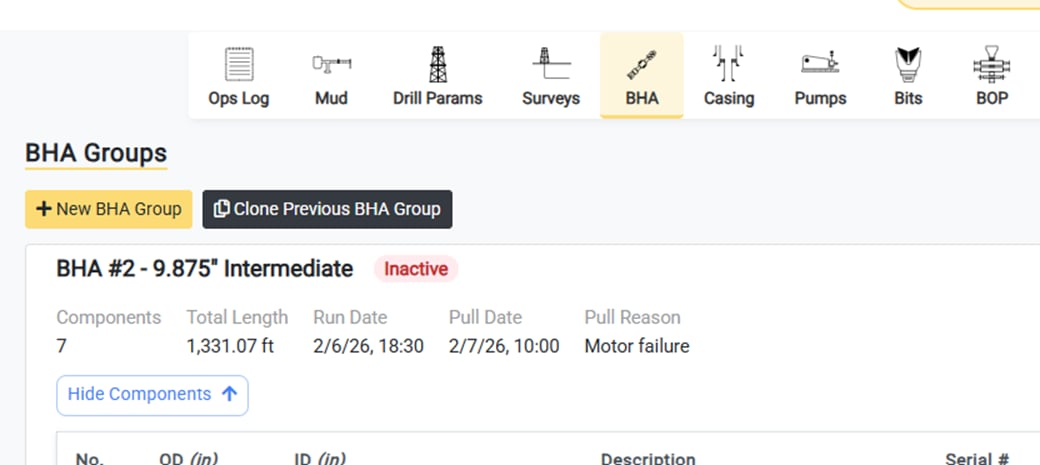
* If you would like to deactivate the existing group, you can record the **Pull Datetime** and the **Reason For Removal** (i.e. motor failure).
* If you would like to keep the existing group as *active*, simply turn off the toggle for the desired group.
Once you have decided on any active groups to deactivate, click **Submit**.
### Choose to Deactivate Any Existing BHAs
Before submitting the new BHA group, you can decide whether or not to deactivate any existing BHA groups.
Deactivating a BHA Group marks them as inactive. Inactive groups are not displayed on the reports.
If you have any currently active BHA Groups when creating or cloning a new group, you can choose to deactivate them at that time. By default, currently active BHA groups are selected for deactivation, as it is assumed that the new BHA group will be replacing the existing one.
* If you would like to deactivate the existing group, you can record the **Pull Datetime** and the **Reason For Removal** (i.e. motor failure).
* If you would like to keep the existing group as *active*, simply turn off the toggle for the desired group.
Once you have decided on any active groups to deactivate, click **Submit**.
 ### Add the components for the new BHA group
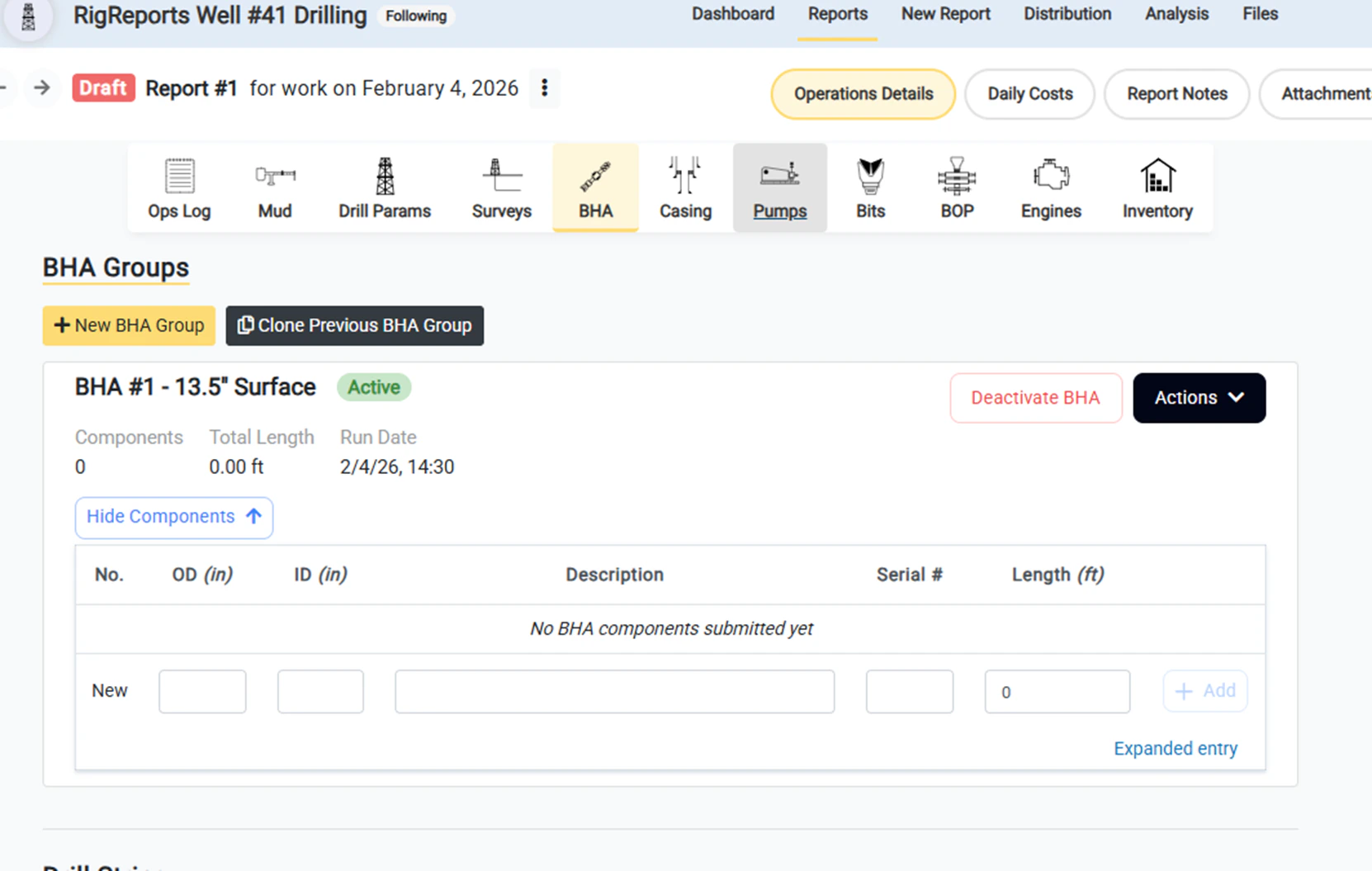
Your new BHA group is now displayed at the top of the page and available to enter the components of the BHA group. The **Active** tag indicates that this group is now active and will be displayed on this report. This BHA group will remain **Active** and displayed on reports until it is deactivated.
Enter each component individually. You can record the following details for each component:
* OD
* ID
* Description
* Serial Number
* Length
### Add the components for the new BHA group
Your new BHA group is now displayed at the top of the page and available to enter the components of the BHA group. The **Active** tag indicates that this group is now active and will be displayed on this report. This BHA group will remain **Active** and displayed on reports until it is deactivated.
Enter each component individually. You can record the following details for each component:
* OD
* ID
* Description
* Serial Number
* Length
 ## Edit BHA Group
### Open BHA Group Editor
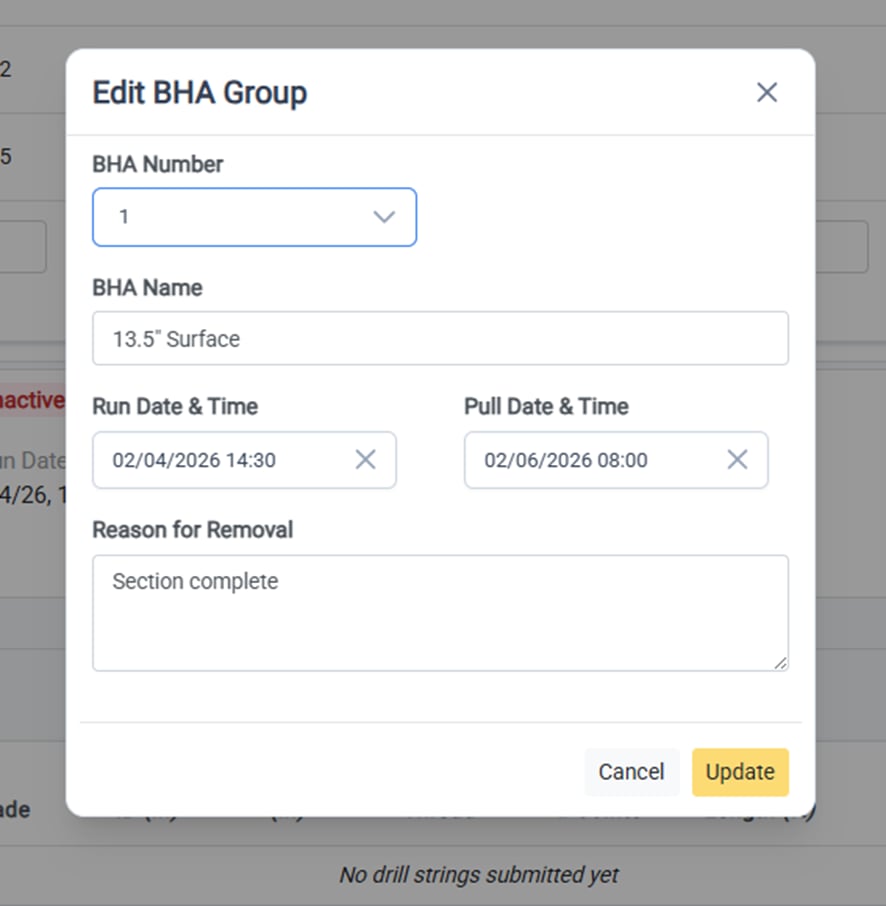
To edit the details of an active or inactive BHA group, click **Actions** on the side of the BHA Group header to open the dropdown menu. From there, select **Edit BHA Group** to open BHA Group editor form.
## Edit BHA Group
### Open BHA Group Editor
To edit the details of an active or inactive BHA group, click **Actions** on the side of the BHA Group header to open the dropdown menu. From there, select **Edit BHA Group** to open BHA Group editor form.
 ### Edit the BHA Group Details
The following details of the BHA Group can be edited at any time:
* BHA Number
* BHA Name
* Run Date & Time (BHA install date)
* Pull Date & Time (BHA removal date)
* Reason for removal
To save the changes, click **Update** and the window will close and all changes will be reflected.
### Edit the BHA Group Details
The following details of the BHA Group can be edited at any time:
* BHA Number
* BHA Name
* Run Date & Time (BHA install date)
* Pull Date & Time (BHA removal date)
* Reason for removal
To save the changes, click **Update** and the window will close and all changes will be reflected.
 ## Clone a previous BHA Group
### Open the Clone BHA Group Window
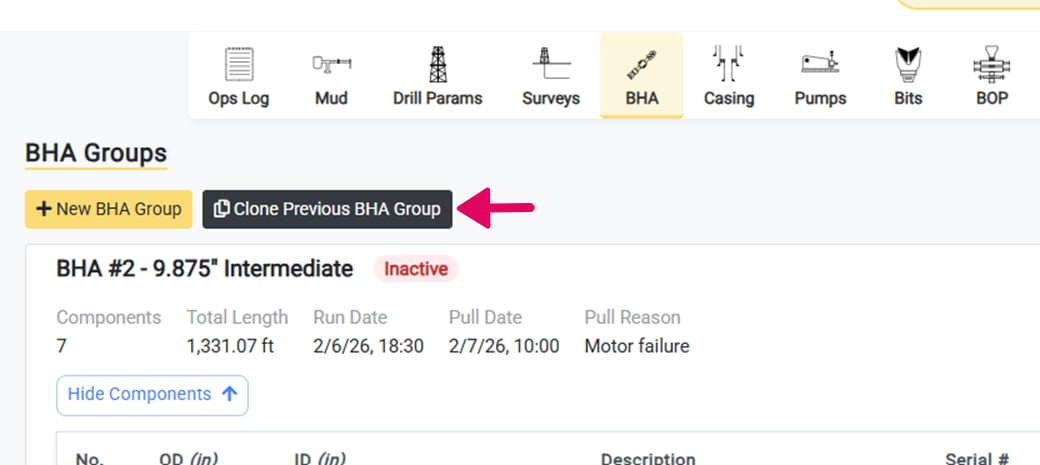
One of the best features of BHA groups is the ability to clone previous BHA Group components for drilling programs. Even if some of the components of the group have changed slightly, cloning previous groups can provide a template with most of the components.
To get started with cloning a BHA group, click the Clone Previous BHA Group button to open the clone BHA group window.
## Clone a previous BHA Group
### Open the Clone BHA Group Window
One of the best features of BHA groups is the ability to clone previous BHA Group components for drilling programs. Even if some of the components of the group have changed slightly, cloning previous groups can provide a template with most of the components.
To get started with cloning a BHA group, click the Clone Previous BHA Group button to open the clone BHA group window.
 ### Select the BHA Group to Clone
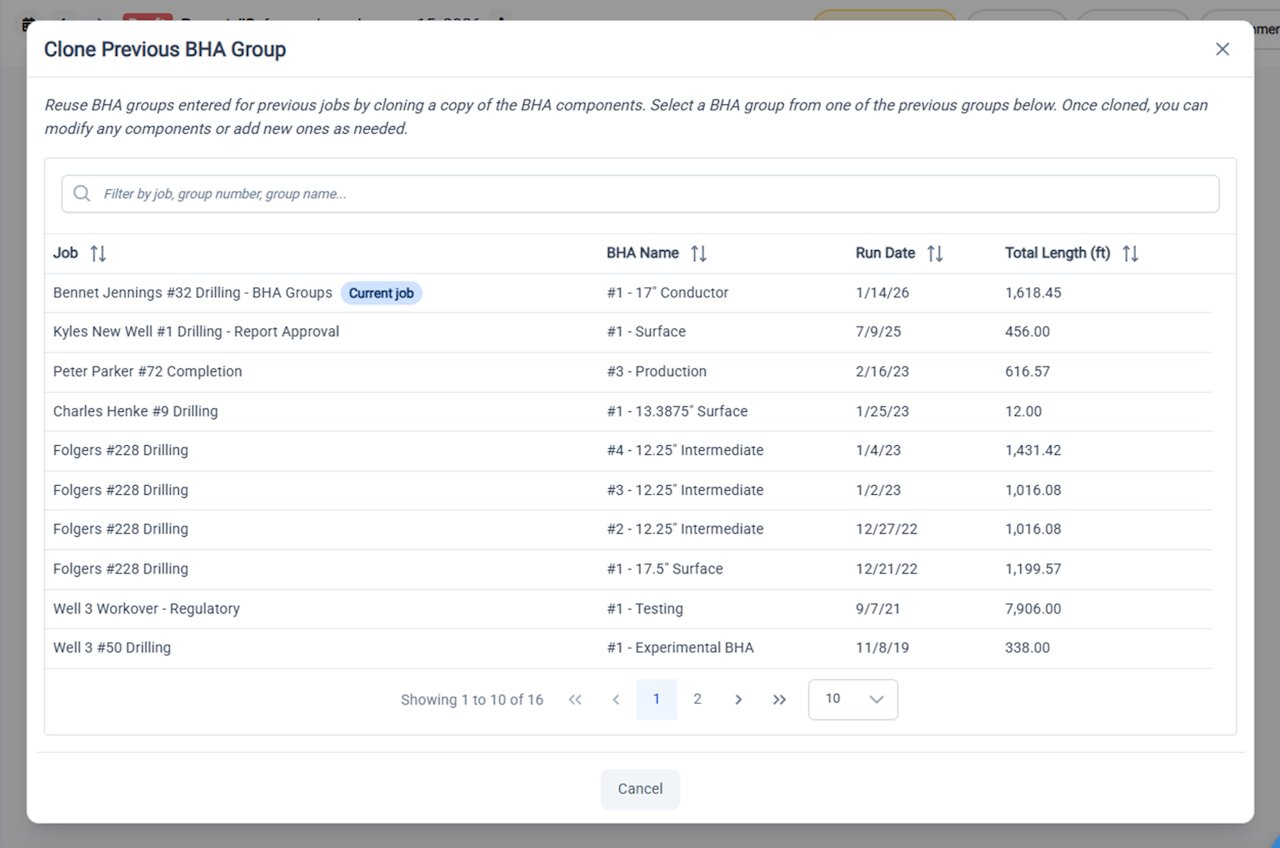
In the window that opens, you will have access to the previous BHA groups that were entered for your organization. You can search by job, group number, or group name. You can also sort by run date or total length.
Once you have found the desired BHA group, click the group to review the components and proceed.
Any BHA that was entered prior to the release of the BHA Groups functionality is still available for cloning. These groups were generated automatically. They do not have names and the numbers were assigned automatically and might be inconsistent with your organization's records.
### Select the BHA Group to Clone
In the window that opens, you will have access to the previous BHA groups that were entered for your organization. You can search by job, group number, or group name. You can also sort by run date or total length.
Once you have found the desired BHA group, click the group to review the components and proceed.
Any BHA that was entered prior to the release of the BHA Groups functionality is still available for cloning. These groups were generated automatically. They do not have names and the numbers were assigned automatically and might be inconsistent with your organization's records.
 ### Review the BHA Group Components
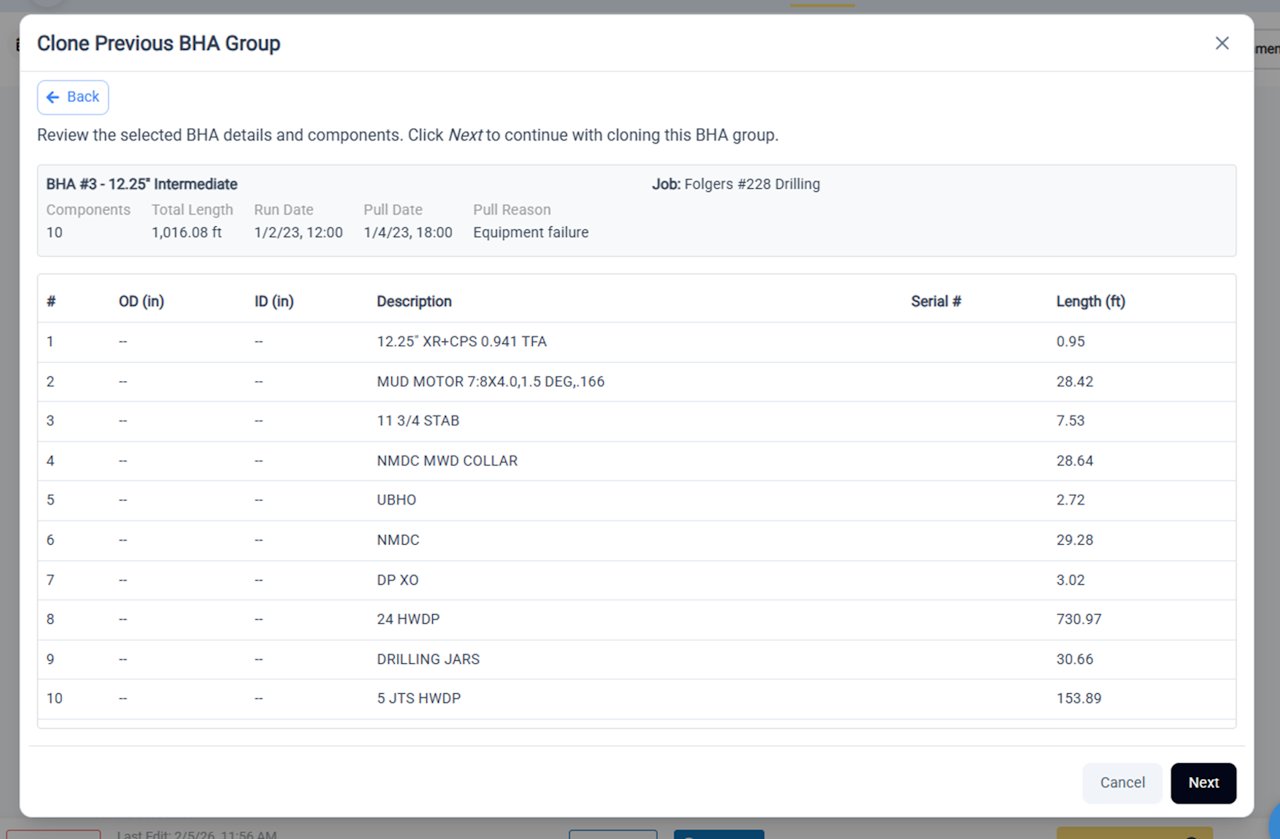
Once you have selected the desired group to clone, you will have the opportunity to review all of the details and components of the selected BHA group.
To proceed with cloning, click **Next**.
Otherwise, you can use the *Back* button to select another group.
### Review the BHA Group Components
Once you have selected the desired group to clone, you will have the opportunity to review all of the details and components of the selected BHA group.
To proceed with cloning, click **Next**.
Otherwise, you can use the *Back* button to select another group.
 ### Enter the New BHA Group Details and Deactivate Groups
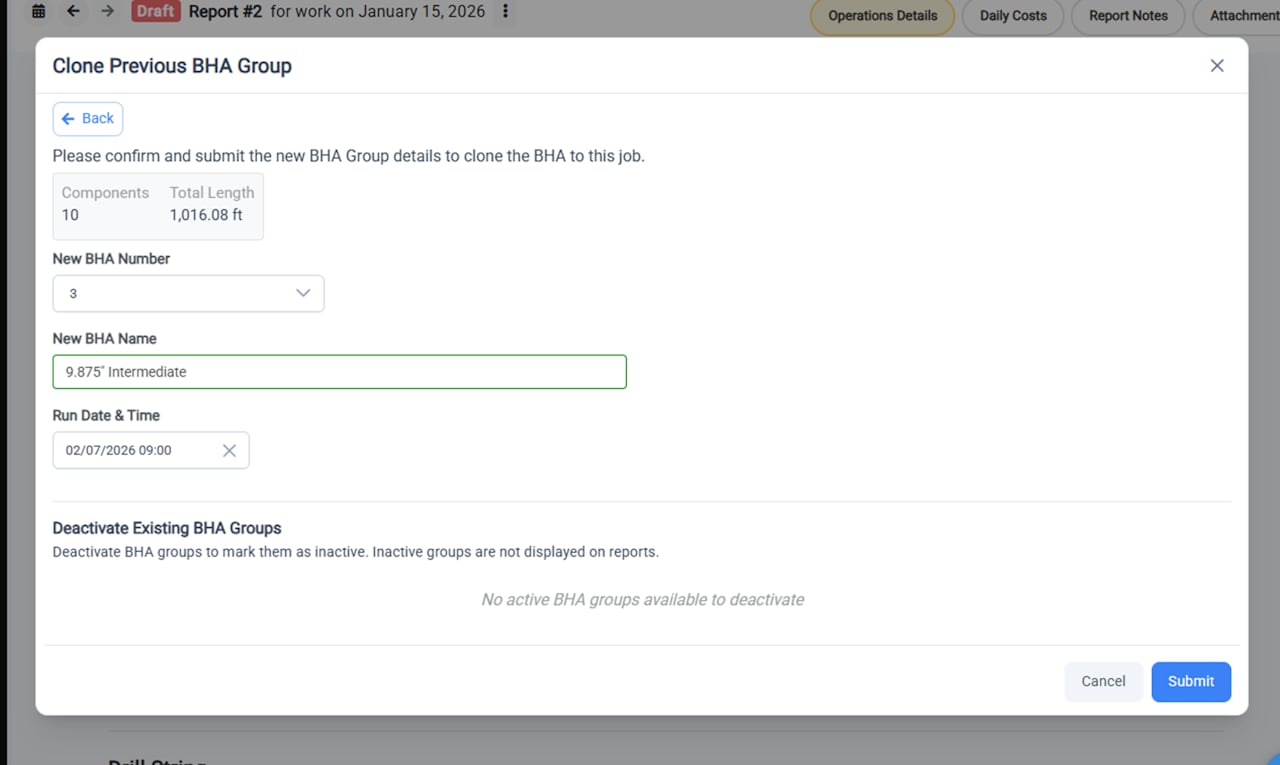
To complete the BHA group cloning process:
* Select the new BHA group number
* Enter the new BHA name
* Enter the Run date & time
* Deactivate any existing BHA groups
As with creating a new BHA group, when cloning a BHA group you will be given the opportunity to deactivate any existing BHA groups and add the Pull date and reason. Deactivating a BHA group sets the group as Inactive and marks it to no longer be shown on the report.
Click **Submit** to complete the BHA Group cloning process.
### Enter the New BHA Group Details and Deactivate Groups
To complete the BHA group cloning process:
* Select the new BHA group number
* Enter the new BHA name
* Enter the Run date & time
* Deactivate any existing BHA groups
As with creating a new BHA group, when cloning a BHA group you will be given the opportunity to deactivate any existing BHA groups and add the Pull date and reason. Deactivating a BHA group sets the group as Inactive and marks it to no longer be shown on the report.
Click **Submit** to complete the BHA Group cloning process.
 ### Newly Cloned BHA Group is Now Active
Once your BHA Group is fully cloned it will display at the top of the page as an Active BHA group. You can now:
* Modify any of the cloned components that might have changed
* Add any new components
* Edit the order of the components
### Newly Cloned BHA Group is Now Active
Once your BHA Group is fully cloned it will display at the top of the page as an Active BHA group. You can now:
* Modify any of the cloned components that might have changed
* Add any new components
* Edit the order of the components
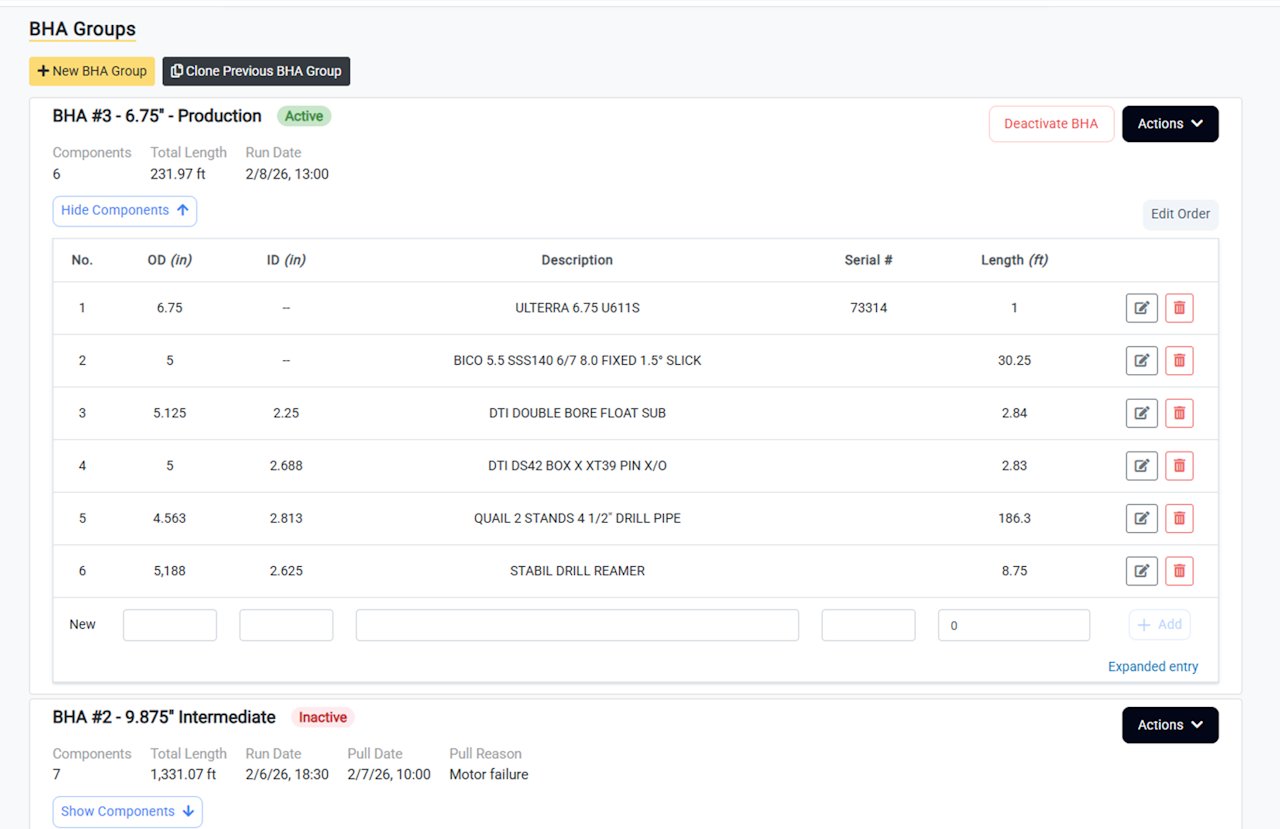 To quick clone a BHA Group that is within the current job, select **Clone BHA Group** from the **Actions** dropdown menu.
## Deactivate a BHA Group
### Deactivating a BHA Group
Deactivating a BHA Group updates a BHA Group from a status of Active to Inactive. What is the difference?
* **Active BHA Groups** are displayed on the daily report.
* **Inactive BHA Groups** are not displayed on the daily report and their components are collapsed by default in the editor.
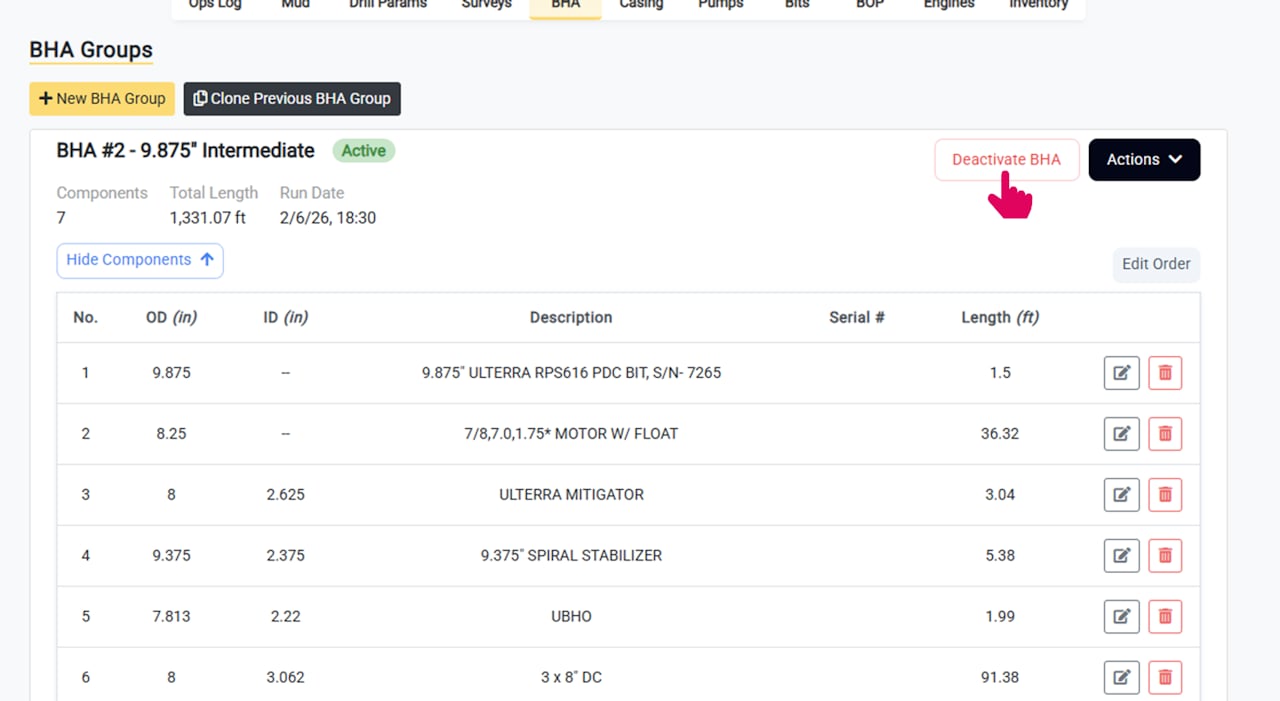
To deactivate a BHA Group, click the **Deactivate BHA** button in the group header.
To quick clone a BHA Group that is within the current job, select **Clone BHA Group** from the **Actions** dropdown menu.
## Deactivate a BHA Group
### Deactivating a BHA Group
Deactivating a BHA Group updates a BHA Group from a status of Active to Inactive. What is the difference?
* **Active BHA Groups** are displayed on the daily report.
* **Inactive BHA Groups** are not displayed on the daily report and their components are collapsed by default in the editor.
To deactivate a BHA Group, click the **Deactivate BHA** button in the group header.
 BHA Groups can also be deactivated automatically when creating or cloning a new BHA Group.
## Complete the Deactivation Details
When deactivating a BHA Group you can enter the following details:
* **Pull Date and Time**
* **Reason for Removal** (e.g. broken motor, section complete, etc.)
Once complete, click **Deactivate** to submit.
If you would like to enter the details and still display the BHA group on the report (with the pull date and time), you can use the **Edit BHA Group** functionality instead.
### The Deactivated BHA Group is Displayed as Inactive
Once complete, the deactivated group is displayed as **Inactive**.
BHA Groups can also be deactivated automatically when creating or cloning a new BHA Group.
## Complete the Deactivation Details
When deactivating a BHA Group you can enter the following details:
* **Pull Date and Time**
* **Reason for Removal** (e.g. broken motor, section complete, etc.)
Once complete, click **Deactivate** to submit.
If you would like to enter the details and still display the BHA group on the report (with the pull date and time), you can use the **Edit BHA Group** functionality instead.
### The Deactivated BHA Group is Displayed as Inactive
Once complete, the deactivated group is displayed as **Inactive**.
 ## Job Analysis Improvements
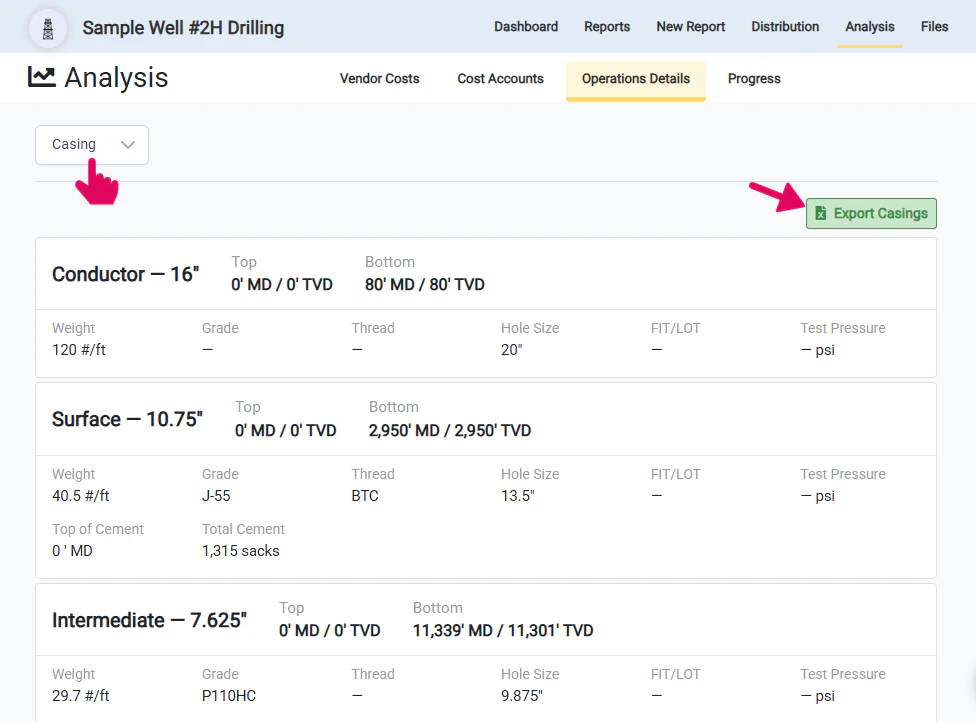
Users can now access a full list of the Casing Strings or BHA Groups uses in a job from the Analysis page of the job. Users can also ***download the Casing or BHA record as an XLS file***\_ \_with a single click using the Export button.
Though this data is available in a similar format in the End of Job report, users have long requested a way to access throughout the job at any time.
To access this
* Go to the **Analysis** page of job
* Select the **Operations Details** tab
* Select **Casing** or **BHA** from the dropdown menu
## Job Analysis Improvements
Users can now access a full list of the Casing Strings or BHA Groups uses in a job from the Analysis page of the job. Users can also ***download the Casing or BHA record as an XLS file***\_ \_with a single click using the Export button.
Though this data is available in a similar format in the End of Job report, users have long requested a way to access throughout the job at any time.
To access this
* Go to the **Analysis** page of job
* Select the **Operations Details** tab
* Select **Casing** or **BHA** from the dropdown menu