> ## Documentation Index
> Fetch the complete documentation index at: https://docs.rigreports.com/llms.txt
> Use this file to discover all available pages before exploring further.
# Version 1.11.1
## Release Notes - \[10/16/2025]
**🚀 New Features**
* Facility Tracking (similar to wells)
* Notification for Pending Report Approvals
* Delete AFEs
* Serial Number input available for BHA
🌟 **Enhancements**
* Improved Create Job functionality
* Improved Edit Job functionality
* The well, facility, and field for AFEs can be updated along with all other AFE details
* The job location is now auto-populated with the LAT/LONG coordinates of a well or facility when creating a new job
## Facility Tracking
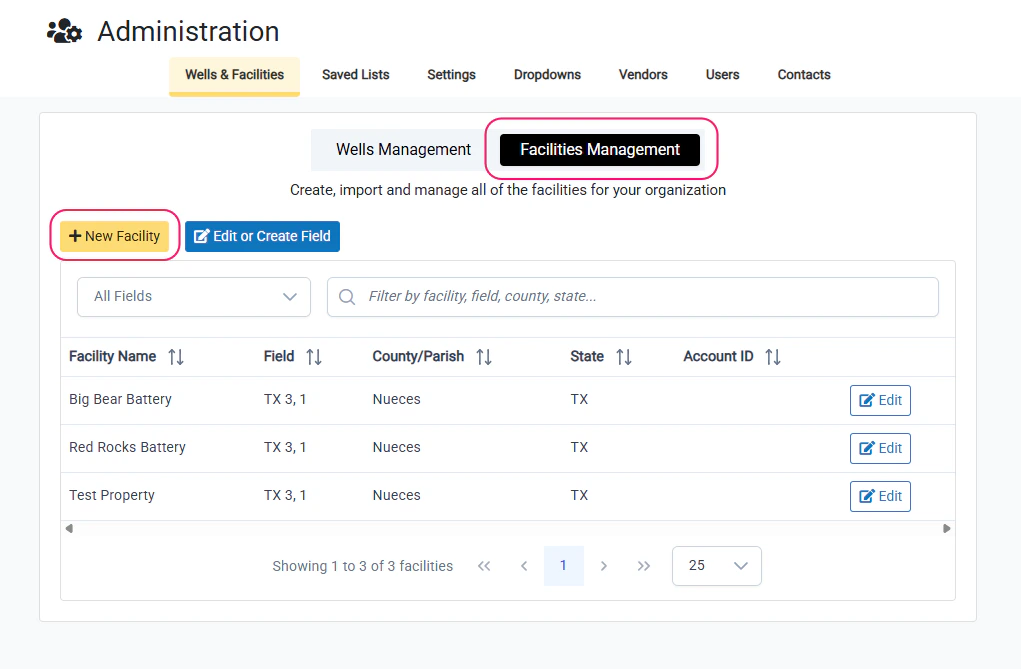 Facilities can now be tracked similar to wells. Facilities can be created, updated, and managed from the Administration page in the same section as the wells.
* All previous facilities that were created using Facility jobs have been pre-populated and converted to trackable facilities
* When a Facility job type is selected for creating a new job, the list of available facilities is displayed to select from.
* To add a new facility, select the \*\*+New Facility \*\*button
## Notification for Pending Report Approvals
Facilities can now be tracked similar to wells. Facilities can be created, updated, and managed from the Administration page in the same section as the wells.
* All previous facilities that were created using Facility jobs have been pre-populated and converted to trackable facilities
* When a Facility job type is selected for creating a new job, the list of available facilities is displayed to select from.
* To add a new facility, select the \*\*+New Facility \*\*button
## Notification for Pending Report Approvals
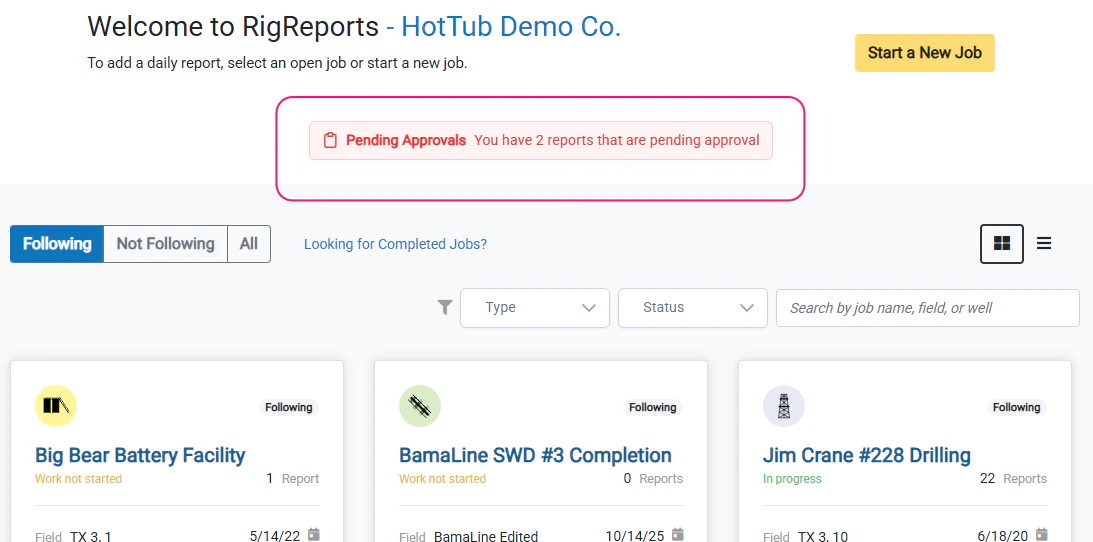 Users that are authorized approvers for jobs that require report approval will now see a notification on the Homepage with the number of pending report approvals that are outstanding.
Clicking the notification will open a window that displays a list of the pending report approvals by job and date. Click the Job Name to go to the job page or View Report to go to the report page to review and approve the report.
## Improved Edit Job Functionality
Users that are authorized approvers for jobs that require report approval will now see a notification on the Homepage with the number of pending report approvals that are outstanding.
Clicking the notification will open a window that displays a list of the pending report approvals by job and date. Click the Job Name to go to the job page or View Report to go to the report page to review and approve the report.
## Improved Edit Job Functionality
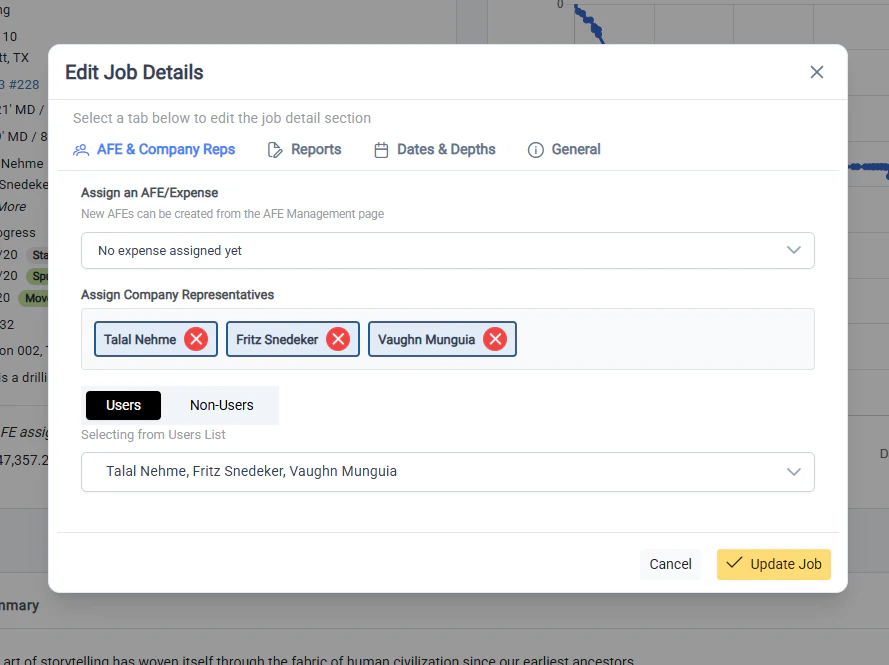 Like creating a job, the Edit Job user experience has been significantly improved. Upon clicking the **Edit Job** button, users are now shown a window with multiple tabs to select the category of the job setting they would like to modify. This reduces the time spent scrolling and searching for a specific setting. Job settings are conveniently grouped, with the most frequently changed settings displayed in the first tabs.
## Serial Number - BHA
Like creating a job, the Edit Job user experience has been significantly improved. Upon clicking the **Edit Job** button, users are now shown a window with multiple tabs to select the category of the job setting they would like to modify. This reduces the time spent scrolling and searching for a specific setting. Job settings are conveniently grouped, with the most frequently changed settings displayed in the first tabs.
## Serial Number - BHA
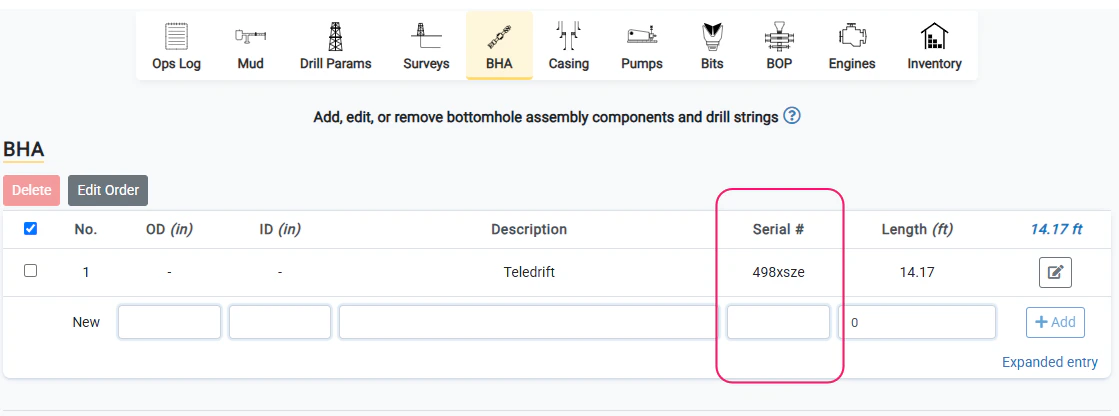 A separate input entry has been provided for the **Serial Number** for BHA components. Users can now track the Serial Number separately and no longer need to include it in the description.
## Improved Create Job Functionality
A separate input entry has been provided for the **Serial Number** for BHA components. Users can now track the Serial Number separately and no longer need to include it in the description.
## Improved Create Job Functionality
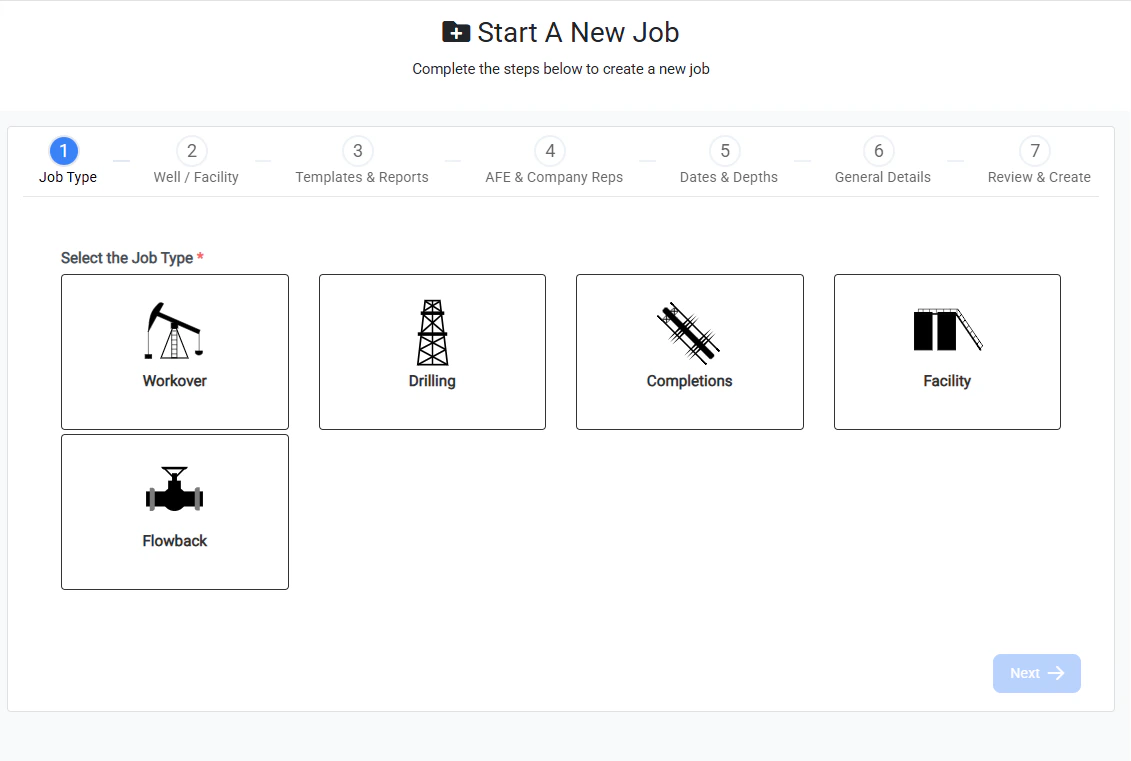 The Create Job user experience has been dramatically improved. Users can now follow a simple 7 step process to create a new job. The last step allows the user to review all of their choices and make any changes necessary before creating a job. The steps are organized by the selection types with various improvements including:
* Wells and Facilities can be searched directly. Users are no longer required to select the field first. They can simply type a well name in directly to search and select it.
* The readability of all selections has been upgraded to prevent mistakes.
## Delete AFEs
The Create Job user experience has been dramatically improved. Users can now follow a simple 7 step process to create a new job. The last step allows the user to review all of their choices and make any changes necessary before creating a job. The steps are organized by the selection types with various improvements including:
* Wells and Facilities can be searched directly. Users are no longer required to select the field first. They can simply type a well name in directly to search and select it.
* The readability of all selections has been upgraded to prevent mistakes.
## Delete AFEs
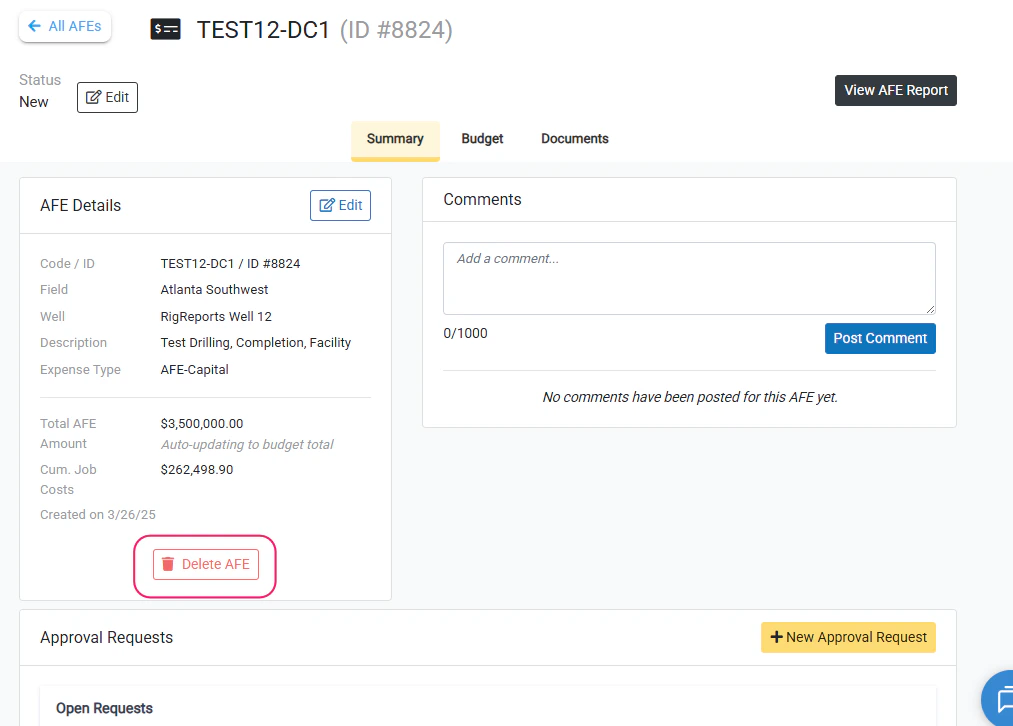 AFEs can now be deleted from the AFE Management page. Click the **Delete** button to permanently delete an AFE from your organizations AFE list.
Upon clicking the button, the user will be asked to confirm that they want to delete the AFE. If the AFE is currently assigned to any existing jobs, the user will be notified that the AFE will be unassigned from that job. After deleting, a new AFE can be assigned to the job.
AFEs can now be deleted from the AFE Management page. Click the **Delete** button to permanently delete an AFE from your organizations AFE list.
Upon clicking the button, the user will be asked to confirm that they want to delete the AFE. If the AFE is currently assigned to any existing jobs, the user will be notified that the AFE will be unassigned from that job. After deleting, a new AFE can be assigned to the job.