> ## Documentation Index
> Fetch the complete documentation index at: https://docs.rigreports.com/llms.txt
> Use this file to discover all available pages before exploring further.
# Assign Company Reps
## Assign Company Reps
The list of Company Representatives for a job controls 2 things:
1. Assigning USERS or 3RD PARTY accounts as company reps to a job gives them the ability to create or edit reports.
2. Assigning Non-users (contacts) as company reps to a job allows names to be displayed as *Job Supervisors* on the report.
## Assign Users / 3rd Party Accounts
### Select from Users
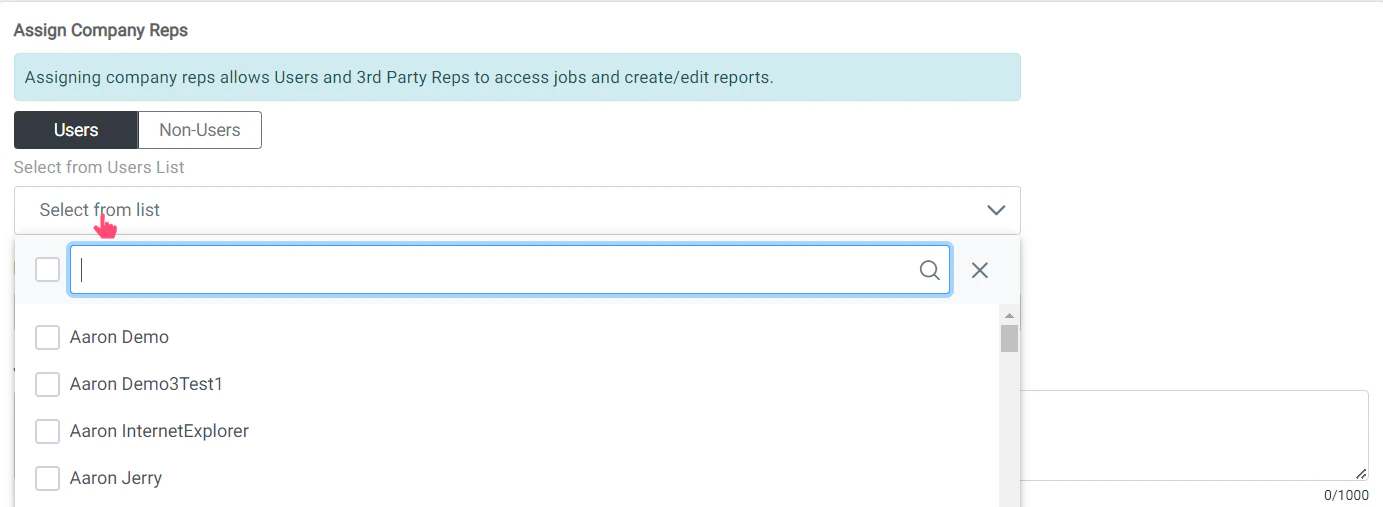 From the **Users** list in *Create Job* or *Edit Job*, select the users that will be entering reports and listed on the report as *Supervisors*.
This will determine which users have access to create and edit reports for the job.
## Assign Non-Users / Contacts
### Select from Contacts
From the **Users** list in *Create Job* or *Edit Job*, select the users that will be entering reports and listed on the report as *Supervisors*.
This will determine which users have access to create and edit reports for the job.
## Assign Non-Users / Contacts
### Select from Contacts
 assign-company-reps.mdx
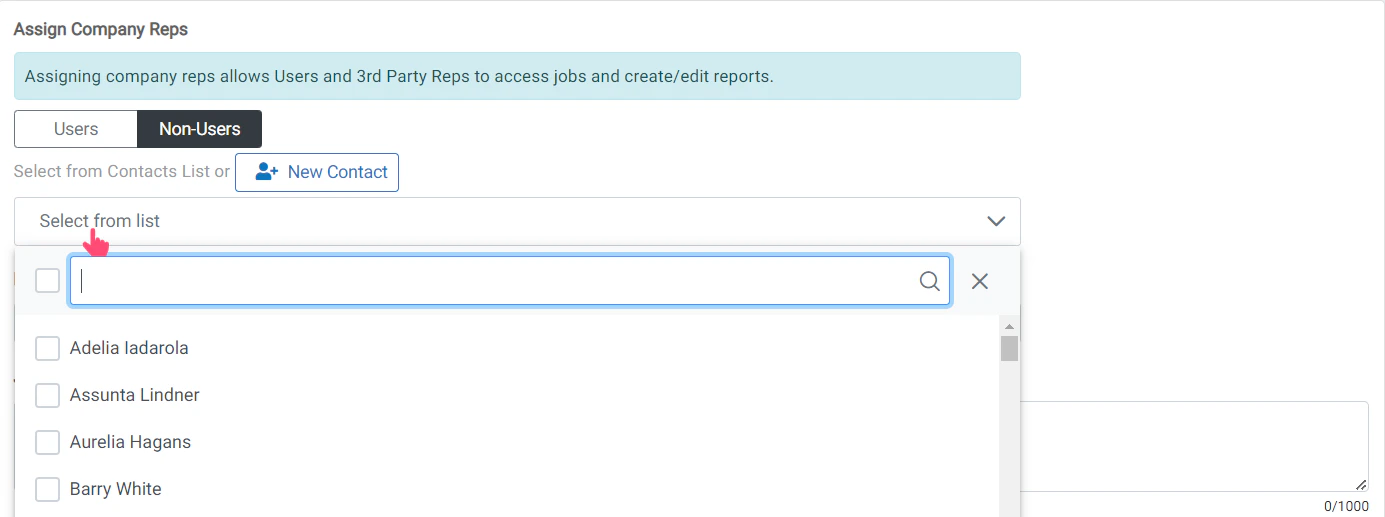
From the **Non-Users** list in *Create Job* or *Edit Job*, you can select Contacts that you would like to display on the report as *Supervisors*.
These names will be listed on the report as Supervisors on location, but do not have access to RigReports and will not be able to edit reports.
**This is commonly used when job supervisors are using a shared account to create reports, but still need their individual names listed on the report as supervisors.**
### Create New Contact
assign-company-reps.mdx
From the **Non-Users** list in *Create Job* or *Edit Job*, you can select Contacts that you would like to display on the report as *Supervisors*.
These names will be listed on the report as Supervisors on location, but do not have access to RigReports and will not be able to edit reports.
**This is commonly used when job supervisors are using a shared account to create reports, but still need their individual names listed on the report as supervisors.**
### Create New Contact
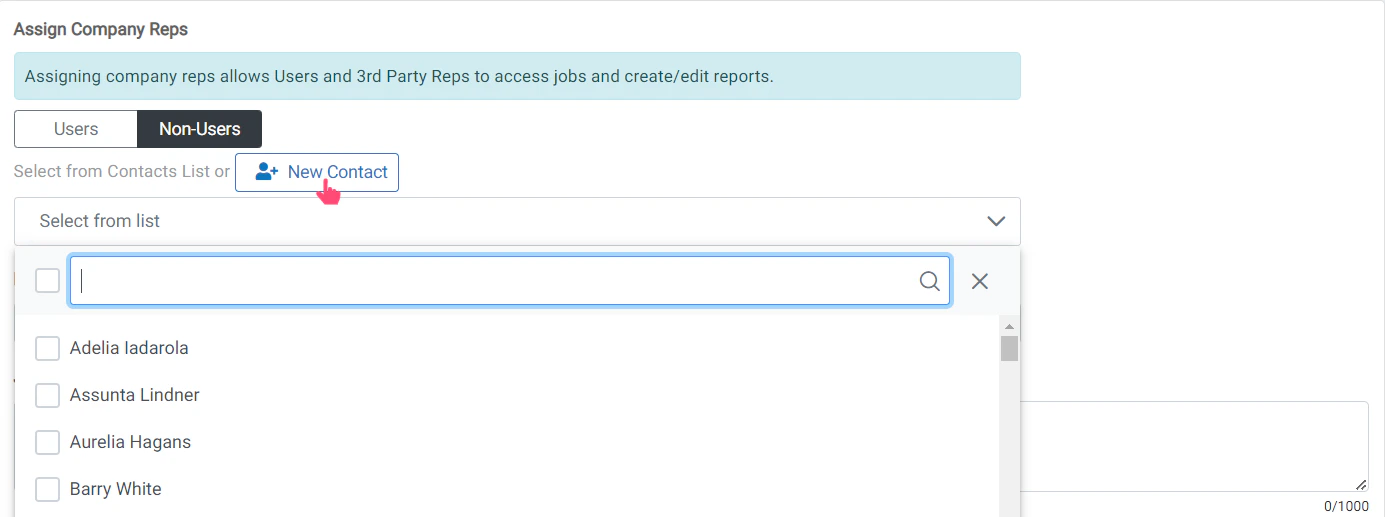 If a contact does not exist and you would like to add them, click the **New Contact** button.
This will open a window where you can create the contact and select them as Non-Users company reps.
### Submit New Contact
If a contact does not exist and you would like to add them, click the **New Contact** button.
This will open a window where you can create the contact and select them as Non-Users company reps.
### Submit New Contact
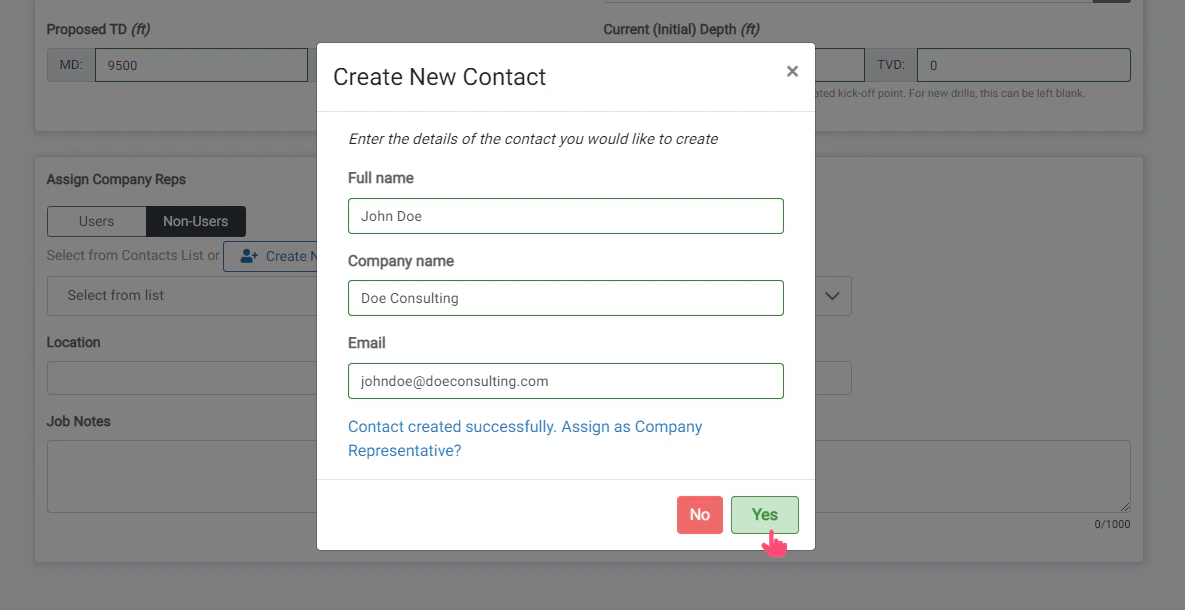 Creating a new contact will NOT give them the ability to login to the RigReports application. If a login is needed, you will need to create a User account.
An email address is required to create a new contact. If you do not have an email address for the contact, you can use **[first.last@rigreports.com](mailto:first.last@rigreports.com)** as a placeholder. For example, for John Doe you would enter [john.doe@rigreports.com](mailto:john.doe@rigreports.com).
View the Select Current Company Reps for a Report guide.
Creating a new contact will NOT give them the ability to login to the RigReports application. If a login is needed, you will need to create a User account.
An email address is required to create a new contact. If you do not have an email address for the contact, you can use **[first.last@rigreports.com](mailto:first.last@rigreports.com)** as a placeholder. For example, for John Doe you would enter [john.doe@rigreports.com](mailto:john.doe@rigreports.com).
View the Select Current Company Reps for a Report guide.