> ## Documentation Index
> Fetch the complete documentation index at: https://docs.rigreports.com/llms.txt
> Use this file to discover all available pages before exploring further.
# Add Contacts to a Distribution List
## Select a Distribution List
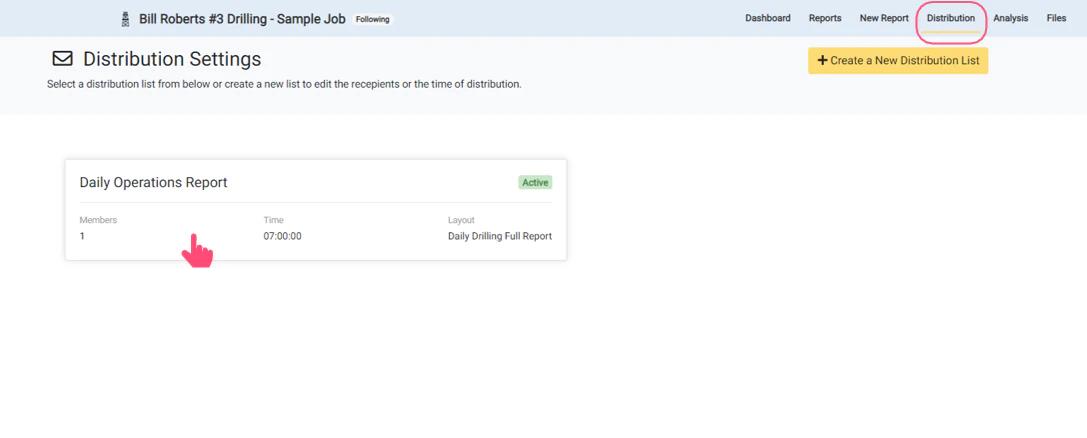
To add or remove contacts for a job distribution list, go to the **Distribution** page within a job. Then select the distribution list that you would like to edit the contacts for by clicking on the distribution list.
If you have not created a distribution list or need to add contacts for a new distribution list, you will need to first create the distribution list.
 ## View Distribution List Members
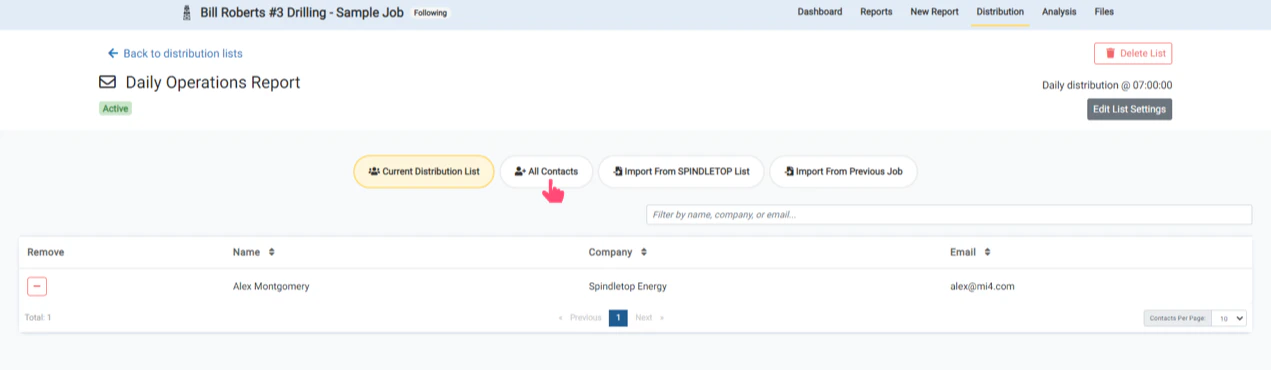
The contacts that are on the distribution list are shown in the **Current Distribution List** tab. The company name and email address for each contact are also displayed.
There are 3 options for adding contacts to a distribution list:
1. Add contacts individually (*All Contacts*)
2. Import contacts from a reusable custom list (*Import From Company List*)
3. Import contacts from a previous distribution list (*Import From Previous Job*)
## View Distribution List Members
The contacts that are on the distribution list are shown in the **Current Distribution List** tab. The company name and email address for each contact are also displayed.
There are 3 options for adding contacts to a distribution list:
1. Add contacts individually (*All Contacts*)
2. Import contacts from a reusable custom list (*Import From Company List*)
3. Import contacts from a previous distribution list (*Import From Previous Job*)
 ## Add Contacts Individually
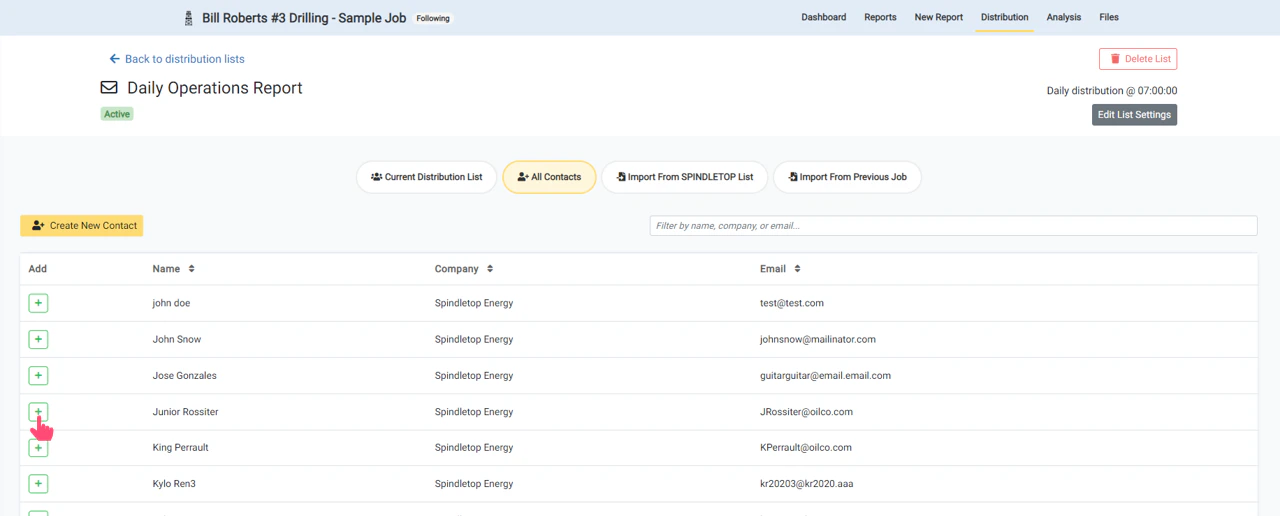
The **All Contacts** tab displays a list of all users in your company, all contacts in your system, and all contacts that have been created for previous jobs. Contacts can be searched and filtered by name, company, or email address.
To add a contact to the current list, click the **+** button next to the name of the contact you would like to add. The row will turn green when the contact has been added to the list.
## Add Contacts Individually
The **All Contacts** tab displays a list of all users in your company, all contacts in your system, and all contacts that have been created for previous jobs. Contacts can be searched and filtered by name, company, or email address.
To add a contact to the current list, click the **+** button next to the name of the contact you would like to add. The row will turn green when the contact has been added to the list.
 ## Create New Contact
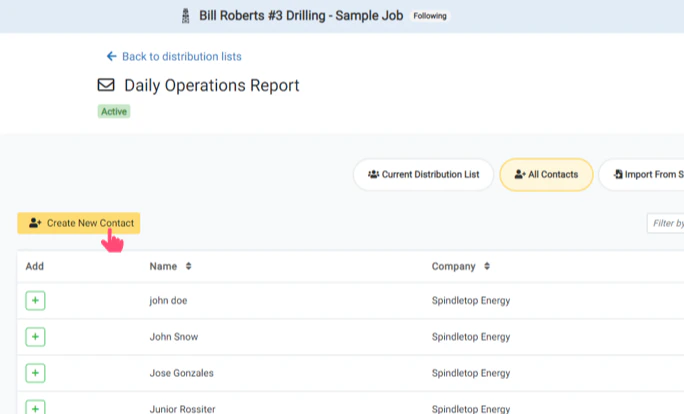
If the contact you would like to add does not exist, you can create and add a new contact from this page. Click the **Create New Contact** button to open the new contact form.
## Create New Contact
If the contact you would like to add does not exist, you can create and add a new contact from this page. Click the **Create New Contact** button to open the new contact form.
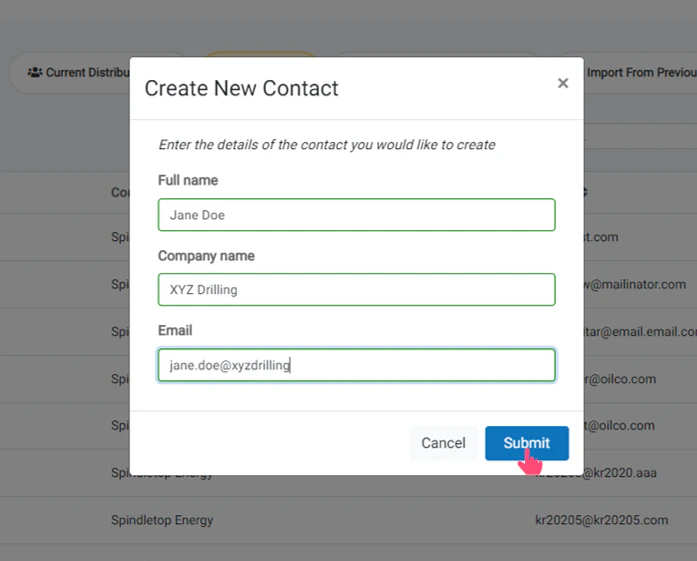
 Enter the name, company, and email address of the contact you would like to create. Then, click the **Submit** button to create the new contact.
If a contact with the same email address already exists, you will not be able to create the new contact. Users with Admin level privileges can update existing contacts in the **Administration** section.
Enter the name, company, and email address of the contact you would like to create. Then, click the **Submit** button to create the new contact.
If a contact with the same email address already exists, you will not be able to create the new contact. Users with Admin level privileges can update existing contacts in the **Administration** section.
 After the contact has been created, you will be asked if you would like to add the new contact to the current distribution. Click **Yes** to automatically add this contact to the list, or **No** if you would like to create the contact without adding them to the current distribution list.
## Add Contacts from Company List
Company Lists are custom lists that can be created to allow groups of contacts to be imported into a distribution list quickly.
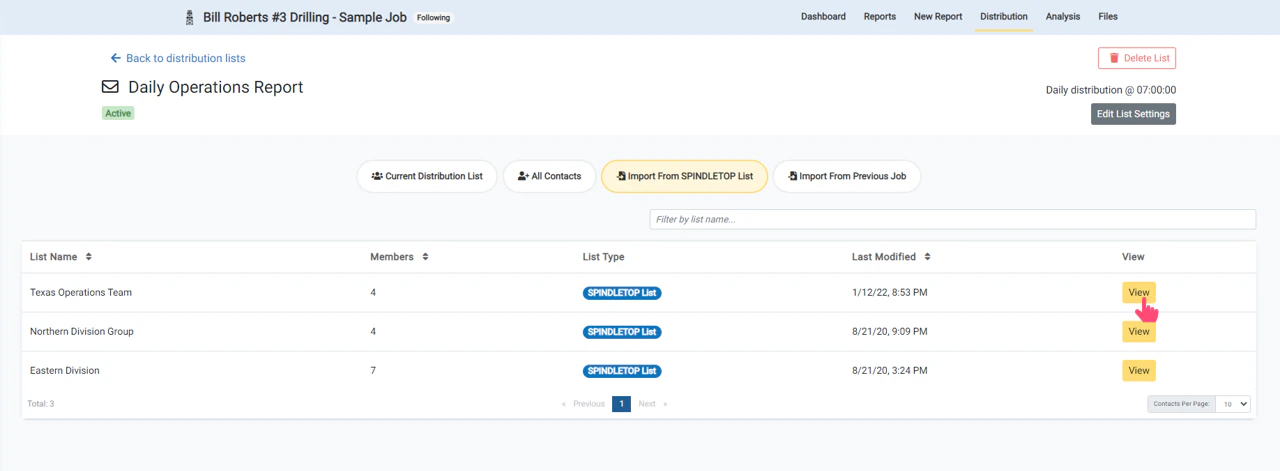
The **Import From Company List** tab will display all of the company lists that are available for your organization. Click the **View** button to view and import the list of contacts in a company list.
Company lists can be created and updated in the **Administration** section by users with Admin privileges.
After the contact has been created, you will be asked if you would like to add the new contact to the current distribution. Click **Yes** to automatically add this contact to the list, or **No** if you would like to create the contact without adding them to the current distribution list.
## Add Contacts from Company List
Company Lists are custom lists that can be created to allow groups of contacts to be imported into a distribution list quickly.
The **Import From Company List** tab will display all of the company lists that are available for your organization. Click the **View** button to view and import the list of contacts in a company list.
Company lists can be created and updated in the **Administration** section by users with Admin privileges.
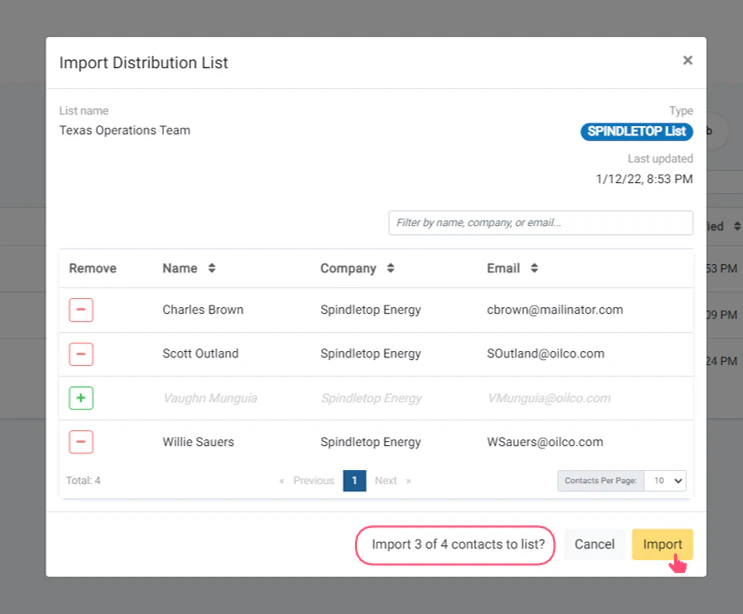
 From the pop-up window you can view and toggle contacts to import into your current distribution list.
Click **Import** to add the selected contacts to your existing list. This will close the window and a success message will confirm the number of contacts that were added to your list.
From the pop-up window you can view and toggle contacts to import into your current distribution list.
Click **Import** to add the selected contacts to your existing list. This will close the window and a success message will confirm the number of contacts that were added to your list.
 ## Add Contacts from Previous List
Contacts can be easily imported from a previous job distribution list.
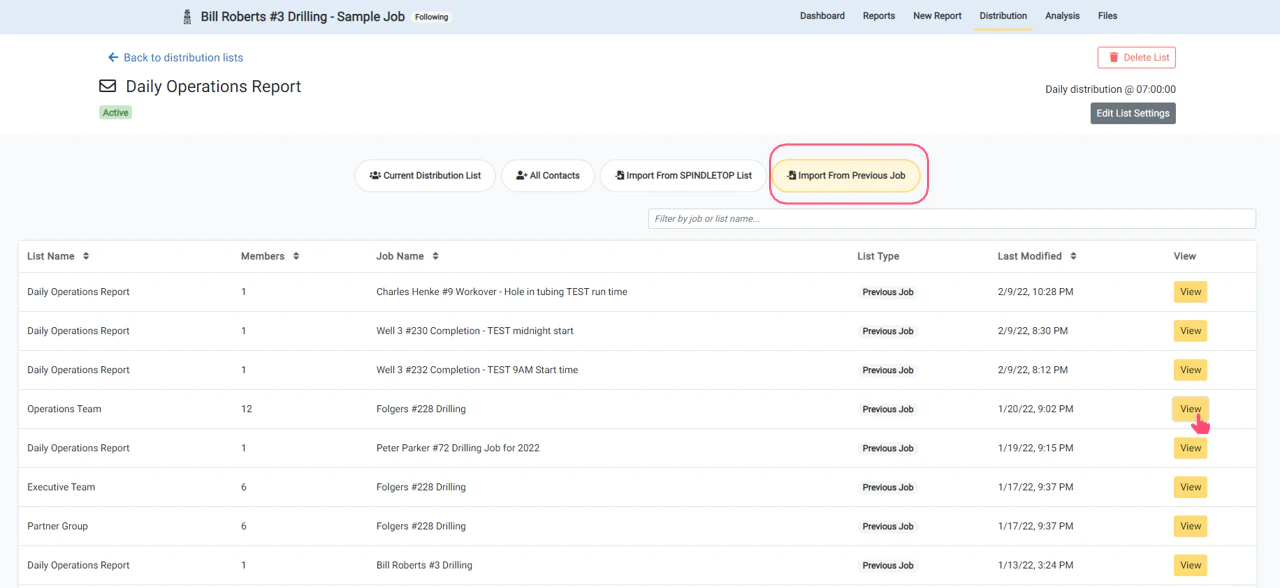
The **Import From Previous Jobs** tab will display a list of all previous distribution lists. Click the **View** button to view and import the list of contacts.
Filter by job or list name to find the job you are looking for.
## Add Contacts from Previous List
Contacts can be easily imported from a previous job distribution list.
The **Import From Previous Jobs** tab will display a list of all previous distribution lists. Click the **View** button to view and import the list of contacts.
Filter by job or list name to find the job you are looking for.
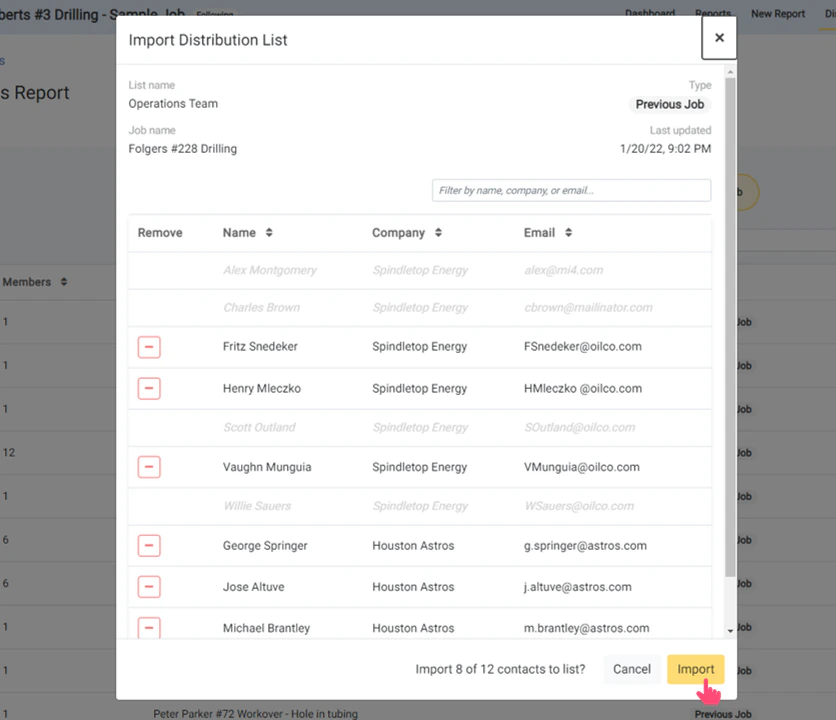
 From the pop-up window you can view and toggle contacts to import into your current distribution list.
Click **Import** to add the selected contacts to your existing list. This will close the window and a success message will confirm the number of contacts that were added to your list.
From the pop-up window you can view and toggle contacts to import into your current distribution list.
Click **Import** to add the selected contacts to your existing list. This will close the window and a success message will confirm the number of contacts that were added to your list.
 ## Current List is Updated with Created and Imported Contacts
The current distribution list is now updated with all created, selected, and imported contacts.
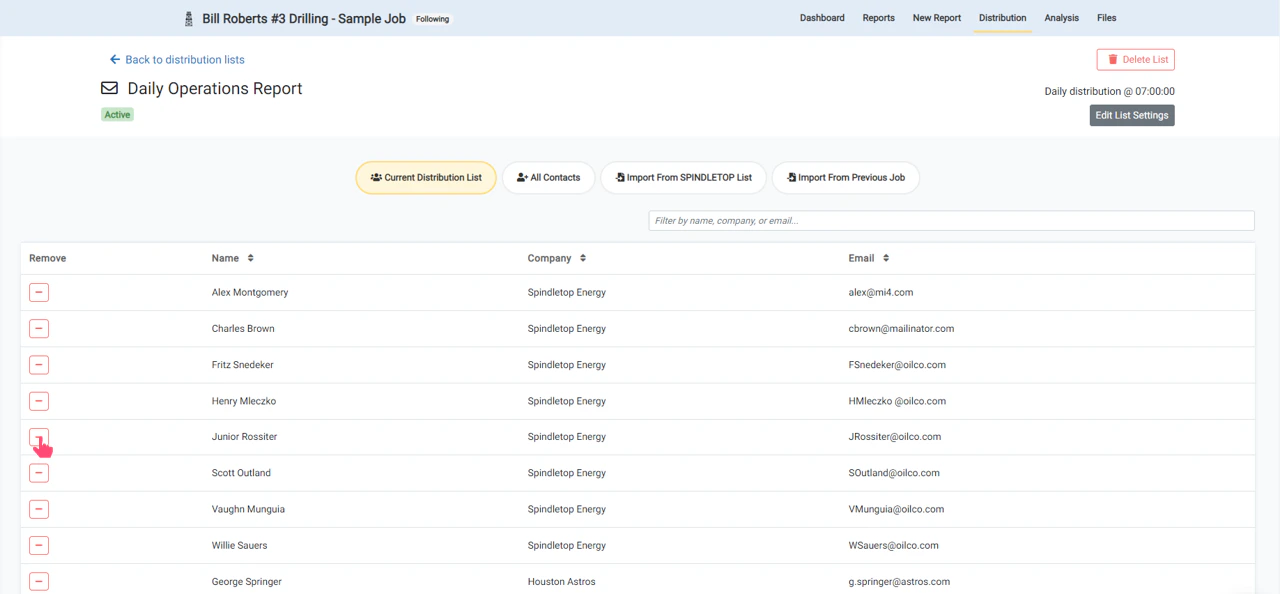
To remove any contacts, click the **- (minus)** button next to the contact name.
Your job distribution can be updated at any time during the job to update the recipients of future reports.
## Current List is Updated with Created and Imported Contacts
The current distribution list is now updated with all created, selected, and imported contacts.
To remove any contacts, click the **- (minus)** button next to the contact name.
Your job distribution can be updated at any time during the job to update the recipients of future reports.