> ## Documentation Index
> Fetch the complete documentation index at: https://docs.rigreports.com/llms.txt
> Use this file to discover all available pages before exploring further.
# How do I show Non-Users as Supervisors on a report?
## Assign contacts as Company Reps
To show Non-User contacts on a report as Supervisors, please first follow the [Assign Company Reps, **For Non-Users** guide](/job-management/assign-company-reps).
After that, you can select them as **Company Reps** in the guide below.
## In Edit Report
After adding Contacts and selecting Company Reps for the job, you can change the Current Company Representatives for a report from the list. This will control what names are displayed as the Supervisor on the report.
To get started, open the Job.
Changing the Current Company Representatives for a report does not limit access to the report. It only controls whose name is displayed as a supervisor.
This can be used when shift change occurs for supervisors, or if a shared login account is needed for access to a report but you do not want to display the name of the account in the Supervisor list.
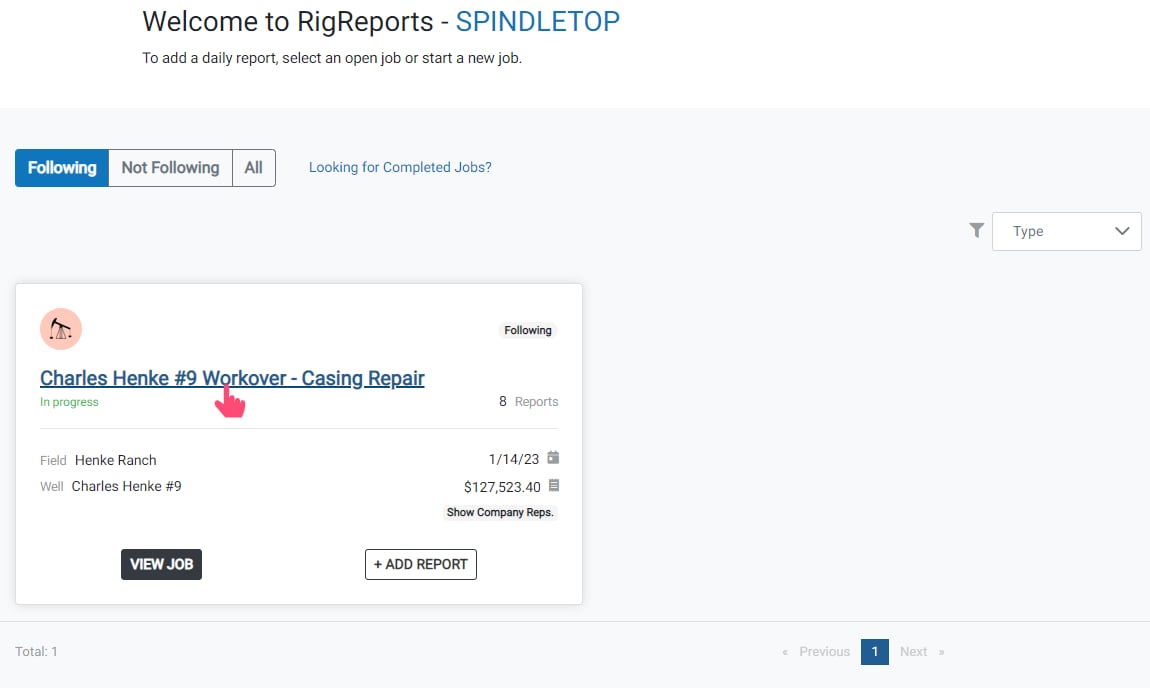 ## Edit Report
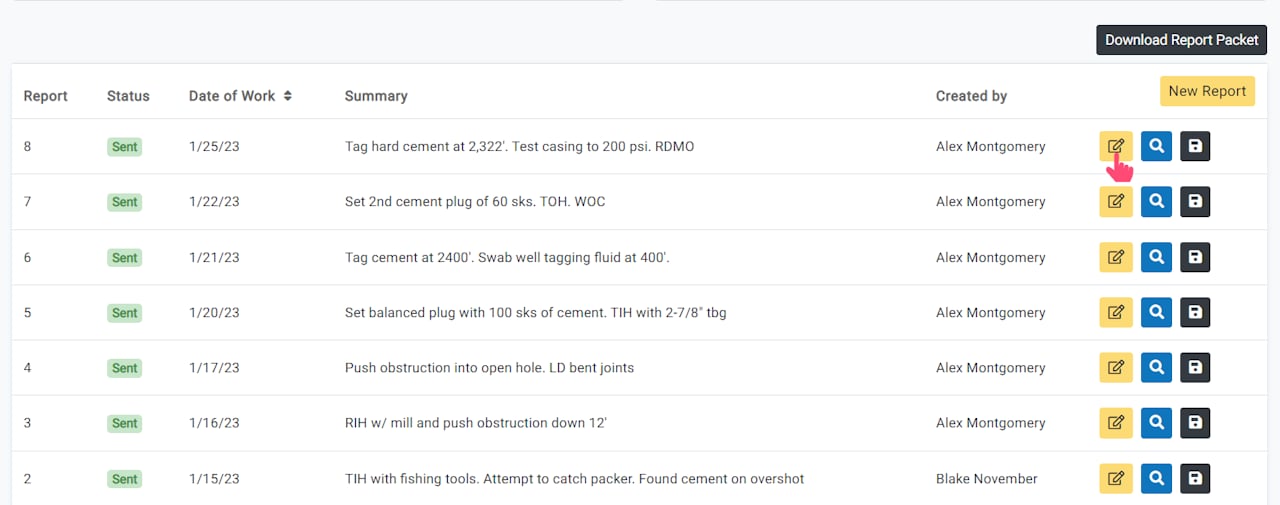
Scroll down and click the **Edit Report** button of the report you would like to edit.
## Edit Report
Scroll down and click the **Edit Report** button of the report you would like to edit.
 ## Report Notes
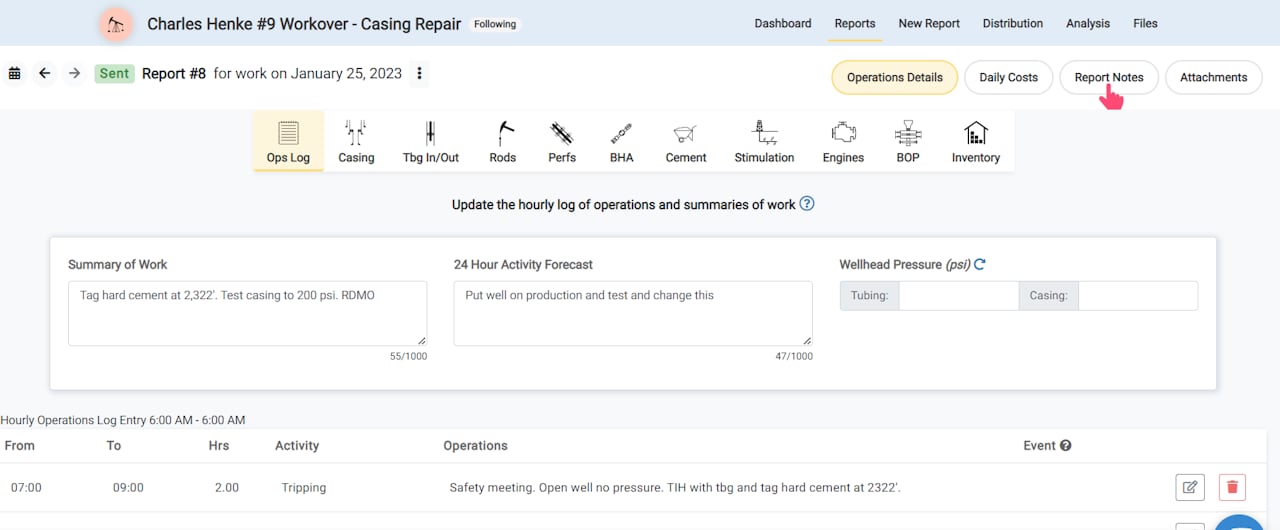
Next, click **Report Notes** on the top right of the screen.
## Report Notes
Next, click **Report Notes** on the top right of the screen.
 ## Current Company Reps
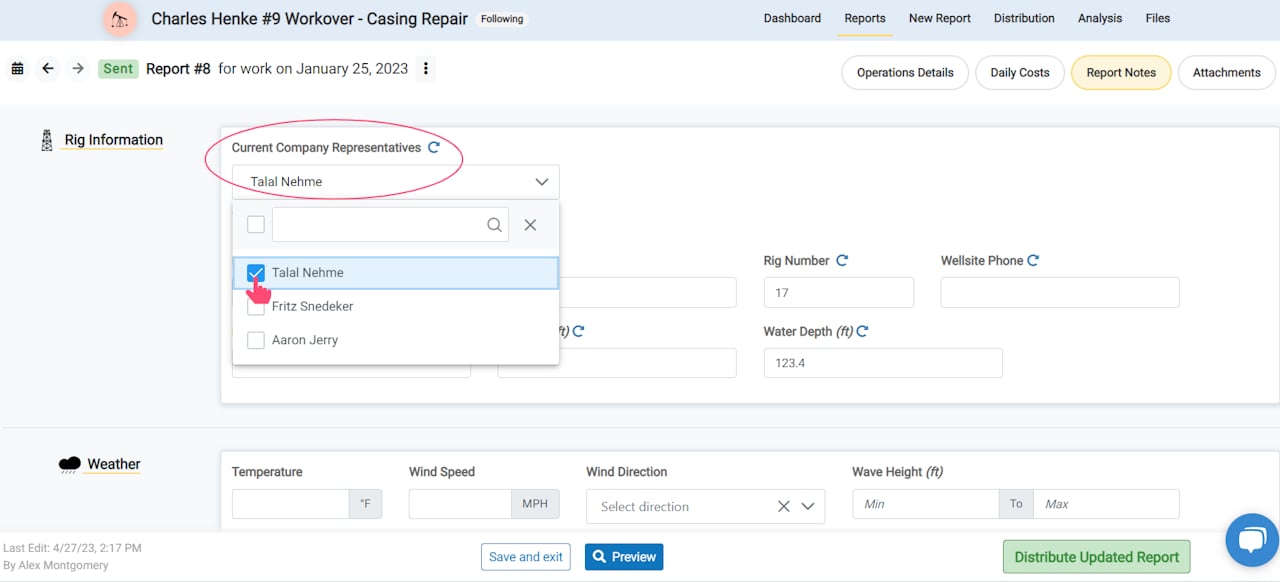
To show users or contacts' names as Supervisors on a report, click **Select from list of Current Company Representatives**.
Their names will be listed on the report as Supervisors. The selected names will carry forward on each future report until the selection is changed.
## Current Company Reps
To show users or contacts' names as Supervisors on a report, click **Select from list of Current Company Representatives**.
Their names will be listed on the report as Supervisors. The selected names will carry forward on each future report until the selection is changed.
 Follow this guide to select which company representatives appear as Supervisors on a report.