> ## Documentation Index
> Fetch the complete documentation index at: https://docs.rigreports.com/llms.txt
> Use this file to discover all available pages before exploring further.
# How do I let a User create or edit a report?
## Assign Users as Company Reps
Administrators have permission to create or edit reports for any jobs. Users and 3rd Party accounts must be assigned as a company representative to have permission to create or edit reports for a job.
The job creator or an Admin will need to assign the user as a Company Rep while creating a job or from the Edit Job page.
## Assign Company Reps
The list of Company Representatives for a job controls two things:
* Assigning **Users** or **3rd Party** accounts as company reps gives them the ability to create or edit reports for the job.
* Assigning **Non-Users** (contacts) as company reps allows their names to be displayed as Job Supervisors on the report.
## In Edit Job
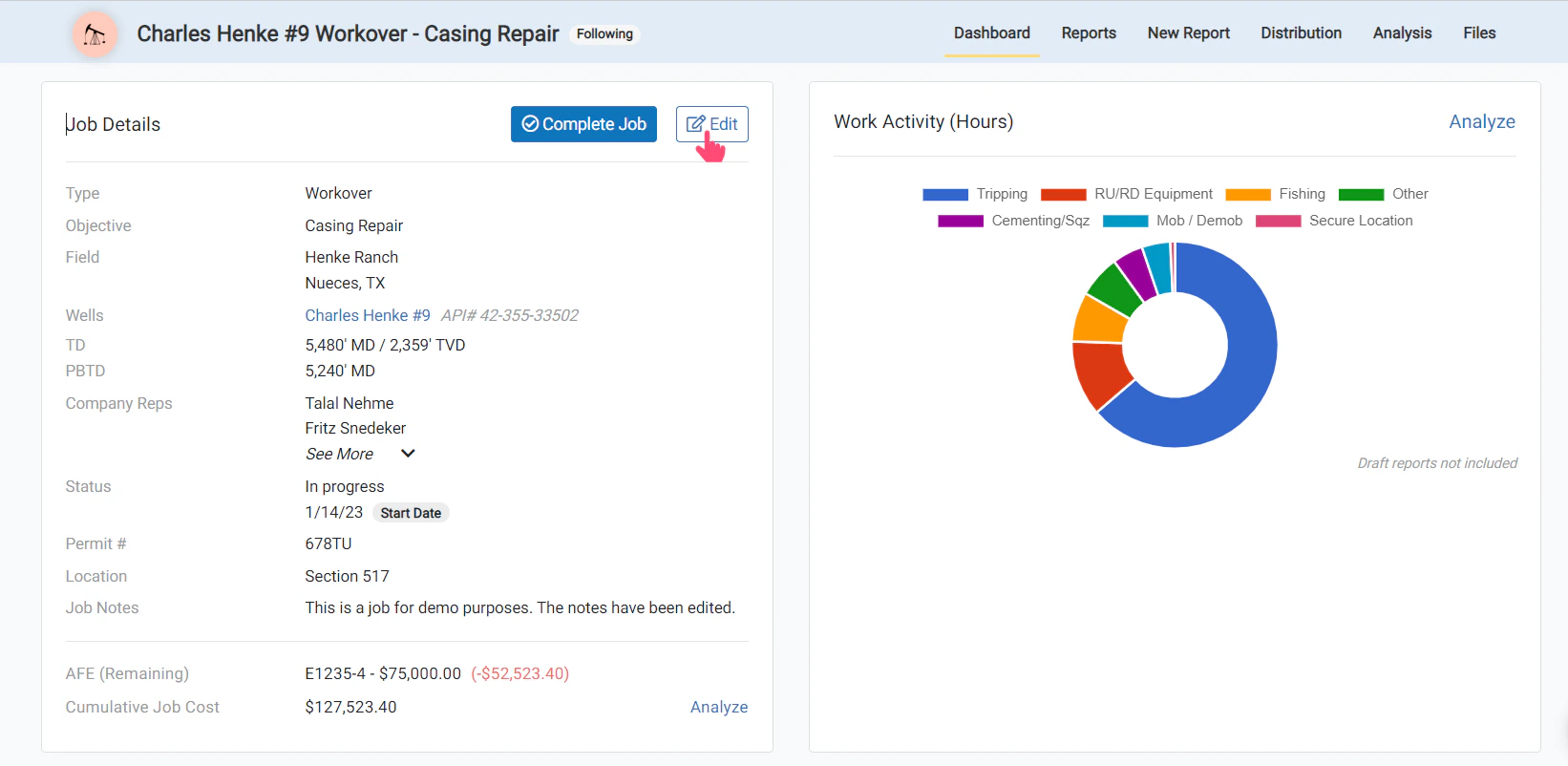
After clicking the **Edit** button in a job, scroll down to **Assign Company Reps** to add your company representatives.
 ## In Create Job
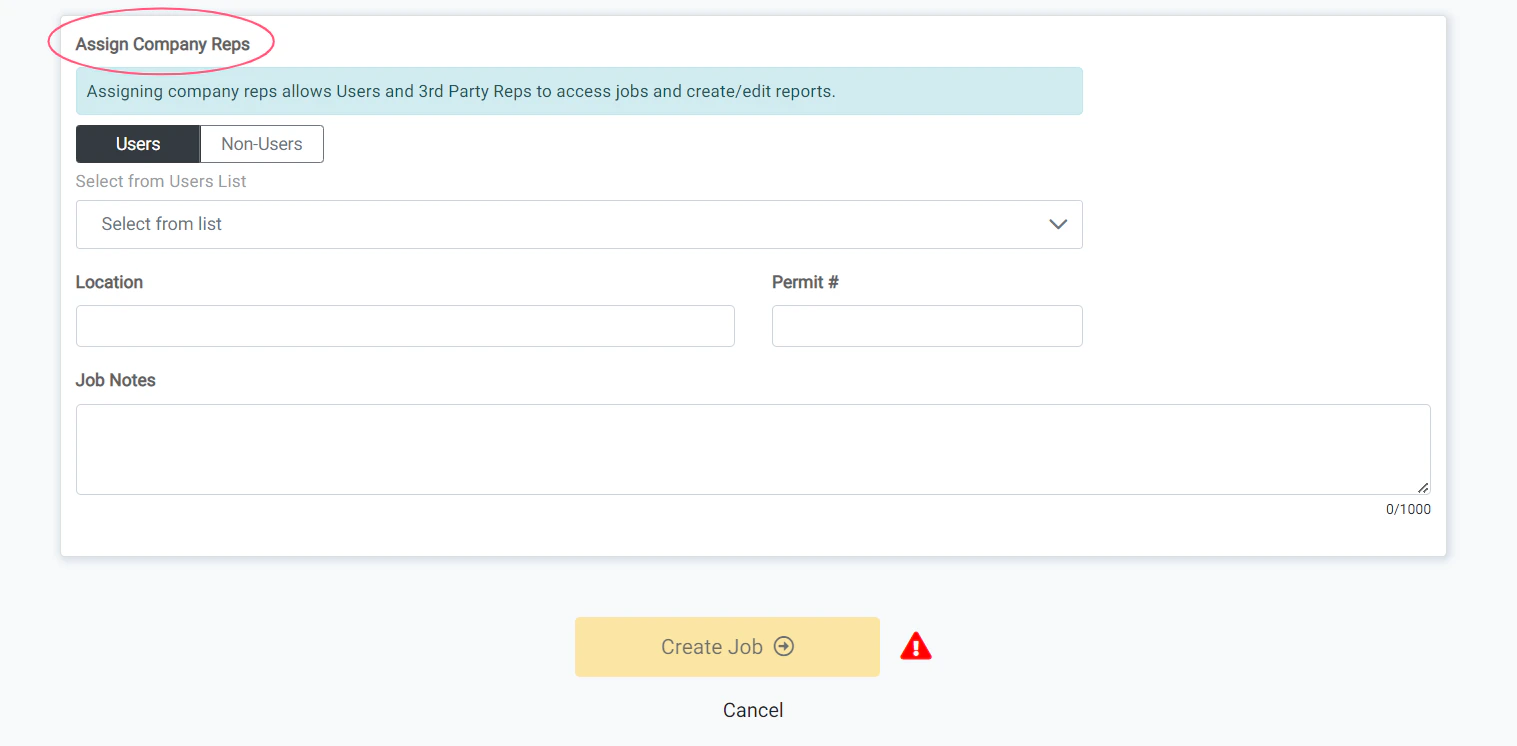
While creating a new job, at the bottom of the form, you will see the **Assign Company Reps** section.
## In Create Job
While creating a new job, at the bottom of the form, you will see the **Assign Company Reps** section.
 Follow this guide for full step-by-step instructions on assigning company representatives to a job.