> ## Documentation Index
> Fetch the complete documentation index at: https://docs.rigreports.com/llms.txt
> Use this file to discover all available pages before exploring further.
# Change the Date of a Report
## Select Edit Report
In this guide, we will be changing the *Date of Work* for Report #3 from 05/21/2021 to 05/20/2021.
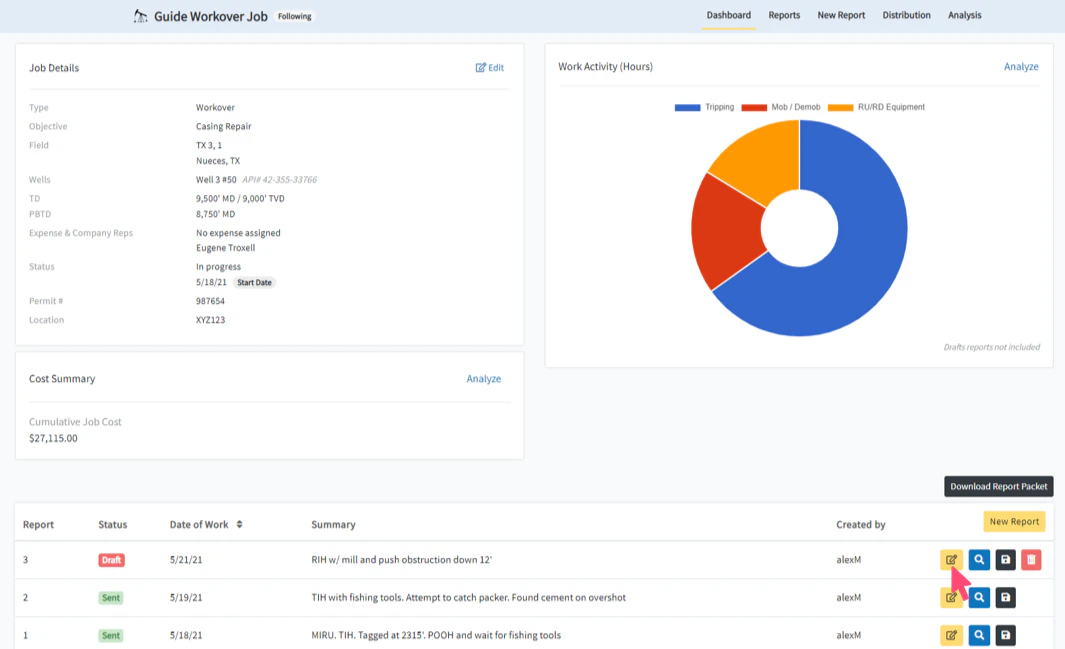
To get started, click on the **Edit Report** button from the *Dashboard* (or *Reports* page) for the report that you would like to change the date.
The *Date of Work* for a report can be changed at any point **prior** to submitting the report.
 ## Select Edit Date of Work
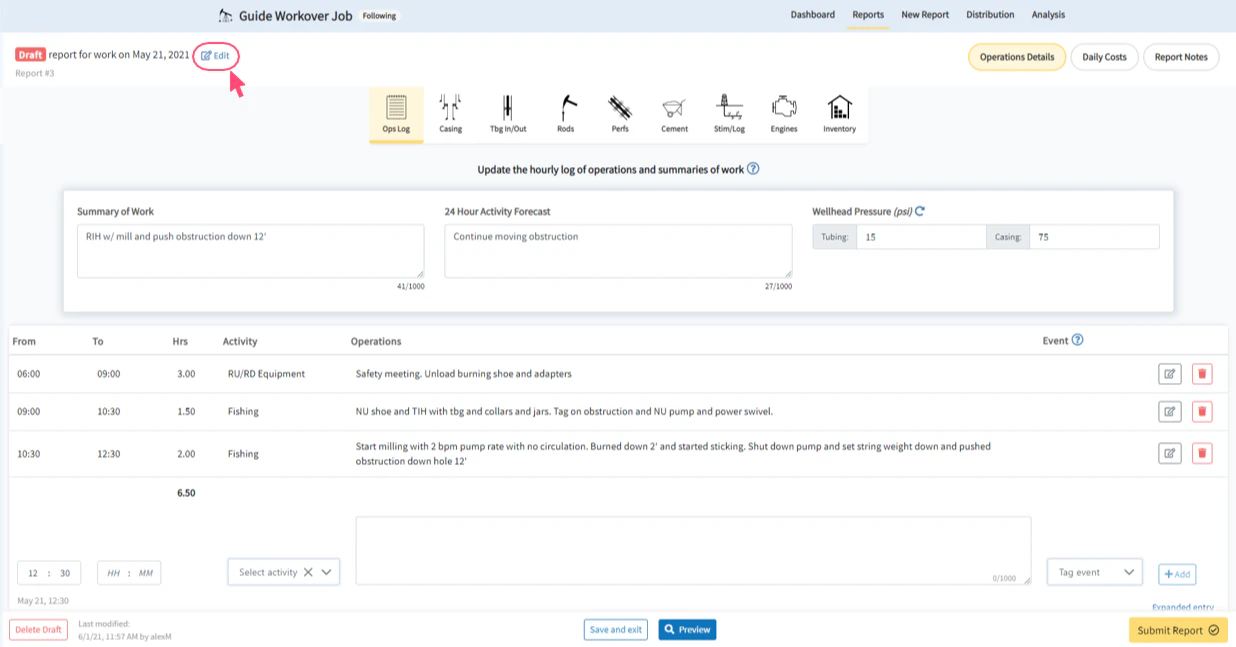
Click the **Edit** link next to the *Date of Work* (located at the top left of the report editing controls) to open a window with the available dates.
The *Date of Work* of the report can only be edited for reports that are in a **Draft** status.
* If a report has been submitted or sent, this link will not be available on the screen.
* If a report has been submitted, but not yet sent (i.e. prior to the scheduled distribution time), the report can be unsubmitted to revert it back to a draft status. This will allow the date of work to be changed.
## Select Edit Date of Work
Click the **Edit** link next to the *Date of Work* (located at the top left of the report editing controls) to open a window with the available dates.
The *Date of Work* of the report can only be edited for reports that are in a **Draft** status.
* If a report has been submitted or sent, this link will not be available on the screen.
* If a report has been submitted, but not yet sent (i.e. prior to the scheduled distribution time), the report can be unsubmitted to revert it back to a draft status. This will allow the date of work to be changed.
 ## Choose the New Date of Work
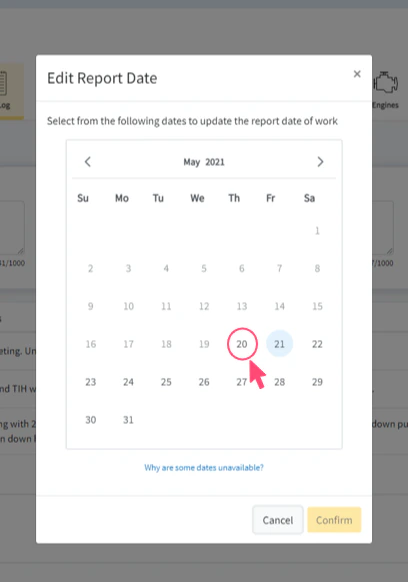
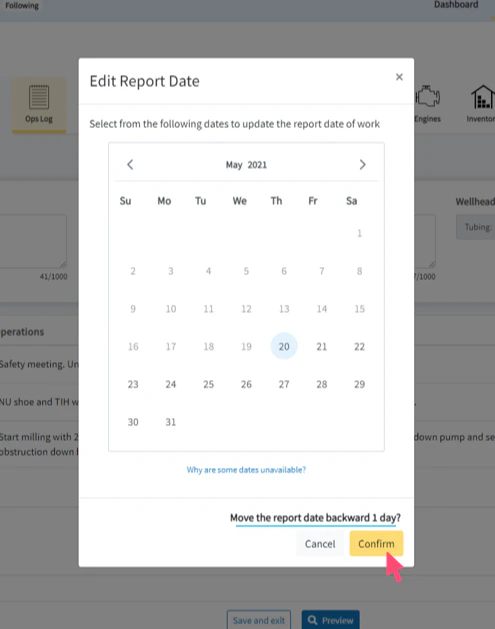
The calendar displays the dates that are available for moving the report. All unavailable dates are greyed out and unclickable.
From the calendar, select the new desired *Date of Work* for the report.
A report date cannot be moved prior to an existing previous report or beyond an existing future report.
In our example, report #2 already exists for 5/19/2021, so the new report date must be 5/20/2021 or later.
## Choose the New Date of Work
The calendar displays the dates that are available for moving the report. All unavailable dates are greyed out and unclickable.
From the calendar, select the new desired *Date of Work* for the report.
A report date cannot be moved prior to an existing previous report or beyond an existing future report.
In our example, report #2 already exists for 5/19/2021, so the new report date must be 5/20/2021 or later.
 ## Select Confirm to Change the Date
Once the new desired *Date of Work* has been selected, click the **Confirm** button to submit the report date change.
Upon succeeding, the browser will refresh the *Edit Report* page to retrieve your report with the new date settings.
After selecting the new date, a message will appear above the **Confirm** button denoting the number of days backwards or forwards your intended change will adjust the report. Use this as confirmation that you have selected the correct new date.
## Select Confirm to Change the Date
Once the new desired *Date of Work* has been selected, click the **Confirm** button to submit the report date change.
Upon succeeding, the browser will refresh the *Edit Report* page to retrieve your report with the new date settings.
After selecting the new date, a message will appear above the **Confirm** button denoting the number of days backwards or forwards your intended change will adjust the report. Use this as confirmation that you have selected the correct new date.
 ## The Date of Work has been Changed
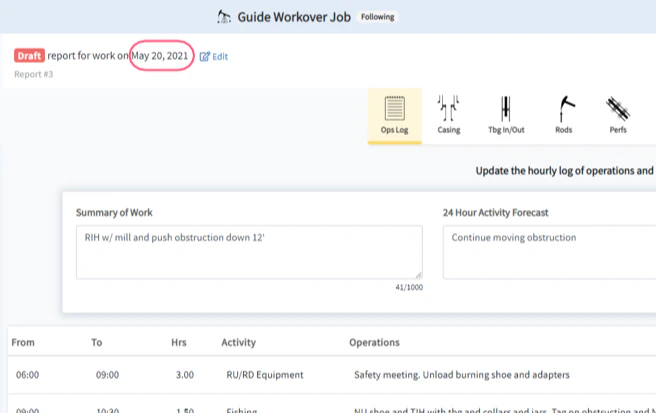
Once the *Edit Report* page has refreshed with your updated settings, confirm that the *Date of Work* in the top left of the report editing controls matches your newly selected date.
You have successfully changed the *Date of Work* for a report.
## The Date of Work has been Changed
Once the *Edit Report* page has refreshed with your updated settings, confirm that the *Date of Work* in the top left of the report editing controls matches your newly selected date.
You have successfully changed the *Date of Work* for a report.