> ## Documentation Index
> Fetch the complete documentation index at: https://docs.rigreports.com/llms.txt
> Use this file to discover all available pages before exploring further.
# Add Wells and Fields
## Add Wells and Fields
Learn how to create a new well or field from the Wells Management page with this guide.
Access to the Wells Management page is only available to users with the role of **Administrator**.
## Add Well
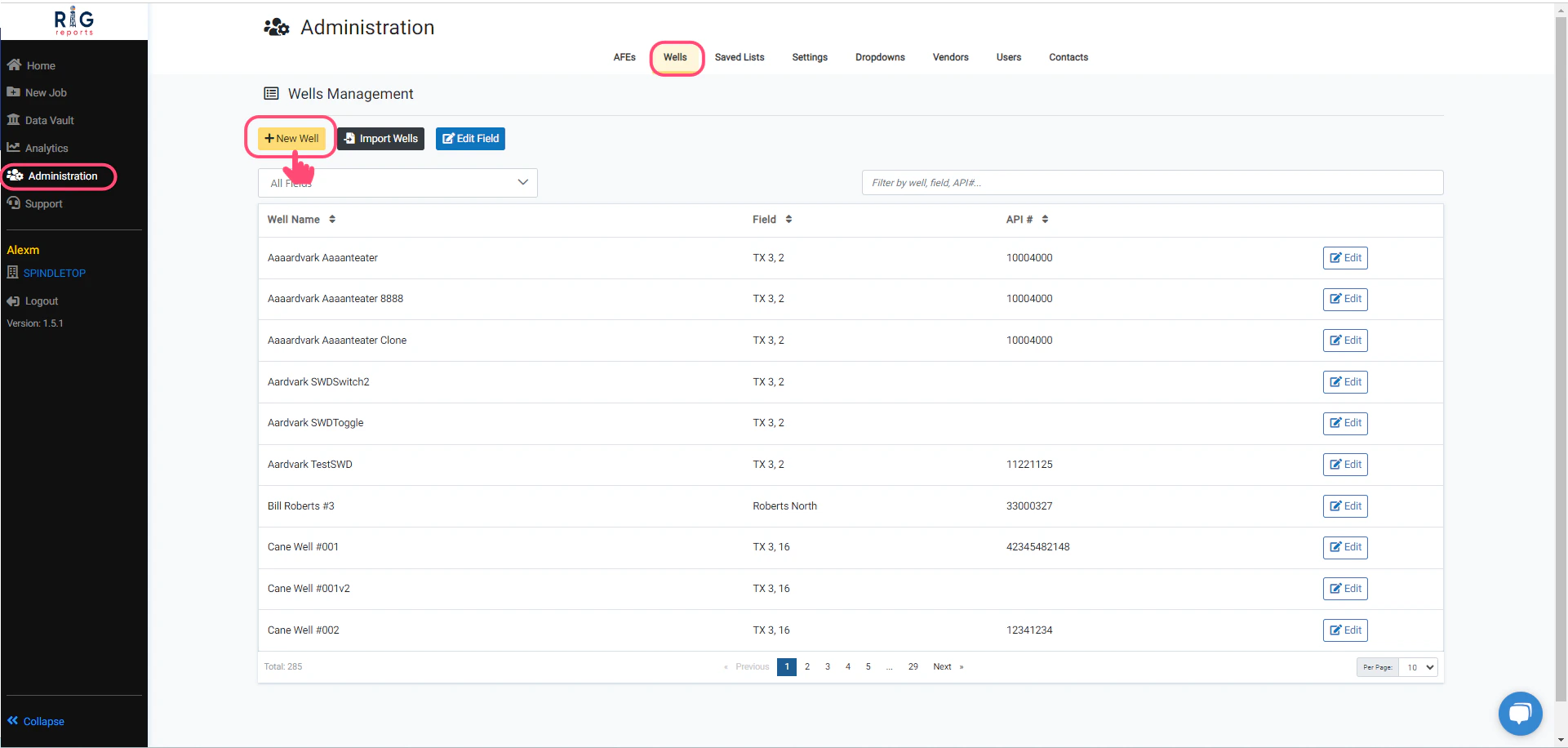
Begin by navigating to Wells Management from **Administration → Wells**.
To add a new well, select the **+ New Well** button.
You can view all your wells here and filter by well, field, or API #.
 ## Choose a Field
A window will open for completing the New Well form.
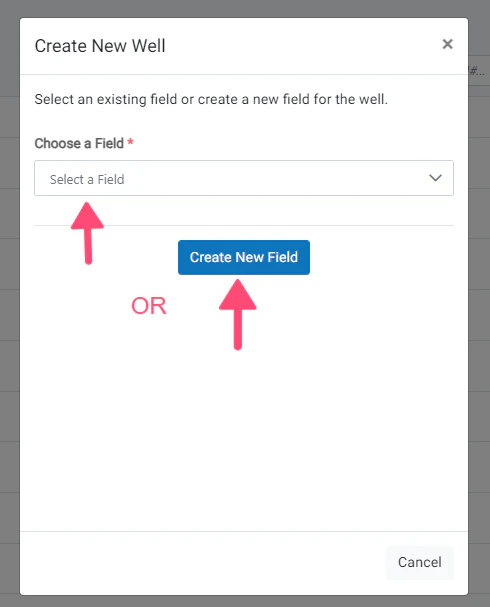
First you must choose a field for your new well. You can do this 2 different ways:
1. Select an existing field from the drop down
2. Create a new field by clicking the **Create New Field** button
## Choose a Field
A window will open for completing the New Well form.
First you must choose a field for your new well. You can do this 2 different ways:
1. Select an existing field from the drop down
2. Create a new field by clicking the **Create New Field** button
 ## Add Field
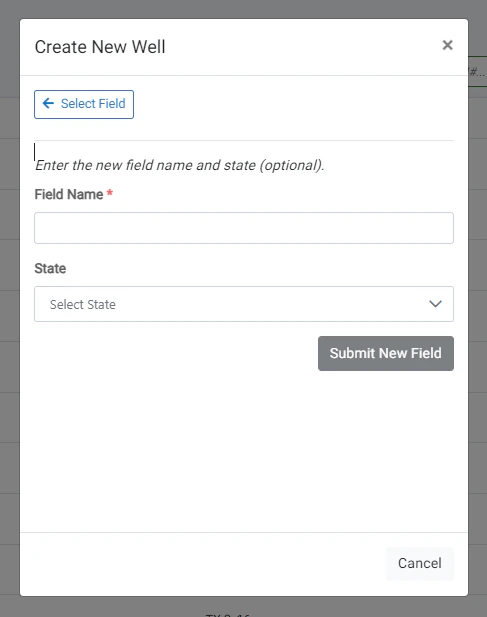
To add a new field, enter the new field name and state (optional).
Click **Submit New Field** to create the field.
After the field is successfully created, the new field will be automatically selected to create a new well in.
## Add Field
To add a new field, enter the new field name and state (optional).
Click **Submit New Field** to create the field.
After the field is successfully created, the new field will be automatically selected to create a new well in.
 ## Complete New Well form
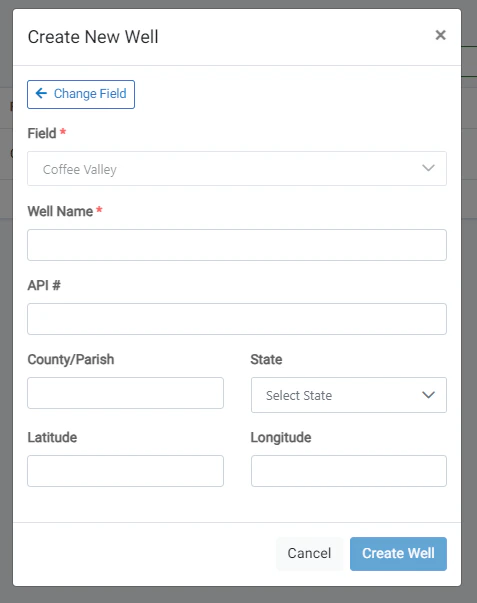
After a field is selected from the dropdown menu, create a new well by completing the form.
* The **Well Name** is required and must not match an existing well
* The **API Number** is optional
* The **County** and **State** are optional
* The **Latitude** and **Longitude** are optional.
* The latitude value must be between -90 to 90 degrees.
* The longitude value must be between -180 to 180 degrees.
Click the **Create Well** button once finished.
If you aren't sure about the optional parameters or don't have that information yet, don't worry — complete the information that you have and create the well. You can always come back and update the well using the **Edit Well** functionality.
## Complete New Well form
After a field is selected from the dropdown menu, create a new well by completing the form.
* The **Well Name** is required and must not match an existing well
* The **API Number** is optional
* The **County** and **State** are optional
* The **Latitude** and **Longitude** are optional.
* The latitude value must be between -90 to 90 degrees.
* The longitude value must be between -180 to 180 degrees.
Click the **Create Well** button once finished.
If you aren't sure about the optional parameters or don't have that information yet, don't worry — complete the information that you have and create the well. You can always come back and update the well using the **Edit Well** functionality.
 ## New Well created
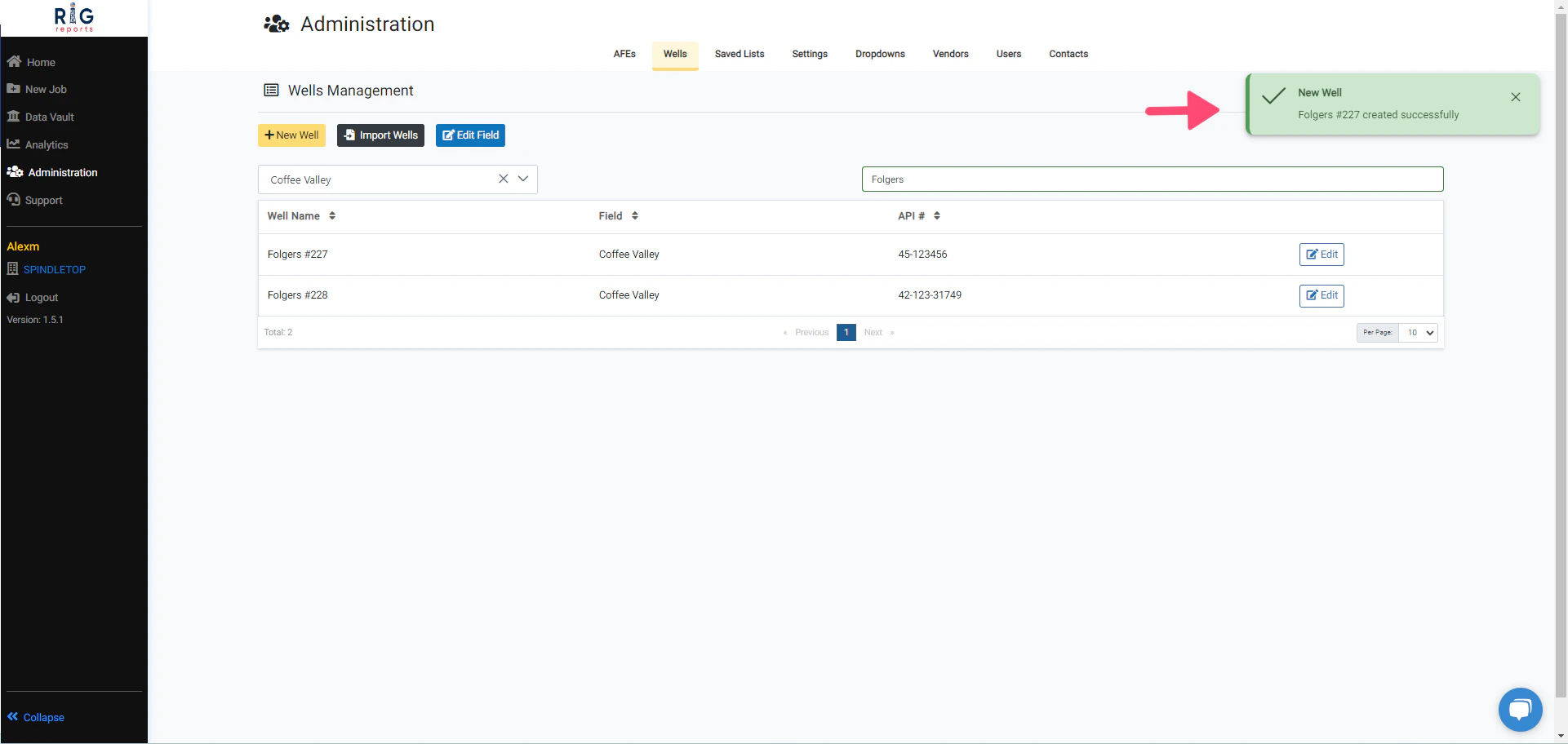
A message will pop up after the new well is created successfully.
## New Well created
A message will pop up after the new well is created successfully.