> ## Documentation Index
> Fetch the complete documentation index at: https://docs.rigreports.com/llms.txt
> Use this file to discover all available pages before exploring further.
# Create AFE Approval Request
## AFE Approval Requests
AFEs can be reviewed and approved in RigReports. Using this functionality, your team can track who has approved AFEs with our easy-to-use workflow.
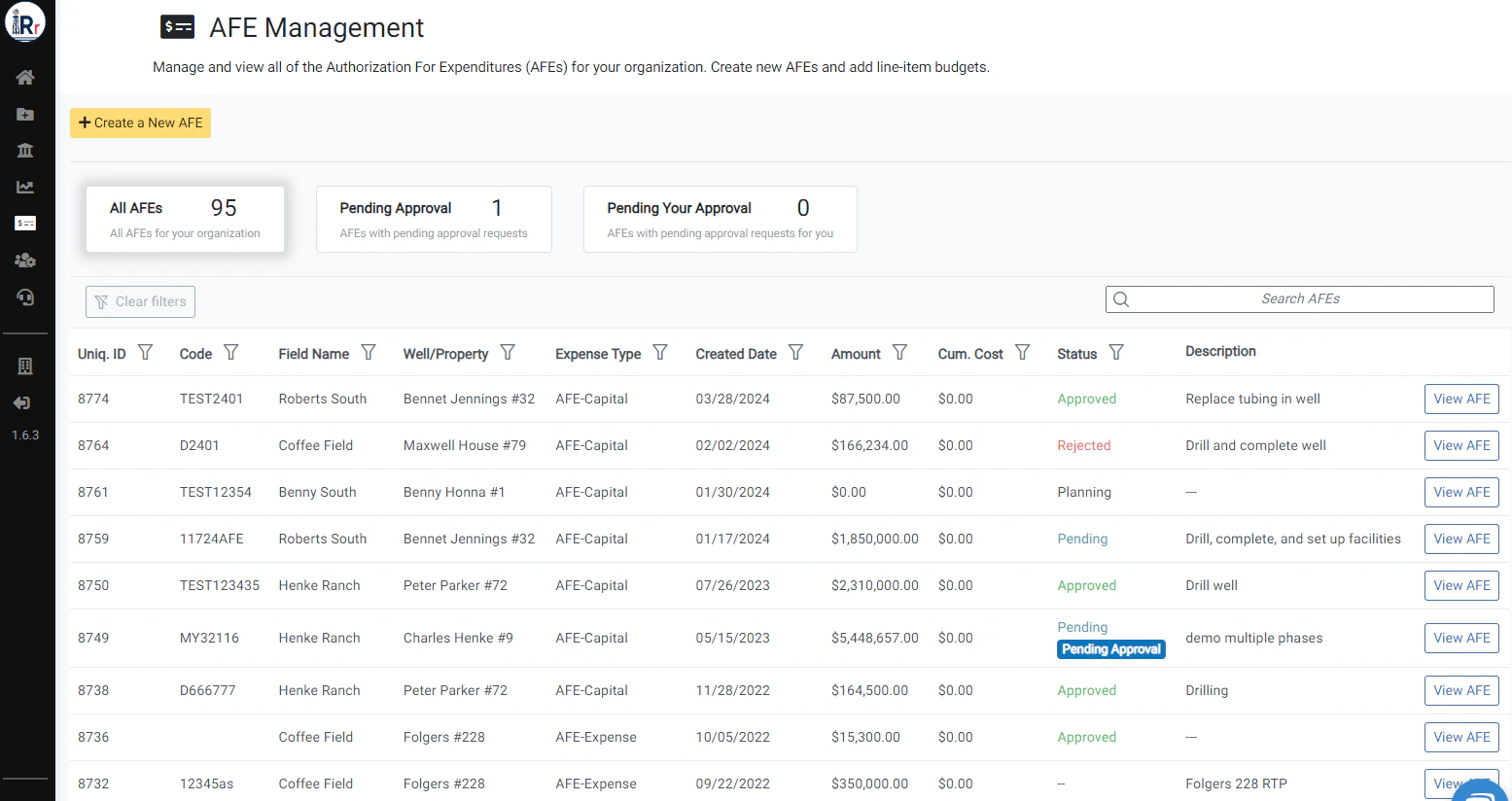
To create an AFE approval request, select the AFE you would like to begin the approval request workflow for from the AFE Management page.
 ## Create New Approval Request
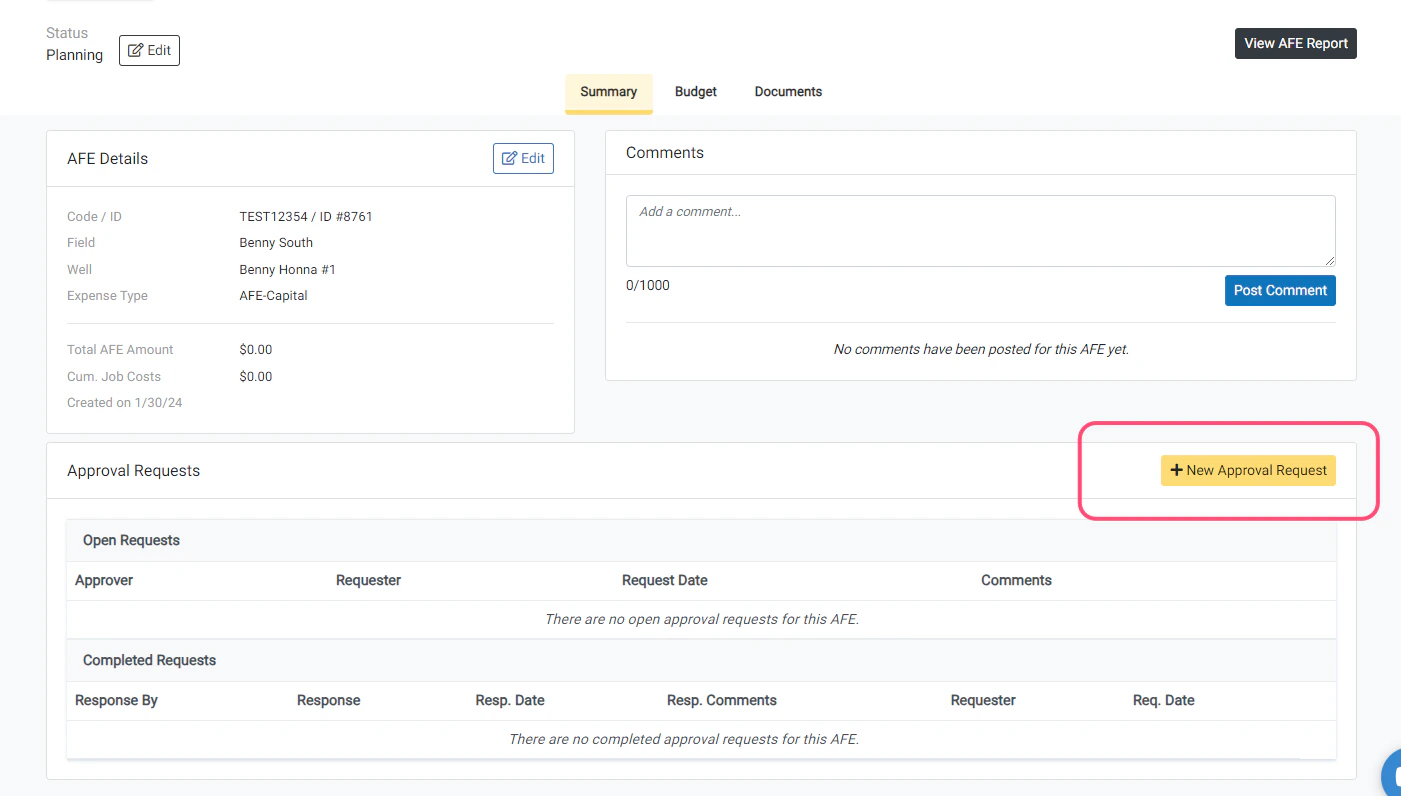
From the *Summary* page of the AFE, scroll down and click the **New Approval Request** button to start a new AFE approval request workflow.
You can have multiple open approval requests for an AFE at any time if your company requires multiple approvers.
## Create New Approval Request
From the *Summary* page of the AFE, scroll down and click the **New Approval Request** button to start a new AFE approval request workflow.
You can have multiple open approval requests for an AFE at any time if your company requires multiple approvers.
 ## Complete the New Approval Request Form
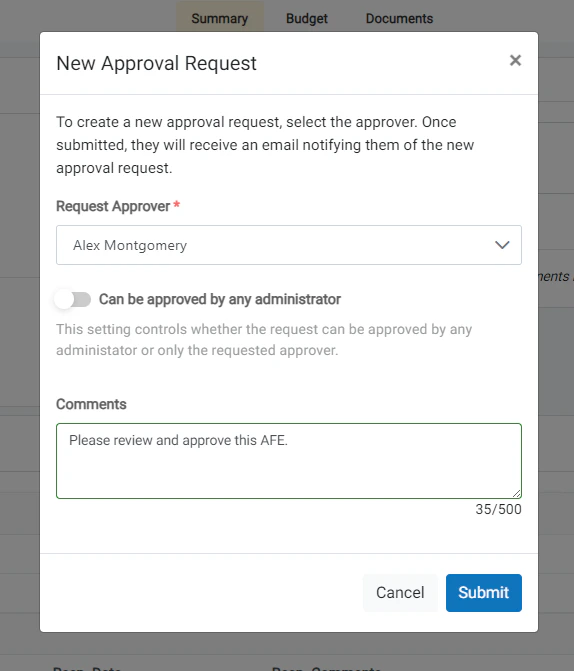
Using the pop-up window, complete the New Approval Request form.
* Select the company member from whom you are requesting approval (only administrators for your organization will be available in the dropdown).
* Determine if you would like to turn on the **Can be approved by any administrator** setting.
* Add any comments that you feel are necessary (these will be included in the notification email).
If you toggle on the **Can be approved by any administrator** setting, all administrators will have the ability to respond to the Approval Request. If not, only the requested approver will have the ability to approve the request.
## Complete the New Approval Request Form
Using the pop-up window, complete the New Approval Request form.
* Select the company member from whom you are requesting approval (only administrators for your organization will be available in the dropdown).
* Determine if you would like to turn on the **Can be approved by any administrator** setting.
* Add any comments that you feel are necessary (these will be included in the notification email).
If you toggle on the **Can be approved by any administrator** setting, all administrators will have the ability to respond to the Approval Request. If not, only the requested approver will have the ability to approve the request.
 ## Submit the New Approval Request
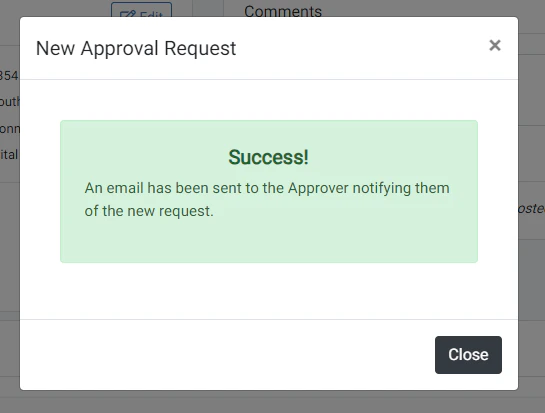
When the form is complete, click **Submit** to submit the new approval request. On success, you will receive a message informing you that the notification of the approval request has been emailed to the approver with a link to the AFE to review and approve.
## Submit the New Approval Request
When the form is complete, click **Submit** to submit the new approval request. On success, you will receive a message informing you that the notification of the approval request has been emailed to the approver with a link to the AFE to review and approve.
 ## The Approver can now respond
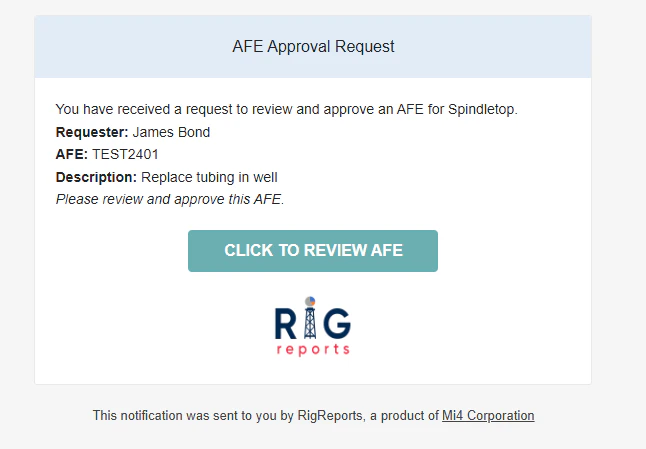
The approver will receive an email that shows them the details of your request with a link to review and approve the AFE in RigReports.
## The Approver can now respond
The approver will receive an email that shows them the details of your request with a link to review and approve the AFE in RigReports.